How to copy formula without changing its cell references in Excel?
Normally Excel adjusts the cell references if you copy your formulas to another location in your worksheet. You would have to fix all cell references with a dollar sign ($) or press F4 key to toggle the relative to absolute references to prevent adjusting the cell references in formula automatically. If you have a range of formulas need to be copied, these methods will be very tedious and time-consuming. If you want to copy the formulas without changing cell references quickly and easily, try the following methods:
- Method 1: by Replace feature
- Method 2: by converting formula to text
- Method 3: by converting to absolute references
- Method 4: by Exact Copy feature
Copy formula without changing its cell references by Replace feature
In Excel, you can copy formula without changing its cell references with Replace function as following steps:
1. Select the formula cells you will copy, and click Home > Find & Select > Replace, or press shortcuts CTRL+H to open the Find & Select dialog box.
2. Click Replace button, in the Find what box input “=”, and in the Replace with box input “#” or any other signs that different with your formulas, and click the Replace All button.
Basically, this will stop the references from being references. For example, “=A1*B1” becomes “#A1*B1”, and you can move it around without excel automatically changing its cell references in current worksheet.

3. And now all “=” in selected formulas are replaced with “#”. And a dialog box comes out and shows how many replacements have been made. Please close it. See above screenshot:
And the formulas in the range will be changed to text strings. See screenshots:
4. Copy and paste the formulas to the location that you want of the current worksheet.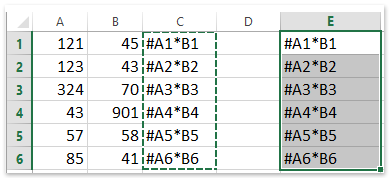
5. Select the both changed ranges, and then reverse the step 2. Click Home> Find & Select >Replace… or press shortcuts CTRL+H, but this time enter “#” in the Find what box, and “=” in the Replace with box, and click Replace All. Then the formulas have been copied and pasted into another location without changing the cell references. See screenshot:

Copy formula without changing its cell references by converting formula to text
Above method is to change the formula to text with replacing the = to #. Actually, Kutools for Excel provide such utilities of Convert Formula to Text and Convert Text to Formula. And you can convert formulas to text and copy them to other places, and then restore these text to formula easily.
Kutools for Excel - Packed with over 300 essential tools for Excel. Enjoy permanently free AI features! Download now!
1. Select the formula cells you will copy, and click Kutools > Content > Convert Formula to Text. See screenshot: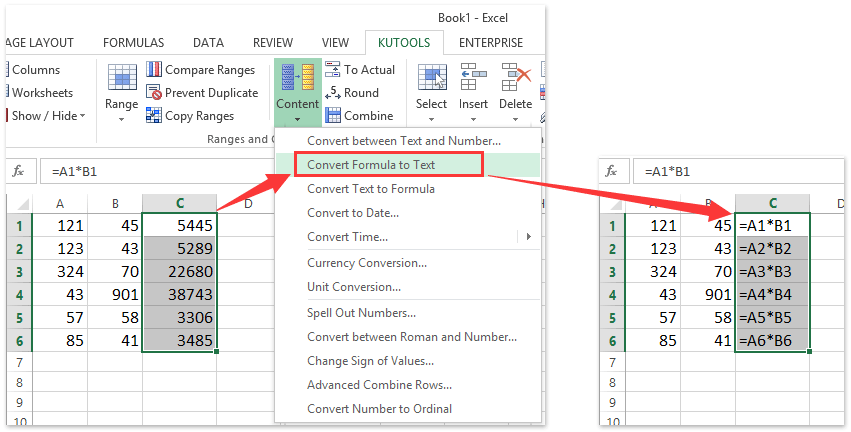
2. Now selected formulas are converted to text. Please copy them and paste into your destination range.
3. And then you can restore the text strings to formula with selecting the text strings and clicking Kutools > Content > Convert Text to Formula. See screenshot:
Kutools for Excel - Supercharge Excel with over 300 essential tools, making your work faster and easier, and take advantage of AI features for smarter data processing and productivity. Get It Now
Copy formula without changing its cell references by converting to absolute references
The formulas changes after copying as a result of relative references. Therefore, we can apply Kutools for Excel’s Convert Refers utility to change the cell references to absolute to prevent from changing after copying in Excel.
Kutools for Excel - Packed with over 300 essential tools for Excel. Enjoy permanently free AI features! Download now!
1. Select the formula cells you will copy, and click Kutools > Convert Refers.
2. In the opening Convert Formula References dialog box, please check the To absolute option and click the Ok button. See screenshot:
3. Copy the formulas and paste into your destination range.
Note: If necessary, you can restore the formulas’ cell references to relative by reusing the Convert Refers utility again.
Kutools for Excel - Supercharge Excel with over 300 essential tools, making your work faster and easier, and take advantage of AI features for smarter data processing and productivity. Get It Now
Copy formula without changing its cell references by Kutools for Excel
Is there an easier way to copy formula without changing its cell references this quickly and comfortably? In actual, Kutools for Excel can help you copy formulas without changing its cell references quickly.
Kutools for Excel - Packed with over 300 essential tools for Excel. Enjoy permanently free AI features! Download now!
1. Select the formula cells you will copy, and click Kutools > Exact copy.
2. In the first Exact Formula Copy dialog box, please click OK. And in the second Exact Formula Copy dialog box, please specify the first cell of destination range, and click the OK button. See screenshot:
Tip: Copy formatting option will keep all cells formatting after pasting the range, if the option has been checked.
And all selected formulas have been pasted into the specified cells without changing the cell references. See screenshot:
Kutools for Excel - Supercharge Excel with over 300 essential tools, making your work faster and easier, and take advantage of AI features for smarter data processing and productivity. Get It Now
Demo: copy formulas without changing cell references in Excel
Best Office Productivity Tools
Supercharge Your Excel Skills with Kutools for Excel, and Experience Efficiency Like Never Before. Kutools for Excel Offers Over 300 Advanced Features to Boost Productivity and Save Time. Click Here to Get The Feature You Need The Most...
Office Tab Brings Tabbed interface to Office, and Make Your Work Much Easier
- Enable tabbed editing and reading in Word, Excel, PowerPoint, Publisher, Access, Visio and Project.
- Open and create multiple documents in new tabs of the same window, rather than in new windows.
- Increases your productivity by 50%, and reduces hundreds of mouse clicks for you every day!
All Kutools add-ins. One installer
Kutools for Office suite bundles add-ins for Excel, Word, Outlook & PowerPoint plus Office Tab Pro, which is ideal for teams working across Office apps.





- All-in-one suite — Excel, Word, Outlook & PowerPoint add-ins + Office Tab Pro
- One installer, one license — set up in minutes (MSI-ready)
- Works better together — streamlined productivity across Office apps
- 30-day full-featured trial — no registration, no credit card
- Best value — save vs buying individual add-in