How to convert formula to text string in Excel?
Normally Microsoft Excel will show the calculated results when you enter formulas in cells. However, sometimes you may need to show only the formula in cell, such as =CONCATENATE("000", " - 2"), how will you deal with it? There are several ways to solve this problem:
Convert formula to text string with Find and Replace feature
Convert formula to text string with User Defined Function
Convert formula to text string or vice versa with only one click
Convert formula to text string with Find and Replace feature
Supposing you have a range of formulas in Column C, and you need to show the column with original formulas but not their calculated results as following screenshots shown:
 |
 |
 |
To solve this job, the Find and Replace feature may help you, please do as follows:
1. Select the calculated result cells that you want to convert to text string.
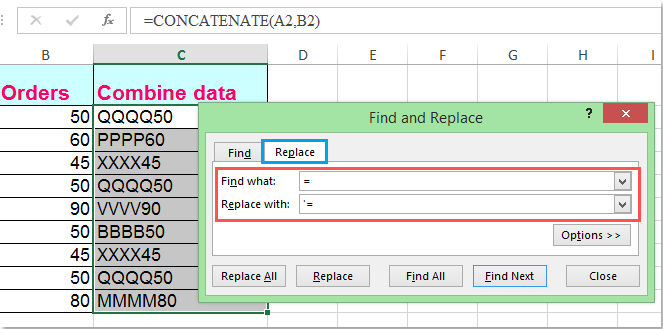
2. Then press Ctrl + H keys together to open the Find and Replace dialog box, in the dialog, under the Replace tab, enter equal = sign into the Find what text box, and enter '= into the Replace with text box, see screenshot:
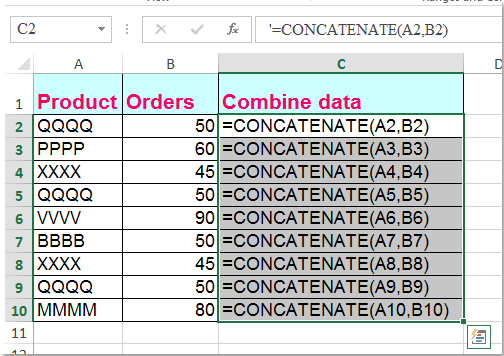
3. Then click Replace All button, you can see all the calculated results are replaced with the original formula text strings, see screenshot:
Convert formula to text string with User Defined Function
The following VBA code also can help you easily deal with it.
1. Hold down the Alt + F11 keys in Excel, and it opens the Microsoft Visual Basic for Applications window.
2. Click Insert > Module, and paste the following macro in the Module Window.
Function ShowF(Rng As Range)
ShowF = Rng.Formula
End Function
3. In a blank cell, such as Cell D2, enter a formula =ShowF(C2).
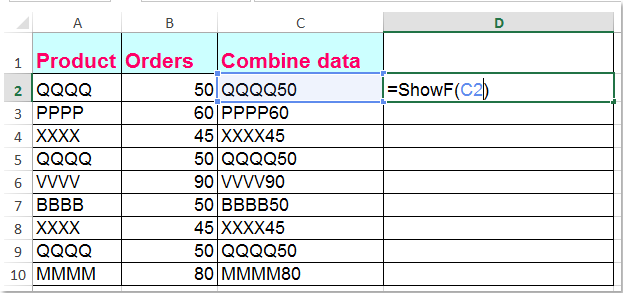
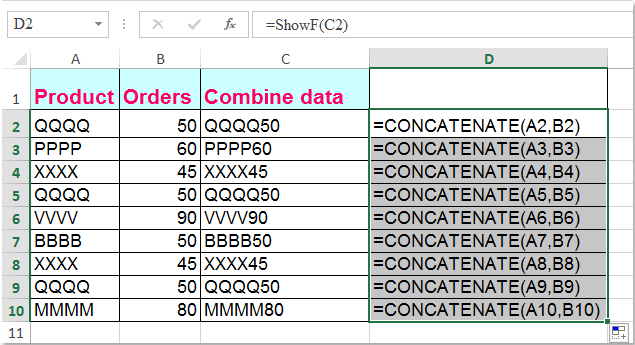
4. Then click the Cell D2, and drag the Fill Handle  to the range that you need.
Convert formula to text string or vice versa with only one click
If you have Kutools for Excel, with its Convert Formula to Text function, you can change multiple formulas to text strings with only one click.
| Kutools for Excel : with more than 300 handy Excel add-ins, free to try with no limitation in 30 days. |
After installing Kutools for Excel, please do as this:
1. Select the formulas that you want to convert.
2. Click Kutools > Content > Convert Formula to Text, and your selected formulas have been converted to text strings at once, see screenshot:

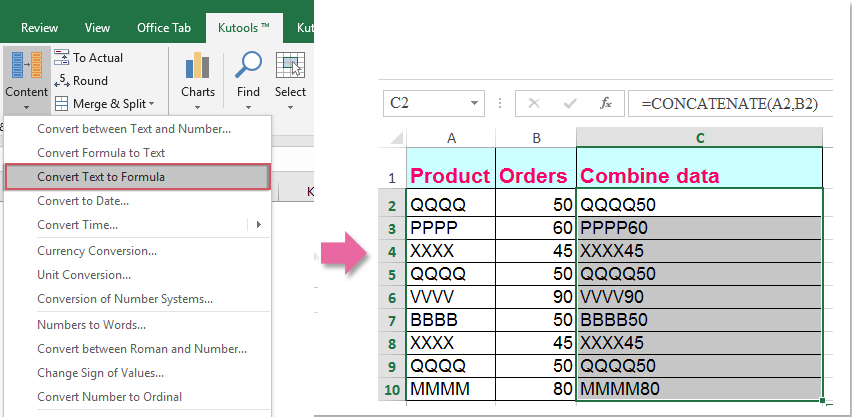
Tips: If you want to convert the formula text strings back to the calculated results, please just apply the Convert Text to Formula utility as following screenshot shown:
If you want to know more about this feature, please visit Convert Formula to Text.
Download and free trial Kutools for Excel Now !
Demo: Convert formula to text string or vice versa with Kutools for Excel
Best Office Productivity Tools
Supercharge Your Excel Skills with Kutools for Excel, and Experience Efficiency Like Never Before. Kutools for Excel Offers Over 300 Advanced Features to Boost Productivity and Save Time. Click Here to Get The Feature You Need The Most...

Office Tab Brings Tabbed interface to Office, and Make Your Work Much Easier
- Enable tabbed editing and reading in Word, Excel, PowerPoint, Publisher, Access, Visio and Project.
- Open and create multiple documents in new tabs of the same window, rather than in new windows.
- Increases your productivity by 50%, and reduces hundreds of mouse clicks for you every day!

