How to convert formula to text string in Excel?
Normally Microsoft Excel will show the calculated results when you enter formulas in cells. However, sometimes you may need to show only the formula in cell, such as =CONCATENATE("000", " - 2"), how will you deal with it? There are several ways to solve this problem:
Convert formula to text string with Find and Replace feature
Convert formula to text string or vice versa with only one click
Convert formula to text string with User Defined Function
Comparison of Methods for Converting Formulas to Text Strings
Converting formulas to text is useful when you want to display, review, document, or share formulas without calculating their results. The following table compares the three methods introduced in this article.
| Feature | Find and Replace | Kutools Convert Formula to Text | User Defined Function |
|---|---|---|---|
| Convert formulas to text | ✔ | ✔ | ✔ |
| Convert multiple formulas at once | ✔ | ✔ | Requires filling the function down |
| Changes the original formula cells directly | ✔ | ✔ | ✘ |
| Keeps original formulas unchanged | ✘ | ✘ | ✔ |
| Requires VBA | ✘ | ✘ | ✔ |
| Requires formulas | ✘ | ✘ | ✔ (ShowF function) |
| One-click conversion | ✘ | ✔ | ✘ |
| Convert formula text back to formulas | Requires reversing the text change manually | ✔ (Convert Text to Formula) | Not included in the demonstrated function |
| Setup process | Replace = with '= using Find and Replace | Select the formulas and click Convert Formula to Text | Create the ShowF VBA function, enter it in another cell, and fill down |
| Best for | Quickly converting formulas in place with built-in Excel tools | Batch converting formulas to text and back without formulas or VBA | Displaying formula text in separate cells while keeping the original formulas |
| Ease of use | Easy | Very easy | Moderate |
Convert formula to text string with Find and Replace feature
Supposing you have a range of formulas in Column C, and you need to show the column with original formulas but not their calculated results as following screenshots shown:
 |  |  |
To solve this job, the Find and Replace feature may help you, please do as follows:
1. Select the calculated result cells that you want to convert to text string.
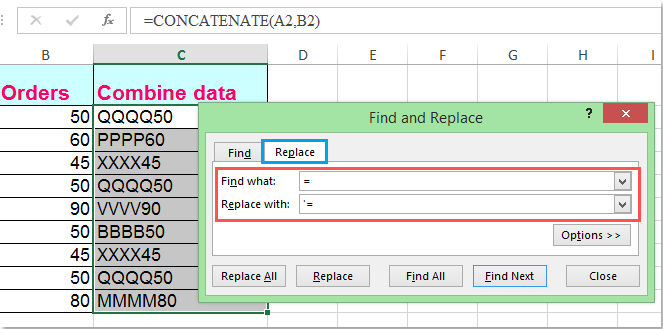
2. Then press Ctrl + H keys together to open the Find and Replace dialog box, in the dialog, under the Replace tab, enter equal = sign into the Find what text box, and enter '= into the Replace with text box, see screenshot:
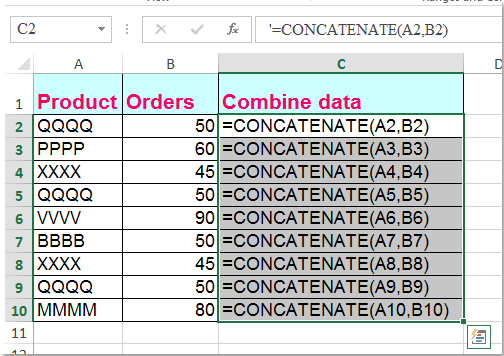
3. Then click Replace All button, you can see all the calculated results are replaced with the original formula text strings, see screenshot:
Convert formula to text string or vice versa with only one click
If you have Kutools for Excel, with its Convert Formula to Text function, you can change multiple formulas to text strings with only one click.
After installing Kutools for Excel, please do as this:
1. Select the formulas that you want to convert.
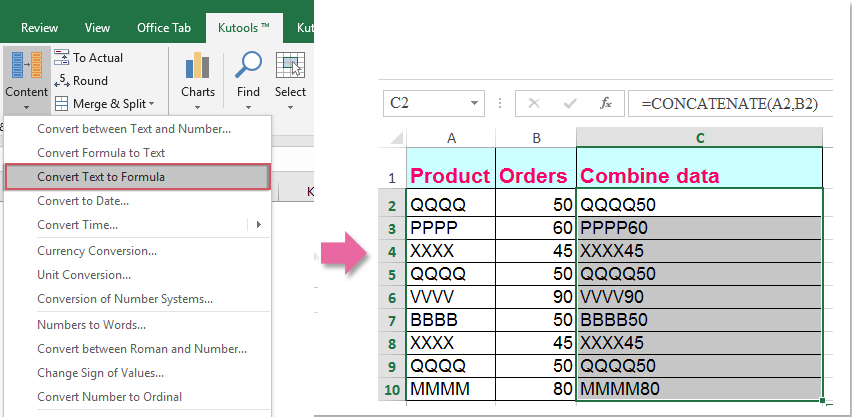
2. Click Kutools > Content > Convert Formula to Text, and your selected formulas have been converted to text strings at once, see screenshot:

Tips: If you want to convert the formula text strings back to the calculated results, please just apply the Convert Text to Formula utility as following screenshot shown:
Download and free trial Kutools for Excel Now !
Convert formula to text string with User Defined Function
The following VBA code also can help you easily deal with it.
1. Hold down the Alt + F11 keys in Excel, and it opens the Microsoft Visual Basic for Applications window.
2. Click Insert > Module, and paste the following macro in the Module Window.
Function ShowF(Rng As Range)
ShowF = Rng.Formula
End Function
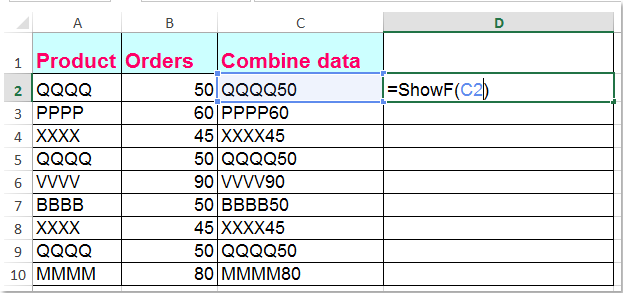
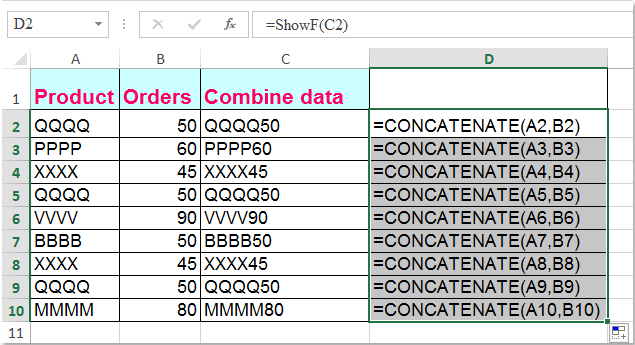
3. In a blank cell, such as Cell D2, enter a formula =ShowF(C2).
4. Then click the Cell D2, and drag the Fill Handle  to the range that you need.
Conclusion
The Find and Replace method is the simplest built-in Excel solution when you want to convert formulas directly into text. By replacing the equal sign (=) with an apostrophe followed by an equal sign ('=), Excel stops calculating the formulas and displays them as text. This method works well for quick batch conversion, but it modifies the original formula cells.
The User Defined Function is more suitable when you want to display formula text in another column while keeping the original formulas unchanged. However, it requires opening the VBA editor, creating the ShowF function, entering the custom formula, and filling it across the required range.
Kutools for Excel's Convert Formula to Text provides the fastest workflow for direct conversion. Multiple selected formulas can be converted to text with one command, without using Find and Replace or VBA. Kutools also provides the complementary Convert Text to Formula command, making it especially convenient when you frequently need to switch between executable formulas and formula text.
Best Office Productivity Tools
Supercharge Your Excel Skills with Kutools for Excel, and Experience Efficiency Like Never Before. Kutools for Excel Offers Over 300 Advanced Features to Boost Productivity and Save Time. Click Here to Get The Feature You Need The Most...
Office Tab Brings Tabbed interface to Office, and Make Your Work Much Easier
- Enable tabbed editing and reading in Word, Excel, PowerPoint, Publisher, Access, Visio and Project.
- Open and create multiple documents in new tabs of the same window, rather than in new windows.
- Increases your productivity by 50%, and reduces hundreds of mouse clicks for you every day!
All Kutools add-ins. One installer
Kutools for Office suite bundles add-ins for Excel, Word, Outlook & PowerPoint plus Office Tab Pro, which is ideal for teams working across Office apps.





- All-in-one suite — Excel, Word, Outlook & PowerPoint add-ins + Office Tab Pro
- One installer, one license — set up in minutes (MSI-ready)
- Works better together — streamlined productivity across Office apps
- 30-day full-featured trial — no registration, no credit card
- Best value — save vs buying individual add-in