How to create and fill new custom lists quickly in Excel?
Normally we can sort data or fill blank cell with custom list in Excel. However, there are only four kinds of built-in custom list: the day of week and the month of year, such as Sun, Mon, Tue, Wed, Thu, Fri, Sat, etc. Sometimes you may use some specific contents for many times in Excel, but without using the custom list you may have to reenter it over and over again. Actually, you can create a custom list of these contents in Excel, and then you can quickly use the custom list at any time in Excel without retyping the same contents again.
Create and fill new custom lists with Excel built-in Custom Lists
Create and fill new custom lists horizentally or vertically
Create and fill new custom lists randomly without duplicates
Quickly create and randomly fill from a new custom list without duplicates in Excel
If you have created a new custom list with Excel’s Edit Custom Lists feature, you can only fill this custom list in its original order vertically or horizontally. But, with Kutools for Excel’s Insert Random Data utility, you can easily add a range of cell data as a custom list, and randomly fill this custom list into another range easily.

Create and fill new custom lists with Excel built-in Custom Lists
You can apply Excel's Custom List feature to create a new custom list, and then fill the new custom list horizontally or vertically as you need easily. Please do as follows:
1. Click File > Options to open the Excel Options dialog box.
2. In the Excel Options dialog box, click Advanced button at left bar, scroll to the General section and click the Edit Custom List button. See screenshot:
Note: If you are using the Excel 2007, please click the Office Button > Excel Options > Popular, and then you will get the Edit Custom Lists button in the Top options for working with Excel section.

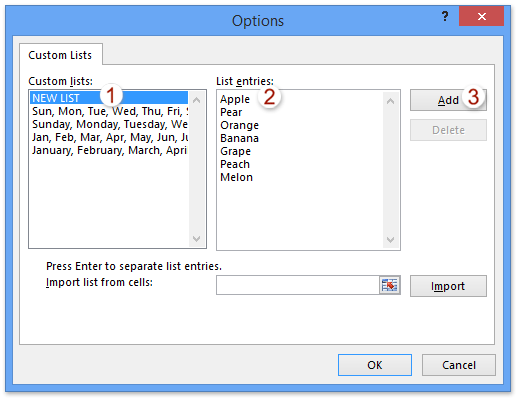
3. In the Options dialog box, please select the NEW LIST item in the Custom lists box; type each item of the custom list into the List entries box, and click the Add button. See left screenshot:
Notes:
(1) You need type the list of values separated by Enter button or comma.
(2) If the values exist in current workbook, you can click the  Browse button behind the Import list from cells box to select the cells, and click Import button.
4. Click OK buttons in all dialog boxes. And your custom list has been created, so when you enter the first value of your list, and then drag the fill handle to the cell that you want to fill, your custom list values will be filled into the cells in order. You can fill the values vertically or horizontally.
Create and fill new custom lists horizentally or vertically
With the above method, you need to enter the first value and then drag the fill handle to fill the cells, but here, I introduce a quicker tool for you. With Kutools for Excel’s Fill Custom Lists utility, you can create your own custom list and fill the values in a selected range vertically or horizontally without inputting the first value.
Kutools for Excel - Packed with over 300 essential tools for Excel. Enjoy a full-featured 30-day FREE trial with no credit card required! Download now!
1. Click Kutools > Insert Tools > Fill Custom Lists, and then click the Edit List button in the opening Fill Custom Lists dialog box. See screenshot:

2. Now in the opening Options dialog box, please select the NEW LIST item in the Custom lists box; type each item of the custom list into the List entries box, and then click the Add button and OK button successively. See screenshot:
Notes:
(1) You need type the list of values separated by Enter button or comma.
(2) If the values exist in current workbook, you can click the Browse button behind the Import list from cells box to select the cells, and click Import button.
3. Now you get back to the Fill Custom Lists dialog box, please do as below:
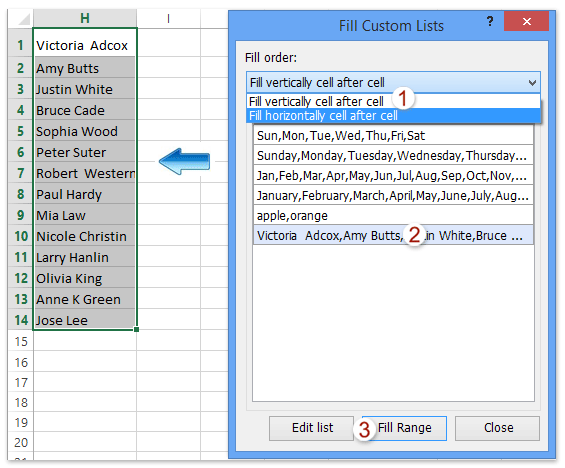
(1) Select the first cell of destination range where you will random fill the new custom list;
(2) In the Fill Custom Lists dialog box, please select the Fill vertically cell after cell option or Fill Horizontally cell after cell option from the Fill order drop down list;
(3) Click to highlight the new custom list;
(4) Click the Fill Range button.
And then the new custom list is filled into the destination range vertically or horizontally as you configured See left screenshot:
Kutools for Excel - Supercharge Excel with over 300 essential tools. Enjoy a full-featured 30-day FREE trial with no credit card required! Get It Now
Create and randomly fill new custom lists without duplicates
Apart from creating a custom list and then fill the list ordinarily, Kutools for Excel’s Insert Random Data utility provides Excel users another workaround: create a custom list from excel cell data, and then randomly fill the new custom list in another column easily.
Kutools for Excel - Packed with over 300 essential tools for Excel. Enjoy a full-featured 30-day FREE trial with no credit card required! Download now!
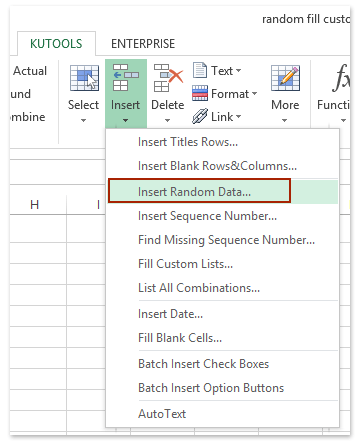
1. Click Kutools > Insert > Insert Random Data. See left screenshot:
2. In the opening Insert Random Data dialog box, please click the  Add button on the Custom list tab; In the next popping up Kutools for Excel dialog box, please click the Browse button; and in the second Kutools for Excel dialog box, please select the list of cells which you will create as a custom list, and click the OK > OK buttons. See below screenshot:

And now you get back to the Insert Random Data dialog box with the new custom list selected.
3. Please select the range where you will randomly fill this new custom list, check the Unique Values option and click the Ok button successively in the Insert Random Data dialog box. See screenshot:

Kutools for Excel - Supercharge Excel with over 300 essential tools. Enjoy a full-featured 30-day FREE trial with no credit card required! Get It Now
Demo: create and fill new custom lists
Best Office Productivity Tools
Supercharge Your Excel Skills with Kutools for Excel, and Experience Efficiency Like Never Before. Kutools for Excel Offers Over 300 Advanced Features to Boost Productivity and Save Time. Click Here to Get The Feature You Need The Most...

Office Tab Brings Tabbed interface to Office, and Make Your Work Much Easier
- Enable tabbed editing and reading in Word, Excel, PowerPoint, Publisher, Access, Visio and Project.
- Open and create multiple documents in new tabs of the same window, rather than in new windows.
- Increases your productivity by 50%, and reduces hundreds of mouse clicks for you every day!

