How to insert and delete images or background images in Excel
In Microsoft Excel, we can insert an image to workbook directly, or place it as worksheet's background. Some users may get stumped with them. And here we will help you to insert and delete images directly in Excel, and place background images in Excel as well.
- Insert and delete images and pictures in Microsoft Excel
- Insert and delete background images in Excel

 Insert and delete images and pictures in Microsoft Excel

If you want to insert a picture to workbook directly, you can follow these steps to do it:
Step 1: Click the Picture button in the Illustration group under Insert Tab.

Step 2: In the Insert Picture dialog box, find out and select proper picture.
Step 3: Click Insert button.
Then the selected picture is inserted in current worksheet, and it may show as following screen shot:
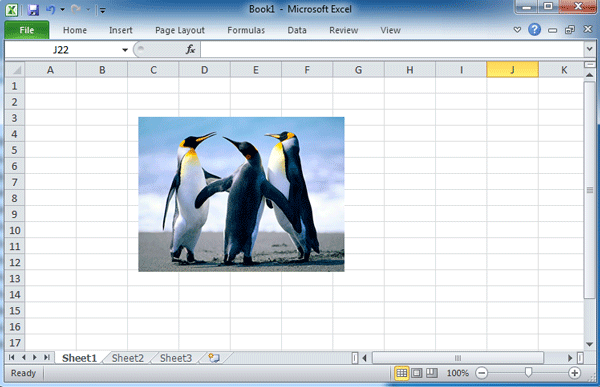
If you want to remove the picture from workbook, just select the picture firstly, and then press the Delete key.
Insert and delete background images in Excel
If you want to place an image on current worksheet as background, you can do it with following steps:
Step 1: Click the Background button in Page Setup group under Page Layout tab;

Step 2: In the Sheet Background dialog box, find out and select the proper image.
Step 3: Click Insert button.
Then the selected image is placed in the whole worksheet as its background. And it may look like the following screen shot:

If you want to remove the background from workbook, you can click the Remove Background button in Page Setup group under Page Layout tab.
Best Office Productivity Tools
Supercharge Your Excel Skills with Kutools for Excel, and Experience Efficiency Like Never Before. Kutools for Excel Offers Over 300 Advanced Features to Boost Productivity and Save Time. Click Here to Get The Feature You Need The Most...

Office Tab Brings Tabbed interface to Office, and Make Your Work Much Easier
- Enable tabbed editing and reading in Word, Excel, PowerPoint, Publisher, Access, Visio and Project.
- Open and create multiple documents in new tabs of the same window, rather than in new windows.
- Increases your productivity by 50%, and reduces hundreds of mouse clicks for you every day!

