How to combine contents of multiple cells without losing data in Excel?
We may combine cells and their contents in Microsoft Excel frequently. However, do you find out the easiest way to combine cell contents? Here we will talk about how to combine cell contents in Excel easily and quickly.
Combine multiple cells into one cell with VBA code
Combine multiple cells into one cell with Kutools for Excel without losing data
Combine multiple cells into one cell with VBA code
The following VBA code can help you to combine multiple cells into one cell, and you can apply the code with following steps:
1. Click Developer > Visual Basic, a new Microsoft Visual Basic for applications window will be displayed, click Insert > Module, and input the following code into the Module:
Sub MergeOneCell()
'Updateby20140128
Dim Rng As Range
Dim WorkRng As Range
Dim Sigh As String
On Error Resume Next
xTitleId = "KutoolsforExcel"
Set WorkRng = Application.Selection
Set WorkRng = Application.InputBox("Range", xTitleId, WorkRng.Address, Type:=8)
Sigh = Application.InputBox("Symbol merge", xTitleId, "", Type:=2)
xOut = ""
Application.DisplayAlerts = False
For Each Rng In WorkRng
    xOut = xOut & Rng.Value & Sigh
Next
With WorkRng
    .Merge
    .Value = VBA.Left(xOut, VBA.Len(xOut) - 1)
End With
Application.DisplayAlerts = True
End Sub
2. Then click  button to execute the code. A dialog pops up for you to select a range to work with the VBA. See screenshots:

3. Click Ok, another dialog is displayed for you to specify the seperator. See screenshot:

4. Click Ok, then the cell contents in the selected range are combined into a cell. See screenshot:

Combine multiple cells into one cell with Kutools for Excel without losing data
If you have Kutools for Excel installed, you can combine cell contents of multiple columns or rows conveniently without using formulas.
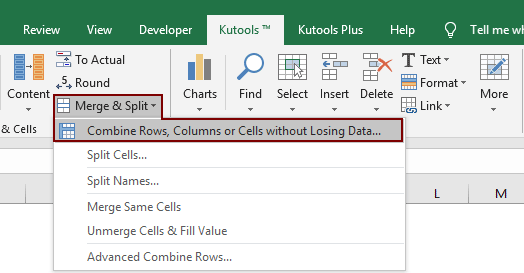
1. Select the cells that you want to merge the data. And apply this utility by clicking Kutools > Merge & Split > Combine Rows, Columns or Cells without Losing Data.
2. In the Combine Columns or Rows dialog box, specify the options that you need. See screenshot:
- (1.) Select Combine into single cell under To combine selected cells according to following options;
- (2.) Specify a separator for the combined data. You can separated each content with space, nothing, semicolon, or specific text. And you can also display the combined content in a new line.

3. Then click OK or Apply, all of the data in multiple cells have been merged into one cell. See screenshot:

Note: This utility can aslo help to combine cells of selected columns. You can combine first and last name into a single full name cell as below screenshot shown.

Then you can see the first names and last names are combined and located in the full name cells.

If you want to have a free trial (30-day) of this utility, please click to download it, and then go to apply the operation according above steps.
Related Articles
Demo: Combine / Merge multiple cells into one without losing data
Best Office Productivity Tools
Supercharge Your Excel Skills with Kutools for Excel, and Experience Efficiency Like Never Before. Kutools for Excel Offers Over 300 Advanced Features to Boost Productivity and Save Time. Click Here to Get The Feature You Need The Most...

Office Tab Brings Tabbed interface to Office, and Make Your Work Much Easier
- Enable tabbed editing and reading in Word, Excel, PowerPoint, Publisher, Access, Visio and Project.
- Open and create multiple documents in new tabs of the same window, rather than in new windows.
- Increases your productivity by 50%, and reduces hundreds of mouse clicks for you every day!

