Merge and Combine Columns without Losing Data in Excel
When combining columns of data in Excel, regardless of your Excel version, the "Merge and Center" command from the Home tab's Alignment group will retain only the upper-left value and discard the data from the other cells. This tutorial explains how to merge or combine different columns of data into a single cell or column in Excel.

- Merge columns of data into one cell without losing data using Clipboard
- Merge columns of data into one column without losing data
- Quickly merge columns of data without losing data with Kutools for Excel
Merge columns of data into one cell without losing data using Clipboard
To merge multiple columns into only one cell without losing any data in Excel, you can use the Clipboard to solve the problem easily.

1. First of all, enable the Clipboard by clicking the Anchor button  at the bottom-right corner of Clipboard group on the Home tab. See screenshot:

2. Select the columns you will merge, and press Ctrl + C keys to copy them.
Tip: You can also click Home > Copy to copy them.
Now the columns are copied and listed in the Clipboard at once.
3. Double click into a blank cell where you will place the copied columns, and then click the copied item in the Clipboard. Now the copied items are filled into the active cell as below screenshot shown.
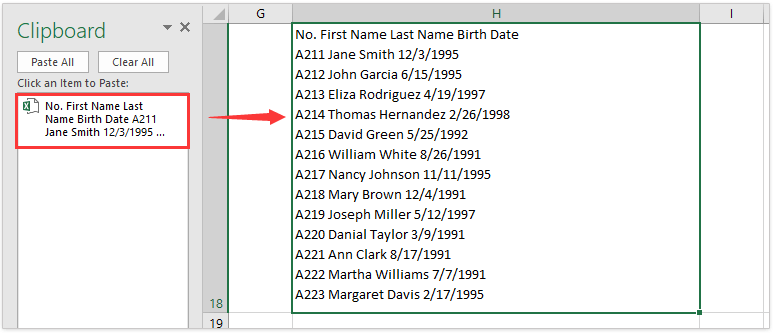
So far, all selected columns are merged and placed into the specified cell as below screenshot shown.

Combine multiple columns without losing data and number format in Excel
Kutools for Excel's Combine Rows, Columns or Cells without Losing Data utility effortlessly combines multiple cells, rows, or columns without data loss. Additionally, this tool offers the flexibility to preserve the original date and number formats in the combined results.
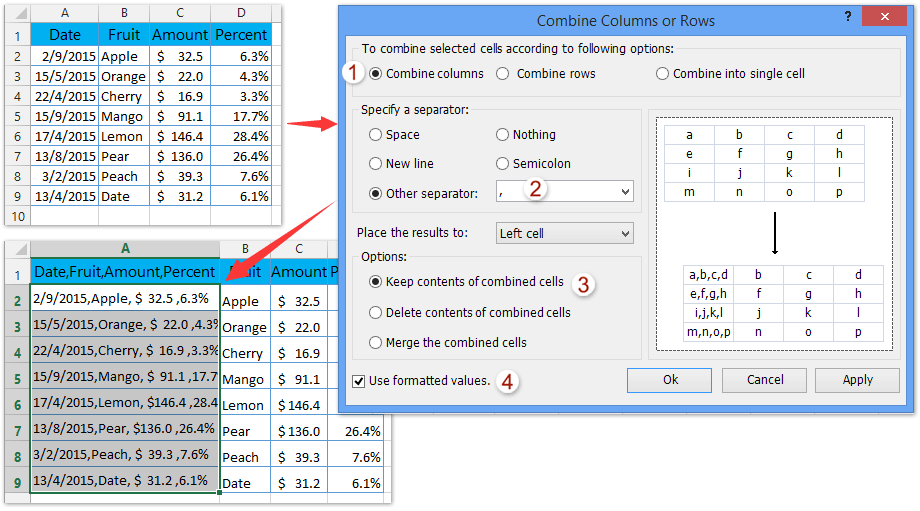
Kutools for Excel - Supercharge Excel with over 300 essential tools. Enjoy a full-featured 30-day FREE trial with no credit card required! Get It Now
Merge columns of data into one without losing data using the Ampersand (&)
To merge multiple columns of data into one column without any data losing in Excel, you can apply either of the below formulas.
- The formula to combine multiple cells: =A2&B2&C2&...
- In Cell D2, please enter the below formula, and then drag the fill handle down to apply the formula to other cells in the active column.
=A2&B2&C2
As shown in the image below, you'll notice that the data from each column has been successfully merged into a single column.

- The formula to combine multiple cells with a blank: =A2&" "&B2&" "&C2&" "&...
- Tip: You can replace the space (" ") with any other separator you need, such as a comma (", ").
In Cell D2, please enter the below formula, and then drag the fill handle down to apply the formula to other cells in the active column.=A2&" "&B2&" "&C2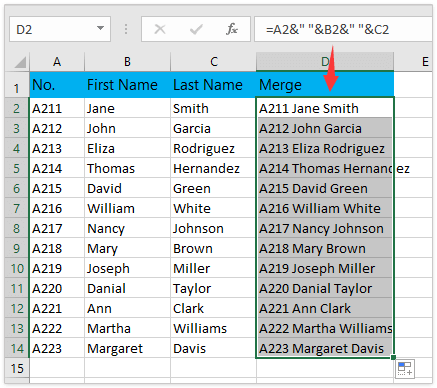



Notes:
- In both formulas, A2, B2, and C2 are cells in the first row you will merge into one, and you can change them as you need.
- To remove formulas from the merging results, you can copy the merge results (D2:D14) first, then right click on the range of merging results, and select the Values icon from the Paste Options in the context menu as below screenshot shown, or apply Kutools > To Actual to remove formulas but keep the merging results with only one click. Read more...

- Both formulas clear the number formatting in the merging results. For example, the date “2/15/2019” will be merged as “43511”, the percentage “5.79%” will be merged as “0.0579” etc. To keep the original number formatting, consider using Kutools for Excel's Combine Rows, Columns or Cells without Losing Data utility.

Merge columns of data into one without losing data using CONCATENATE
If there are multiple cells in each row, manually applying the formula =A1&" "&B1&" "&C1 for each cell can be a time-consuming task. Here, I will introduce the CONCATENATE function as a more efficient solution to address this issue.

1. Select a blank cell, enter the below formula, and then highlight A2:C2&",". (Note: In the formula, A2:C2 is the the range of cells in the first row to be merged, and "," is used to separate each cell's content by a comma.)
=CONCATENATE(A2:C2&",")2. Press F9 key to convert the highlight part of the formula to values.
3. Now that the highlight part of the formula is replaced with the cell content automatically, please remove the curly brackets { and }.
4. Press the Enter key to get the merging result.
Notes:
- This method is particularly convenient when you need to merge three or more cells. If you only need to merge two cells, you can use the following formula and press Enter to obtain the result directly.
-
=CONCATENATE(A2," ",B2) - For users of Excel 2019 and newer versions, consider utilizing the TEXTJOIN function and pressing Enter to get the result.
-
=TEXTJOIN(" ",TRUE,A2:C2) - The formula clears the number formatting in the merging results. For example, the date “2/15/2019” will be merged as “43511”, the percentage “5.79%” will be merged as “0.0579” etc. To keep the original number formatting, consider using Kutools for Excel's Combine Rows, Columns or Cells without Losing Data utility.
Quickly merge columns of data without losing data with Kutools for Excel
Kutools for Excel simplifies the data merging process with its Combine Rows, Columns or Cells without Losing Data utility. This tool enables effortless merging of rows, columns, or cells with customizable separators and provides the flexibility to preserve the original number formatting in the merged results, ensuring data integrity for dates, percentages, currencies, and other formatted numbers.
Kutools for Excel - Packed with over 300 essential tools for Excel. Enjoy a full-featured 30-day FREE trial with no credit card required! Download now!
In this section, I will guide you through the process of merging columns with Kutools for Excel:
1. After installing Kutools for Excel, select the columns of data you want to merge, and then click Kutools > Merge & Split > Combine Rows, Columns or Cells without Losing Data. See screenshot:
2. In the Combine Columns or Rows dialog box, specify the options as follows:
(1) Select the Combine columns option under To combine selected cells according to following options;
(2) Specify a separator for the combined data. Here I selected the Space option;
(3) Specify the location you want to place your combined result;
(4) Specify how you want to deal with the combined cells: You can choose to keep or delete contents from those combined cells, or merge those combined cells. See screenshot:

3. Click Ok to combine multiple columns into one column without losing data. And you will get the following results:
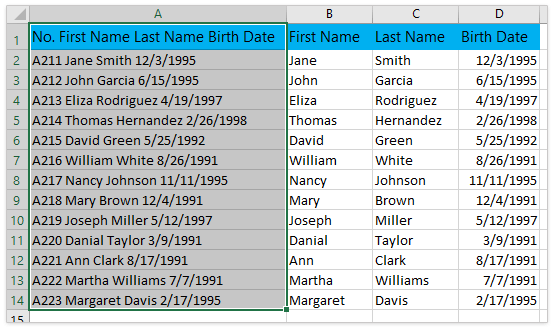
The Combine Rows, Columns or Cells without Losing Data feature of Kutools for Excel supports a variety of combination scenarios in Excel. Experience it for yourself with a free trial!
Demo: Combine Multiple Columns without Losing Data in Excel
Best Office Productivity Tools
Supercharge Your Excel Skills with Kutools for Excel, and Experience Efficiency Like Never Before. Kutools for Excel Offers Over 300 Advanced Features to Boost Productivity and Save Time. Click Here to Get The Feature You Need The Most...

Office Tab Brings Tabbed interface to Office, and Make Your Work Much Easier
- Enable tabbed editing and reading in Word, Excel, PowerPoint, Publisher, Access, Visio and Project.
- Open and create multiple documents in new tabs of the same window, rather than in new windows.
- Increases your productivity by 50%, and reduces hundreds of mouse clicks for you every day!

