How to split a workbook to separate Excel files in Excel?
You may need to split a large workbook to separate Excel files with saving each worksheet of the workbook as an individual Excel file. For example, you can split a workbook into multiple individual Excel files and then deliver each file to different person to handle it. By doing so, you can get certain persons handle specific data, and keep your data safe. This article will introduce ways to split a large workbook to separate Excel files based on each worksheet.
- Split a workbook to separate Excel files with copying and pasting
- Split a workbook to separate Excel Files with Move or Copy feature
- Split a workbook to separate Excel files with VBA code
- Split a workbook to separate Excel / PDF / CSV / TXT files with Kutools for Excel easily
Split a workbook to separate Excel files with copying and pasting
In usual, using Copy command and Paste command can save a workbook as a Separate Excel file manually. Firstly, select the whole worksheet that you want to save as a separate file, create a new workbook, and then paste it in the new workbook, at the end saves it.
This is an easy-to-use way if you need to split only a few worksheets as separate files. However, it must be time-consuming and tedious to split many worksheets with copying and pasting manually.
Split a workbook to separate Excel Files with Move or Copy feature
This method will introduce the Move or Copy feature to move or copy the selected sheets to a new workbook and save as a separate workbook. Please do as follows:
1. Select the sheets in the Sheet tab bar, right click, and select Move or Copy from the context menu. See screenshot:

Note: Holding Ctrl key, you can select multiple nonadjacent sheets with clicking them one by one in the Sheet tab bar; holding Shift key, you can select multiple adjacent sheets with clicking the first one and the last one in the Sheet tab bar.
2. In the Move or Copy dialog, select (new book) from the To book drop down list, check the Create a copy option, and click the OK button. See screenshot:

3. Now all selected sheets are copied to a new workbook. Click File > Save to save the new workbook.
Quickly split a workbook to separate Excel / PDF / TXT / CSV files in Excel
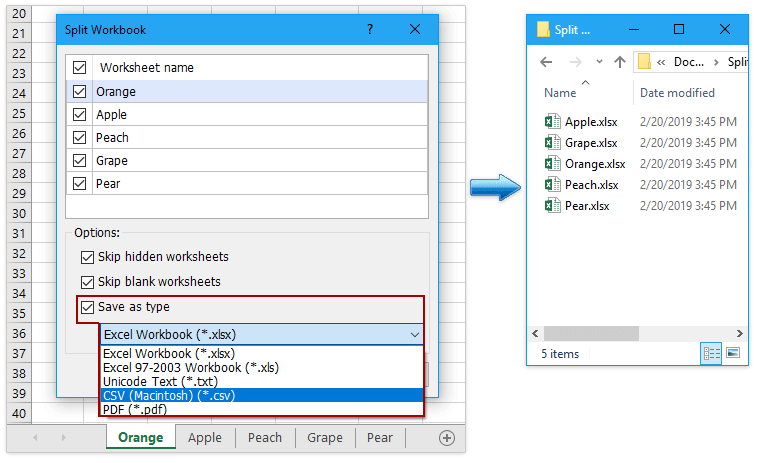
Normally we can split a workbook to individual Excel files with the Move or Copy feature in Excel. But Kutools for Excel's Split Workbook utility can help you easily split a workbook and save each worksheet as a separate PDF/TEXT/CSV file or workbook in Excel.
Kutools for Excel - Supercharge Excel with over 300 essential tools. Enjoy a full-featured 30-day FREE trial with no credit card required! Get It Now
Split a workbook to separate Excel files with VBA code
The following VBA code can help you quickly split multiple worksheets of current workbook to separate Excel files, please do as follows:
1. Create a new folder for the workbook that you want to split, because the split Excel files will be stayed at the same folder as this master workbook.
2. Hold down the ALT + F11 keys in Excel, and it opens the Microsoft Visual Basic for Applications window.
3. Click Insert > Module, and paste the following code in the Module Window.
VBA: Split a workbook into multiple workbooks and save in the same folder
Sub Splitbook()
'Updateby20140612
Dim xPath As String
xPath = Application.ActiveWorkbook.Path
Application.ScreenUpdating = False
Application.DisplayAlerts = False
For Each xWs In ThisWorkbook.Sheets
    xWs.Copy
    Application.ActiveWorkbook.SaveAs Filename:=xPath & "\" & xWs.Name & ".xlsx"
    Application.ActiveWorkbook.Close False
Next
Application.DisplayAlerts = True
Application.ScreenUpdating = True
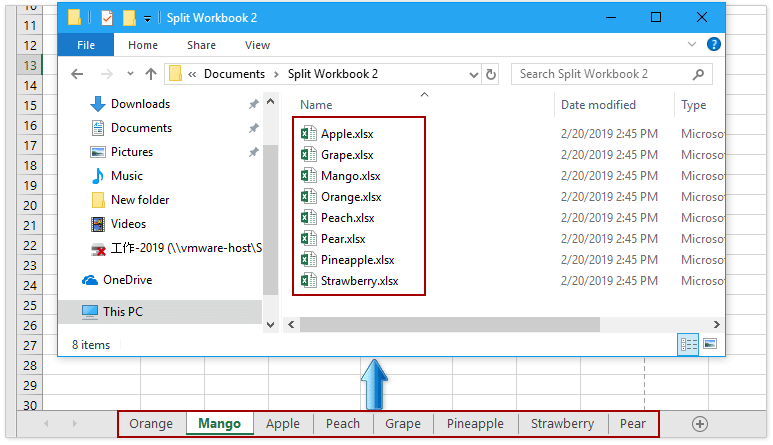
End Sub4. Press the F5 key to run this code. And the workbook is split to separate Excel files in the same folder with the original workbook. See screenshot:

Note: If one of the sheets has the same name with the workbook, this VBA cannot work.
Split a workbook to separate Excel / PDF / CSV / TXT files with Kutools for Excel easily
If you have Kutools for Excel installed, its Split Workbook tool can split multiple worksheets as separate Excel files conveniently and quickly with only a few clicks.
Kutools for Excel - Supercharge Excel with over 300 essential tools. Enjoy a full-featured 30-day FREE trial with no credit card required! Get It Now
1. After installing Kutools for Excel, click Kutools Plus > Split Workbook , see screenshot:

2. In the Split Workbook dialog box, do the following operations:
(1) All worksheet names are checked by default. If you don’t want to split some of the worksheets, you can uncheck them;
(2) Check the Save a type option;
(3) From the Save as type drop down, choose one file type you want to split and save.
(4) Then click Split button.

Note: If you want to avoid splitting the hidden or blank worksheets, you can check the Skip hidden worksheets or Skip blank worksheets box.
3. In the Browse For Folder dialog, please specify a destination folder to save the split separate files, and click the OK button.

Now the checked worksheets are saved as new separated workbooks. Each new workbook is named with the original worksheet name. See screenshot:
Kutools for Excel's Split Workbook tool makes it easy to split active workbook into individual Excel files (one file contains one worksheet), CSV files, TXT files, or PDF files as you need. You can set to skip all the blank and hidden worksheets. Have a Free Trial!
Demo: Split or save each worksheet of one workbook as separate excel / txt / csv / pdf files
Related articles:
Best Office Productivity Tools
Supercharge Your Excel Skills with Kutools for Excel, and Experience Efficiency Like Never Before. Kutools for Excel Offers Over 300 Advanced Features to Boost Productivity and Save Time. Click Here to Get The Feature You Need The Most...

Office Tab Brings Tabbed interface to Office, and Make Your Work Much Easier
- Enable tabbed editing and reading in Word, Excel, PowerPoint, Publisher, Access, Visio and Project.
- Open and create multiple documents in new tabs of the same window, rather than in new windows.
- Increases your productivity by 50%, and reduces hundreds of mouse clicks for you every day!