Quickly insert and center the captions for centered inline tables and figures in word
The default alignment of captions in Word documents is left, when you insert a caption to a centered inline table or figure, the caption will be aligned in the left. If we need to insert and center the captions for centered inline tables or figures in word, we have to center them one by one. Is there an easier way to insert and centre captions. This tutorial will introduce you two method to insert and center the capptions for centered inline tables or figures.
Insert and center captions manually
Insert and center captions with Kutools for Word
Recommended Productivity Tools for Word
Kutools for Word: Integrating AI 🤖, over 100 advanced features save 50% of your document handling time.Free Download
Office Tab: Introduces the browser-like tabs to Word (and other Office tools), simplifying multi-document navigation.Free Download
 Insert and center captions manually

Office Tab: Brings tabbed interfaces to Word, Excel, PowerPoint... |
|
Enhance your workflow now. Read More Free Download
|
Normally, we have to insert the captions with Reference for the tables and figures firstly then we can center the captions.
Step 1: click Reference >Insert Caption bring up the dialog below
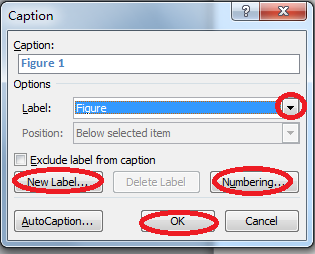
Step 2: Click button to select the label you need ,click New Label and Numbering to customize the captions you will insert. Click Ok to insert the caption
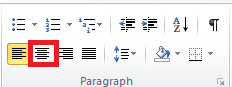
Step 3:highlight the caption and click the Center button in the Home Tab.
Insert and center captions with Kutools for Word
Kutools for Word provides you a very convenient way to insert and center captions. After you have installed Kutools for Word you can quickly and easily insert and center captions for centered inline tables and figures.
Kutools for Word, a handy add-in, includes groups of tools to ease your work and enhance your ability of processing word document. Free Trial for 45 days! Get It Now!
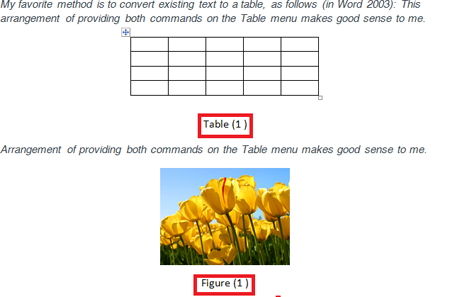
For example we insert and center captions for a table and a figure which are centerinline in the document. See screenshot:

1. Firstly, you need to display the Advanced Caption Option dialog by clicking Enterprise > Options  button.

2. When the Advanced Caption Option dialog popping up, you should customize the caption settings for the table and figure. Select the Center option from the Horizontal drop-down list box. Finally click OK.

3. When you begin to insert table caption or figure caption, please click Enterprise > Insert > Table Caption/Figure Caption. See screenshot:

Put the cursor in the table, then click the Table Caption, it will quickly insert table caption for the table and center the caption.
Select the picture, then click Figure Caption, it will quickly insert figure caption for the figure and center the caption. See the screenshot:
|
 |
 |
For more detailed information about Insert Caption of Kutools for Word, please visit: Insert Caption description.
Best Office Productivity Tools
Kutools for Word - Elevate Your Word Experience with Over 100 Remarkable Features!
🤖 Kutools AI Assistant: Transform your writing with AI - Generate Content / Rewrite Text / Summarize Documents / Inquire for Information based on Document, all within Word
📘 Document Mastery: Split Pages / Merge Documents / Export Selection in Various Formats (PDF/TXT/DOC/HTML...) / Batch Convert to PDF / Export Pages as Images / Print Multiple Files at once...
✏ Contents Editing: Batch Find and Replace across Multiple Files / Resize All Pictures / Transpose Table Rows and Columns / Convert Table to Text...
🧹 Effortless Clean: Sweap away Extra Spaces / Section Breaks / All Headers / Text Boxes / Hyperlinks / For more removing tools, head to our Remove Group...
➕ Creative Inserts: Insert Thousand Separators / Check Boxes / Radio Buttons / QR Code / Barcode / Diagonal Line Table / Equation Caption / Image Caption / Table Caption / Multiple Pictures / Discover more in the Insert Group...
🔍 Precision Selections: Pinpoint specific pages / tables / shapes / heading paragraphs / Enhance navigation with more Select features...
⭐ Star Enhancements: Navigate swiftly to any location / auto-insert repetitive text / seamlessly toggle between document windows / 11 Conversion Tools...

