How to remove all empty paragraphs in Word?
If a document covers 200 pages with hundreds of empty paragraphs, removing all empty paragraphs one by one is painful. How to remove all empty paragraphs efficiently and quickly? Take a few minutes to view this tutorial and you will find the answer.
Remove all empty paragraphs with Find and Replace function
Remove all empty paragraphs using VBA
Remove all empty paragraphs with Kutools for Word
Recommended Productivity Tools for Word
Kutools for Word: Integrating AI 🤖, over 100 advanced features save 50% of your document handling time.Free Download
Office Tab: Introduces the browser-like tabs to Word (and other Office tools), simplifying multi-document navigation.Free Download
 Remove all empty paragraphs with Find and Replace function

Office Tab: Brings tabbed interfaces to Word, Excel, PowerPoint... |
|
Enhance your workflow now. Read More Free Download
|
No one likes to spend huge time in removing all empty paragraphs one by one. The Find and Replace function in Word is commonly used as long as we know that empty paragraph symbol can be found as Paragraph Mark in Find What field.
1. Click Home > Replace to enable this utility.

2. Click More>> button to pop up more options. See below screenshot:

3. Place the cursor in the Find What field, and select the Paragraph Mark from the Special pull-down menu;
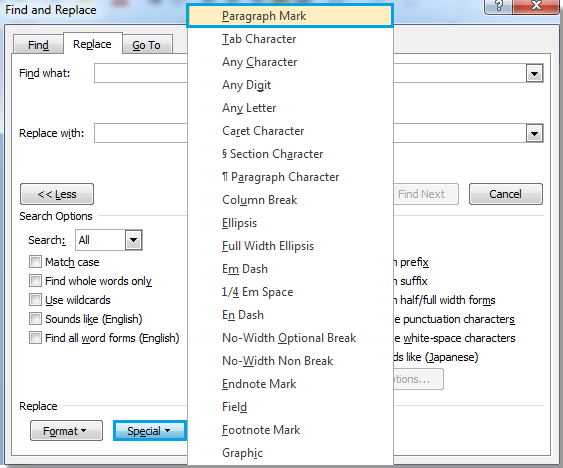
4. After select Paragraph Marks, there will be a “^p” mark showing in the Find What field.
5. Enter “^p” to make “^p^p” in the Find What field and click Replace All.
Notes:
The “^p” will remove not only all empty paragraphs, but also all paragraph marks in the documents to leave all text too close in one paragraph.
The “^p^p” will only remove all empty paragraphs (empty paragraph marks).
Remove all empty Paragraphs using VBA
If you would like to use Macro working with a word document, the VBA code is also available for you to remove all empty paragraphs in word.
1. Press “Alt-F11” to open the Microsoft Visual Basic for Application window.
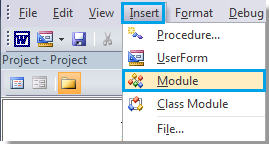
2. Click Module on the Insert tab, copy and paste the following VBA code into the Module window.
The VBA code of removing empty paragraphs:
Sub Deleemptyparagraphs()
Selection.Find.ClearFormatting
Selection.Find.Replacement.ClearFormatting
With Selection.Find
.Text = "^p^p"
.Replacement.Text = ""
.Forward = True
.Wrap = wdFindContinue
.Format = False
.MatchCase = False
.MatchWholeWord = False
.MatchByte = False
.MatchAllWordForms = False
.MatchSoundsLike = False
.MatchWildcards = False
.MatchFuzzy = False
End With
Selection.Find.Execute Replace:=wdReplaceAll
End Sub
4. Click Run Macro  on the Run tab.
Remove all empty paragraphs with kutools for Word
To remove all empty paragraphs in word, the built-in feature requires a few steps, while the Macro seems too complicated to understand. Is there a simpler way to help us remove all empty paragraphs quickly in word? Yes, Kutools for Word is your best solution.
Kutools for Word, a handy add-in, includes groups of functions to ease your work and enhance your ability of processing word documents. Free Trial for 45 days! Get It Now!
1. Please apply this utility by clicking Kutools > Empty Paras > Remove Empty Paragraph Marks. See screenshot:

2. After clicking Remove Empty Paragraph Marks, all empty paragraphs will be removed from the whole document.
 |
 |
 |
Note: If you just want to remove the empty paragraphs from the selected part of the document, Kutools for Word can also help you, please read more information from here.
Best Office Productivity Tools
Kutools for Word - Elevate Your Word Experience with Over 100 Remarkable Features!
🤖 Kutools AI Assistant: Transform your writing with AI - Generate Content / Rewrite Text / Summarize Documents / Inquire for Information based on Document, all within Word
📘 Document Mastery: Split Pages / Merge Documents / Export Selection in Various Formats (PDF/TXT/DOC/HTML...) / Batch Convert to PDF / Export Pages as Images / Print Multiple Files at once...
✏ Contents Editing: Batch Find and Replace across Multiple Files / Resize All Pictures / Transpose Table Rows and Columns / Convert Table to Text...
🧹 Effortless Clean: Sweap away Extra Spaces / Section Breaks / All Headers / Text Boxes / Hyperlinks / For more removing tools, head to our Remove Group...
➕ Creative Inserts: Insert Thousand Separators / Check Boxes / Radio Buttons / QR Code / Barcode / Diagonal Line Table / Equation Caption / Image Caption / Table Caption / Multiple Pictures / Discover more in the Insert Group...
🔍 Precision Selections: Pinpoint specific pages / tables / shapes / heading paragraphs / Enhance navigation with more Select features...
⭐ Star Enhancements: Navigate swiftly to any location / auto-insert repetitive text / seamlessly toggle between document windows / 11 Conversion Tools...

