How to view senders’ domain in mail list in Outlook?
When working in Outlook, you may occasionally receive email messages from unfamiliar senders whose display names alone do not provide enough context about their identity, as shown in the screenshot below. For many users, it is important to determine the sender's email domain before opening any message, especially for identifying messages that could potentially be spam, phishing attempts, or from external organizations. Being able to view the domain directly in your mail list helps you make more informed decisions about which emails to prioritize or treat with caution. This article guides you through several practical methods to show or view senders' email domains directly within the mail list in Microsoft Outlook, enhancing your email management and security awareness.
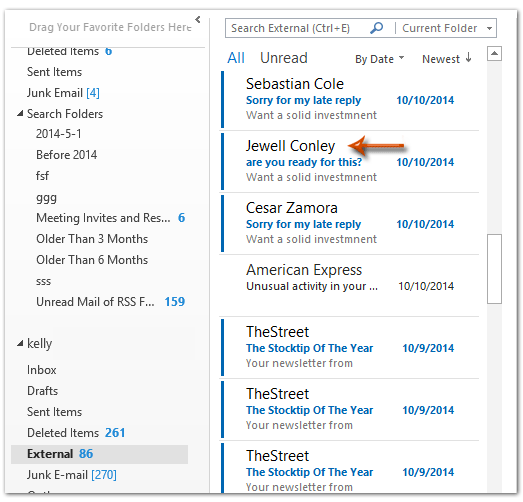
View sender's domain in mail list by adding a new column
Below are detailed steps and alternative solutions you can use to display senders’ email domains in your Outlook mail list.
First, make sure you are in the mail folder where you would like to view or add the sender domain column. This approach can be especially helpful in scenarios such as screening external emails, filtering for specific organizations, or simply boosting your productivity by improving mail sorting and visibility. However, please note that this method modifies the view for the selected folder only; other folders remain unchanged until you apply similar adjustments.
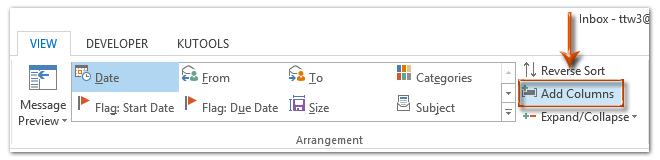
On the Outlook ribbon, go to the View tab and click the Add Columns button. This will open options to customize what is displayed in your mail list. Always make sure you have selected the correct folder if you use multiple mail accounts or archives.
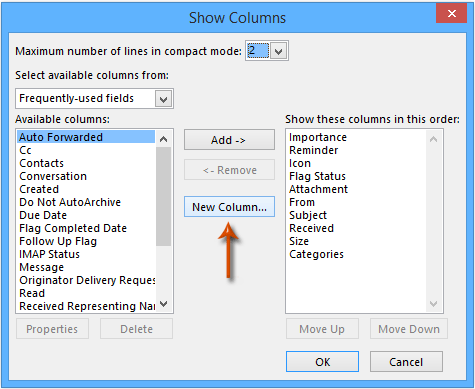
The next step is to add a new custom column which will be used to extract and display the domain portion from the sender's email address. Find and click the New Column (sometimes labeled New Field) button in the Show Columns (or Show Fields) dialog box.
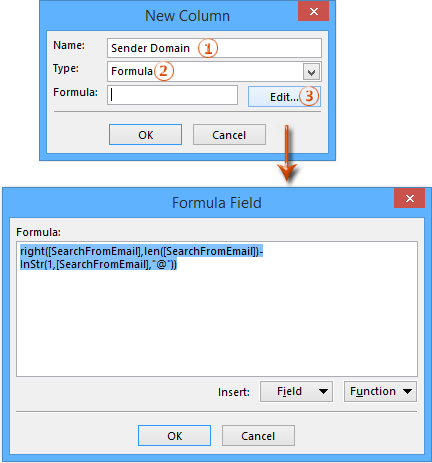
In the New Column (or New Field) dialog box:
- Enter a descriptive name in the "Name" box, for example, "Sender Domain", so you can easily identify it later.
- For the "Type" box, select "Formula" from the dropdown menu. Choosing "Formula" allows you to compute and display just the domain from the full sender email address.
- Click "Edit" to enter the formula that extracts the domain portion. Enter this text exactly into the Formula box:
right([SearchFromEmail],len([SearchFromEmail])-InStr(1,[SearchFromEmail],"@"))
This formula works by calculating the portion of the sender’s email address that comes after the “@” symbol. You can adjust the formula if your organization uses a custom field name, but for most users, "[SearchFromEmail]" will accurately target the sender's full email address.
Click "OK" to save the formula, and then "OK" again to close the dialog boxes. If Outlook requires confirmation about formula usage, review the message and ensure the syntax is entered correctly. Double-check for spaces or typographical errors in the formula, as these can cause the column to display incorrect information or remain blank.
Now, return to the "Show Columns" (or "Show Fields") dialog. Locate the newly created custom column in the "Show these columns in this order" list. For usability, move your custom "Sender Domain" column directly underneath the "From" field so it is visually paired with the sender's display name, making domain identification quick and convenient.
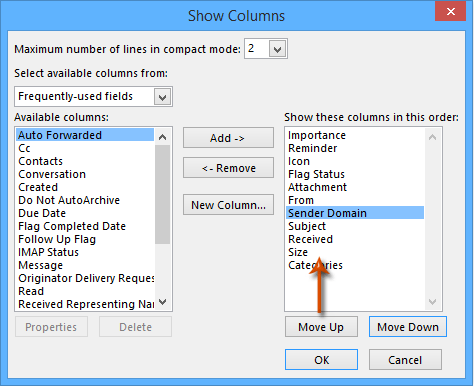
Click "OK" to apply and confirm your changes. If prompted about overwriting previous settings, confirm if you are satisfied with the configuration.
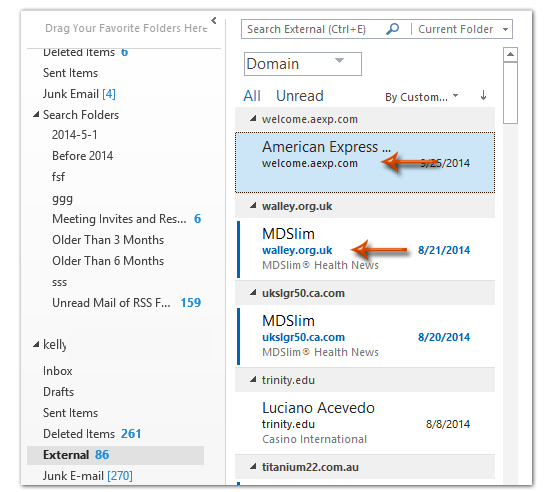
Your mail list will now display each sender’s email domain below their display name, making it easier to identify message sources at a glance. This feature is especially useful for distinguishing between internal and external contacts, quickly noticing unfamiliar domains, or simply organizing your communication for improved workflow. See the example below for reference.
If you want to maintain consistent views across multiple folders or mailboxes, it is recommended to save your custom layout. For guidance, please visit How to save and copy view settings to other folders in Outlook?. Saving your view prevents accidental loss due to folder resets or Outlook updates.
Practical tips and reminders:
- If the sender email field displays empty or incorrect information in your newly added column, verify the formula and double-check field names. Sometimes, Outlook language packs or updates may change field labels.
- This method works for standard mail folders, but certain special folders (e.g., Search Folders, Conversation History) may not fully support column customization or advanced formula fields.
- For enhanced domain analysis, consider grouping or sorting your mail list by the sender's domain. For more on this, see How to sort and group by sender domain in Outlook?.
- If you encounter “Formula Error” or find that domains are not extracted correctly, check for non-standard email addresses or display names without “@” symbols, which the formula cannot process.
- Changes made with this approach are local to your current Outlook client; if you use multiple computers or Outlook Web Access, the view settings may need to be repeated.
View sender's domain in mail list by using VBA code
Alternatively, if your Outlook version or configuration does not support custom formula columns, or if you want a quick ad-hoc check, you can use VBA code to display the domain of a selected sender’s email within Outlook. This method requires basic familiarity with the Outlook VBA editor:
- Select the mail item whose sender's domain you want to view.
- Press Alt + F11 to open the Microsoft Visual Basic for Applications window.
- In the VBA editor window, click Insert > Module. Copy and paste the following VBA code into the module:
VBA code: Display the sender's email domain of the selected email
Sub ShowSenderDomain()
    Dim xMail As Outlook.MailItem
    Dim xItem As Object
    Dim xDomain As String
    Dim xEmail As String
    On Error Resume Next
    xTitleId = "KutoolsforOutlook"
    Set xItem = Outlook.Application.ActiveExplorer.Selection.Item(1)
    If xItem.Class <> olMail Then
        MsgBox "Please select a mail item!", vbExclamation, "KutoolsforOutlook"
        Exit Sub
    End If
    Set xMail = xItem
    xEmail = xMail.SenderEmailAddress
    If InStr(xEmail, "@") > 0 Then
        xDomain = Right(xEmail, Len(xEmail) - InStr(1, xEmail, "@"))
        MsgBox "Sender Domain: " & xDomain, vbInformation, "KutoolsforOutlook"
    Else
        MsgBox "Unable to determine sender domain.", vbExclamation, "KutoolsforOutlook"
    End If
    Set xMail = Nothing
    Set xItem = Nothing
End Sub- Press the F5 key to run the code. A KutoolsforOutlook dialog will appear showing the sender's email domain of your selected message.
Remember to always select the email first before running the code. This VBA approach is quick for one-off checks and does not change your folder views. However, it will not provide a persistent domain column within the mail list view like the custom formula method above.
In summary, viewing the sender’s email domain in Outlook brings practical security and organizational benefits. The formula-based column method works for day-to-day workflow enhancement, while the VBA solution is ideal for ad-hoc checks or troubleshooting. For ongoing issues, confirm your Outlook version’s compatibility with custom columns, and always save your view configurations. With these tools and options, you will have more control and visibility over your email communications in Outlook.
Related Article
How to sort and group by sender domain in Outlook?
View sender domain by VBA code in Outlook
Best Office Productivity Tools
Experience the all-new Kutools for Outlook with 100+ incredible features! Click to download now!
📧 Email Automation: Auto Reply (Available for POP and IMAP) / Schedule Send Emails / Auto CC/BCC by Rules When Sending Email / Auto Forward (Advanced Rules) / Auto Add Greeting / Automatically Split Multi-Recipient Emails into Individual Messages ...
📨 Email Management: Recall Emails / Block Scam Emails by Subjects and Others / Delete Duplicate Emails / Advanced Search / Consolidate Folders ...
📁 Attachments Pro: Batch Save / Batch Detach / Batch Compress / Auto Save / Auto Detach / Auto Compress ...
🌟 Interface Magic: 😊More Pretty and Cool Emojis / Remind you when important emails come / Minimize Outlook Instead of Closing ...
👍 One-click Wonders: Reply All with Attachments / Anti-Phishing Emails / 🕘Show Sender's Time Zone ...
👩🏼🤝👩🏻 Contacts & Calendar: Batch Add Contacts From Selected Emails / Split a Contact Group to Individual Groups / Remove Birthday Reminders ...
Use Kutools in your preferred language – supports English, Spanish, German, French, Chinese, and 40+ others!


🚀 One-Click Download — Get All Office Add-ins
Strongly Recommended: Kutools for Office (5-in-1)
One click to download five installers at once — Kutools for Excel, Outlook, Word, PowerPoint and Office Tab Pro. Click to download now!
- ✅ One-click convenience: Download all five setup packages in a single action.
- 🚀 Ready for any Office task: Install the add-ins you need, when you need them.
- 🧰 Included: Kutools for Excel / Kutools for Outlook / Kutools for Word / Office Tab Pro / Kutools for PowerPoint