How to Move or Copy Contacts to Another Contact Folder in Outlook
Several reliable ways to reorganize contacts — including Outlook’s built-in methods and Kutools for Outlook’s Smart Address Book for a stable, right-click workflow.
Moving and copying contacts between folders sounds simple, but in classic Outlook it can be fiddly — especially with large selections or multiple accounts. Below are several methods, with Smart Address Book from Kutools for Outlook recommended for accuracy and convenience.
- Outlook (built-in): Drag & drop to move contacts(quick but fragile)
- Outlook (built-in): Move/Copy via command
- Recommended — Kutools for Outlook: Smart Address Book
- Export/Import (bulk across profiles or tenants)
- Use filters first, then move/copy (cleanup workflows)
1 Outlook (built-in): Drag & drop to move contacts(quick but fragile)
Use for small batches when both folders are visible. Be aware that this can stutter or mis-drop on some systems.
Open People view and show the source contact folder.
Select contacts (Ctrl/Shift supported).
Drag to the destination folder in the Folder Pane: Move = drag; Copy = hold Ctrl while dragging (shows “+”).
- Open People view and show the source contact folder.

- Very fast for a handful of contacts.
- No dialogs or extra steps.
- Can freeze or fail with large selections; easy to drop on the wrong folder.
- Copy vs. move depends on remembering the Ctrl key.
2 Outlook (built-in): Move/Copy via command
Use when you want a confirmation dialog and more reliability than drag-and-drop.
Select contacts in People view.
Use the ribbon’s Move menu or right-click → Move/Copy.
Choose A Folder…, Other Folder or Copy to Folder…, select the destination, confirm.
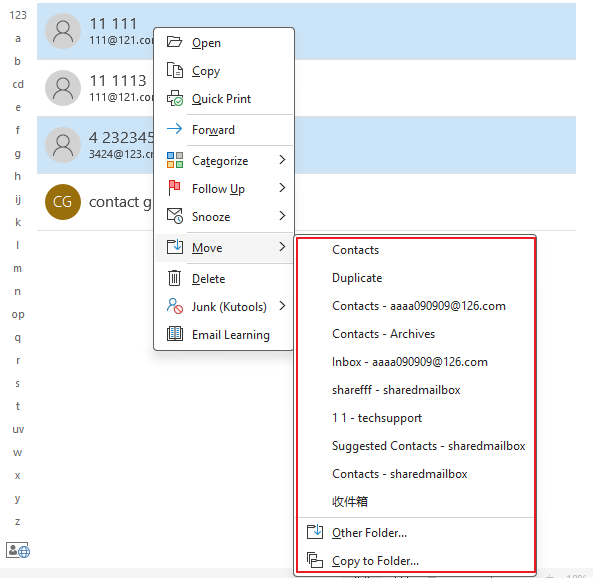
- Explicitly confirms the target folder.
- Handles larger sets more reliably than drag-and-drop.
- More clicks; UI location varies by Outlook version.
3 Recommended — Kutools for Outlook: Smart Address Book
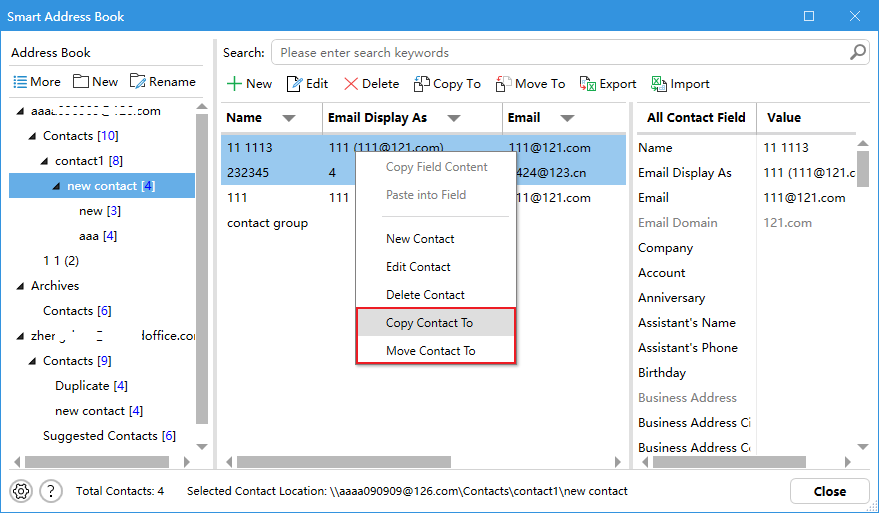
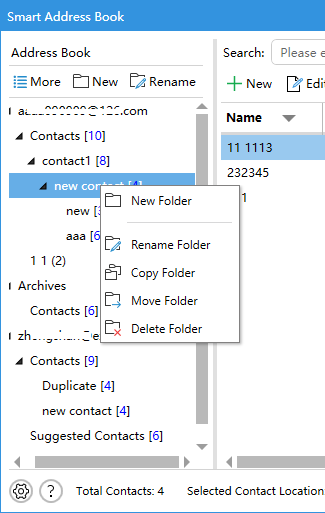
Best for bulk work, multi-account setups, and accuracy. Smart Address Book shows all accounts’ contact folders in a tree, lets you enter any folder, multi-select with Shift/Ctrl, and then right-click to Move contact to or Copy contact to. It’s stable and hard to mis-click.
Install Kutools for Outlook, click the Kutools tab, and open Smart Address Book.

In the tree, expand accounts to list all contact folders.
Click a source folder to view contacts.
Select the contacts to move or copy (Shift/Ctrl supported).
Right-click → choose Copy contact to or Move contact to.
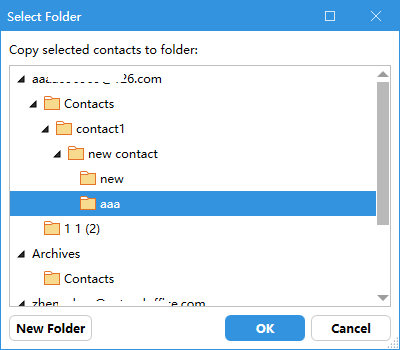
Pick the destination folder and confirm — done.
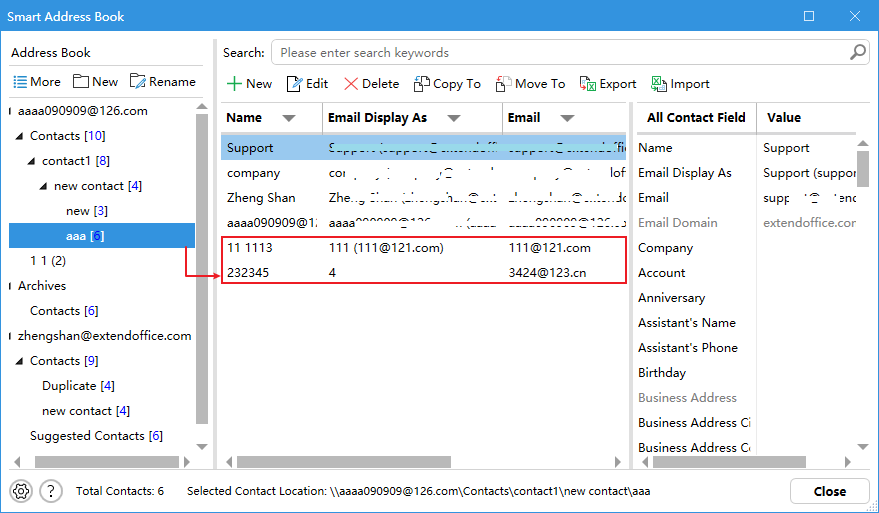
- Tree view of all folders across all accounts.
- Right-click workflow: fewer mistakes, faster than drag-and-drop.
- Handles large selections smoothly.
Copy/Move entire contact folders; create & rename folders.
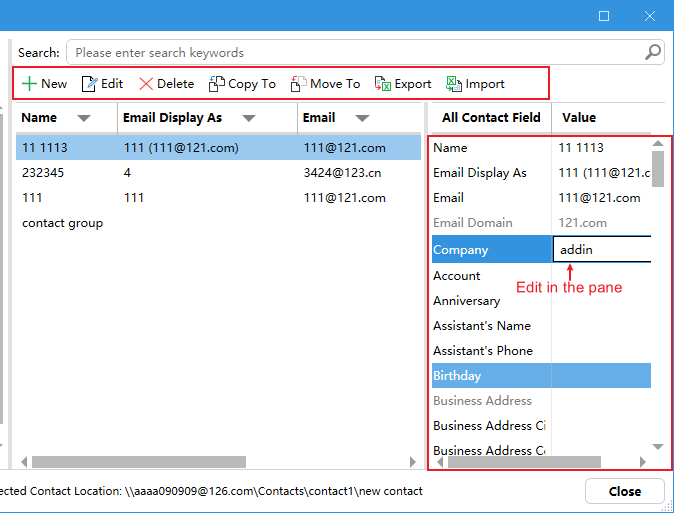
Edit/modify contacts; add new; delete; export/import.
Filter and sort contacts for precise targeting.
Kutools for Outlook
100+ features to make email editing and management easier — Snooze messages, Reply with attachments, Convert email to PDF, and let AI draft professional replies in seconds.
- ⏰Snooze EmailsPause non-urgent messages and bring them back when you’re ready.
- 📎Reply with AttachmentsKeep originals attached when replying — no manual re-attach.
- 📝AI Reply & ComposeDraft, rewrite, and translate professional emails in seconds.
- 📄Convert Email to PDFArchive or share threads exactly as they appear in Outlook.
4 Export/Import (bulk across profiles or tenants)
Use when moving contacts between profiles/organizations or for portable backups.
Export
- File > Open & Export > Import/Export → Export to a file → CSV.
- Select the source contact folder and save.
Import
- File > Open & Export > Import/Export → Import from another program or file → CSV.
- Select the destination contact folder and finish.
- Great for cross-profile moves and backups.
- Gives you a portable CSV file.
- Field mapping may be required; can create duplicates if repeated.
5 Use filters first, then move/copy (cleanup workflows)
Ideal when you only want a subset (by company, category, or domain).
- In People view, search or filter contacts (e.g., by Company, Category, or email domain).
- Select the filtered results.
- Finish with Move/Copy to Folder (Method 2) or Smart Address Book (Method 3).
Outlook’s built-in filtering is basic; Smart Address Book provides stronger filter/sort controls.
Which method should you choose?
- Few contacts, quick job: Drag & drop (Method 1) or Move/Copy command (Method 2).
- Large batches, multiple accounts, reliability:Smart Address Book (Method 3).
- Cross-profile/tenant or archival: Export/Import (Method 4).
- Subset cleanups: Filter first, then Method 2 or 3 (Method 5).
Why consider Kutools for Outlook (Smart Address Book)?
- Tree view of all contact folders across all accounts.
- Right-click:Copy contact to / Move contact to — stable and convenient.
- Copy/Move contact folders; create/rename folders; edit/add/delete contacts; export/import; filter & sort.
Note: Outlook’s native drag-and-drop can stutter or crash with very large selections. When accuracy and speed matter, Smart Address Book offers a safer workflow.
Best Office Productivity Tools
Experience the all-new Kutools for Outlook with 100+ incredible features! Click to download now!
📧 Email Automation: Auto Reply (Available for POP and IMAP) / Schedule Send Emails / Auto CC/BCC by Rules When Sending Email / Auto Forward (Advanced Rules) / Auto Add Greeting / Automatically Split Multi-Recipient Emails into Individual Messages ...
📨 Email Management: Recall Emails / Block Scam Emails by Subjects and Others / Delete Duplicate Emails / Advanced Search / Consolidate Folders ...
📁 Attachments Pro: Batch Save / Batch Detach / Batch Compress / Auto Save / Auto Detach / Auto Compress ...
🌟 Interface Magic: 😊More Pretty and Cool Emojis / Remind you when important emails come / Minimize Outlook Instead of Closing ...
👍 One-click Wonders: Reply All with Attachments / Anti-Phishing Emails / 🕘Show Sender's Time Zone ...
👩🏼🤝👩🏻 Contacts & Calendar: Batch Add Contacts From Selected Emails / Split a Contact Group to Individual Groups / Remove Birthday Reminders ...
Use Kutools in your preferred language – supports English, Spanish, German, French, Chinese, and 40+ others!


🚀 One-Click Download — Get All Office Add-ins
Strongly Recommended: Kutools for Office (5-in-1)
One click to download five installers at once — Kutools for Excel, Outlook, Word, PowerPoint and Office Tab Pro. Click to download now!
- ✅ One-click convenience: Download all five setup packages in a single action.
- 🚀 Ready for any Office task: Install the add-ins you need, when you need them.
- 🧰 Included: Kutools for Excel / Kutools for Outlook / Kutools for Word / Office Tab Pro / Kutools for PowerPoint