Snooze Emails in Outlook: Web, New, and Now Desktop Too
Keeping your inbox clean and focusing on the right messages at the right time can be challenging, especially when you're not ready to respond to an email immediately. That’s where the Snooze Email feature comes in.
While Outlook Web and New Outlook users have this feature natively, classic Outlook desktop users have long been left without it. Fortunately, Kutools for Outlook bridges this gap and even provides more flexible snooze options.
This guide walks you through what Snooze Email is, its limitations in Outlook, and how to use it across different versions, including the classic desktop Outlook with Kutools.
- Snooze emails in Outlook Web (Outlook.com/Outlook on the Web)
- Snooze emails in New Outlook (Windows 11/Microsoft 365)
- No Snooze in Outlook desktop? Kutools Fixes That
What Is the Snooze Email Feature?
The Snooze Email feature allows you to temporarily remove an email from your inbox and have it reappear at a later time as if it just arrived.
This feature is perfect for situations like:
- You receive an email but can’t deal with it right away.
- You want to be reminded to follow up later.
- You want to keep your inbox clear of non-urgent items.
Once snoozed, the email disappears from the inbox and automatically returns at the scheduled time.
Limitations of Outlook’s Built-in Functionality
Although Microsoft Outlook includes the Snooze feature, it is only available in Outlook Web and the New Outlook interface.
In the classic desktop version, there’s no built-in way to:
- Snooze emails directly from the inbox.
- Set specific snooze times or reminders.
- Temporarily remove and resurface messages.
This limitation can be frustrating for users who rely on the desktop version for daily work. That’s where Kutools for Outlook comes in to fill this gap.
Using Snooze Emails in Different Versions of Outlook
Outlook users have different experiences depending on which version they use. Below is a breakdown of how the Snooze feature works in each environment.
Snooze Emails in Outlook Web (Outlook.com / Outlook on the Web)
Outlook Web users can snooze emails directly in the browser without installing anything.
Steps to use Snooze in Outlook Web:
- Open Outlook on the Web and go to your inbox.
- Right-click the email you want to snooze.
- Select Snooze from the context menu.
- Choose a predefined time (e.g., Tomorrow, Next week) or select Choose a date to pick a custom date and time.
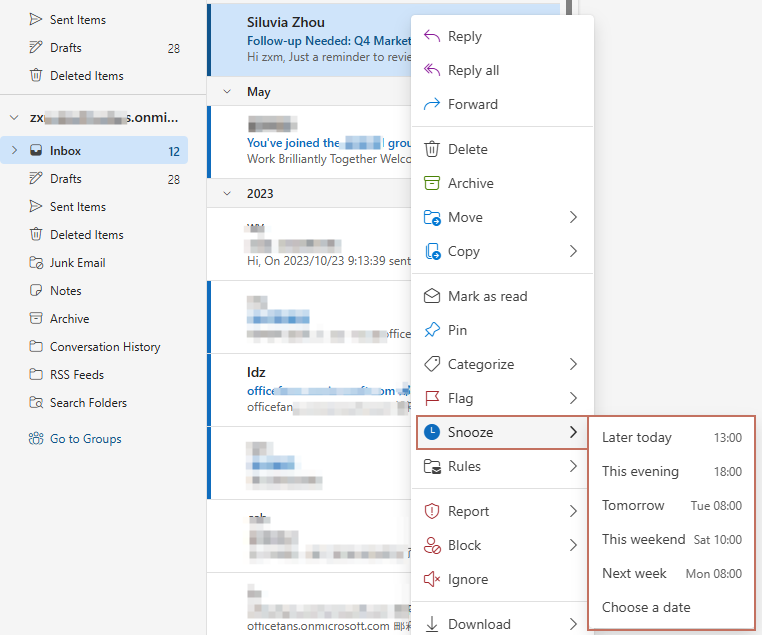
After snoozing, the email disappears from the inbox and moves to a folder named Snoozed, where it is stored until it automatically returns to the inbox at the chosen time.

This is convenient for users who primarily work in the web interface.
Snooze Emails in New Outlook (Windows 11 / Microsoft 365)
The New Outlook interface integrates many features from Outlook on the Web — including Snooze. The steps to snooze emails in New Outlook are the same as those in Outlook on the Web.
Steps to use Snooze in New Outlook:
- Launch New Outlook and navigate to your inbox.
- Right-click the email you want to snooze.
- Select Snooze, then shoose from the available time options or select a custom date and time.
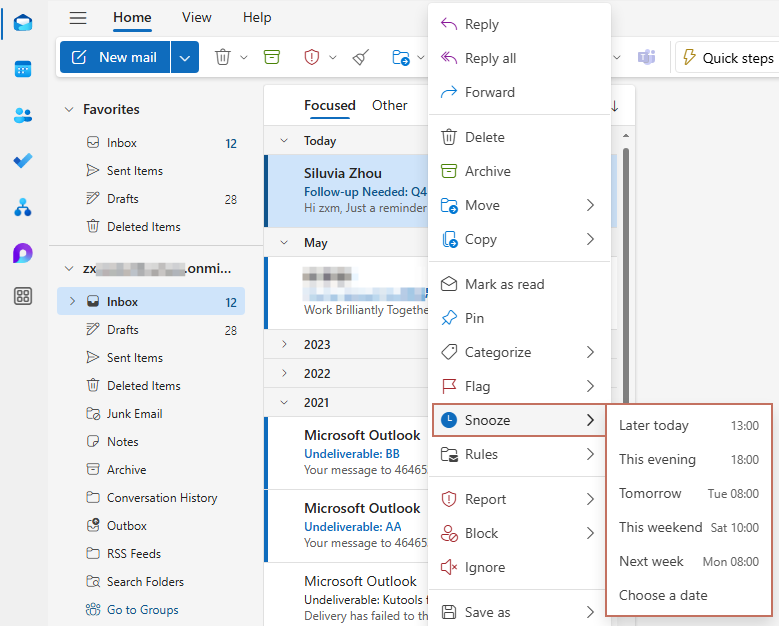
After snoozing, the email disappears from the inbox and moves to a folder named Snoozed, where it is stored until it automatically returns to the inbox at the chosen time.

No Snooze in Outlook Desktop? Kutools Fixes That
Classic Outlook desktop doesn’t offer Snooze out of the box—but Kutools for Outlook adds this functionality and goes a step further by providing more flexible time options.
Once installed Kutools for Outlook, you’ll see a Snooze button in the Kutools tab.
Steps to use Snooze in Outlook Desktop:
- Select the email you want to snooze.
- Go to Kutools > Snooze.
- In the Snooze menu, you can choose from preset options or click Pick Date and Time to set a custom schedule using the calendar and time picker.
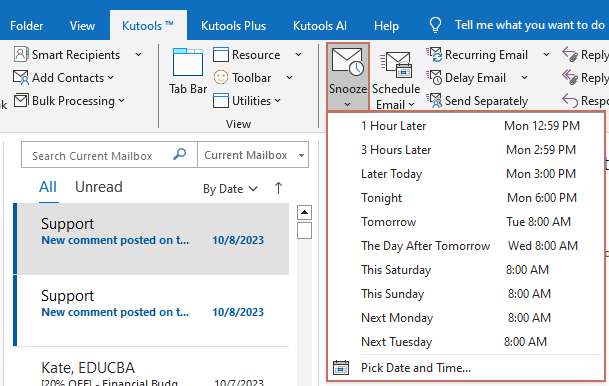
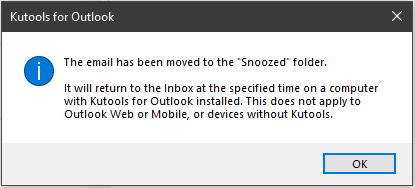
- A message box will pop up reminding you that the email has been moved to the “Snoozed” folder. Click OK to confirm.
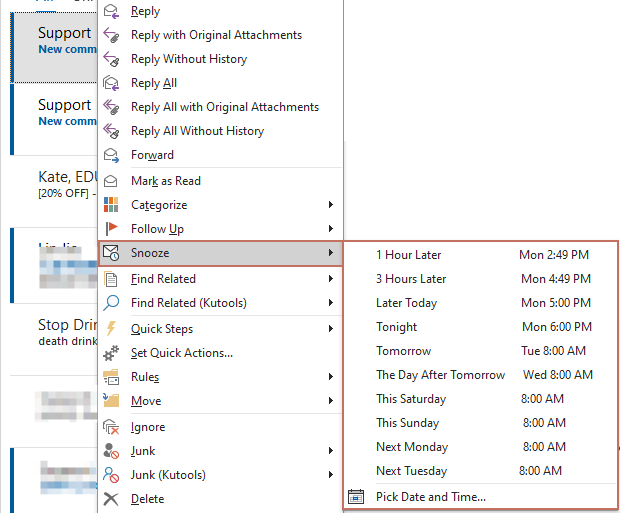
The email will then disappear from the Inbox and show in a folder named “Snoozed”, and will return to your inbox at the exact time you selected.
Tip:
- You can also right-click the email you want to snooze, then select Snooze and choose the desired time.
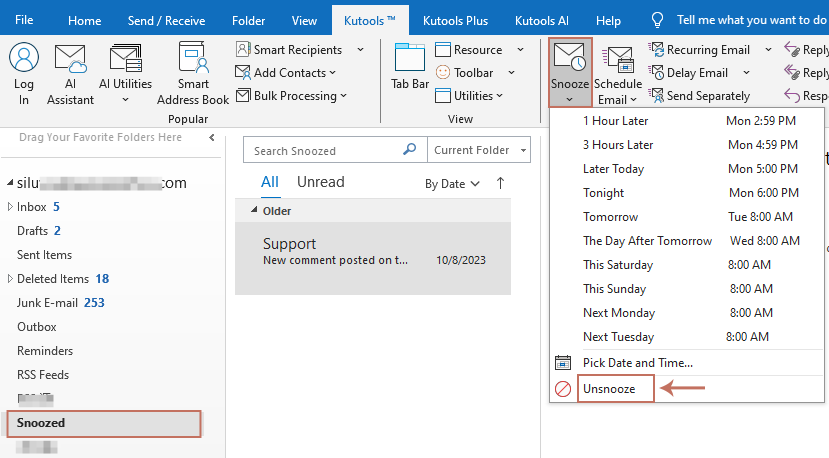
- If you don’t want to wait for a snoozed email to return to the Inbox at the scheduled time, you can manually unsnooze it. Go to the Snoozed folder, select the email, and then click Kutools > Snooze > Unsnooze.
Conclusion
The Snooze Email feature is a powerful tool for managing your inbox more effectively.
- Outlook Web and New Outlook users can access it natively.
- Classic Outlook Desktop users can unlock the same — and even better — functionality with Kutools for Outlook, gaining greater control and more scheduling flexibility. Additionally, you can manually unsnooze an email at any time if needed.
If you rely on Outlook desktop every day, Kutools’ Snooze is the perfect way to bring this missing feature to your workflow—and take your email management to the next level.
Best Office Productivity Tools
Experience the all-new Kutools for Outlook with 100+ incredible features! Click to download now!
📧 Email Automation: Auto Reply (Available for POP and IMAP) / Schedule Send Emails / Auto CC/BCC by Rules When Sending Email / Auto Forward (Advanced Rules) / Auto Add Greeting / Automatically Split Multi-Recipient Emails into Individual Messages ...
📨 Email Management: Recall Emails / Block Scam Emails by Subjects and Others / Delete Duplicate Emails / Advanced Search / Consolidate Folders ...
📁 Attachments Pro: Batch Save / Batch Detach / Batch Compress / Auto Save / Auto Detach / Auto Compress ...
🌟 Interface Magic: 😊More Pretty and Cool Emojis / Remind you when important emails come / Minimize Outlook Instead of Closing ...
👍 One-click Wonders: Reply All with Attachments / Anti-Phishing Emails / 🕘Show Sender's Time Zone ...
👩🏼🤝👩🏻 Contacts & Calendar: Batch Add Contacts From Selected Emails / Split a Contact Group to Individual Groups / Remove Birthday Reminders ...
Use Kutools in your preferred language – supports English, Spanish, German, French, Chinese, and 40+ others!


🚀 One-Click Download — Get All Office Add-ins
Strongly Recommended: Kutools for Office (5-in-1)
One click to download five installers at once — Kutools for Excel, Outlook, Word, PowerPoint and Office Tab Pro. Click to download now!
- ✅ One-click convenience: Download all five setup packages in a single action.
- 🚀 Ready for any Office task: Install the add-ins you need, when you need them.
- 🧰 Included: Kutools for Excel / Kutools for Outlook / Kutools for Word / Office Tab Pro / Kutools for PowerPoint