How to Set Up a Reply Reminder in Outlook — Never Miss a Response Again
📨 Why You Need Reply Reminders
Have you ever sent an important email and then completely forgotten to follow up? Maybe you were waiting for a client’s confirmation, a project approval, or a colleague’s update — and days later realized you never got a reply.
Fortunately, Outlook provides reminder tools that can help you stay on top of conversations. In addition to Outlook’s built-in Follow Up feature, advanced tools like Kutools for Outlook offer smarter reply tracking with automatic notifications when replies arrive — or when nobody replies at all.
In this guide, we’ll look at multiple ways to set up reply reminders in Outlook and compare their advantages.
Method 1: Outlook’s Native Follow-Up and Reminder Options compare their advantages.
Method 2: Kutools for Outlook — Watch for Reply
| Feature | Outlook Follow Up | Kutools for Outlook Watch for Replies |
|---|---|---|
| Remind you to follow up | ✔ | ✔ |
| Detect whether a reply is received | ✘ | ✔ |
| Notify you when a reply arrives | ✘ | ✔ |
| Alert you if no reply is received before a deadline | ✘ | ✔ |
| Manage all reply reminders in one place | ✘ | ✔ |
| Open the original email and reply directly | ✘ | ✔ |
| Best for | Simple follow-up reminders | Tracking important email replies |
Method 1: Outlook’s Native Follow-Up and Reminder Options
Classic Outlook doesn’t have a direct “reply reminder” button, but you can use Follow Up Flags and Reminders to achieve a similar effect.
Steps:
- Go to your Sent Items folder.
- Right-click on the email you want to track.
- Click Follow Up on the ribbon → choose Add Reminder.
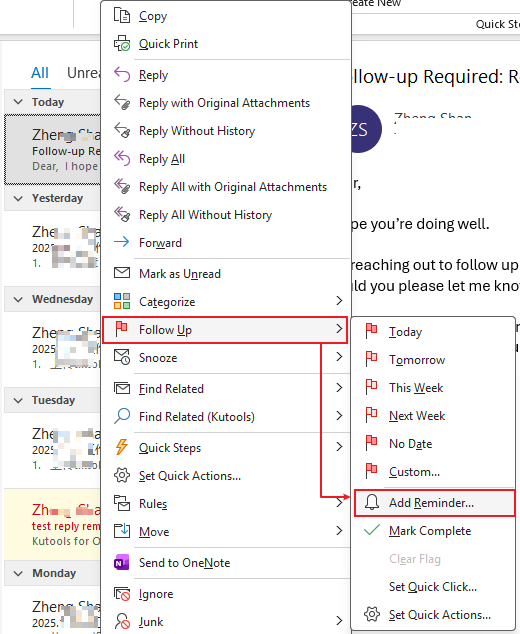
- In the dialog box:
- Name the Flag to or select a type from the drop-down list
- Choose the Start Date and Due Date (for when you expect a reply)
- Check the Reminder option, and specify the date and time
- Optionally choose a sound.
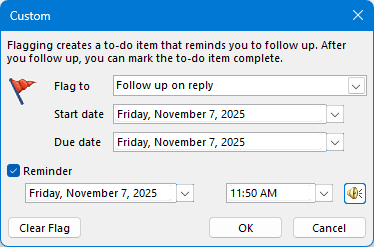
- Click OK.
Now, a flag and a bell appear on the right of the email.

Then, Outlook will show a reminder pop-up on the selected datetime — prompting you to check if you’ve received a reply.
💡 Tip: You can also add a “Follow Up” flag before sending an email — go to Message > Tags > Follow Up > Add Reminder. That way, you’ll get a notification even if you forget to track it later.
🧭 Transition:
While this manual method works, it requires setting reminders one by one.
Limitations of Outlook’s Native Follow Up Feature
Although Outlook’s Follow Up reminders are useful, they still have several limitations:
- The reminders are completely manual.
- Outlook does not actually monitor replies.
- You must manually check whether someone replied.
- There is no instant notification when a reply arrives.
- Managing many reminders becomes difficult over time.
If you regularly handle important emails, you may need a smarter and more automated solution.
Method 2: Use Kutools for Outlook — Watch for Reply
For users who want true reply tracking instead of simple time reminders, Kutools for Outlook provides a much more advanced solution.
Kutools includes a powerful feature called:
This feature can automatically monitor sent emails and provide two intelligent reminder options:
Notify me if I get a reply
Get an instant pop-up notification when a reply arrives.
Notify me if no reply
Set a deadline and receive a reminder if no reply is received.
Compared with Outlook’s built-in Follow Up feature, Kutools focuses on actual reply tracking rather than generic reminder scheduling.
Notify Me If I Get a Reply — Instant Reply Notifications
One of the biggest advantages of Kutools is Notify me if I get a reply. With this feature enabled, Kutools automatically detects when someone replies to your email and immediately displays a pop-up notification.
This means you no longer need to:
- Constantly refresh your inbox
- Manually search for replies
- Worry about missing important responses
The notification appears instantly in the lower-right corner of your screen, helping you respond quickly to critical emails.
Steps
- Install Kutools for Outlook, open Outlook.
- Select a message in the SentItem folder that you want to notify about the response.
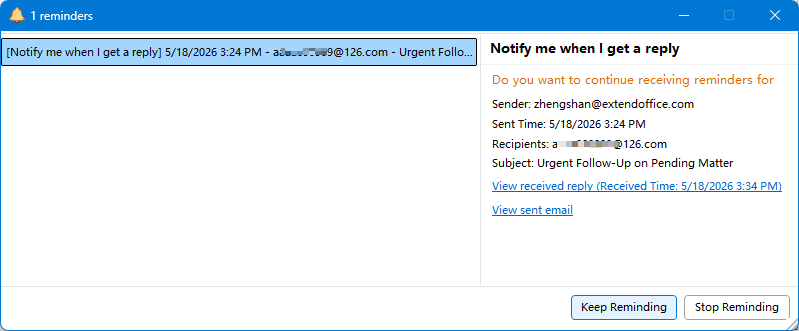
- Select Kutools > Watch for Reply > Notify me if I get a reply.
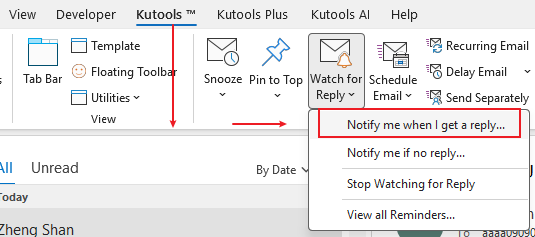
- By default, the "Reminder me when a reply is received" option is ticked. If you want to stop the reminder after a deadline, tick the "Stop reminding me after the following datetime", and choose a datetime.
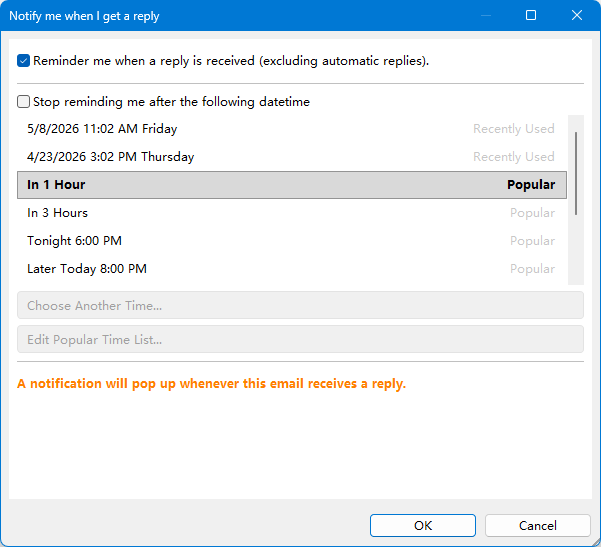
- Click OK. Now, a notification will pop up when you receiving the response from this email.
Notify Me If No Reply — Automatic Follow-Up Tracking
Kutools also includes Notify me if no reply. This feature allows you to set a deadline for replies. If nobody replies before the selected time, Kutools automatically reminds you to follow up.
This is extremely useful for:
- Tracking unanswered emails
- Following up with clients
- Managing pending approvals
- Preventing forgotten conversations
Steps
- Select the email from the SentItem folder that you want a notification if no reply.
- Select Kutools > Watch for Reply > Notify me if no reply.
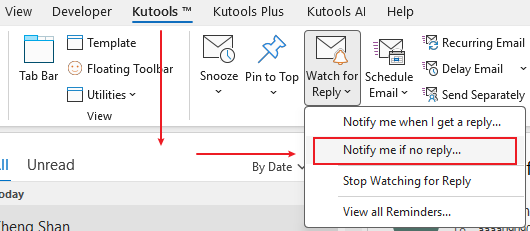
- By default, the "After the time below, if no reply has been received, remind me" option is ticked, choose a deadline below the option.
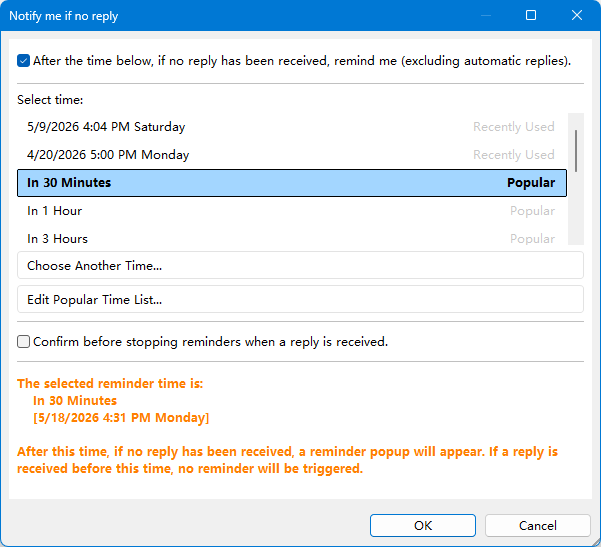
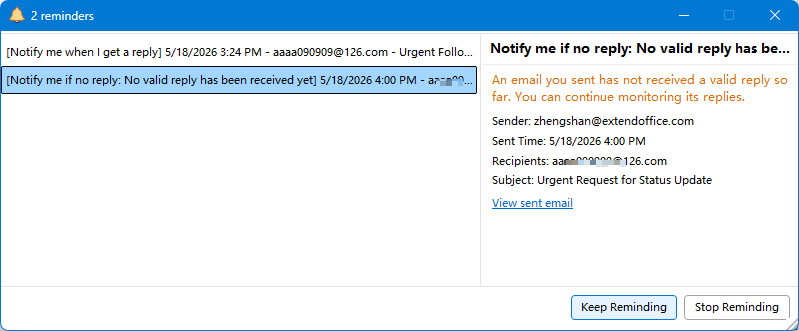
- Click OK. Now, if there is no reply received after the deadline you specify, a notification will pop up to remind you.
Why This Feature Is So Useful
The Watch for Reply feature is especially helpful for:
For busy Outlook users, this can significantly improve response speed and workflow efficiency.
Download Kutools for Outlook Today
Enjoy a 30-day free trial and experience smarter email management, automatic reply reminders, and powerful productivity tools for Outlook.
🚀 Download Now30-Day Free Trial · Easy to Install · No Credit Card Required
💤 Stay in Control with the Snooze Feature in Kutools for Outlook
Manage your inbox more effectively with the Snooze feature in Kutools for Outlook! Snooze temporarily hides selected emails and brings them back to your inbox at the exact time you choose — so you can deal with them when it’s most convenient.
- 🕒 Delay emails you can’t handle right away and have them reappear later
- 📅 Choose custom snooze times — hours, days, or a specific date
- 🔔 Get notified automatically when the snoozed message returns
- 📥 Keep your inbox clean while staying on top of important tasks
Try Kutools for Outlook FREE for 30 days and experience the power of smarter email scheduling.
🔽 Download Free TrialBest Office Productivity Tools
Experience the all-new Kutools for Outlook with 100+ incredible features! Click to download now!
📧 Email Automation: Auto Reply (Available for POP and IMAP) / Schedule Send Emails / Auto CC/BCC by Rules When Sending Email / Auto Forward (Advanced Rules) / Auto Add Greeting / Automatically Split Multi-Recipient Emails into Individual Messages ...
📨 Email Management: Recall Emails / Block Scam Emails by Subjects and Others / Delete Duplicate Emails / Advanced Search / Consolidate Folders ...
📁 Attachments Pro: Batch Save / Batch Detach / Batch Compress / Auto Save / Auto Detach / Auto Compress ...
🌟 Interface Magic: 😊More Pretty and Cool Emojis / Remind you when important emails come / Minimize Outlook Instead of Closing ...
👍 One-click Wonders: Reply All with Attachments / Anti-Phishing Emails / 🕘Show Sender's Time Zone ...
👩🏼🤝👩🏻 Contacts & Calendar: Batch Add Contacts From Selected Emails / Split a Contact Group to Individual Groups / Remove Birthday Reminders ...
Use Kutools in your preferred language – supports English, Spanish, German, French, Chinese, and 40+ others!


🚀 One-Click Download — Get All Office Add-ins
Strongly Recommended: Kutools for Office (5-in-1)
One click to download five installers at once — Kutools for Excel, Outlook, Word, PowerPoint and Office Tab Pro. Click to download now!
- ✅ One-click convenience: Download all five setup packages in a single action.
- 🚀 Ready for any Office task: Install the add-ins you need, when you need them.
- 🧰 Included: Kutools for Excel / Kutools for Outlook / Kutools for Word / Office Tab Pro / Kutools for PowerPoint
Table of Contents
Kutools for Outlook
Boost your email productivity with Kutools for Outlook — smarter email management, follow-up reminders, and AI-powered tools.