Create an Email Signature from a Template in Outlook (Step-by-Step Guide)
A professional email signature is more than just contact details — it reflects your brand identity and builds trust with every message you send. Instead of creating signatures manually every time, using a template-based signature in Outlook helps you maintain consistency, save time, and present a polished image. Here is a comprehensive guide on how to create a signature using a template and, more importantly, how to optimize it so it actually looks good on the recipient's end.
Why Use a Signature Template?
Using a signature template moves you away from the old habit of typing "Regards, John" at the bottom of every email and introduces a standardized, professional approach.
- Consistency and Branding For businesses, consistency is key. A template ensures that every employee uses the same font, color scheme, and logo placement. This reinforces brand identity with every email sent.
- Time Efficiency Instead of manually typing your details or copying and pasting from a previous email (which risks sending the wrong information), a template allows you to insert a perfectly formatted signature with a single click.
- Professionalism A well-designed signature that includes links to LinkedIn, a company website, or a legal disclaimer looks far more professional than plain text. It shows the recipient that you pay attention to detail.
- Marketing and Connectivity Templates allow you to include banners for upcoming webinars, links to recent whitepapers, or icons linking to social media profiles, turning your email footer into a passive marketing tool.
How to Create Signature from a Template?
There are several ways to create a signature. The best method depends on your technical comfort level and the tools available to you. Below are two effective methods.
Method 1: Create signature from a Word template
Microsoft Word provides a range of built-in email signature templates that you can easily customize and copy directly into Outlook.
Step 1: Access the Signature Gallery from Word
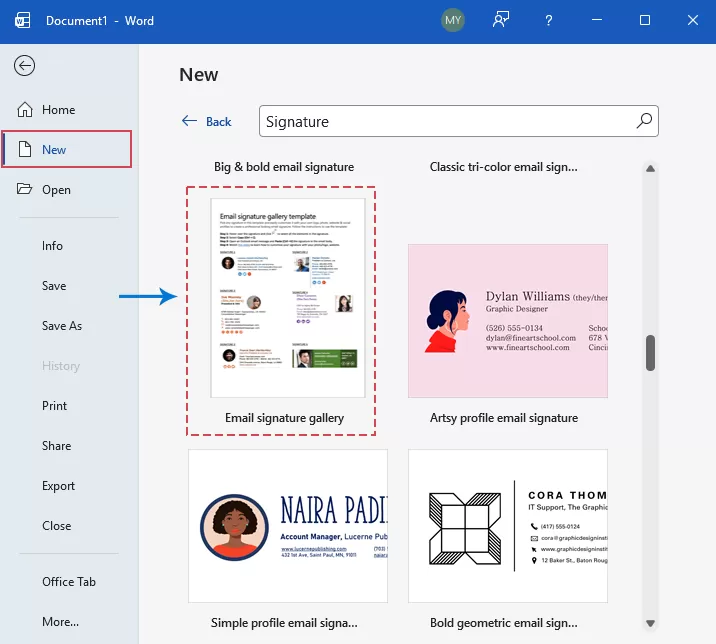
- Launch Microsoft Word. In the left-hand sidebar, click New. Type Signature into the search bar at the top and press Enter. Select the Email Signature Gallery template, see screenshot:
- Then, click Create in the pop-up window.
Step 2: Select and Copy Your Favorite Design
Now, a document will open displaying multiple signature templates. View and select one signature template you like, and then hover over the desired signature, click the left edge to select all elements, and press Ctrl + C to copy. 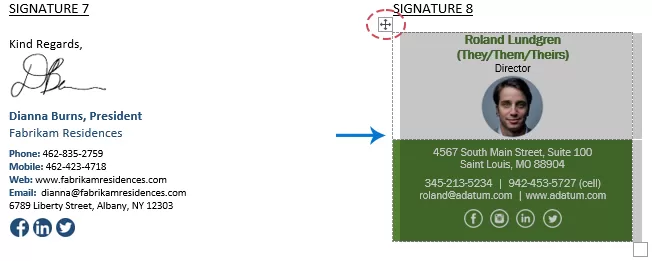
Step 3: Import into Outlook
- Switch to Outlook. In the Home tab, click New Email.
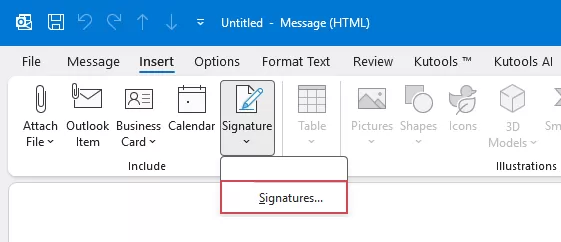
- In the new message window, go to the Insert tab, click Signature, and select Signatures... from the dropdown menu.
- In the Signatures and Stationery dialog, click the New button under the E-mail Signature tab. Give your signature a descriptive name and click OK.
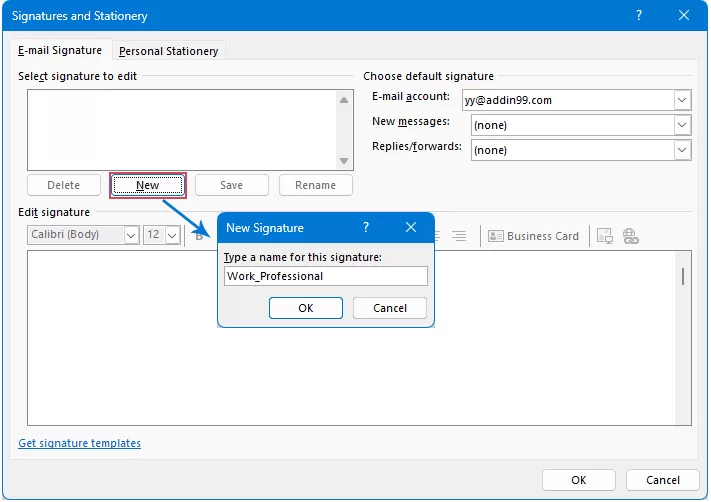
Step 4: Paste and Personalize
- Click inside the Edit signature box and press Ctrl + V to paste the template. Then, you should:
- Update the details to your own information, such as name, job title, and phone number.
- Update the photo: click to select the placeholder image and select the Picture icon to upload your own headshot or company logo.
- Update links: Select any social media icons or website text, click Link icon, and paste your specific URLs.
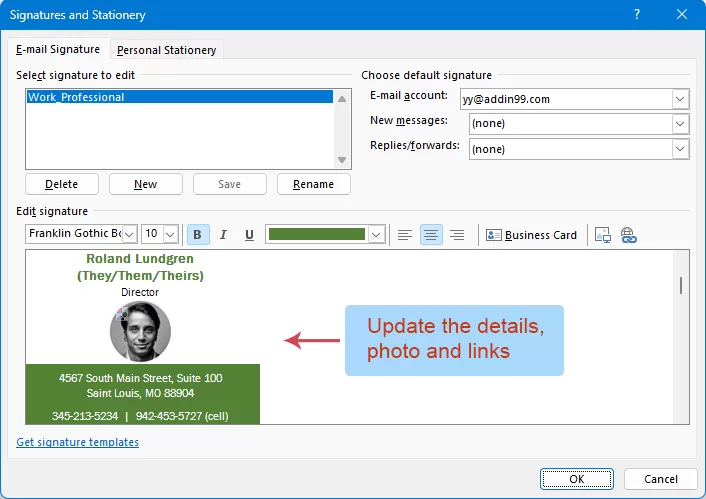
- Click OK to finalize.
The signature has been successfully created from the Word template. Close the email window without saving.
Insert signatures in emails manually or automatically
Once your signature is created, you need to decide how it appears in your messages.
Automatic Insertion:
Automatic insertion is ideal if you primarily use one signature for a specific account. It ensures that you never forget to include your contact details or branding.
- click Home > New Email to create a new email. In the new message window, click Insert > Signature > Signatures to open the Signatures and Stationery dialog.
- In the Signatures and Stationery dialog, go to the Choose default signature section:
- Select Your Account: Choose the specific email account from the E-mail account dropdown menu.
- Set for New Emails: In the New messages dropdown, select the signature you want to appear automatically in all new drafts.
- Set for Replies & Forwards: In the Replies/forwards dropdown, choose a signature (or "None") for all incoming message threads.
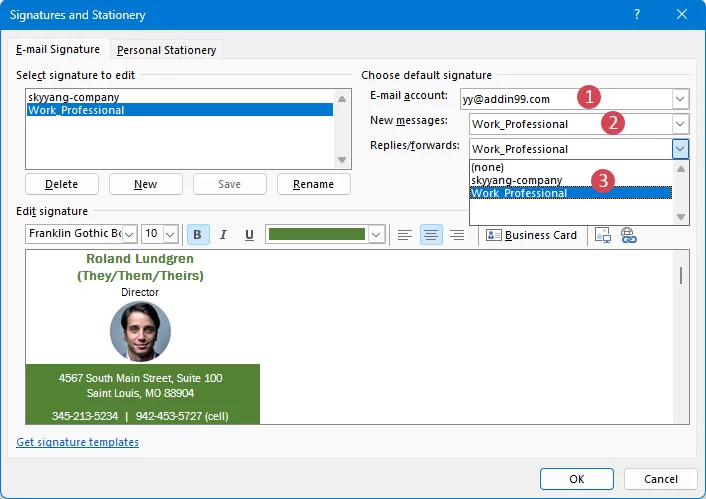
- Click OK to apply the changes. From now on, your signature will now be pre-inserted every time you start a new message or forward an existing one.
Manual Insertion:
Manual insertion is best for users who wear "multiple hats"—such as someone who handles both Sales and Support—or those who use different signatures for internal vs. external recipients.
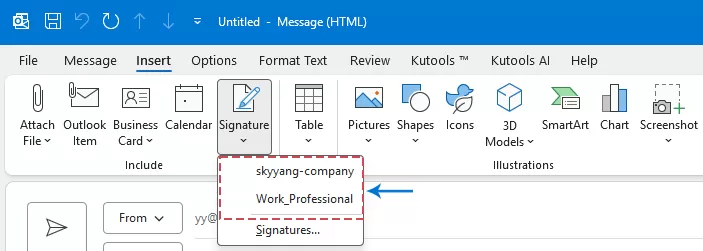
- Open a New Email or click Reply. In the message window, go to the Insert tab.
- Click the Signature icon. A dropdown list of all your saved signatures will appear. Select the one you need, and it will instantly appear at the cursor's location.

Method 2: Create, save and reuse signature by Kutools for Outlook
Handling various email signatures in Outlook is often inefficient. Recreating layouts manually is time-consuming and leads to unprofessional formatting inconsistencies. Kutools for Outlook provides dozens of ready-to-use signature templates that you can apply instantly, while also allowing you to easily create, save, manage, and reuse professional email signatures.
After installing Kutools for Outlook, please do as this:
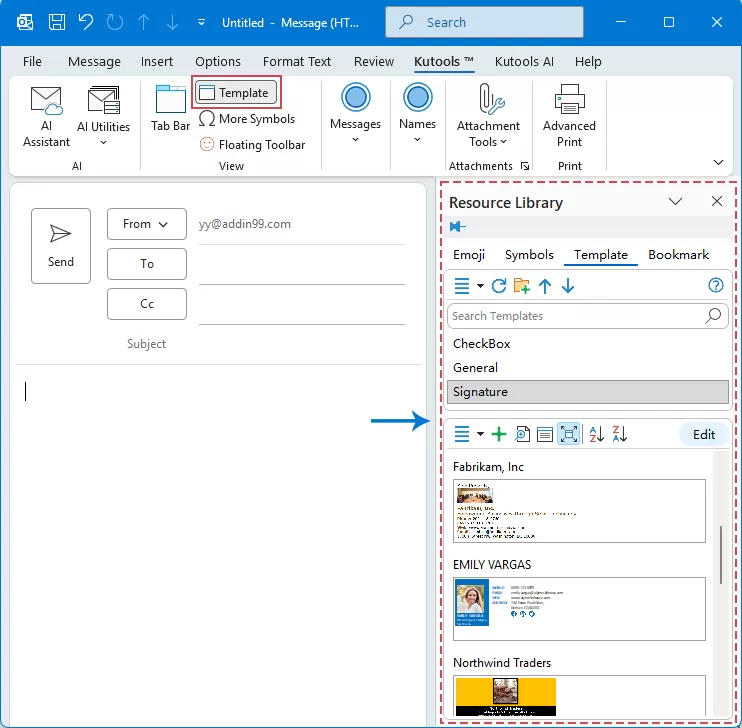
- Open a New Email or click Reply. Then, click Kutools > Template to open the Resource Library pane.
- Under the Template tab, in the Signature option, Kutools provides multiple professionally designed and visually appealing email signatures.
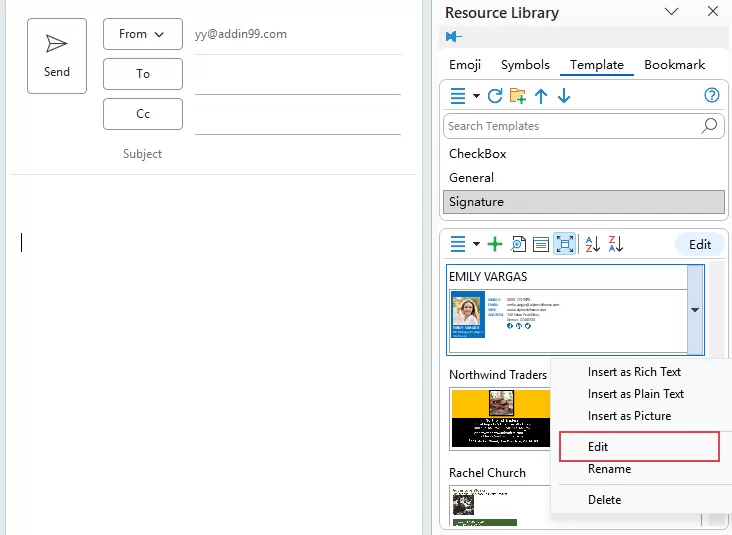
- Select a signature style you like and hover your mouse over it. When the drop-down arrow appears, click it and choose Edit.
- In the Template dialog box, update the signature information with your own details.
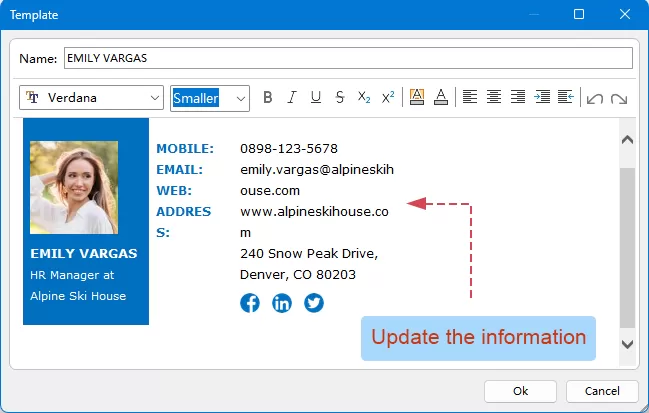
- After finishing, click OK to save the new information.
Now, whenever you need that signature, simply click the entry in the Pane, and it will jump into your email at the cursor point. This is perfect for users who need multiple signatures for different departments. 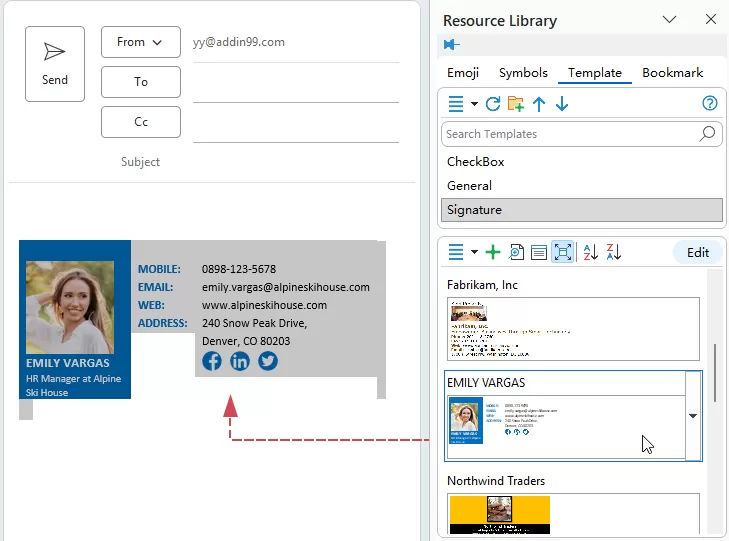
Conclusion
Using signature templates is a simple yet powerful way to keep your emails professional, consistent, and efficient. Instead of manually recreating signatures every time, templates allow you to quickly generate polished signatures with minimal effort.
In this guide, we introduced two practical methods. You can create a signature from a Word template, which is convenient when you already have a pre-designed layout. Alternatively, Kutools for Outlook provides a more advanced solution, allowing you to easily create, save, manage, and reuse multiple signature templates with greater flexibility. By choosing the method that best suits your needs, you can streamline your email communication, maintain a consistent brand image, and save valuable time when sending emails.
Best Office Productivity Tools
Experience the all-new Kutools for Outlook with 100+ incredible features! Click to download now!
📧 Email Automation: Auto Reply (Available for POP and IMAP) / Schedule Send Emails / Auto CC/BCC by Rules When Sending Email / Auto Forward (Advanced Rules) / Auto Add Greeting / Automatically Split Multi-Recipient Emails into Individual Messages ...
📨 Email Management: Recall Emails / Block Scam Emails by Subjects and Others / Delete Duplicate Emails / Advanced Search / Consolidate Folders ...
📁 Attachments Pro: Batch Save / Batch Detach / Batch Compress / Auto Save / Auto Detach / Auto Compress ...
🌟 Interface Magic: 😊More Pretty and Cool Emojis / Remind you when important emails come / Minimize Outlook Instead of Closing ...
👍 One-click Wonders: Reply All with Attachments / Anti-Phishing Emails / 🕘Show Sender's Time Zone ...
👩🏼🤝👩🏻 Contacts & Calendar: Batch Add Contacts From Selected Emails / Split a Contact Group to Individual Groups / Remove Birthday Reminders ...
Use Kutools in your preferred language – supports English, Spanish, German, French, Chinese, and 40+ others!


🚀 One-Click Download — Get All Office Add-ins
Strongly Recommended: Kutools for Office (5-in-1)
One click to download five installers at once — Kutools for Excel, Outlook, Word, PowerPoint and Office Tab Pro. Click to download now!
- ✅ One-click convenience: Download all five setup packages in a single action.
- 🚀 Ready for any Office task: Install the add-ins you need, when you need them.
- 🧰 Included: Kutools for Excel / Kutools for Outlook / Kutools for Word / Office Tab Pro / Kutools for PowerPoint
Table of Contents
- Why Use a Signature Template?
- How to Create Signature from a Template?
- Create signature from Word template
- Insert signatures in emails manually or automatically
- Create save and reuse signature by Kutools for Outlook
- Conclusion
- Best Office Productivity Tools
Kutools for Outlook
Brings 100+ advanced features to Outlook
- ⬇️ Free Download
- 🛒 Purchase Now
- 📘 Feature Tutorials
- 🎁 30-Day Free Trial