Export Outlook Emails to an Excel File (3 Easy Methods)
Managing a large number of emails in Outlook can quickly become overwhelming. Sometimes you may need to analyze email data, generate reports, track communications, or archive important information. Exporting Outlook emails to Excel allows you to organize email details such as sender, subject, date, and message content in a structured format for easier analysis and management. In this guide, you will learn three practical methods to export Outlook emails to Excel.

Why Export Outlook Emails to Excel?
Export Outlook Emails to an Excel File
- Method 1: Export emails using Import/Export feature
- Method 2: Export emails quickly with VBA code
- Method 3: Export emails quickly with Kutools for Outlook
Why Export Outlook Emails to Excel?
Exporting Outlook emails to Excel offers several advantages, especially when working with large volumes of email data.
Key benefits include:
- Better data analysis – Use Excel formulas, PivotTables, and charts to analyze communication patterns.
- Email tracking – Monitor customer emails, project communication, or support tickets.
- Backup important email data – Store critical information outside Outlook.
- Create reports – Generate structured reports from email data.
- Filter and sort easily – Excel allows quick filtering, sorting, and searching.
For example, you can export emails and quickly analyze:
- Who sends you the most emails
- How many emails you receive per day or month
- Which customers contact you most frequently
Export Outlook Emails to an Excel File
Below are three reliable and practical methods to export emails from Outlook into an Excel file. Whether you prefer using Outlook’s built-in export feature, automating the process with VBA, or using a faster third-party tool like Kutools for Outlook, each method offers a different level of convenience and flexibility. You can choose the approach that best fits your workflow and the number of emails you need to export.
Method 1: Export emails to Excel using Import/Export feature
Outlook provides a built-in Import/Export wizard that allows you to export emails to a CSV file, which can then be opened in Excel.
- Open Outlook and go to File > Open & Export > Import/Export.
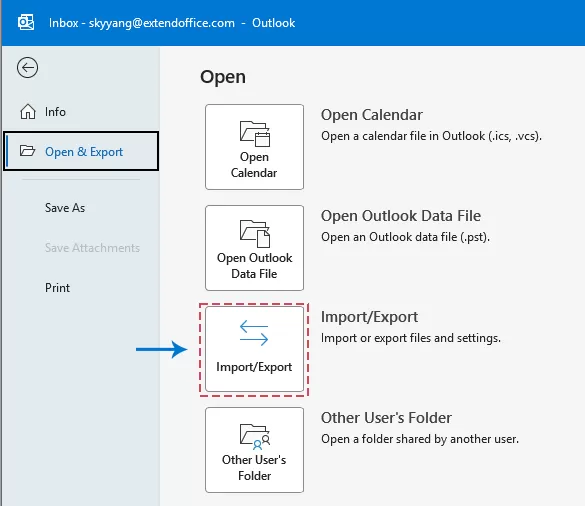
- In the Import and Export Wizard, select Export to a file and click Next.
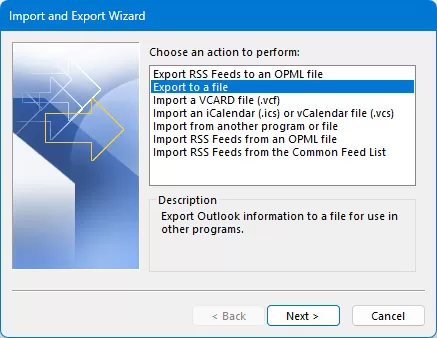
- Choose Comma Separated Values as the file type and click Next.
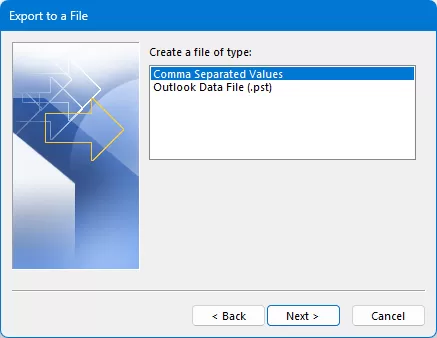
- Select the email folder you want to export (for example Inbox) and click Next.
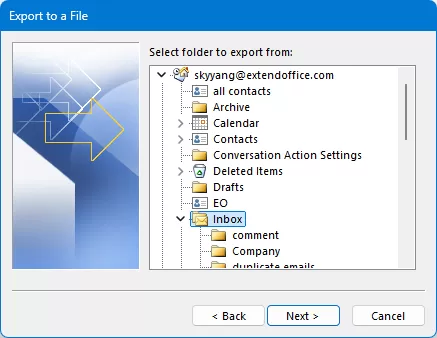
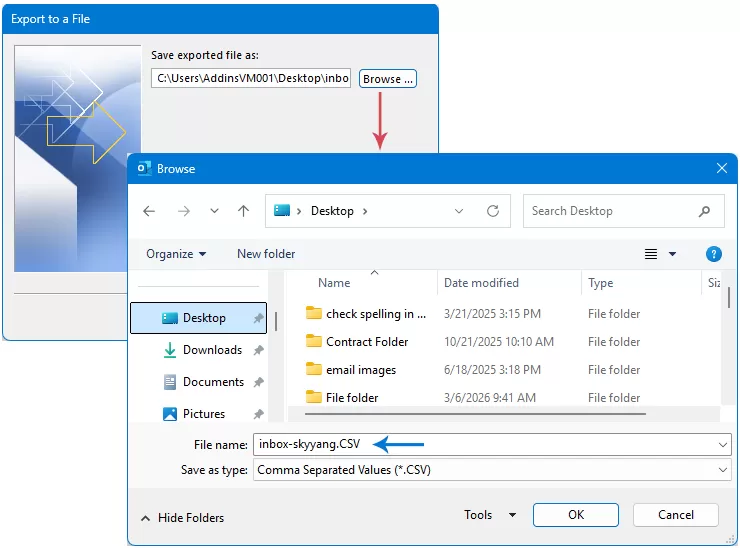
- Click Browse button to select a saving destination and name your file.
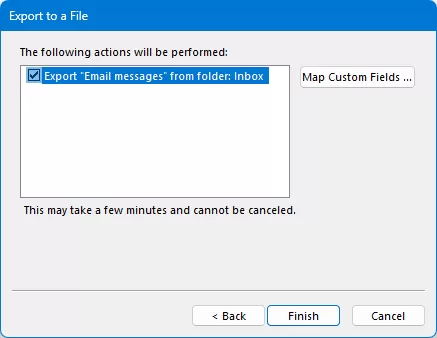
- In the last Export to a File dialog box, make sure the Export “E-Mail messages” from folder is checked.
Tips:
Click Map Custom Fields if you want to customize which information is exported.
- Finally, click Finish button to start exporting.
Once the export is complete, open the exported CSV file, your emails will appear in rows and columns, making them easy to analyze and organize.
Method 2: Export emails to Excel using VBA code
If you frequently export emails, using VBA automation can save time and allow you to export emails directly to Excel.
- In Outlook, press Alt + F11 to open the VBA Editor.
- Click Insert > Module. Copy and paste the following code into the window:
Sub ExportEmailsWithBodyToExcel()

    Dim olApp As Outlook.Application
    Dim olNs As Outlook.NameSpace
    Dim olFolder As Outlook.MAPIFolder
    Dim olSubFolder As Outlook.MAPIFolder
    Dim olItems As Outlook.Items
    Dim olMail As Object

    Dim xlApp As Object
    Dim xlWB As Object
    Dim xlWS As Object

    Dim i As Long
    Dim savePath As String
    Dim mailboxName As String
    Dim folderName As String

    '===== Modify here =====
    mailboxName = "skyyang@extendoffice.com"      'Specify the mailbox name
    folderName = "Inbox"                         'Specify the folder name (e.g., Inbox or Sent Items)
    savePath = "C:\Users\Public\OutlookEmails.xlsx"   'Specify the Excel file save path and file name    '=======================

    Set olApp = Outlook.Application
    Set olNs = olApp.GetNamespace("MAPI")
    Set olFolder = olNs.Folders(mailboxName)
    Set olSubFolder = olFolder.Folders(folderName)
    Set olItems = olSubFolder.Items
    olItems.Sort "[ReceivedTime]", True
    Set xlApp = CreateObject("Excel.Application")
    xlApp.Visible = True
    Set xlWB = xlApp.Workbooks.Add
    Set xlWS = xlWB.Sheets(1)
    xlWS.Cells(1, 1).Value = "No."
    xlWS.Cells(1, 2).Value = "Subject"
    xlWS.Cells(1, 3).Value = "Sender Name"
    xlWS.Cells(1, 4).Value = "Sender Email"
    xlWS.Cells(1, 5).Value = "To"
    xlWS.Cells(1, 6).Value = "CC"
    xlWS.Cells(1, 7).Value = "Received Time"
    xlWS.Cells(1, 8).Value = "Email Body"
    i = 2
    For Each olMail In olItems
        If TypeName(olMail) = "MailItem" Then
           xlWS.Cells(i, 1).Value = i - 1
            xlWS.Cells(i, 2).Value = olMail.Subject
            xlWS.Cells(i, 3).Value = olMail.SenderName
            xlWS.Cells(i, 4).Value = olMail.SenderEmailAddress
            xlWS.Cells(i, 5).Value = olMail.To
            xlWS.Cells(i, 6).Value = olMail.CC
            xlWS.Cells(i, 7).Value = olMail.ReceivedTime
            xlWS.Cells(i, 8).Value = olMail.Body
            xlWS.Cells(i, 8).WrapText = True
            i = i + 1
        End If
    Next olMail
    xlWS.Columns("A:H").AutoFit
    xlWS.Columns("H").ColumnWidth = 80
    xlWS.Rows(1).Font.Bold = True
    xlWB.SaveAs savePath
    xlWB.Close
    xlApp.Quit
    MsgBox "Emails exported successfully!", vbInformation
End Sub
Note:
Before running the macro, adjust these parameters:
- mailboxName = "skyyang@extendoffice.com" – your Outlook mailbox address
- folderName = “Inbox”– the folder to export (Inbox, Sent Items, etc.)
- savePath = "C:\Users\Public\OutlookEmails.xlsx" – the Excel file location and file name
- Press F5 to run the macro. Outlook will export the emails to Excel automatically.
Method 3: Export emails to Excel using Kutools for Outlook
If you prefer a no-code solution, Kutools for Outlook provides a much easier and faster way to export emails with just a few clicks. Instead of navigating complex export settings or writing VBA scripts, you can simply select the folder you want and use Kutools to export all emails within the folder in bulk. This method is especially useful when you need to quickly export large numbers of emails while keeping the process simple and efficient.
After downloading and installing Kutools for Outlook, please do as this:
- Select the email folder (Inbox, Sent Items, etc.) you want to export to Excel.
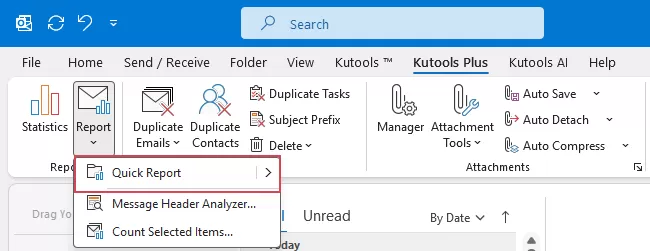
- Then, click Kutools Plus > Report > Quick Report, see screenshot:
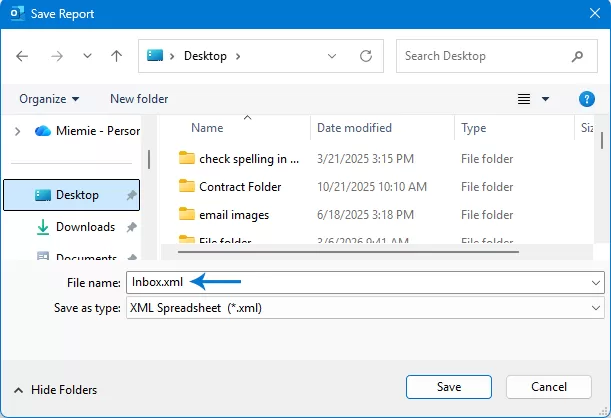
- In the Save Report dialog box, first select the destination folder where you want to save the Excel file. Then, enter a name for the exported file in the File name field, and finally click Save button.
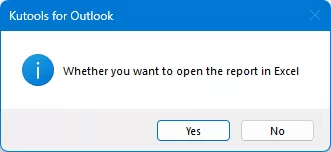
- After exporting, a dialog box will appear asking whether you want to open the exported file. Click Yes to open it immediately.
All emails from the specified mail folder have been successfully exported and are now displayed in the newly opened Excel workbook.
Tips: Customize the Fields to Export
You can specify which message fields to include in the export by clicking Kutools Plus > Report > Quick Report > Settings, and then selecting the items you want to export by checking the corresponding boxes. 
Boost Your Email Productivity with Kutools for Outlook
Simplify everyday Outlook tasks with powerful tools for email management, bulk processing, auto reply, attachment handling, message reporting, and much more.
- Export emails, attachments, and reports quickly
- Save time with bulk email handling tools
- Use AI-powered tools to help draft, summarize, and improve email content
- Manage Outlook more efficiently with advanced productivity features
Tips for Better Email Data Analysis in Excel
Once your Outlook emails have been exported to Excel, you can take advantage of Excel’s powerful data analysis tools to organize, summarize, and extract insights from the email data. The following tips can help you analyze your email information more efficiently.
Use Filters to Find Specific Emails
Apply Excel’s Filter feature (Data > Filter) to quickly locate emails by sender, subject, or date. This helps you find important messages without scanning the entire list.
Sort Emails to Identify Patterns
Sorting your data by Received Time, Sender, or Subject can help you review emails chronologically or group messages from the same contact.
Use PivotTables for Quick Summaries
Create a PivotTable to summarize your email data, such as counting emails by sender or analyzing email activity by month.
Highlight Important Data with Conditional Formatting
Use Conditional Formatting to automatically highlight important emails, such as messages with specific keywords or high importance levels.
Visualize Trends with Charts
Create simple charts to visualize email trends, like monthly email volume or top senders, making the data easier to understand.
Conclusion
Exporting Outlook emails to Excel is a practical way to better organize, manage, and analyze your email data. In this guide, we introduced three effective methods to accomplish this task.
If you only need to export emails occasionally, the Import/Export wizard is a simple and reliable option. For users who want to automate the process, VBA macros provide greater flexibility. However, if you prefer a faster and easier solution without coding, Kutools for Outlook allows you to export large numbers of emails in just a few clicks.
Once your emails are organized in Excel, you can easily analyze communication patterns, generate reports, and manage email information more efficiently.
Best Office Productivity Tools
Experience the all-new Kutools for Outlook with 100+ incredible features! Click to download now!
📧 Email Automation: Auto Reply (Available for POP and IMAP) / Schedule Send Emails / Auto CC/BCC by Rules When Sending Email / Auto Forward (Advanced Rules) / Auto Add Greeting / Automatically Split Multi-Recipient Emails into Individual Messages ...
📨 Email Management: Recall Emails / Block Scam Emails by Subjects and Others / Delete Duplicate Emails / Advanced Search / Consolidate Folders ...
📁 Attachments Pro: Batch Save / Batch Detach / Batch Compress / Auto Save / Auto Detach / Auto Compress ...
🌟 Interface Magic: 😊More Pretty and Cool Emojis / Remind you when important emails come / Minimize Outlook Instead of Closing ...
👍 One-click Wonders: Reply All with Attachments / Anti-Phishing Emails / 🕘Show Sender's Time Zone ...
👩🏼🤝👩🏻 Contacts & Calendar: Batch Add Contacts From Selected Emails / Split a Contact Group to Individual Groups / Remove Birthday Reminders ...
Use Kutools in your preferred language – supports English, Spanish, German, French, Chinese, and 40+ others!


🚀 One-Click Download — Get All Office Add-ins
Strongly Recommended: Kutools for Office (5-in-1)
One click to download five installers at once — Kutools for Excel, Outlook, Word, PowerPoint and Office Tab Pro. Click to download now!
- ✅ One-click convenience: Download all five setup packages in a single action.
- 🚀 Ready for any Office task: Install the add-ins you need, when you need them.
- 🧰 Included: Kutools for Excel / Kutools for Outlook / Kutools for Word / Office Tab Pro / Kutools for PowerPoint
Table of Contents
- Why Export Outlook Emails to Excel?
- Export Outlook Emails to an Excel File
- Method 1: Using Import/Export feature
- Method 2: Using VBA code
- Method 3: Using Kutools for Outlook
- Tips for Better Email Analysis in Excel
- Conclusion
- Best Office Productivity Tools
Kutools for Outlook
Brings 100+ advanced features to Outlook
- ⬇️ Free Download
- 🛒 Purchase Now
- 📘 Feature Tutorials
- 🎁 30-Day Free Trial