How to Analyze and View Message Headers in Outlook
Email headers contain valuable technical information that can help you trace email routes, verify senders, troubleshoot delivery problems, and investigate suspicious messages. Whether you're an IT administrator, support technician, or simply trying to determine where an email came from, understanding message headers is an essential skill.
In this guide, you'll learn several ways to view and analyze message headers in Outlook, including a faster and more user-friendly solution with Kutools for Outlook.
View Internet Headers in Classic Outlook
Method 1: A built-in way to view email headers
Method 2: Show Hidden Information of Email with Kutools for Outlook
Why Analyze Message Headers?
Message headers contain hidden information such as:
- Sender and recipient details
- Mail server routing information
- Message IDs
- Delivery timestamps
- SPF authentication results
- DKIM signatures
- DMARC verification results
- MIME information
Analyzing this information can help you:
- Identify phishing and spoofing attempts
- Troubleshoot email delivery issues
- Verify sender authenticity
- Investigate spam messages
- Trace email routing paths
View Internet Headers in Classic Outlook
Method 1 A built-in way to view email headers
Steps
- Double-click the email to open it in a separate window.
- Click File > Info > Properties.
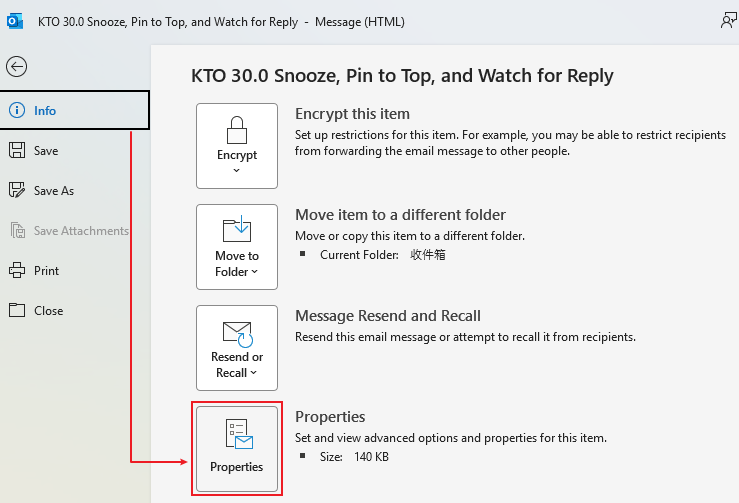
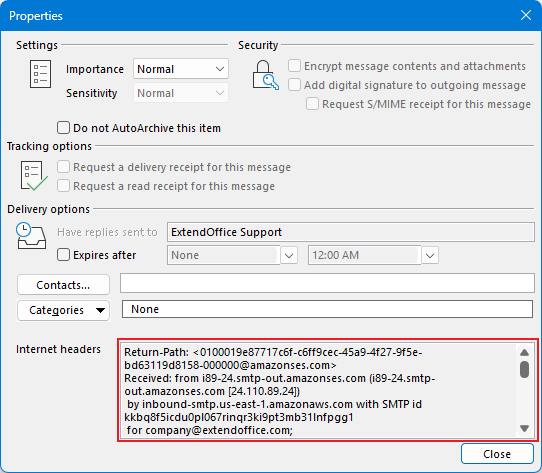
- Locate the Internet headers box at the bottom of the Properties window.
- Review the header information.
Limitations
- Only shows the header section.
- The information is displayed in a small text box.
- Difficult to read and analyze long headers.
- Requires several clicks to access.
Method 2: Show Hidden Information of Email with Kutools for Outlook
As you can see from the image above, the information displayed in Outlook's built-in Message Header window is extensive and often cluttered, making it difficult to quickly locate the details you need.
This is where Kutools for Outlook's Message Header Analyzer becomes especially useful. It automatically organizes and categorizes header information into clear sections, allowing you to quickly find and analyze the specific details you're looking for without manually searching through long blocks of raw header data.
Before You Start
Download and install Kutools for Outlook.
✅ 100+ Outlook productivity tools
✅ Advanced email management features
✅ AI-powered email tools
✅ 30-day free trial
Steps
- Select the email whose hidden information you want to view.
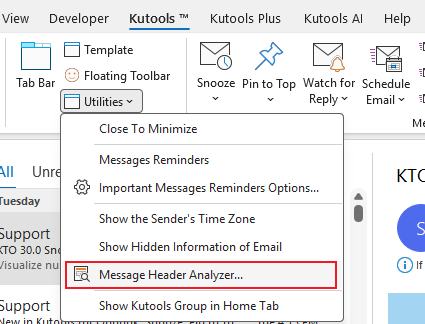
- Click:
Kutools > Utilities > Message Headers Analyzer
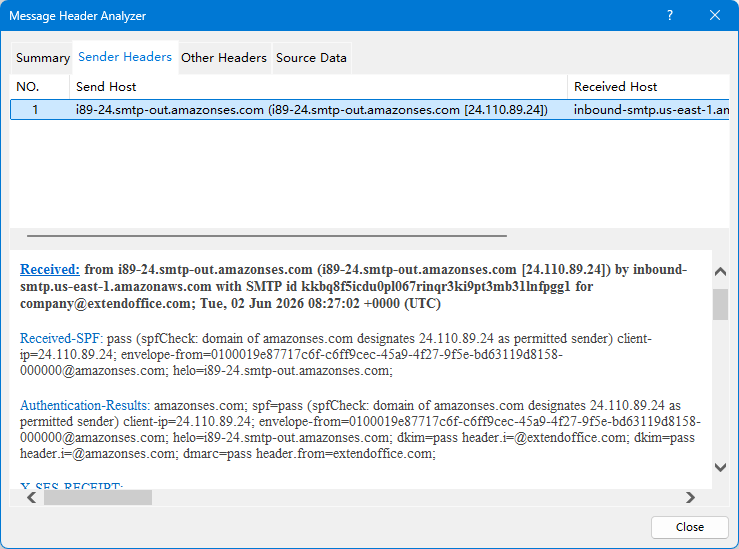
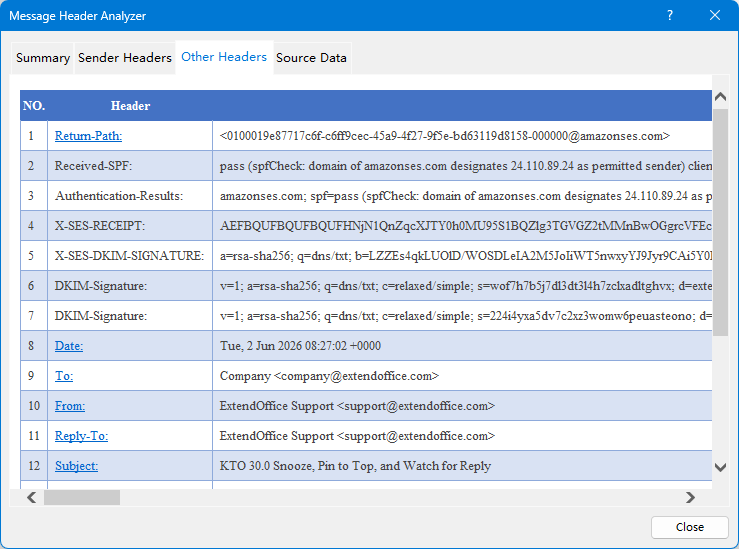
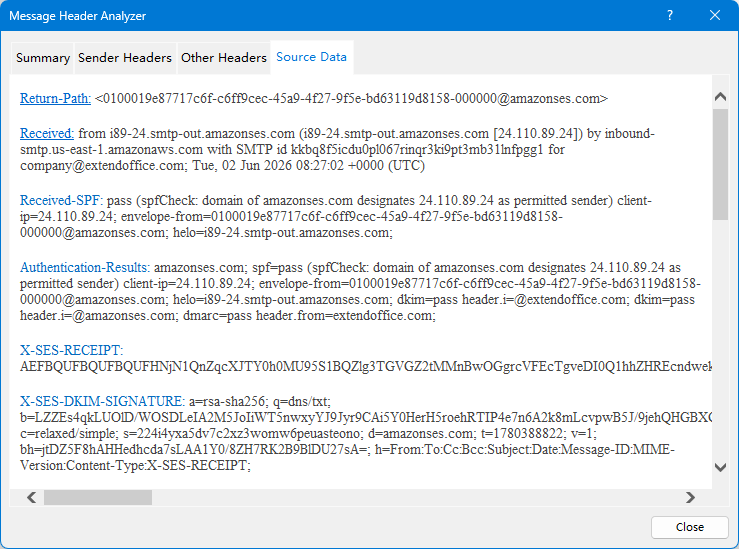
- The message headers will be displayed in a dedicated window, with all information neatly categorized into four sections for quick and easy analysis.
Summary
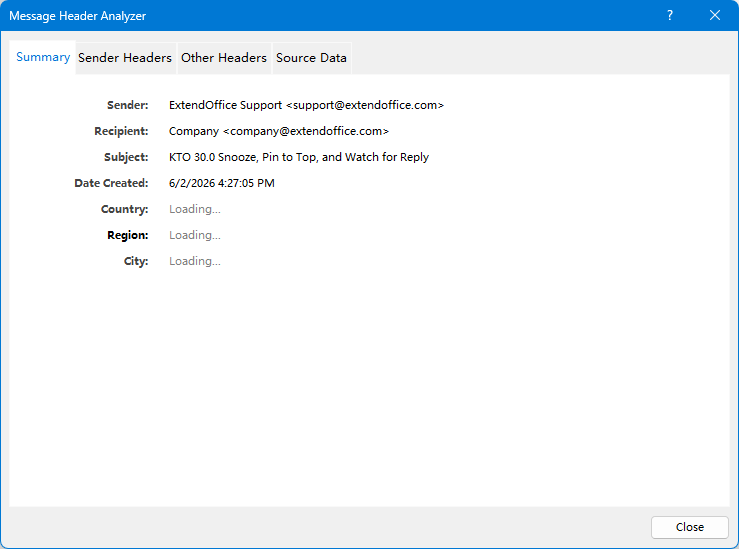
Sender Headers
Other Headers
Source Data
What Else Can Kutools for Outlook Do?
Besides Message Header Analyzer, Kutools for Outlook includes:
- Duplicate Email Removal
- Duplicate Contact Management
- Advanced Search Tools
- Reply with Original Attachments
- Attachment Management Tools
- Email Templates
- Watch for Replies
- AI Writing and Reply Assistance
- 100+ productivity features
Free Trial: 30 Days
Download Kutools for Outlook Today and Make Outlook More Powerful.
Download Kutools for OutlookView Message Source in Outlook on the Web
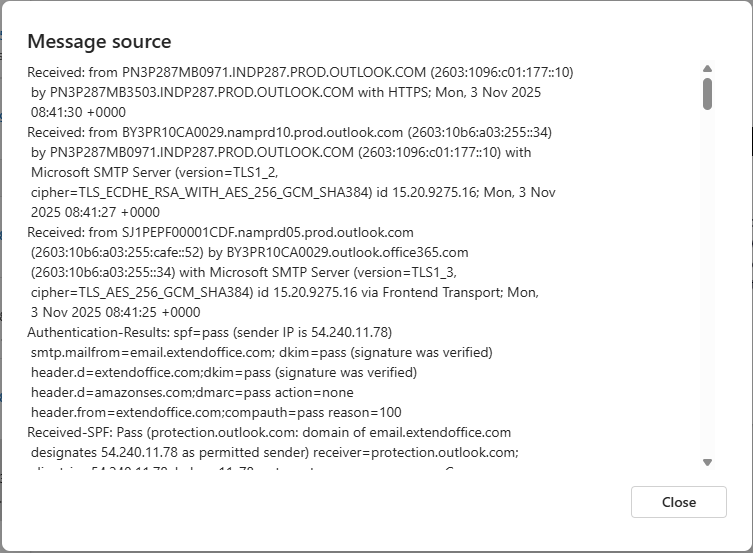
If you use Outlook on the web, you can view the message source directly.
Steps
- Open the email.
- Click the More Actions (···) menu.
- Select View > View message details or View message source (depending on your version).
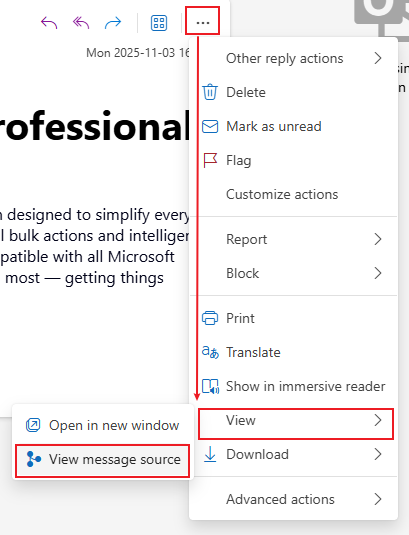
- Review the email source information.
Final Thoughts
While Outlook provides basic access to email headers, manually analyzing raw header information can be difficult and time-consuming.
Kutools for Outlook's Message Header Analyzer simplifies the entire process by presenting key header information in an organized and readable format. Whether you're troubleshooting email issues, investigating suspicious messages, or verifying sender authenticity, it provides a faster and more efficient way to analyze Outlook message headers.
Best Office Productivity Tools
Experience the all-new Kutools for Outlook with 100+ incredible features! Click to download now!
📧 Email Automation: Auto Reply (Available for POP and IMAP) / Schedule Send Emails / Auto CC/BCC by Rules When Sending Email / Auto Forward (Advanced Rules) / Auto Add Greeting / Automatically Split Multi-Recipient Emails into Individual Messages ...
📨 Email Management: Recall Emails / Block Scam Emails by Subjects and Others / Delete Duplicate Emails / Advanced Search / Consolidate Folders ...
📁 Attachments Pro: Batch Save / Batch Detach / Batch Compress / Auto Save / Auto Detach / Auto Compress ...
🌟 Interface Magic: 😊More Pretty and Cool Emojis / Remind you when important emails come / Minimize Outlook Instead of Closing ...
👍 One-click Wonders: Reply All with Attachments / Anti-Phishing Emails / 🕘Show Sender's Time Zone ...
👩🏼🤝👩🏻 Contacts & Calendar: Batch Add Contacts From Selected Emails / Split a Contact Group to Individual Groups / Remove Birthday Reminders ...
Use Kutools in your preferred language – supports English, Spanish, German, French, Chinese, and 40+ others!


🚀 One-Click Download — Get All Office Add-ins
Strongly Recommended: Kutools for Office (5-in-1)
One click to download five installers at once — Kutools for Excel, Outlook, Word, PowerPoint and Office Tab Pro. Click to download now!
- ✅ One-click convenience: Download all five setup packages in a single action.
- 🚀 Ready for any Office task: Install the add-ins you need, when you need them.
- 🧰 Included: Kutools for Excel / Kutools for Outlook / Kutools for Word / Office Tab Pro / Kutools for PowerPoint
Table of contents
- Why Analyze Message Headers
- View Internet Headers in Classic Outlook
- Method 1: A built-in way to view email headers
- Method 2: Show Hidden Information of Email with Kutools for Outlook
- View Message Source in Outlook on the Web
- Best Office Productivity Tools