How to Never Block Specific Subjects in Outlook
Outlook's junk email filters and blocking rules are useful for reducing spam, but they can sometimes become too aggressive. Important emails containing certain subjects may accidentally be blocked, moved to the Junk folder, or filtered by custom rules.
If you regularly receive emails with specific subjects that should always be trusted, you may wonder how to never block a subject in Outlook.
In this guide, we'll show you how to prevent important subjects from being blocked and introduce a much easier solution with Kutools for Outlook's Never Block Subject feature.
Why Prevent Certain Subjects from Being Blocked
Method 1: Create Rules Based on Subject Keywords
Method 2: Use Kutools for Outlook's Never Block Subject (Recommended 👍)
Why Prevent Certain Subjects from Being Blocked?
You may want to always allow emails containing specific subjects when:
- Receiving automated reports
- Receiving invoices or purchase orders
- Receiving notifications from clients
- Receiving newsletters you subscribe to
- Receiving internal company emails
- Receiving emails from systems that use fixed subject lines
Without an allow list, these messages can sometimes end up in the Junk Email folder or be affected by existing filtering rules.
Method 1: Create Rules Based on Subject Keywords
Outlook's built-in approach is creating rules.
Steps
Click:
Home → Rules → Manage Rules & Alerts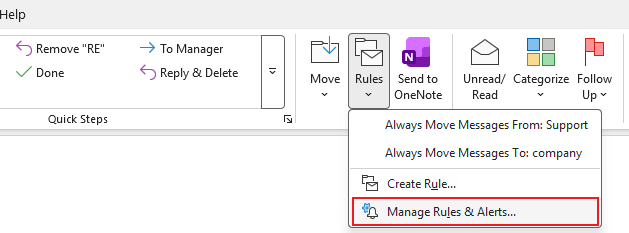
- Create a new rule.
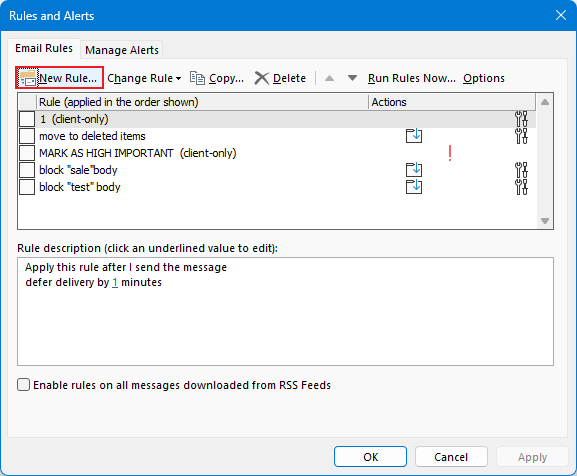
Select:
Apply rule on messages I receive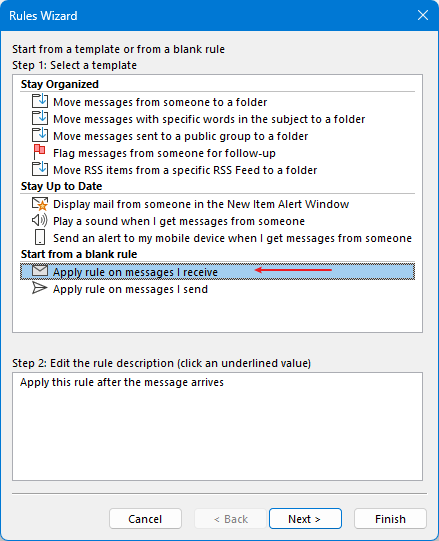
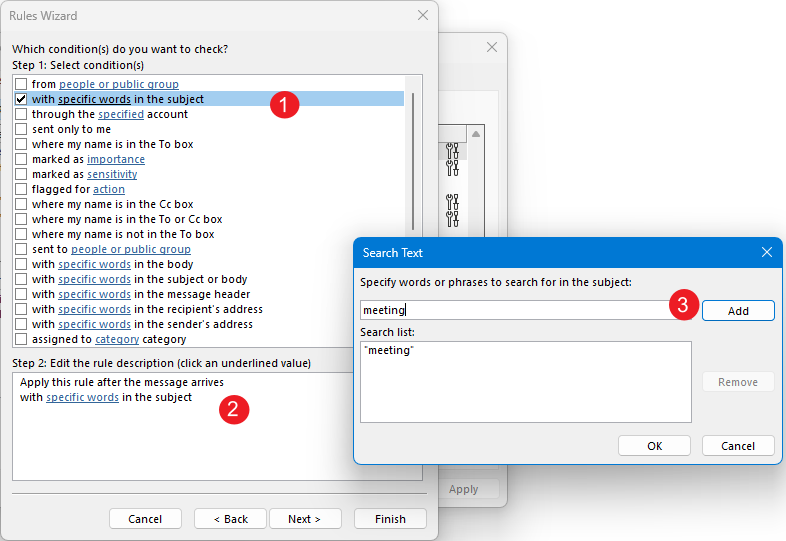
Specify words in the subject.
4.1 Tick with specific words in the subject in the Step 1 section.
4.2 Select the specific words with underline in the Step 2 section.
4.3 Add the specific words that you never want to block when they appear on the subject line.
Choose an action, such as moving the message to a folder.
5.1 Tick Move it to the specified folder in the Step 1 section.
5.2 Select the specified folder with underline in the Step 2 section.
5.3 Select or create a new folder.
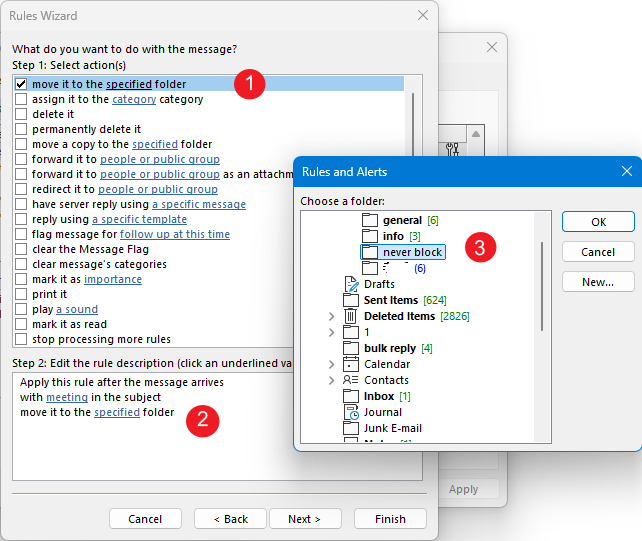
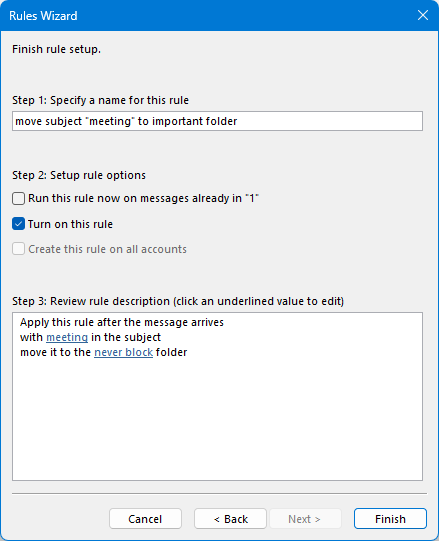
- Click Next > Next, name the rule, then click Finish.
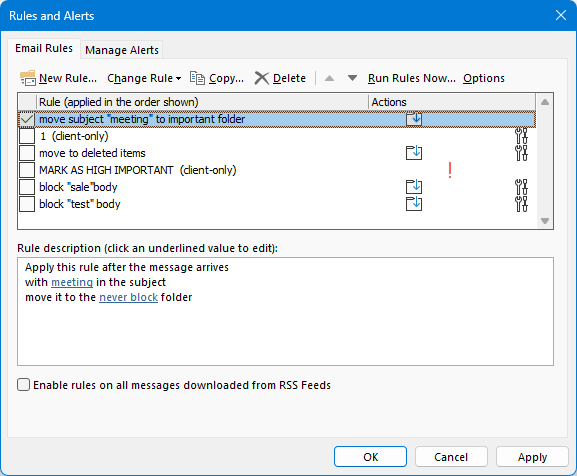
- Click OK or Apply.
Limitations
- Requires multiple configuration steps.
- Can become difficult to manage.
- Rules may conflict with one another.
- Not ideal when managing many exceptions.
Most importantly, this is not a true "Never Block Subject" solution. For example, if you have other subject-blocking rules configured, emails with subjects containing "Meeting" may still be accidentally deleted or filtered out.
To prevent such situations, we recommend using the Never Block Subject feature in Kutools for Outlook. Unlike standard rules, Never Block rules always take precedence over Block rules. Whenever a conflict occurs between the two, the Never Block rule is applied first, ensuring that important emails are never mistakenly blocked.
Method 2: Use Kutools for Outlook's Never Block Subject (Recommended)
If you frequently receive important emails that share the same subject, Kutools for Outlook provides a much easier solution.
The Never Block Subject feature automatically creates an allow rule based on the selected email's subject, ensuring that future emails with the same subject are never treated as junk.
✅ Never Block Rules Always Take Priority Over Block Rules
Before You Start
Download and install Kutools for Outlook.
Benefits
✔ 100+ powerful Outlook tools
✔ Advanced junk email management
✔ One-click whitelist features
✔ AI-powered email tools
✔ 30-day free trial
Steps
- Select an email whose subject should always be trusted.
Click:
Kutools → Junk → Never Block Subject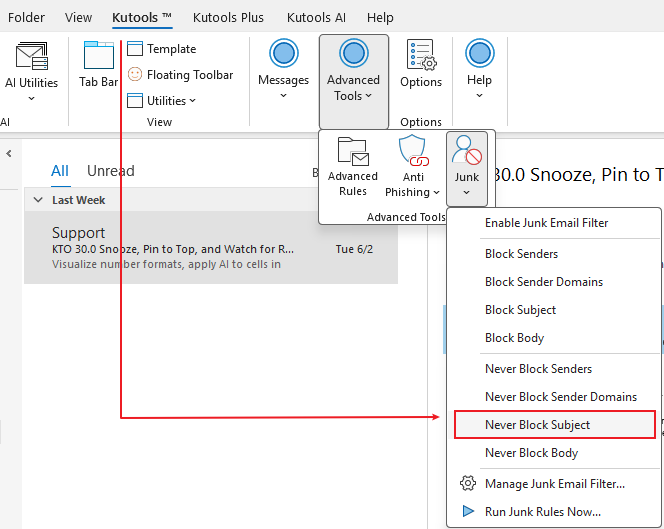
- Confirm the subject.
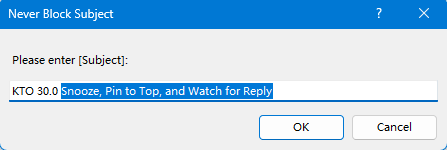
- Click OK.
You can easily view and manage your rules in the Manage Junk Email Filter widnow where Never Block rules are always pinned above Block rules to reflect their priority.
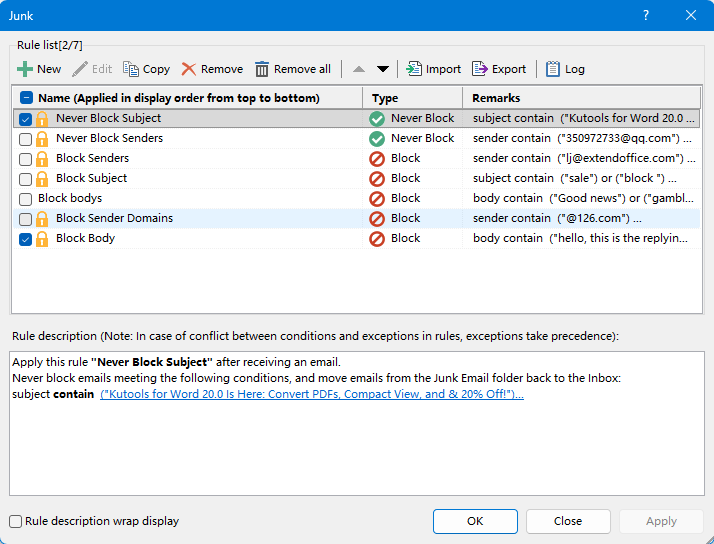
From now on, emails containing that subject will bypass junk filtering and remain accessible.
Why Use Never Block Subject?
Compared with Outlook's built-in methods, Never Block Subject offers several advantages.
One-Click Setup
No need to create complicated rules manually.
Subject-Based Whitelisting
Protect emails by subject instead of relying only on senders.
Works with Multiple Senders
Useful when the same type of email comes from different addresses.
Easier Management
Avoid maintaining large Safe Sender lists.
Better Protection Against Missing Important Emails
Ensure critical messages are never mistakenly filtered.
More Powerful Junk Email Tools in Kutools for Outlook
Never Block Subject is only one feature in Kutools for Outlook's comprehensive Junk Email suite.
You can also:
- Never Block Sender
- Never Block Sender Domain
- Never Block Message Body
- Block Sender
- Block Sender Domain
- Block Subject
- Block Message Body
- Manage Junk Rules
These tools give you complete control over Outlook spam filtering.
📌 Recommended Feature: Pin to Top for Classic Outlook
Break the boundaries between modern Outlook and classic Outlook.
While New Outlook and Outlook on the web include a built-in Pin feature, classic desktop Outlook does not support this option by default.
That’s why Kutools for Outlook introduces Pin to Top — bringing the convenient web-style Pin feature to the classic desktop Outlook experience.
- Keep important emails visible at the top
- Stay focused on priority conversations
- Avoid losing track of critical messages
- Enjoy a modern Pin feature in classic Outlook
Conclusion
While Outlook offers basic spam management features, configuring exceptions based on subjects can be cumbersome and difficult to maintain.
With Kutools for Outlook's Never Block Subject, you can whitelist important subjects with just one click and avoid missing critical emails.
In addition, Kutools for Outlook includes 100+ productivity features for email management, attachments, search, duplicate removal, AI writing, and much more.
Best Office Productivity Tools
Experience the all-new Kutools for Outlook with 100+ incredible features! Click to download now!
📧 Email Automation: Auto Reply (Available for POP and IMAP) / Schedule Send Emails / Auto CC/BCC by Rules When Sending Email / Auto Forward (Advanced Rules) / Auto Add Greeting / Automatically Split Multi-Recipient Emails into Individual Messages ...
📨 Email Management: Recall Emails / Block Scam Emails by Subjects and Others / Delete Duplicate Emails / Advanced Search / Consolidate Folders ...
📁 Attachments Pro: Batch Save / Batch Detach / Batch Compress / Auto Save / Auto Detach / Auto Compress ...
🌟 Interface Magic: 😊More Pretty and Cool Emojis / Remind you when important emails come / Minimize Outlook Instead of Closing ...
👍 One-click Wonders: Reply All with Attachments / Anti-Phishing Emails / 🕘Show Sender's Time Zone ...
👩🏼🤝👩🏻 Contacts & Calendar: Batch Add Contacts From Selected Emails / Split a Contact Group to Individual Groups / Remove Birthday Reminders ...
Use Kutools in your preferred language – supports English, Spanish, German, French, Chinese, and 40+ others!


🚀 One-Click Download — Get All Office Add-ins
Strongly Recommended: Kutools for Office (5-in-1)
One click to download five installers at once — Kutools for Excel, Outlook, Word, PowerPoint and Office Tab Pro. Click to download now!
- ✅ One-click convenience: Download all five setup packages in a single action.
- 🚀 Ready for any Office task: Install the add-ins you need, when you need them.
- 🧰 Included: Kutools for Excel / Kutools for Outlook / Kutools for Word / Office Tab Pro / Kutools for PowerPoint
Table of contents
- Why Prevent Certain Subjects from Being Blocked
- Create Rules Based on Subject Keywords
- Use Kutools for Outlook's Never Block Subject
- Best Office Productivity Tools