Pin Important Emails to the Top in Classic Outlook
Important emails often arrive at the wrong time. You read them quickly, plan to respond later—and then, as new messages keep coming in, those important emails get pushed down the list and are easily forgotten.
Microsoft has addressed this problem in New Outlook and Outlook on the web by introducing a Pin feature that keeps selected emails at the top of the message list.
To fill this gap, Kutools for Outlook introduces a Pin to Top feature specifically designed for Classic Outlook—so your most important emails always stay visible.

👀 What is the Pin to Top
The Pin to Top is a feature that keeps selected emails fixed at the top of a message folder, so they stay visible even when new messages arrive.
📢 Attention
This feature works by temporarily adjusting the email’s received date, which is why the date may appear as a future date(for example, two years ahead).
Apart from this visual change, it does not affect the email in any other way — including the original timestamp shown when replying or forwarding.
Once the email is unpinned, the original received date is automatically restored.
⭐ Why Pinning Emails Matters
- Never lose track of important emails
Pinned emails stay at the top, even as new messages arrive. - Reduce missed follow-ups
Keep tasks, approvals, or requests visible until they are completed. - Avoid workarounds
No need to flag emails, move them to special folders, or mark them unread. - Work the way New Outlook users do
Enjoy a modern pinning experience in Classic Outlook. - Simple and reversible
Pin or unpin emails at any time with one click.
🎯 Common Use Scenarios
The Pin to Top feature is especially useful when you need to:
- Track emails that require action later
- Keep ongoing project discussions visible
- Pin approval requests, invoices, or contracts
- Monitor emails awaiting replies
- Prevent important messages from being buried by newsletters or notifications
📌 How to Pin Emails to the Top in Classic Outlook
Supercharge Outlook with Kutools for Outlook—enjoy 100+ productivity features with a 30-day free download.
After installing Kutools for Outlook, pinning an email is simple:
- Select the email(s) you want to keep at the top (multiple emails are supported).
- Go to the Kutools tab on the ribbon and click Pin to the Top.
- The selected email(s) will immediately move to the top of the message list and remain there, even as new emails arrive.
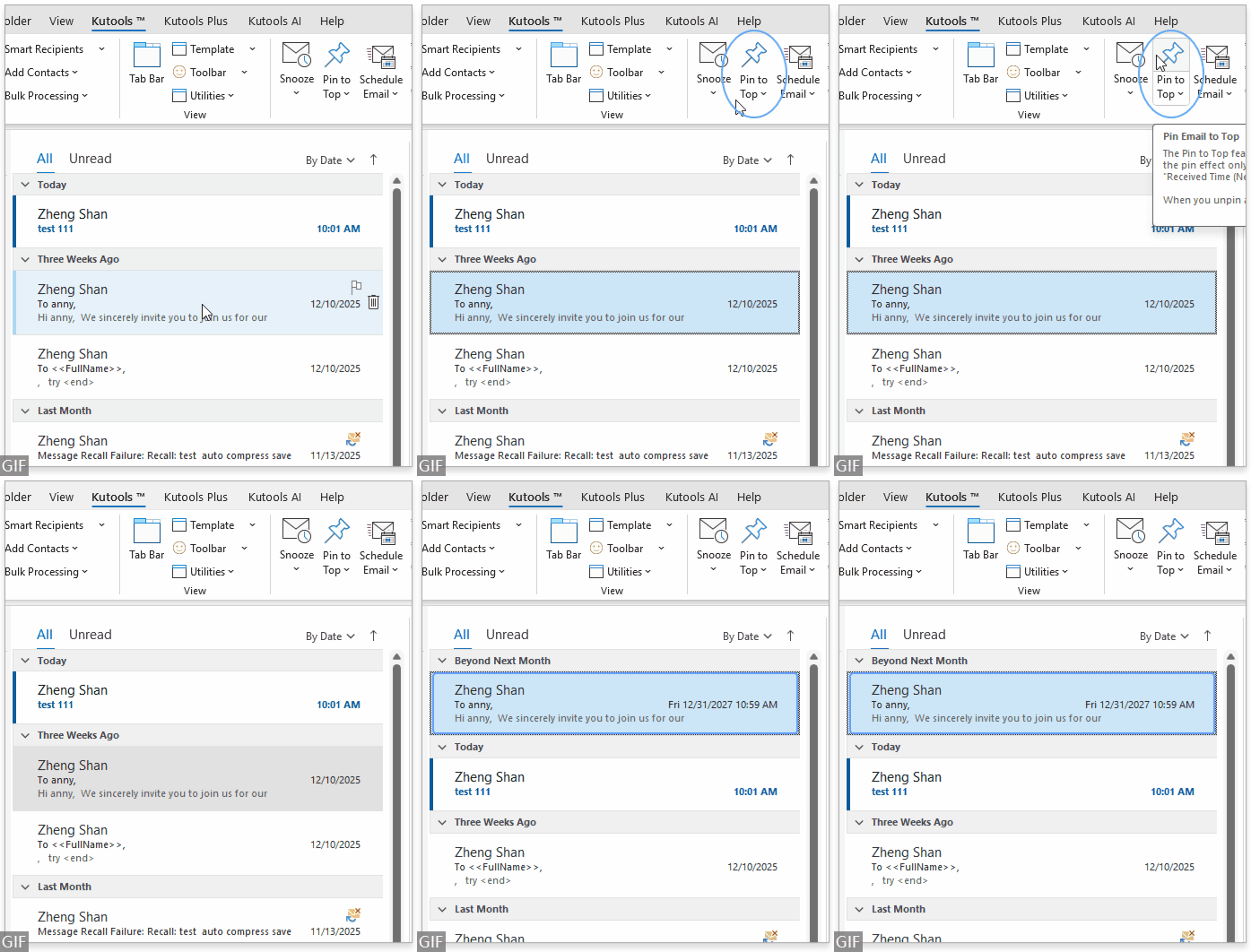
- First-time reminder
When you use this feature for the first time, a pop-up reminder appears to inform you that it only works when emails are sorted by Received Date (Newest to Oldest). If you click “Don’t show again for now”, the reminder will not appear again for the next 7 days.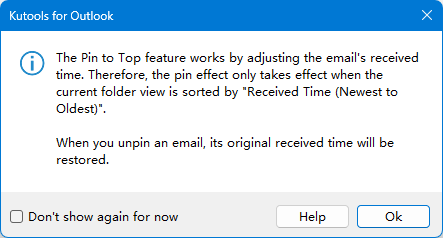 To set sorting by received time:
- Go to the View tab in Outlook and click View Settings.
- Select Sort….
- Choose Received from Sort items by and select Descending.
- Click OK to apply the changes.
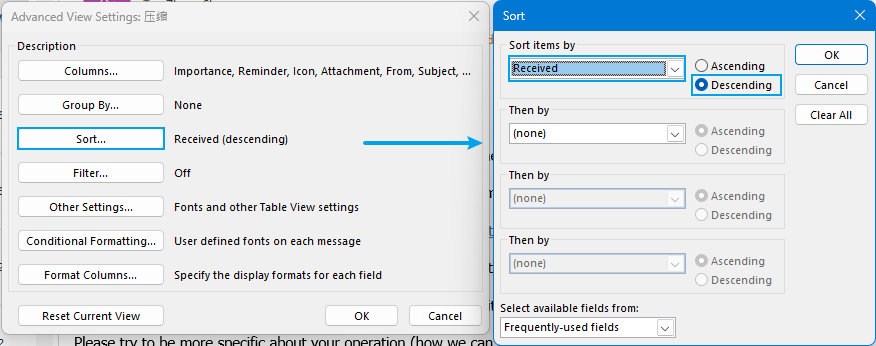
- Pinned email time group
All pinned emails are placed in a separate time group called “Beyond Next Month”. The received time displayed for pinned emails represents a virtual future time created solely to keep the email pinned, rather than its original received time.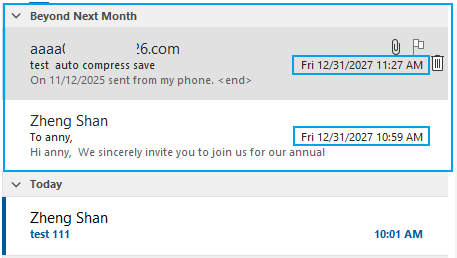
- View the original received time
To see the original received time, simply click the email and check it in the message preview pane.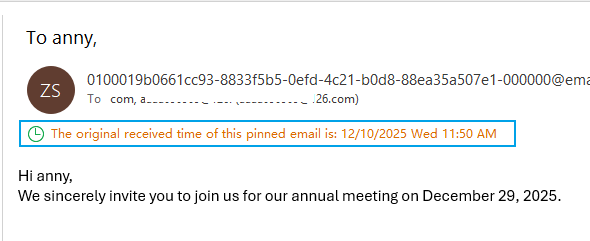
🧷 How to Unpin Emails
When an email no longer needs attention, you can easily remove it from the top:
- Select the pinned email(s).
- Go to the Kutools tab.
- Click Pin to the Top → Unpin.
- The email will return to its normal position in the message list, with its original received time fully restored.
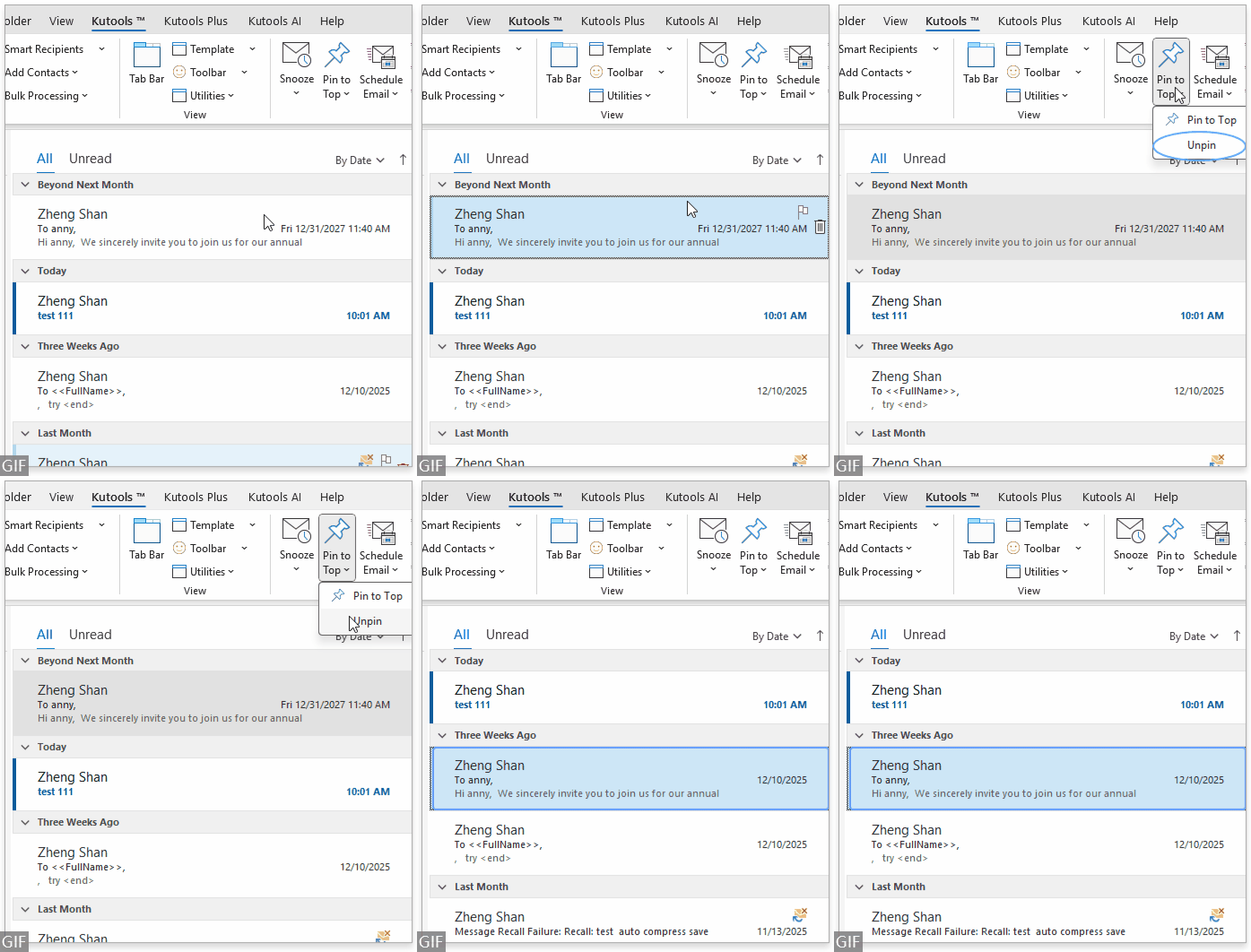
👉 Right-Click Support
Kutools for Outlook also supports right-click actions:
- Right-click on selected email(s) → Pin to Top
- Right-click on pinned email(s) → Pin to Top → Unpin
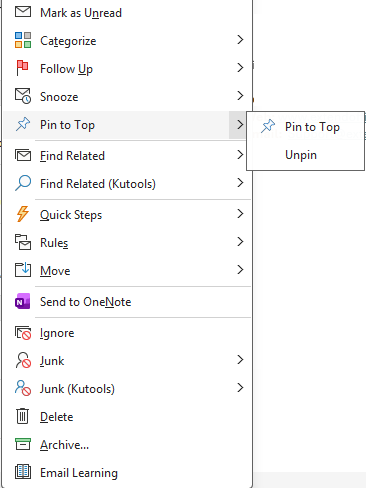
If you can’t find the Beyond Next Month group, grouping may not be enabled in your current view.
Go to View → View Settings → Group By…
Then tick Automatically group according to arrangement.
Classic Outlook lacks a native Pin feature, making it easy to lose track of important emails as your inbox fills up. Kutools for Outlook solves this by bringing Pin to the Top functionality to Classic Outlook—simple, reliable, and easy to use.
With pinned emails always visible, you can stay focused, organized, and fully in control of your inbox.
Beyond pinning emails, Kutools for Outlook includes 100+ powerful tools 🚀 , such as:
- Send emails separately
- Schedule and delay sending
- Clean up duplicate emails
- Advanced junk email management
- Smart reminders and more
All features are available with a 30-day free trial. Once you start pinning important emails to the top, it’s hard to imagine working without it.
Best Office Productivity Tools
Experience the all-new Kutools for Outlook with 100+ incredible features! Click to download now!
📧 Email Automation: Auto Reply (Available for POP and IMAP) / Schedule Send Emails / Auto CC/BCC by Rules When Sending Email / Auto Forward (Advanced Rules) / Auto Add Greeting / Automatically Split Multi-Recipient Emails into Individual Messages ...
📨 Email Management: Recall Emails / Block Scam Emails by Subjects and Others / Delete Duplicate Emails / Advanced Search / Consolidate Folders ...
📁 Attachments Pro: Batch Save / Batch Detach / Batch Compress / Auto Save / Auto Detach / Auto Compress ...
🌟 Interface Magic: 😊More Pretty and Cool Emojis / Remind you when important emails come / Minimize Outlook Instead of Closing ...
👍 One-click Wonders: Reply All with Attachments / Anti-Phishing Emails / 🕘Show Sender's Time Zone ...
👩🏼🤝👩🏻 Contacts & Calendar: Batch Add Contacts From Selected Emails / Split a Contact Group to Individual Groups / Remove Birthday Reminders ...
Use Kutools in your preferred language – supports English, Spanish, German, French, Chinese, and 40+ others!


🚀 One-Click Download — Get All Office Add-ins
Strongly Recommended: Kutools for Office (5-in-1)
One click to download five installers at once — Kutools for Excel, Outlook, Word, PowerPoint and Office Tab Pro. Click to download now!
- ✅ One-click convenience: Download all five setup packages in a single action.
- 🚀 Ready for any Office task: Install the add-ins you need, when you need them.
- 🧰 Included: Kutools for Excel / Kutools for Outlook / Kutools for Word / Office Tab Pro / Kutools for PowerPoint