Insert, Save, and Manage Symbols in Outlook with Kutools
The Symbols pane in Kutools for Outlook provides a faster and more intuitive way to work with symbols when composing emails. It brings commonly used characters—such as currency signs, mathematical symbols, geometric shapes, and multilingual characters—into a single, organized pane. With built-in categories and support for custom symbol collections, you can insert any symbol instantly without relying on Outlook’s limited symbol dialog or repeatedly opening and closing windows.
Why use the Symbols tool in Kutools for Outlook?
The Symbols tool in Kutools for Outlook is designed to make inserting and managing symbols faster, easier, and more flexible than Outlook’s built-in Symbol feature. It keeps symbols organized and always within reach in a single, easy-to-use pane, so you can focus on writing instead of searching.
Key advantages
- ⚡ One-click insertion – Insert symbols directly into your email without opening extra dialogs.
- 📂 Organized categories – Browse symbols by clear built-in categories such as Currency, Mathematics, Geometry, and Language.
- ⭐ Custom symbol collections – Create your own categories to save frequently used symbols.
- 🔗 Universal symbol sources – Add symbols from Outlook’s built-in Symbol dialog, as well as emojis and Windows symbols (via Windows + period (.)), into your custom categories.
- 👀 Always visible pane – Keep the Symbols pane open while composing emails for uninterrupted workflow.
- 🔁 Reusable symbols – Save symbols once and reuse them across all your emails.
Symbol Tools: Kutools vs. Outlook vs. Windows
| Feature | Kutools Symbols Pane | Outlook Built-in Symbol | Windows Emoji Picker |
|---|---|---|---|
| Access method | Always visible in the Resource Library pane | Opened from a separate dialog | Opened via Windows + . / Windows + ; |
| Symbol insertion | One-click insertion | Multiple clicks required | One-click insertion; closes when focus is lost |
| Message format support | ✅ Plain Text, HTML, and Rich Text | ❌ HTML and Rich Text only | ✅ Plain Text, HTML, and Rich Text |
| Symbol organization | ✅ Built-in categories + custom categories | ❌ Built-in categories only | ❌ Built-in categories only |
| Add frequently used symbols | ✅ Save symbols to custom categories | ❌ Not supported | ❌ Not supported |
| Collect symbols from other sources | ✅ Add symbols from Outlook’s Symbol dialog, Windows symbols/emojis, and more | ❌ Not supported | ❌ Not supported |
| Recently used symbols | ✅ Supported | ✅ Supported | ❌ Not available |
| Workflow efficiency | Fast and uninterrupted | Interrupted by repeated dialog opening | Interrupted by reopening the picker |
By keeping symbols organized in a single, always-available pane, the Symbols tool in Kutools for Outlook provides a smoother and more efficient alternative to Outlook’s built-in Symbol dialog—especially if you frequently work with special characters.
Open the Symbols pane in Outlook
- In Outlook, open a new email message or reply/forward an existing one.
- Go to the Kutools tab in the message window.
- Click More Symbols in the Resource Library group. This will open the Resource Library pane on the right side with the Symbols tab active.
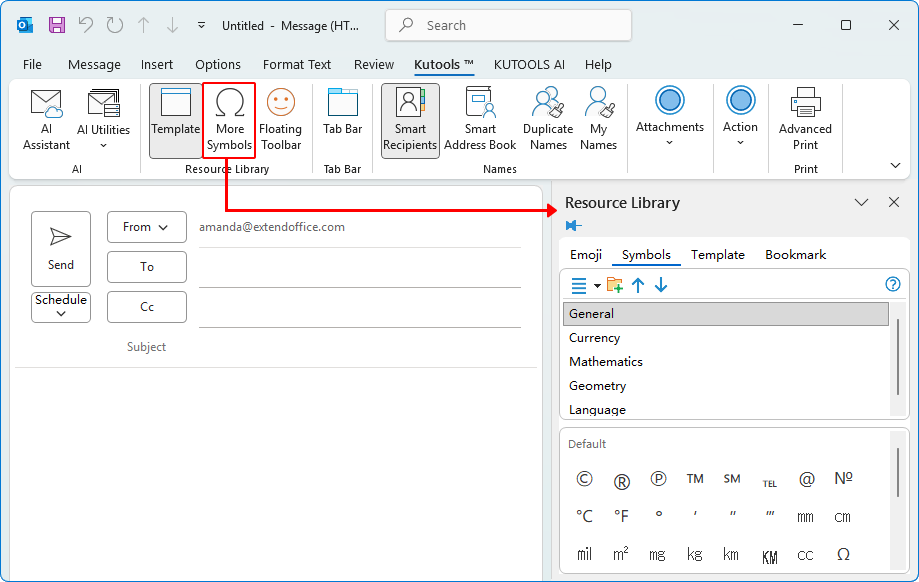
What’s inside the Symbols pane
The Symbols pane organizes characters into several built-in folders so you can quickly locate the type of symbol you need. These categories include:
- General – Common Unicode symbols and frequently used characters.
- Currency – International currency symbols such as €, £, ¥, ₹, ₩, and more.
- Mathematics – Math operators, Greek letters, arrows, fractions, equations, and other technical symbols.
- Geometry – Geometric shapes, indicators, and structural symbols.
- Language – Accented letters, phonetic characters, and symbols used in various languages.
The images below show the symbols included in each folder.


How to insert a symbol using the Symbols pane
Once the Symbols pane is open, you can insert any symbol into your email with a single click. There is no additional dialog — the symbol goes directly into your message at the cursor position.
- Place the cursor in the email body where you want the symbol to appear.
- Select a category (such as General, Currency, Mathematics, Geometry, or Language).
- Click the symbol you want to insert.
The selected symbol will be inserted immediately into your email, and you can continue inserting more symbols whenever you like.
Add your own symbols to the Symbols pane
You can create your own symbol categories and add frequently used symbols to them, making symbols easier to organize and reuse while composing emails using Kutools' Symbols pane.
- In the message composing window, type or paste the symbol you want to add. Tip: You can add symbols inserted from Outlook’s built-in Symbol dialog, as well as emojis and symbols inserted via Windows + period (.), into custom categories for quick reuse.
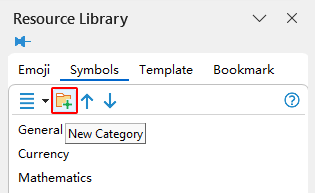
- On the Symbols pane toolbar, click the New Category button.
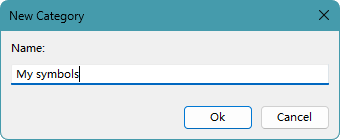
- In the New Category dialog box, enter a name for the category, and then click OK.
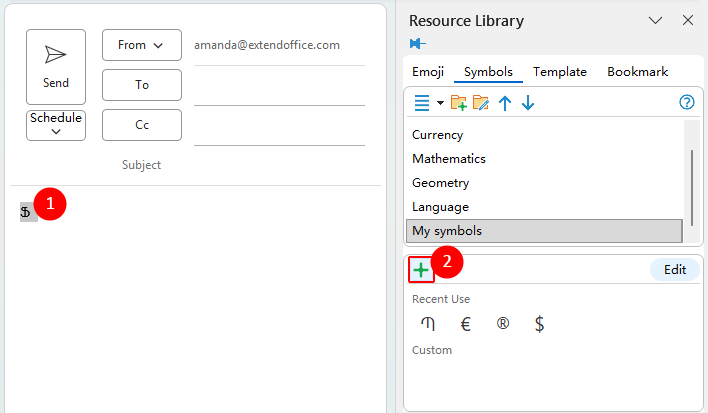
- Select the symbol you just typed in the message composing window, then click the Add (+) button in the Symbols pane.
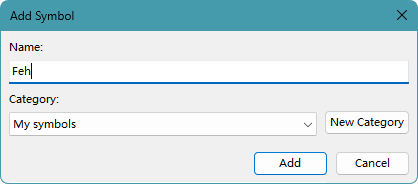
- In the Add Symbol dialog box, enter a name for the symbol. The newly created category will be selected by default.
- To use a different category, select it from the list. To create a new one, click the New Category button.
Result
The symbol is added to the new category and appears in the Symbols pane for future use. When you hover over the symbol, the name you assigned is displayed.

Note: Click the Edit button to enter edit mode. In this mode, you can select and manage symbols as needed, such as rearranging or removing them. When finished, click Done to exit edit mode.

Manage symbol categories
You can manage symbol categories to control how symbol groups appear in the Symbols pane, with different options available for built-in and custom categories.
Built-in categories
Built-in categories (such as Geometry or Language) have limited management options.
- New Category – Create a new custom category.
- Move Up / Move Down – Change the position of the selected category in the list.
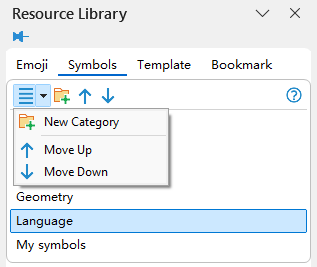
Built-in categories cannot be renamed or deleted.
Custom categories
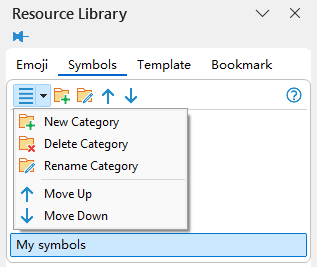
Custom categories provide full management options.
- New Category – Create a new custom category.
- Delete Category – Remove the selected custom category.
- Rename Category – Change the name of the selected custom category.
- Move Up / Move Down – Adjust the order of the selected custom category in the list.
Best Office Productivity Tools
Experience the all-new Kutools for Outlook with 100+ incredible features! Click to download now!
📧 Email Automation: Auto Reply (Available for POP and IMAP) / Schedule Send Emails / Auto CC/BCC by Rules When Sending Email / Auto Forward (Advanced Rules) / Auto Add Greeting / Automatically Split Multi-Recipient Emails into Individual Messages ...
📨 Email Management: Recall Emails / Block Scam Emails by Subjects and Others / Delete Duplicate Emails / Advanced Search / Consolidate Folders ...
📁 Attachments Pro: Batch Save / Batch Detach / Batch Compress / Auto Save / Auto Detach / Auto Compress ...
🌟 Interface Magic: 😊More Pretty and Cool Emojis / Remind you when important emails come / Minimize Outlook Instead of Closing ...
👍 One-click Wonders: Reply All with Attachments / Anti-Phishing Emails / 🕘Show Sender's Time Zone ...
👩🏼🤝👩🏻 Contacts & Calendar: Batch Add Contacts From Selected Emails / Split a Contact Group to Individual Groups / Remove Birthday Reminders ...
Use Kutools in your preferred language – supports English, Spanish, German, French, Chinese, and 40+ others!


🚀 One-Click Download — Get All Office Add-ins
Strongly Recommended: Kutools for Office (5-in-1)
One click to download five installers at once — Kutools for Excel, Outlook, Word, PowerPoint and Office Tab Pro. Click to download now!
- ✅ One-click convenience: Download all five setup packages in a single action.
- 🚀 Ready for any Office task: Install the add-ins you need, when you need them.
- 🧰 Included: Kutools for Excel / Kutools for Outlook / Kutools for Word / Office Tab Pro / Kutools for PowerPoint
Table of Contents
- Why use Kutools’ Symbols
- Open the Symbols pane in Outlook
- What’s inside the Symbols pane
- How to insert a symbol
- Add your own symbols to the pane
- Manage symbol categories
Kutools for Outlook
Brings 100+ advanced features to Outlook