Clean Duplicate Emails in Outlook in Seconds — From Selected Emails Only
Duplicate emails can show up after importing PST files, syncing multiple accounts, or receiving repeated notifications. If you’ve already narrowed the problem down to a specific batch, scanning an entire folder can be unnecessary. With Kutools for Outlook, the Remove Duplicate Emails from Selected Emails option helps you find and delete duplicates only within what you select—fast, focused, and easy to review.

Advantages of the Remove Duplicate Emails from Selected Emails feature
🎯 Targeted Cleanup with Full Control:
Clean only what you choose - This option checks duplicates only within the emails you select, so you can fix a specific problem batch without scanning or affecting the entire folder. It’s ideal for precise, low-risk cleanups.
🕒 Faster Results for Small Duplicate Bursts:
Perfect after imports or short sync issues - When duplicates appear in a localized group (for example after a PST import), this feature lets you resolve them in minutes instead of running broader scans.
🔍 Clear Duplicate Grouping for Safer Decisions:
See duplicates in organized groups - The results window groups matching messages so you can quickly confirm what is truly redundant before deleting. This makes the removal process more transparent and confident.
✅ Smart Default Selection + Flexible Overrides:
Keeps one copy by default - The tool typically checks all duplicate items in each group except the first one to appear. If you don’t want to delete all duplicates, you can check only the items you prefer to remove.
🖱️ Right-Click Shortcuts for Bulk Control:
Manage results in one or two clicks - The right-click menu provides quick actions such as "Restore Default Selection", "Check all", "Uncheck all", "Expand All", and "Collapse All", helping you handle large result sets efficiently.
What Counts as a Duplicate?
This option checks duplicates within your selection using a consistent matching rule. In general, emails are considered duplicates when they match in:
- Subject
- Body content
- Attachment names
Step-by-Step Guide to Remove Duplicates from Selected Emails
Kutools for Outlook's Remove Duplicate Emails from Selected Emails feature makes it easy to clean duplicates in a specific batch you choose. Instead of manually comparing messages in Outlook, you simply select the emails, review the grouped results with smart default selections, and delete only what you don’t need. This focused approach saves time and keeps the rest of your mailbox untouched.
Step 1: Select the emails you want to check
- Select a continuous range: Click the first email, hold Shift, then click the last email.
- Select non-adjacent emails: Hold Ctrl and click emails one by one.
Step 2: Open the feature
Click Kutools Plus > Duplicate Emails > Remove Duplicate Emails from Selected Emails.

Step 3: Review the duplicate groups
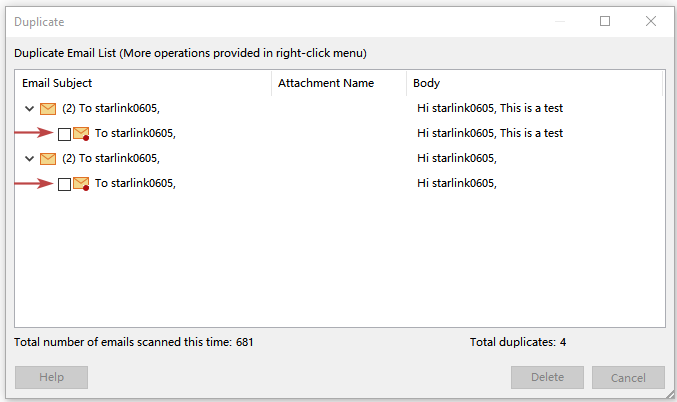
A results window appears and groups duplicates found within your selection. This view helps you confirm the matches quickly before you delete anything.

Step 4: Delete duplicate emails
- Click Delete to start deleting duplicate emails.
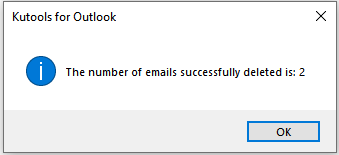
- A confirmation dialog appears showing the number of deleted items. Click "OK" to exit.
- All duplicate emails are removed, leaving only one copy (the email showing the red dot in the lower right corner of the email icon).
- This feature does not scan your entire folder. It checks duplicates only within the emails you selected.
Result Window Tips
The results window helps you review duplicate groups quickly and decide exactly what to remove. Below are three key areas to understand before you delete.
Default selection rule
All duplicate emails are checked in each group by default except the first one to appear. If you don’t want to delete all duplicates, check only the items you want to remove.
Right-click menu is available
Use the context menu to quickly adjust selections and expand or collapse groups.
Right-click options
- Restore Default Selection: Check all duplicate items except the first one in each duplicate group.
- Check all: Check all duplicate items in each group.
- Uncheck all: Uncheck all duplicate items in each group.
- Expand All: Expand all duplicate groups and show all duplicate items in each group.
- Collapse All: Collapse all duplicate groups and only show the subject, attachment, body of the duplicate messages and their amount.
Scan summary indicators
- Show the total number of all emails you scanned this time.
- Show the number of all duplicate items found this time.

Best Use Cases
- After importing emails from multiple PST files where overlap is expected.
- After a short sync issue that produced duplicates within a limited range.
- For targeted cleanup of newsletters, alerts, or recurring system notifications.
- When you want maximum control and prefer reviewing a hand-picked batch instead of scanning a whole folder.
FAQ
Will this scan my entire mailbox?
No. This option checks duplicates only within the emails you select.
Can I decide which copy to keep?
Yes. You can manually adjust the checkboxes in each group before clicking Delete.
Why weren’t two similar emails detected as duplicates?
This option uses a strict matching rule such as subject, body content, and attachment names. If any of these differ, the emails may not be grouped together.
Is there a faster way to manage large results?
Yes. Use the right-click options like Restore Default Selection, Check all, Uncheck all, Expand All, and Collapse All.
Best Office Productivity Tools
Experience the all-new Kutools for Outlook with 100+ incredible features! Click to download now!
📧 Email Automation: Auto Reply (Available for POP and IMAP) / Schedule Send Emails / Auto CC/BCC by Rules When Sending Email / Auto Forward (Advanced Rules) / Auto Add Greeting / Automatically Split Multi-Recipient Emails into Individual Messages ...
📨 Email Management: Recall Emails / Block Scam Emails by Subjects and Others / Delete Duplicate Emails / Advanced Search / Consolidate Folders ...
📁 Attachments Pro: Batch Save / Batch Detach / Batch Compress / Auto Save / Auto Detach / Auto Compress ...
🌟 Interface Magic: 😊More Pretty and Cool Emojis / Remind you when important emails come / Minimize Outlook Instead of Closing ...
👍 One-click Wonders: Reply All with Attachments / Anti-Phishing Emails / 🕘Show Sender's Time Zone ...
👩🏼🤝👩🏻 Contacts & Calendar: Batch Add Contacts From Selected Emails / Split a Contact Group to Individual Groups / Remove Birthday Reminders ...
Use Kutools in your preferred language – supports English, Spanish, German, French, Chinese, and 40+ others!


🚀 One-Click Download — Get All Office Add-ins
Strongly Recommended: Kutools for Office (5-in-1)
One click to download five installers at once — Kutools for Excel, Outlook, Word, PowerPoint and Office Tab Pro. Click to download now!
- ✅ One-click convenience: Download all five setup packages in a single action.
- 🚀 Ready for any Office task: Install the add-ins you need, when you need them.
- 🧰 Included: Kutools for Excel / Kutools for Outlook / Kutools for Word / Office Tab Pro / Kutools for PowerPoint