How to check if a folder exists and if not create it?
In many office workflows, you may need to confirm whether a specific folder exists before saving files or organizing data via Excel. Doing this manually can be time-consuming, especially when managing large numbers of folders or preparing automated processes. Being able to check for a folder’s existence and create it automatically if needed not only streamlines file management but also helps avoid unexpected errors during data export or batch processing.
This tutorial will walk you through practical methods for:
Check if a folder exists in a specific file path with VBA code
Create the folder if it does not exist in a specific file path with VBA code
Check if a folder exists in a specific file path with VBA code
One common requirement is to check if a folder already exists in a specific directory, particularly before exporting reports, saving attachments, or preparing directories for batch processing. Excel itself does not provide a built-in feature for checking folder existence directly from a worksheet, but using a VBA macro, you can quickly detect the presence of a folder at any specified location.
This method is especially suitable when you only need to verify folder existence without making any changes to your file system. VBA code provides a straightforward way to perform this check with instant results.
Operation steps:
1. Hold down the ALT+F11 keys to open the Microsoft Visual Basic for Applications window.
2. Click Insert > Module, and paste the following code in the Module window:
VBA code: Check if a folder exists in a specific file path:
Sub Test_Folder_Exist_With_Dir()
'Updateby Extendoffice
    Dim sFolderPath As String
    sFolderPath = "C:\Users\DT168\Desktop\Test folder"
    If Right(sFolderPath, 1) <> "\" Then
        sFolderPath = sFolderPath & "\"
    End If
    If Dir(sFolderPath, vbDirectory) <> vbNullString Then
        MsgBox "Folder exist", vbInformation, "Kutools for Excel"
    Else
        MsgBox "Folder doesn't exist", vbInformation, "Kutools for Excel"
    End If
End Sub
Note: In the above code, you need to modify the folder path and name C:\Users\DT168\Desktop\Test folder, to match the directory you want to check. Make sure the path is entered correctly and encloses the full folder address.
3. After the code is entered, press F5 to run the macro. The result will appear as a prompt box, indicating whether the specified folder exists or not. For example:
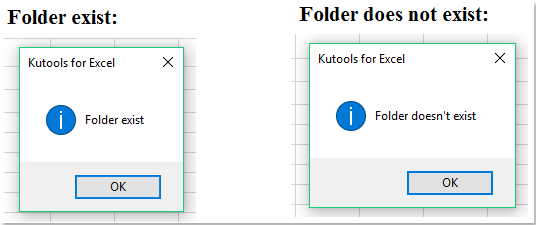
This approach is especially useful for preliminary checks before running file operations or data exports. However, it does not create folders, so use it when you only need a detection step without altering files or directories.
If you repeatedly need to check different folder paths, consider modifying the code or prompting users to input the folder path dynamically for added flexibility. Always double-check the folder path spelling and ensure you have proper permissions to access the directory to avoid runtime errors.

Unlock Excel Magic with Kutools AI
- Smart Execution: Perform cell operations, analyze data, and create charts—all driven by simple commands.
- Custom Formulas: Generate tailored formulas to streamline your workflows.
- VBA Coding: Write and implement VBA code effortlessly.
- Formula Interpretation: Understand complex formulas with ease.
- Text Translation: Break language barriers within your spreadsheets.
Create the folder if it does not exist in a specific file path with VBA code
Sometimes, you may want Excel not only to check if a folder exists but to automatically create it if it does not, minimizing human intervention. This is ideal when preparing folders for automated file output, ensuring an uninterrupted workflow and reducing errors due to missing directories.
This solution is suitable when you want your macros or data export tasks to run smoothly, regardless of the initial state of your folder structure. It helps guarantee that all required folders are in place before subsequent operations begin.
Operation steps:
1. Hold down the ALT+F11 keys to open the Microsoft Visual Basic for Applications window.
2. Click Insert > Module, and paste the following code in the Module Window:
VBA code: Create a folder if it does not exist in a file path:
Sub MakeMyFolder()
'Updateby Extendoffice
    Dim fdObj As Object
    Application.ScreenUpdating = False
    Set fdObj = CreateObject("Scripting.FileSystemObject")
    If fdObj.FolderExists("C:\Users\DT168\Desktop\Test folder") Then
        MsgBox "Found it.", vbInformation, "Kutools for Excel"
    Else
        fdObj.CreateFolder ("C:\Users\DT168\Desktop\Test folder")
        MsgBox "It has been created.", vbInformation, "Kutools for Excel"
    End If
    Application.ScreenUpdating = True
End Sub
Note: You should update the folder path and name C:\Users\DT168\Desktop\Test folder, in the code to the actual directory you want to create. Double-check the directory string for typing accuracy, and pick a path where you have write permissions to avoid system errors.
3. Once you've pasted the code, press F5 to run it:
(1.) If the folder already exists, a prompt box will notify you as shown below:

(2.) If the folder does not exist, the macro will automatically create the new folder in the specified path. Another prompt will confirm its creation, as illustrated here:

This streamlined operation is recommended for repetitive export or backup tasks, where missing folders might otherwise cause errors or disrupt workflow.
Please be aware: VBA may report errors if you try to create a folder in a protected or non-existent parent directory. If you encounter such errors, double-check your path and user permissions.
Precautionary tips and common troubleshooting:
- Always double-check the folder path format in VBA scripts. Paths must be correct and complete, with backslashes (
\) separating directory levels. - Ensure you have the necessary permissions for the directory. Lack of write access can cause VBA code to fail when creating folders.
- If running code across different computers, remember that user folder structures (e.g., "C:\Users\DT168") will differ, so update these accordingly.
- For VBA, consider adding input boxes to allow user-entered paths, making your macro more flexible and user-friendly.
- If you encounter errors such as “Path not found” or “Permission denied,” verify the parent directory exists and is accessible.
- It is usually a good idea to back up your important data and test the VBA routine on sample folders before applying it to production directories.
By integrating these approaches according to your specific needs and Excel environment, you can effectively manage folder checks and creation, whether through simple macros or alternative file handling methods. This helps automate repetitive tasks, prevents export failures, and ensures smoother operations in your daily Excel workflows.
Best Office Productivity Tools
Supercharge Your Excel Skills with Kutools for Excel, and Experience Efficiency Like Never Before. Kutools for Excel Offers Over 300 Advanced Features to Boost Productivity and Save Time. Click Here to Get The Feature You Need The Most...
Office Tab Brings Tabbed interface to Office, and Make Your Work Much Easier
- Enable tabbed editing and reading in Word, Excel, PowerPoint, Publisher, Access, Visio and Project.
- Open and create multiple documents in new tabs of the same window, rather than in new windows.
- Increases your productivity by 50%, and reduces hundreds of mouse clicks for you every day!
All Kutools add-ins. One installer
Kutools for Office suite bundles add-ins for Excel, Word, Outlook & PowerPoint plus Office Tab Pro, which is ideal for teams working across Office apps.





- All-in-one suite — Excel, Word, Outlook & PowerPoint add-ins + Office Tab Pro
- One installer, one license — set up in minutes (MSI-ready)
- Works better together — streamlined productivity across Office apps
- 30-day full-featured trial — no registration, no credit card
- Best value — save vs buying individual add-in