How to set paste values as default paste when using Ctrl + V in Excel?
In Excel, using Ctrl + V to paste data after copying will always include not just the values, but also all the original formatting—such as fonts, colors, borders, column widths, and more. While this standard behavior works well for many workflows, it can actually cause inconvenience when you only want to paste the cell values, especially if the copied formatting overwrites the destination’s intended look. This issue often arises when gathering raw data from various sources, combining information from multiple sheets, or cleaning up reports where you only need to retain numbers or text rather than the original styles.
Being able to set "Paste Values" as the default action for Ctrl + V will help you speed up data cleaning, maintain consistent formatting, and reduce the number of extra steps. This is particularly useful when preparing data for analysis, creating summary reports, or sharing sheets where uniform appearance is important. However, Excel does not provide a built-in option to change the default paste behavior for Ctrl + V to "Paste Values Only". Below, you will find a practical workaround using VBA, together with tips, best-use scenarios, and answers to common questions you might encounter in the process.
Set paste values as default paste when using Ctrl + V with VBA code
Alternative solution: Add "Paste Values" to QAT and assign a keyboard shortcut
Set paste values as default paste when using Ctrl + V with VBA code
By default, after you copy a cell or range and press Ctrl + V, Excel will paste both the values and all formatting from the source cells. If you wish to always paste values only—without manually selecting "Paste Values" each time from the context menu or toolbar—you can use a VBA macro to automate this process. The VBA solution essentially creates a macro that performs "Paste Values" whenever you use a new shortcut, replacing the standard Ctrl + V experience with a values-only paste operation. This is especially valuable for users regularly importing or transforming data across worksheets where maintaining consistent formatting is a priority.
1. Hold down the ALT + F11 keys on your keyboard to open the Microsoft Visual Basic for Applications window. This environment lets you view and edit VBA code associated with your Excel workbook.
2. In the VBA interface, click Insert > Module. This will insert a new module sheet where you can store macros. Next, copy and paste the following code into the newly created module window.
VBA code: Set paste values as default paste when using Ctrl + V
Sub PasteasValue()
Selection.PasteSpecial Paste:=xlPasteValues
End Sub3. After entering the code, save and close the VBA editor. Return to your workbook and press Alt + F8 to open the Macro dialog box. This dialog allows you to run, edit or assign shortcuts to your available macros.
4. In the Macro dialog, select the macro named PasteasValue, then click the Options button. This step enables you to set up a keyboard shortcut for running the macro, making values-only paste just as quick and intuitive as the default Ctrl + V.
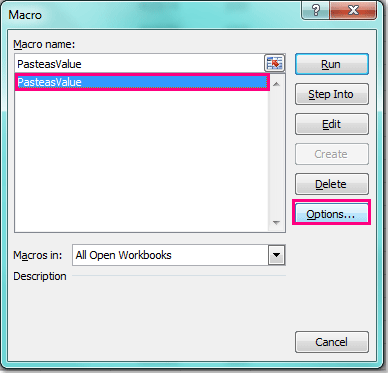
5. In the Macro Options dialog box, type the letter "v" in the Shortcut Key field, and click OK. See screenshot:

Your macro is now ready to use.
Now, whenever you copy data and want to paste values only, simply press your assigned shortcut and only the cell values will be pasted, leaving any formatting, formulas, or hyperlinks behind. This solution is especially effective for repetitive work requiring frequent clean pastes—saving you extra clicks and maintaining consistency.
Potential issues and troubleshooting: If the macro does not work as expected, verify that macros are enabled in your Excel settings. If your shortcut key does not trigger the macro, try assigning a different shortcut to avoid conflicts with existing Excel functions or add-ins. If the macro affects all open workbooks but you want this for specific files only, consider saving the code in the ThisWorkbook module.
Alternative solution: Add "Paste Values" to QAT and assign a keyboard shortcut
You may also consider another solution: add the “Paste Values” option to the Quick Access Toolbar and assign a keyboard shortcut for quick access. This allows you to copy cells and paste them as values quickly.
- On the Excel ribbon, click Customize Quick Access Toolbar > More Commands to open the Excel Options dialog box.
- In the Choose commands from drop-down list, select All Commands, find and selectValues (Paste Values), then click Add, and finally click OK to save the settings.
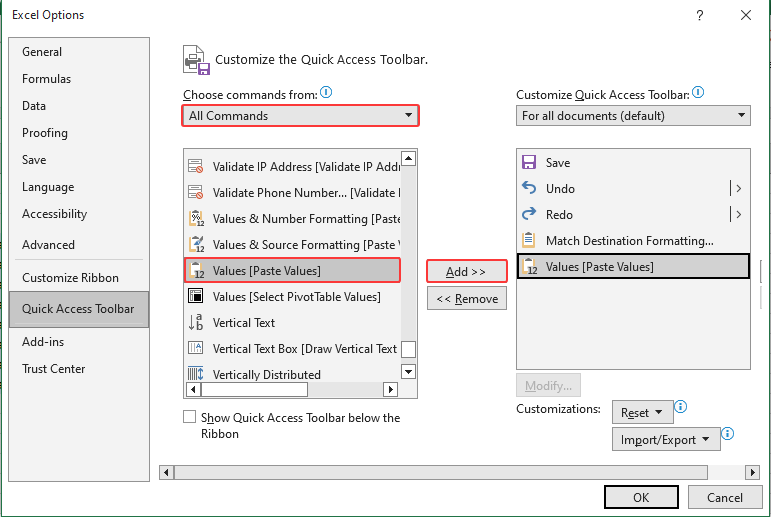
- The Paste Values option is now added to the Quick Access Toolbar. Press the Alt key, and a number will appear on the icon - indicating the shortcut Alt + 5 you can use to access this command.
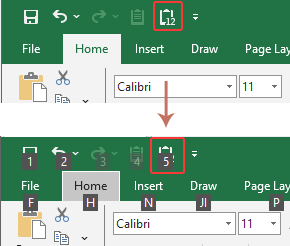
From now on, every time you copy cells in Excel, simply press Alt + 5 to paste them as values instantly.
Applying one of the above approaches will help you paste values effectively in various practical scenarios, whether you’re consolidating data, cleaning reports, or preparing files for sharing. Choose the solution that matches your workflow and organization’s macro security preferences best. In summary, for frequent paste operations where you want to avoid unwanted formatting, the VBA macro method is the most seamless—so long as macro-enabled files are allowed. For other users, customizing the Quick Access Toolbar can be an effective non-macro alternative.
Related article:
How to paste external content to Excel always match destination formatting?
Demo: Set paste values as default paste when using Ctrl + V in Excel
Best Office Productivity Tools
Supercharge Your Excel Skills with Kutools for Excel, and Experience Efficiency Like Never Before. Kutools for Excel Offers Over 300 Advanced Features to Boost Productivity and Save Time. Click Here to Get The Feature You Need The Most...
Office Tab Brings Tabbed interface to Office, and Make Your Work Much Easier
- Enable tabbed editing and reading in Word, Excel, PowerPoint, Publisher, Access, Visio and Project.
- Open and create multiple documents in new tabs of the same window, rather than in new windows.
- Increases your productivity by 50%, and reduces hundreds of mouse clicks for you every day!
All Kutools add-ins. One installer
Kutools for Office suite bundles add-ins for Excel, Word, Outlook & PowerPoint plus Office Tab Pro, which is ideal for teams working across Office apps.





- All-in-one suite — Excel, Word, Outlook & PowerPoint add-ins + Office Tab Pro
- One installer, one license — set up in minutes (MSI-ready)
- Works better together — streamlined productivity across Office apps
- 30-day full-featured trial — no registration, no credit card
- Best value — save vs buying individual add-in