Create a Crossjoin (All Combinations) from 2 columns in Excel — Full Guide

When working with two lists in Excel—such as product names and sizes, regions and sales reps, or students and courses—you may need to generate every possible combination of the two lists. This operation is known as a Crossjoin (also called a Cartesian Product). This tutorial covers step-by-step instructions, pros and cons, and real-world examples, ensuring you can choose the method that works best for your workflow.
What is a Crossjoin?
A Crossjoin (also known as a Cartesian product) is an operation that creates every possible combination between two lists. In Excel, this means pairing each item in List A with each item in List B, generating a complete matrix of combinations.
Crossjoins are extremely helpful in many real-world data scenarios, such as:
Product variations
Combine colors × sizes × styles to generate a full product catalog.
Sales analysis
Create combinations of regions × sales reps × quarters.
Scheduling & planning
Generate all possible combinations of employees × shifts or students × courses.
Testing & simulations
Produce scenario combinations for modeling, forecasting, or validation.
Example:
If you have:
The Crossjoin result will be:
Perform a Crossjoin in Excel
Excel offers multiple ways to create a Crossjoin, and the best method depends on which version of Excel you’re using, how comfortable you are with formulas or tools, and how large your dataset is. Below are four practical and efficient methods you can use—ranging from simple formulas to more advanced tools like Power Query and VBA. Each method has its own advantages, so you can choose the one that fits your workflow, data size, and automation needs.
Method 1: Cross Join using a formula (Excel 365)
1. Prepare your data. Place your first list in a column (e.g., A2:A5 for Products) and your second list in another column (e.g., C2:C5 for Colors).
2. Enter the following formula into a blank cell where you want to output the result, then press Enter key. The formula will spill and return all the generated combinations at once. See screenshot:
=TEXTSPLIT(TEXTJOIN(",", TRUE, A2:A5 & "|" & TRANSPOSE(C2:C5)), "|", ",")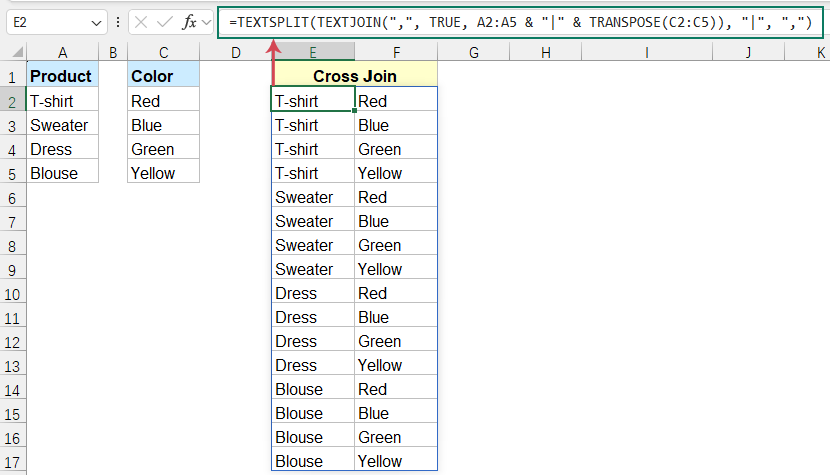
Explanation of this formula:
- A2:A5 & "|" & TRANSPOSE(C2:C5): Pairs every value in column A with each value in column C.
- TEXTJOIN(",", TRUE, …): Joins all pairs into one long text string, separated by commas.
- TEXTSPLIT(…, "|", ","): Splits the text back into a table with two columns.
In short, the formula builds A|C pairs, merges them into a single text string, and then splits them back into a structured two-column table — effectively creating all possible combinations.
Tips:
In addition to the formula shown earlier, you can use the one below to get the same outcome.
=LET(a,A2:A5,b,C2:C5,
MAKEARRAY(ROWS(a)*ROWS(b),2,
 LAMBDA(r,c,
  IF(c=1, INDEX(a, 1+INT((r-1)/ROWS(b))), INDEX(b, 1+MOD(r-1, ROWS(b))))
 )
))
Pros
- Fully dynamic
- No helper columns
- Updates automatically when source lists change
Cons
- Requires Excel 365
- Formula looks complex for beginners
✨ List All Combinations — Generate Every Possibility in One Click!
Tired of writing complex formulas to get all possible combinations? With Kutools for Excel, you can instantly list every combination of multiple columns or values — no formulas, no Power Query, just a few clicks!

Method 2: Cross Join using Power Query
Power Query offers a clean, no-code approach that works in all modern Excel versions. It lets you generate a cross join through quick, point-and-click steps without having to write any formulas. Follow the step-by-step instructions below.
Step 1: Create tables for each column data
1. Select the first data list, click Insert > Table, in the Create Table dialog box, click OK. You will get the first table.
2. From the Table Design tab, rename the table to something meaningful so it’s easier to reference later.
3. Repeat the same steps to turn another column data into a table and assign it a name.
Step 2: Import the Tables and Load as Connections
1. Select the first table and click Data > From Table/Range,see screenshot:
2. In the opened Power Query Editor window, click Close & Load > Close & Load to from the Home tab. 
3. An Import Data dialog box will appear, select Only Create Connection option, and click OK.
4. The Queries & Connections pane will appear on the right, showing that one query has been added as a connection only.
5. Repeat the same steps to load the second table as a connection-only query, and you will see it listed alongside the first one in the Queries & Connections pane.
Step 3: Create a Reference Query and a Custom Column
1. Right-click the query you want to use as the first table in the cross join, and select Reference.
2. In the Power Query Editor window, go to the Add Column tab, and click Custom Column, see screenshot:
3. In the Custom Column dialog box, in the Custom Column formula box, type the name of the other table you want to use for the cross join. Then, click OK button.
Note:
If your query name contains spaces (for example, Product Color), you must enclose it in the syntax #"Query Name" when entering it in the Custom Column formula box. For instance, for Product Color, you should type #"Product Colors".
4. A new custom column will appear, click the Expand button to reveal its contents.
5. In the expanded pane, make sure the column name you want join is checked. And then, click OK.
6. Now, you will now see all combinations generated from the two tables.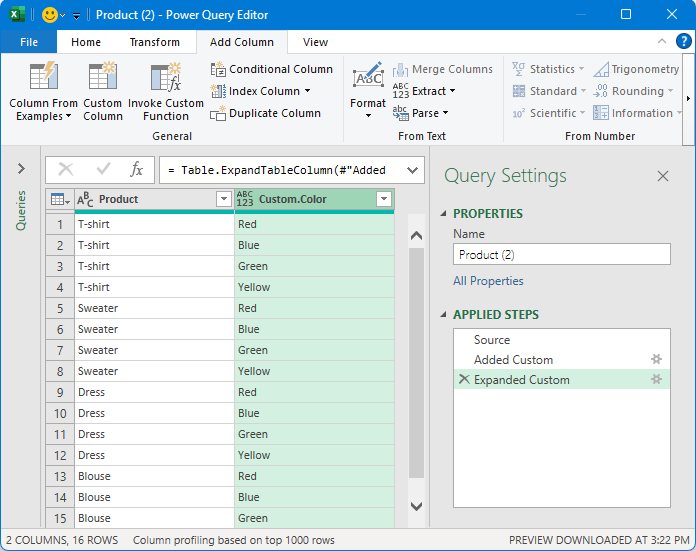
Step 4: Load the data to worksheet
Go to the Home tab, click Close & Load > Close & Load. The table with all combinations will be loaded into a new worksheet. →
→
Pros
- Handles Large Data: Excellent performance with thousands of rows.
- Reusable & Refreshable: If you add more data to the source ranges, just refresh the query and the results will update automatically.
Cons
- Slightly more steps
- Requires basic Power Query knowledge
Method 3: Cross Join using Pivot Table
This method is indirect, but it can be surprisingly effective when you need to generate all combinations without writing any formulas. It's especially useful for users who prefer a more visual, click-based approach or those working in Excel versions that don’t support dynamic array formulas.
1. Create two separate tables for the data lists, and name them using the same steps outlined in Step 1 of Method 2.
2. Select the table you want to use as the first column. Then, go to the Insert tab, and click PivotTable, see screenshot:
3. In the PivotTable from table or range dialog box, select Existing Worksheet, choose the location for the PivotTable, check Add this data to the Data Model, and then click OK.
4. When the PivotTable Fields pane appears on the right, check the column name from the table and it will be added to the Rows area automatically.
5. Then, switch to the All tab in the PivotTable Fields pane, select the table you want to use as the second column of your Crossjoin, and check its column name to add it to the Rows area. And you will get the Pivot Table as below screenshot shown:
6. Click one cell of the Pivot Table, go to Design tab, select Report Layout > Show in Tabular Form, you will get the Pivot Table in tabular form. See screenshot:
7. Go on clicking Report Layout > Repeat All Item Labels to display all items in every row.
8. Finally, click Grand Totals > Off for Rows and Columns.
Now, the PivotTable shows a clean list of all combinations without summary rows or columns.
Pros
- No formula or Power Query needed
- Very easy and visual
- Good for quick analysis
Cons
- Not dynamic
- Requires manual actions
- The output is not linked to original data
Method 4: Cross Join using User Defined Function (Excel 365 / Excel 2021 and later)
If you frequently need to generate all possible combinations between two lists, a User Defined Function (UDF) offers a clean, reusable, and highly flexible solution. With Excel 365 or Excel 2021, the spilled-array output makes the results fully dynamic, giving you a powerful and convenient way to automate Cross Join operations.
1. Press Alt + F11 to open VBA editor.
2. Then, click Insert > Module, copy and paste the following code into the blank module.
Function CrossJoin(list1 As Range, list2 As Range)
    'Updateby Extendoffice
    Dim arr1, arr2, result()
    Dim i As Long, j As Long, r As Long
    arr1 = list1.Value
    arr2 = list2.Value
    ReDim result(1 To UBound(arr1, 1) * UBound(arr2, 1), 1 To 2)
    r = 1
    For i = 1 To UBound(arr1, 1)
        For j = 1 To UBound(arr2, 1)
            result(r, 1) = arr1(i, 1)
            result(r, 2) = arr2(j, 1)
            r = r + 1
        Next j
    Next i
    CrossJoin = result
End Function
3. Return to the Excel worksheet, enter the formula below, press Enter, and Excel will automatically spill all combinations.
=CrossJoin(A2:A5, C2:C5)
Conclusion
In summary, performing a Crossjoin in Excel offers multiple flexible and efficient solutions, allowing you to choose the most suitable method based on your specific needs and working environment:
- Formula utilizes dynamic array formulas in Excel 365 to generate results quickly without programming, making it ideal for lightweight users who prefer native formulas.
- Power Query offersa clear, reusable process capable of handling large datasets, making it the ideal choice for data cleansing and automated reporting.
- The Pivot Table method may be less direct, but it proves highly effective and intuitive for a familiar audience.
- The VBA User-Defined Function provides the highest level of customizability and is suited for scenarios requiring integration into complex macro code.
Best Office Productivity Tools
Supercharge Your Excel Skills with Kutools for Excel, and Experience Efficiency Like Never Before. Kutools for Excel Offers Over 300 Advanced Features to Boost Productivity and Save Time. Click Here to Get The Feature You Need The Most...
Office Tab Brings Tabbed interface to Office, and Make Your Work Much Easier
- Enable tabbed editing and reading in Word, Excel, PowerPoint, Publisher, Access, Visio and Project.
- Open and create multiple documents in new tabs of the same window, rather than in new windows.
- Increases your productivity by 50%, and reduces hundreds of mouse clicks for you every day!
All Kutools add-ins. One installer
Kutools for Office suite bundles add-ins for Excel, Word, Outlook & PowerPoint plus Office Tab Pro, which is ideal for teams working across Office apps.





- All-in-one suite — Excel, Word, Outlook & PowerPoint add-ins + Office Tab Pro
- One installer, one license — set up in minutes (MSI-ready)
- Works better together — streamlined productivity across Office apps
- 30-day full-featured trial — no registration, no credit card
- Best value — save vs buying individual add-in