Excel pick color from cell – 3 ways to get RGB or reuse colors
When working in Excel, maintaining visual consistency is essential, especially when using color-coded cells to highlight key information. Naturally, users often want to reuse a specific cell color elsewhere. While Format Painter is a common first choice, it copies all formatting (such as font, border, number format), not just the fill color—making it unsuitable when you only want to replicate the color itself. Unfortunately, Excel lacks a built-in color picker or eyedropper. This tutorial introduces three practical ways to identify or reuse a cell’s color in Excel, including a powerful new feature in Kutools for Excel that extracts any color and shows its exact RGB values.

- Method 1: Identify color via Fill/Font Color Panel
- Method 2: Get RGB color value with VBA (Advanced Users)
- Method 3: Use Kutools for Excel's Color Picker (Recommended)
Method 1: Identify color via Fill/Font Color Panel
Before turning to VBA or third party tools, it's important to know that Excel itself can display exact RGB values—as long as you manually open the Custom Colors dialog. This method works for both cell background colors and font colors, and is suitable when you only need to inspect a color occasionally.
➤ How to identify the RGB color using the Fill or Font Color panel?
- Select the cell whose fill color or font color you want to identify.
- Go to the Home tab on the Ribbon.
- In the Font group:
- Click Fill Color to check the background color.
- Or click Font Color to check the text color.
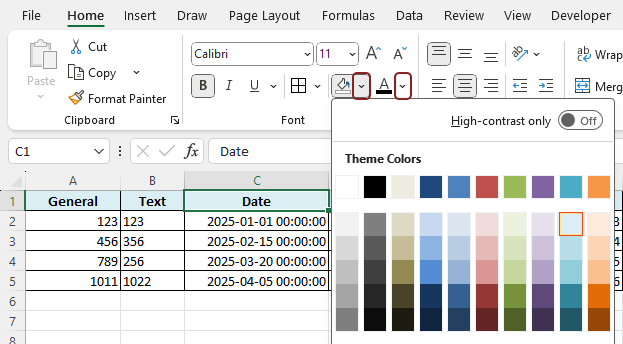
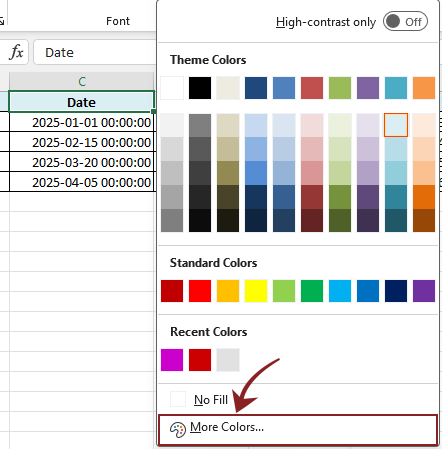
- From the dropdown menu, choose More Colors....
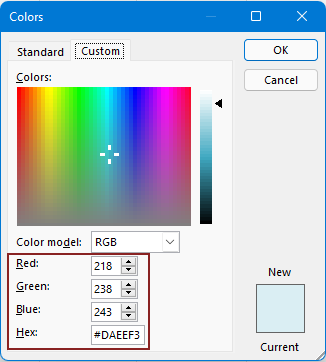
- In the Colors dialog box, switch to the Custom tab. Then you can check:
- The exact RGB values (Red, Green, Blue) of the fill or font color of the selected cell.
- The corresponding hex value of the fill or font color of the selected cell.
After understanding how to identify a cell’s color through the Fill or Font Color panel, it’s worth clarifying when this method is most suitable—and where it falls short. This built-in approach works well for quick, occasional checks, but it is not designed for frequent or large-scale color management.
When this method works well?
- You only need to occasionally identify one or two colors
- You don’t need to reuse or store colors for later use
Practical limitations
- You must open the dialog every time you want to check a color
- There is no way to save or collect colors
- You cannot extract colors in bulk or automate the process
Method 2: Get RGB color value with VBA (Advanced Users)
While the Fill/Font Color panel can display RGB or hex values manually, it does not scale well when you need to extract colors repeatedly, in bulk, or programmatically. In such cases, VBA provides a more automated solution by reading color properties directly from cells.
➤ How to do it:
- Select the cell whose fill color or font color you want to identify.
- Press Alt + F11 to open the VBA Editor.
- Click Insert > Module.
- Paste one of the following codes into the Module window:
VBA code 1: Get RGB value of the fill color of the selected cell
Sub GetCellFillColorRGB()
    Dim cell As Range
    Set cell = Selection
    Dim colorCode As Long
    colorCode = cell.Interior.Color
    Dim redVal As Integer, greenVal As Integer, blueVal As Integer
    redVal = colorCode Mod 256
    greenVal = (colorCode \ 256) Mod 256
    blueVal = (colorCode \ 65536) Mod 256
    MsgBox "RGB Color: Red = " & redVal & ", Green = " & greenVal & ", Blue = " & blueVal
End Sub
VBA code 2: Get RGB value of the font color of the selected cellSub GetCellFontColorRGB() Dim c As Range Set c = Selection Dim clr As Long clr = c.Font.Color Dim r As Long, g As Long, b As Long r = clr Mod 256 g = (clr \ 256) Mod 256 b = (clr \ 65536) Mod 256 MsgBox "Font Color" & vbCrLf & _ "R: " & r & " G: " & g & " B: " & b End Sub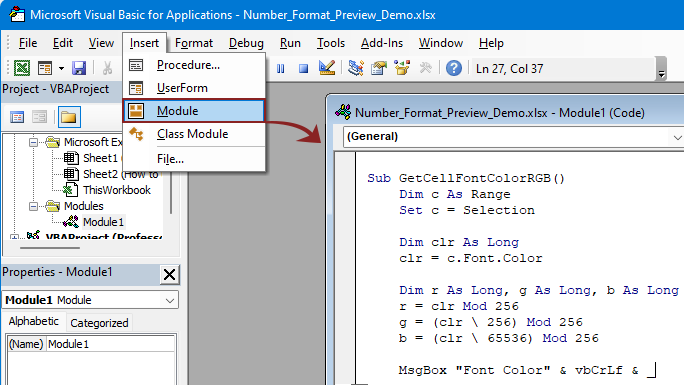
- Run the macro by pressing F5 or from the Run menu.
The RGB code of the fill or font color will be displayed in a message box.

- This method requires enabling macros and some familiarity with VBA. It may not be suitable for casual users or workbooks shared across teams, where macros might be disabled for security reasons.
- For future convenience, you can save the file as a macro-enabled workbook (*.xlsm) and add this VBA macro to your Quick Access Toolbar for one-click execution.
Method 3: Use Kutools for Excel's Color Picker (Recommended)
While Excel allows you to manually check colors through its Fill or Font panels, and advanced users can retrieve RGB values using VBA, both methods are limited — either visually ambiguous or technically complex.
Kutools for Excel’s new Color Picker tool completely changes the game. Not only can it accurately extract the fill or font color from any cell, it also displays the precise RGB values in a dedicated window, instantly adds the picked color to Excel’s Recent Colors palette, and even allows you to store up to 30 frequently used colors for future use. It’s an all-in-one visual color manager that’s perfect for designers, analysts, or anyone who works with color-coded Excel data.
Make sure Kutools for Excel is downloaded and installed.
➤ How to do it:
- Go to Kutools > Format > Pick Color.
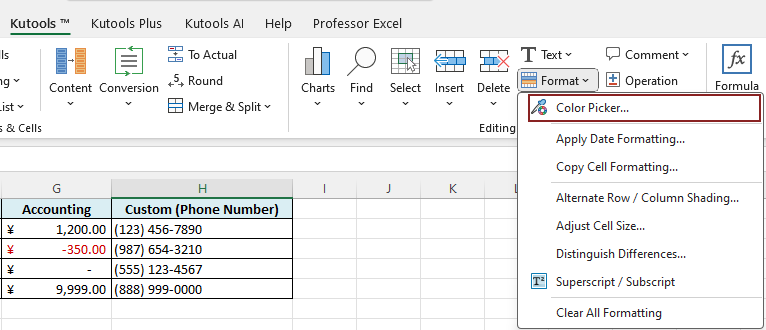
- A Color Picker window will pop up.
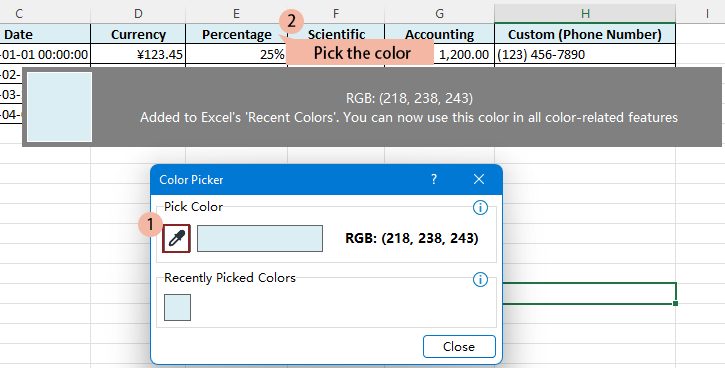
- Click the eyedropper tool to activate it — your mouse cursor will turn into a crosshair.
- Hover and click anywhere in the Excel interface or worksheet to pick a color — including cells, chart elements, shapes, or even the ribbon/UI.
- The selected color will:
- Be displayed in the dialog box with its exact RGB value (e.g., RGB: 218, 238, 243).
- Be automatically added to Excel’s "Recent Colors", so you can instantly reuse it in cell fills, fonts, shapes, and more.
- Be stored in the “Recently Picked Colors” section of the tool for future reference (up to 30 slots available)
Compared to Excel’s built-in method or complex VBA approaches, Kutools offers a far more intuitive and accurate way to extract and reuse colors.
- Instantly shows accurate RGB color values.
- Pick colors from any part of the worksheet or even UI elements.
- Automatically adds the picked color to Excel’s Recent Colors.
Conclusion
Excel provides a few native ways to identify colors — such as viewing RGB values through the Fill Color dialog or using VBA for advanced extraction. However, these methods can be time-consuming or technically demanding. Format Painter is quick but often too broad, applying all formatting instead of just color.
For users seeking a precise, flexible, and hassle-free way to pick and reuse colors, Kutools for Excel’s Color Picker is the superior solution. It lets you grab colors from anywhere on your screen, view exact RGB values instantly, and reuse them from your Recent Colors list — all without writing a single line of code.
Whether you're designing dashboards, creating reports, or just keeping your workbook visually consistent, this feature brings ease and accuracy to your color workflow.
Best Office Productivity Tools
Supercharge Your Excel Skills with Kutools for Excel, and Experience Efficiency Like Never Before. Kutools for Excel Offers Over 300 Advanced Features to Boost Productivity and Save Time. Click Here to Get The Feature You Need The Most...
Office Tab Brings Tabbed interface to Office, and Make Your Work Much Easier
- Enable tabbed editing and reading in Word, Excel, PowerPoint, Publisher, Access, Visio and Project.
- Open and create multiple documents in new tabs of the same window, rather than in new windows.
- Increases your productivity by 50%, and reduces hundreds of mouse clicks for you every day!
All Kutools add-ins. One installer
Kutools for Office suite bundles add-ins for Excel, Word, Outlook & PowerPoint plus Office Tab Pro, which is ideal for teams working across Office apps.





- All-in-one suite — Excel, Word, Outlook & PowerPoint add-ins + Office Tab Pro
- One installer, one license — set up in minutes (MSI-ready)
- Works better together — streamlined productivity across Office apps
- 30-day full-featured trial — no registration, no credit card
- Best value — save vs buying individual add-in
Table of contents
- Identify color via Fill/Font Color Panel
- Get RGB color value with VBA
- Use Kutools for Excel's Color Picker
- The Best Office Productivity Tools
Kutools for Excel
Brings 300+ powerful features to streamline your Excel tasks.
- ⬇️ Free Download
- 🛒 Purchase Now
- 📘 Feature Tutorials
- 🎁 30-Day Free Trial