Extract Dates from Text Strings in Seconds (3 Easy ways)
When working with imported data, reports, or content copied from emails and documents, dates are often embedded within long text strings instead of appearing in separate cells. To sort records by date, calculate deadlines, build timelines, or perform other date-based analysis, you first need to extract these dates from the surrounding text. This can be challenging when the text contains different date formats or when multiple dates appear in the same sentence. In this guide, we’ll explore several practical methods to extract dates from text strings in Excel.

Extract Dates from Text Strings in Excel
Extract Dates from Text Strings By Formula (Excel 365)
If you are using Excel 365, you can take advantage of modern functions such as TEXTSPLIT, FILTER, LET, and REGEXTEST to extract dates dynamically.
- Select a blank cell where you want the extracted dates to appear.
- Enter the following formula:
=LET( t,A2, arr,TEXTSPLIT(SUBSTITUTE(SUBSTITUTE(SUBSTITUTE(SUBSTITUTE(t,","," "),"."," "),":"," "),CHAR(10)," ")," "), FILTER(arr,REGEXTEST(arr,"\d{1,4}[-/]\d{1,2}[-/]\d{1,4}")) ) - Press Enter to get the result from the first cell.
- Then, drag the fill handle down to apply the formula to other cells. The extracted dates will spill into adjacent cells automatically.
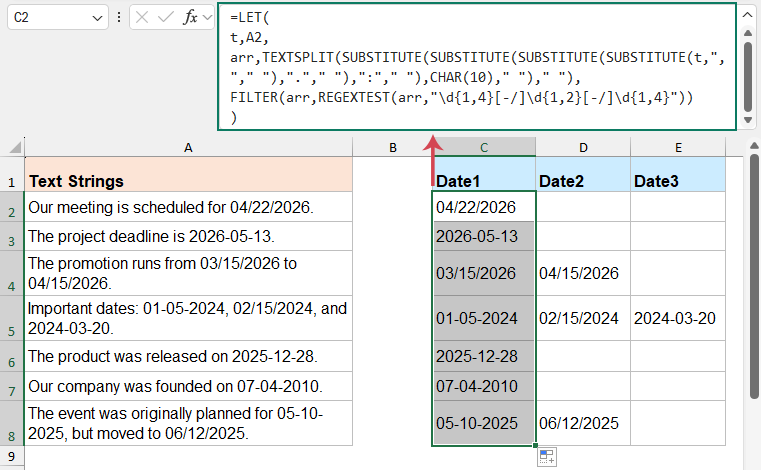
How this formula works?
LET(t, A2, …):
Stores the text from cell A2 into a variable called t to make the formula cleaner and easier to read.
SUBSTITUTE(...):
Replaces punctuation such as: commas, periods, colons, line breaks with spaces, so the text becomes easier to split.
TEXTSPLIT(..., " "):
Splits the cleaned text into multiple pieces (words or segments) based on spaces, and stores them in arr.
REGEXTEST(arr,"\d{1,4}[-/]\d{1,2}[-/]\d{1,4}"):
Checks each piece in arr to see if it matches a date pattern like: 03/15/2024 or 2024-05-12 date formatting.
FILTER(...):
Returns only the parts that match the date pattern, removing everything else.
Advantages
- Fully dynamic and updates automatically
- No coding required
- Can extract multiple dates from one cell
- Works directly inside Excel
Limitations
- Requires Excel 365 (modern functions such as TEXTSPLIT, FILTER, and REGEXTEST).
- Only works well when dates are separated by spaces or common delimiters such as commas, periods, colons, or line breaks.
If a date is directly attached to other characters (e.g., Date(03/15/2026) or abc2026-05-12xyz), it may not be isolated correctly and could fail to be extracted. - Cannot validate whether a date is logically valid.
The regular expression only checks the format, not the actual correctness of the date.
For example, the following invalid values may still be recognized as dates:
99/99/9999, 2024-13-40, 1234/56/78. - Does not standardize date formats.
Extracted results retain their original formats (e.g., 03/15/2024, 2024-05-12, 12-17-2023). - May miss certain valid date formats.
It only supports dates with / or - separators. Formats such as the following are not recognized:
2024.05.12, 15 Mar 2024, March 15, 2024, 20240512.
As a result, it has limited support for: dates with embedded spaces (e.g., 2024 / 06 / 22), dates enclosed in complex punctuation, validation of real dates, consistent formatting of results.
Extract Dates from Text Strings by User Defined Function
If Excel 365 features are not available, you can still achieve the same result by creating a User Defined Function (UDF). This approach gives you more control and makes it easier to extract dates from messy or unstructured text without relying on complex formulas.
Follow these steps to create and use a User Defined Function in Excel:
- Press Alt + F11 to open the Visual Basic Editor.
- Click Insert > Module to create a new module. Copy and paste the following code into the module window:
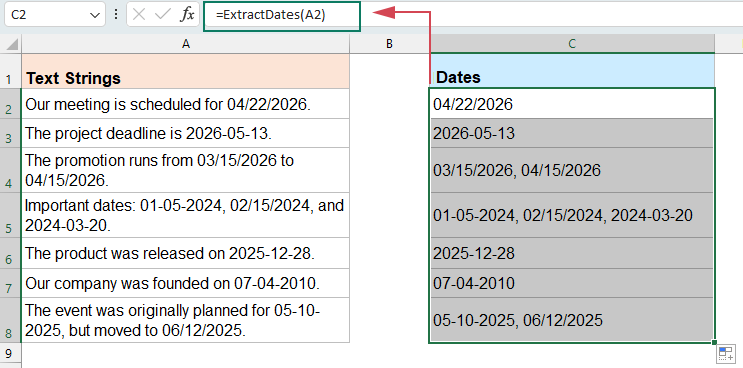
Function ExtractDates(ByVal txt As String) As String Dim re As Object Dim matches As Object Dim m As Object Dim result As String Set re = CreateObject("VBScript.RegExp") With re .Global = True .IgnoreCase = True .Pattern = "(\d{1,4}\s*[-/]\s*\d{1,2}\s*[-/]\s*\d{1,4})" End With If re.test(txt) Then Set matches = re.Execute(txt) For Each m In matches If result = "" Then result = Trim(m.Value) Else result = result & ", " & Trim(m.Value) End If Next m End If ExtractDates = result End Function - Close the editor and return to your worksheet. In a blank cell, enter the following formula:
=ExtractDates(A2) - Drag the fill handle down to apply the function to other cells. All dates from each cell will be extracted automatically.
Advantages
- Extract multiple dates from a single cell
- Handles irregular formats (e.g., spaces inside dates)
- More powerful and flexible than formulas
- Works with complex and messy text data
Limitations:
- Requires basic knowledge of VBA
- File must be saved as .xlsm
- This method only supports date formats that contain “/” or “-” as separators. Dates in other formats—such as 2024.05.12, March 15, 2024, or 20240512—may not be recognized or extracted accurately.
- Cannot validate whether a date is logically valid. For example, the following invalid values may still be recognized as dates:
99/99/9999, 2024-13-40, 1234/56/78.
Extract Dates from Text Strings by Kutools AI’s Cell Aide
If you frequently work with messy or unstructured data, formulas can quickly become complex, hard to maintain, and unreliable—especially when dealing with multiple or irregular date formats. With Kutools AI’s Cell Aide, you can extract dates using simple natural language instructions—no formulas, no coding, and no need to worry about format limitations. It can automatically recognize various date patterns, handle complex text with ease, and return accurate results in just seconds, significantly improving your efficiency.
Kutools AI can also recognize date information, including relative expressions such as “next Monday,” “tomorrow,” and “3 days ago.”
After downloading and installing Kutools for Excel, please do with the following steps:
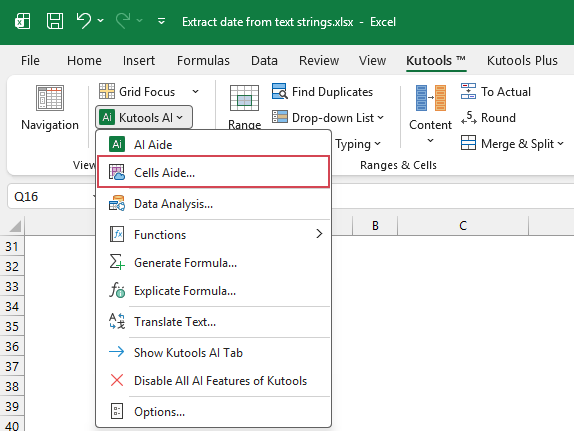
- Click Kutools > Kutools AI > Cells Aide, see screenshot:
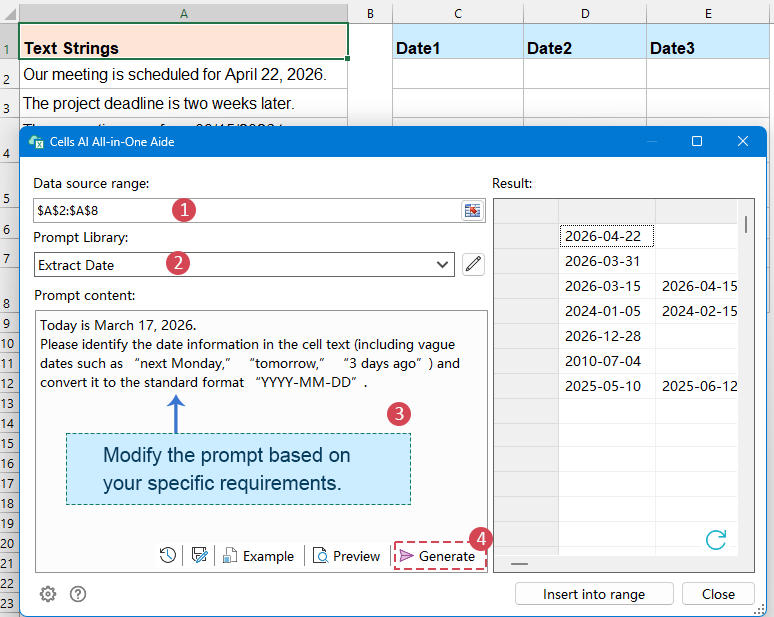
- In the Cells AI All-in-One Aide dialog box, specify the following options:
- (1) In the Data source range box, select the cells that contain the text strings you want to process;
- (2) Click the Prompt Library dropdown and select Extract Date as the predefined prompt.
- (3) In the Prompt content box, review or modify the prompt based on your needs.
For example, you can specify:- Extract all date information
- Include vague dates such as “next Monday”, “tomorrow”, or “3 days ago”
- Convert results into a standard format like YYYY-MM-DD
- (4) Click the Generate button. Kutools AI will analyze the selected data and display the extracted dates in the Result panel on the right.
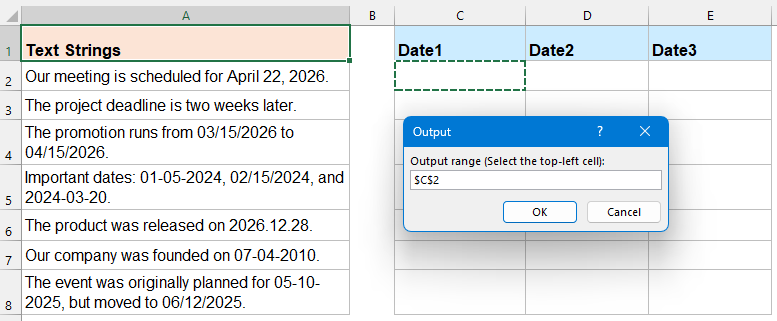
- After getting the result, click Insert into range button, and select a blank cell to place the extracted dates. Finally, click OK.
Result
All detected dates—including standard and vague expressions—will be extracted and displayed specified cells.
Advantages
- No formulas or coding required
- Works with complex and irregular text
- Supports natural language prompts
- Extracts multiple dates easily
Limitations
- Requires installing Kutools
- May require AI configuration (API key, etc.)
- Depends on AI interpretation accuracy
Try Kutools AI for Excel Today
Extract dates, formulas, names, and other key information from messy cell text using simple natural language. Kutools AI’s Cell Aide helps you handle complex Excel tasks faster—without writing formulas or VBA code.
Conclusion
Extracting dates from text strings in Excel can be achieved in several ways, depending on your data complexity and workflow needs. In this guide, we explored three effective methods, each with its own strengths.
- If you are using Excel 365, formulas provide a dynamic and built-in solution. They work best for structured data and simple scenarios.
- For more complex or irregular text, a User Defined Function (UDF) is a better choice. It offers greater flexibility and control, especially when extracting multiple dates from a single cell.
- If you prefer a faster and more user-friendly approach, consider using Kutools AI’s Cell Aide. It allows you to extract dates effortlessly using natural language—no formulas or coding required.
By choosing the method that best fits your scenario, you can efficiently extract and manage date information from text, saving time and improving data accuracy.
Best Office Productivity Tools
Supercharge Your Excel Skills with Kutools for Excel, and Experience Efficiency Like Never Before. Kutools for Excel Offers Over 300 Advanced Features to Boost Productivity and Save Time. Click Here to Get The Feature You Need The Most...
Office Tab Brings Tabbed interface to Office, and Make Your Work Much Easier
- Enable tabbed editing and reading in Word, Excel, PowerPoint, Publisher, Access, Visio and Project.
- Open and create multiple documents in new tabs of the same window, rather than in new windows.
- Increases your productivity by 50%, and reduces hundreds of mouse clicks for you every day!
All Kutools add-ins. One installer
Kutools for Office suite bundles add-ins for Excel, Word, Outlook & PowerPoint plus Office Tab Pro, which is ideal for teams working across Office apps.





- All-in-one suite — Excel, Word, Outlook & PowerPoint add-ins + Office Tab Pro
- One installer, one license — set up in minutes (MSI-ready)
- Works better together — streamlined productivity across Office apps
- 30-day full-featured trial — no registration, no credit card
- Best value — save vs buying individual add-in
Table of contents
- Method 1: By Formula (Excel 365)
- Method 2: By User Defined Function
- Method 3: By Kutools AI’s Cell Aide
- Conclusion
- The Best Office Productivity Tools
Kutools for Excel
Brings 300+ advanced features to Excel
- ⬇️ Free Download
- 🛒 Purchase Now
- 📘 Feature Tutorials
- 🎁 30-Day Free Trial