Extract Contact Information (Phone Numbers, Email Addresses) From Text Strings in Excel
When working with contact data in Excel, you may often find phone numbers and email addresses mixed together in a single cell, along with names, addresses, and other details. This commonly occurs when data is copied from emails, websites or imported from external sources.
If you need to extract phone numbers and email addresses in Excel, doing it manually can be time-consuming and error-prone—especially when dealing with large datasets or inconsistent formats. In this step-by-step guide, you’ll learn how to quickly extract phone numbers and email addresses from one cell in Excel. These techniques will help you clean, organize, and structure your data more efficiently.

Extract Contact Information (Phone Numbers, Email Addresses) in Excel
Extract Contact Information (Phone Numbers, Email Addresses) in Excel
In this section, we will show you three practical ways to get it done: using formulas in Excel 365, using a User Defined Function that works in all Excel versions, and using Kutools AI for a faster and more flexible solution.
Extract Contact Information (Phone Numbers, Email Addresses) by Formulas (Excel 365)
Excel 365 supports dynamic array functions, which makes it much easier to extract patterns from text. If your Excel version supports functions such as TEXTJOIN and REGEXEXTRACT, you can use formulas to extract phone numbers and email addresses directly.
Extract Phone Number
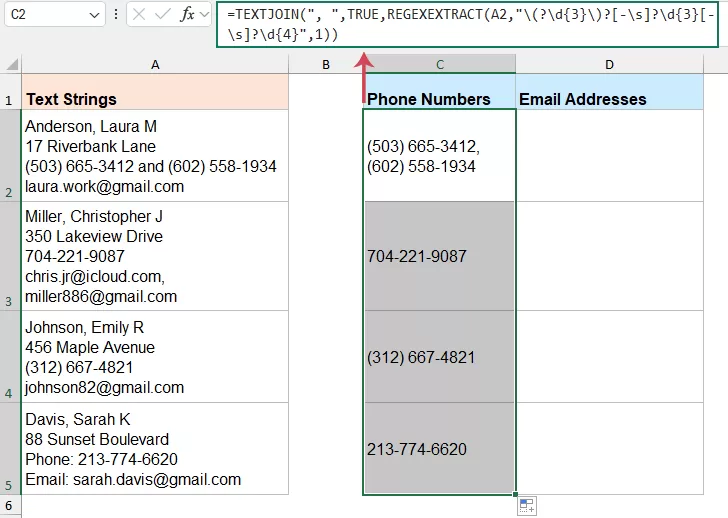
The following formula can help to pull phone numbers into a separate column and keep the results updated automatically whenever the source data changes.
- Select a blank cell where you want the extracted phone number to appear. Copy and paste the following formula:
=TEXTJOIN(", ",TRUE,REGEXEXTRACT(A2,"\(?\d{3}\)?[-\s]?\d{3}[-\s]?\d{4}",1)) - Press Enter key. Drag the fill handle down to apply the formula to other cells if needed. If multiple phone numbers are found, they will be returned in a single cell, separated by commas. See screenshot:
How the Formula Works?
- REGEXEXTRACT(A2,"\(?\d{3}\)?[-\s]?\d{3}[-\s]?\d{4}",1):
- \(?\d{3}\)?: Matches 3 digits, optionally wrapped in parentheses (e.g., 555 or (555)).
- [-\s]?: Matches an optional separator like a hyphen - or a space.
- \d{3}: Matches the next 3 digits.
- \d{4}: Matches the final 4 digits.
- 1: This argument tells Excel to return all matches found in the cell, not just the first one.
- TEXTJOIN(", ",TRUE,...)
If the cell contains more than one phone number, TEXTJOIN combines all extracted results into one cell and separates them with commas.
Advantages:
- Dynamic results that update automatically
- Useful for standard phone number formats
- Can extract multiple phone numbers from one cell
Limitations:
- Works best in Excel 365
- Mainly suitable for standard U.S.-style phone numbers
- May not work well with international formats
Extract Email Addresses
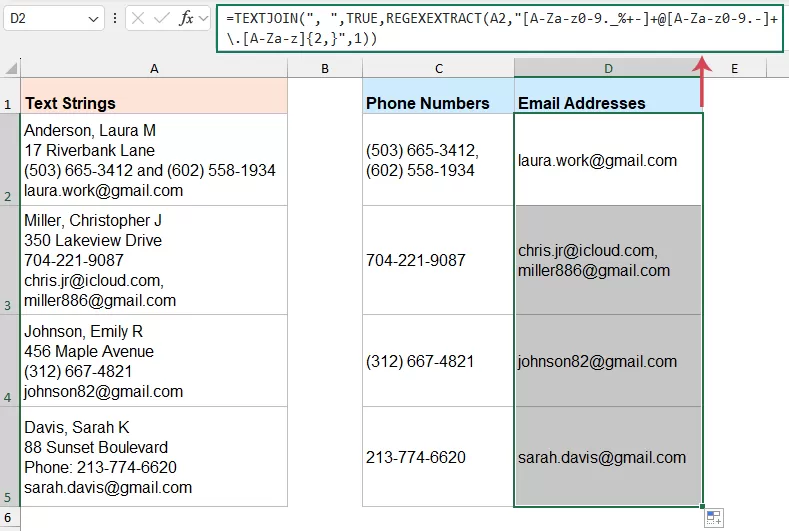
If you are using Excel 365, formulas provide a fast and dynamic way to identify email patterns and pull them out automatically.
- Click a blank cell where you want the extracted email address to appear. Then, enter the formula:
=TEXTJOIN(", ",TRUE,REGEXEXTRACT(A2,"[A-Za-z0-9._%+-]+@[A-Za-z0-9.-]+\.[A-Za-z]{2,}",1)) - Press Enter key. Drag the fill handle down to apply the formula to other cells if needed. If multiple email addresses are found, they will be returned in a single cell, separated by commas. See screenshot:
How the Formula Works?
- REGEXEXTRACT(A2,"[A-Za-z0-9._%+-]+@[A-Za-z0-9.-]+\.[A-Za-z]{2,}",1):
- [A-Za-z0-9._%+-]+: Matches the Username part (letters, numbers, and symbols like dots or pluses) before the @.
- @: matches the at symbol in an email address
- [A-Za-z0-9.-]+: Matches the Domain name (like gmail or outlook).
- \.[A-Za-z]{2,}: Matches the Extension (like .com, .org, or .edu). It ensures there is a dot followed by at least two letters.
- 1 (The Last Argument): This tells Excel to return all matches found in the cell. Without this, it would only grab the first email it sees.
- TEXTJOIN(", ",TRUE,...): Combines all extracted email addresses into one cell and separates them with commas if more than one email is found.
Advantages:
- Works dynamically when source text changes
- Can extract multiple email addresses from one cell
Limitations:
- Requires Excel 365 or a version that supports regex-related functions
- May not capture every uncommon email format perfectly
- Complex text strings may still require manual checking
- Formula-based extraction can become harder to manage in large, complicated worksheets
Extract Contact Information (Phone Numbers, Email Addresses) by User Defined Function
If the formulas above are not available in your Excel version, a User Defined Function (UDF) provides an effective alternative for extracting contact information.
- Press Alt + F11 to open the VBA editor.
- Then click Insert > Module, and paste the following code:
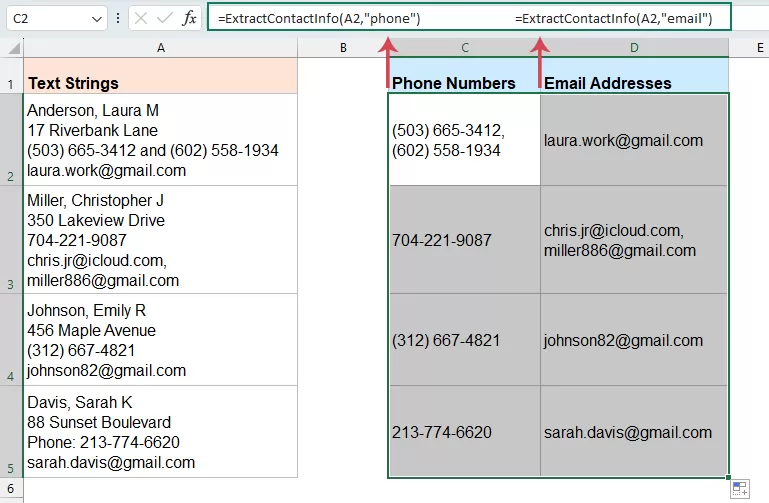
Function ExtractContactInfo(txt As String, infoType As String) As String Dim reg As Object Dim matches As Object Dim m As Object Dim result As String Dim pattern As String Set reg = CreateObject("VBScript.RegExp") reg.Global = True reg.IgnoreCase = True Select Case LCase(infoType) Case "phone" pattern = "\(?\d{3}\)?[-.\s]?\d{3}[-.\s]?\d{4}" Case "email" pattern = "[A-Za-z0-9._%+-]+@[A-Za-z0-9.-]+\.[A-Za-z]{2,}" Case Else ExtractContactInfo = "Invalid type" Exit Function End Select reg.pattern = pattern If reg.Test(txt) Then Set matches = reg.Execute(txt) For Each m In matches result = result & m.Value & ", " Next m result = Left(result, Len(result) - 2) End If ExtractContactInfo = result End Function - Close the editor and return to your worksheet. In a blank cell, enter the following formulas:
- Extract phone numbers:
=ExtractContactInfo(A2,"phone") - Extract email addresses:
=ExtractContactInfo(A2,"email")
- Extract phone numbers:
- Then, drag the formulas down to extract all phone numbers and email addresses from the list at once.
Advantages:
- Works in almost all Excel versions
- Easier to reuse than long worksheet formulas.
- Better for repeated tasks and large datasets.
Limitations:
- Requires VBA knowledge.
- Macros may be disabled by default.
- Some organizations block VBA for security reasons
- Not ideal for users unfamiliar with the VBA editor
- Files usually need to be saved as macro-enabled workbooks (.xlsm)
Extract Contact Information (Phone Numbers, Email Addresses) by Kutools AI
If you prefer a method that does not require writing formulas or VBA code, Kutools AI’s Cells Aide offers a much easier way to extract phone numbers and email addresses from cells.
With Kutools AI, you can extract not only phone numbers and email addresses, but also names and other types of information. Simply enter a prompt describing what you want to extract, and it can return virtually any content you need from the selected cells.
- Click Kutools > Kutools AI > Cells Aide, see screenshot:
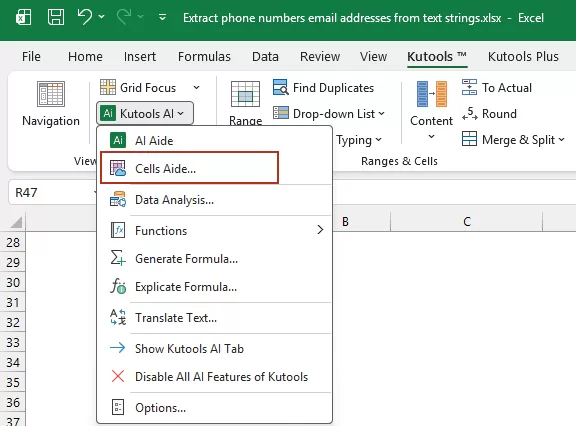
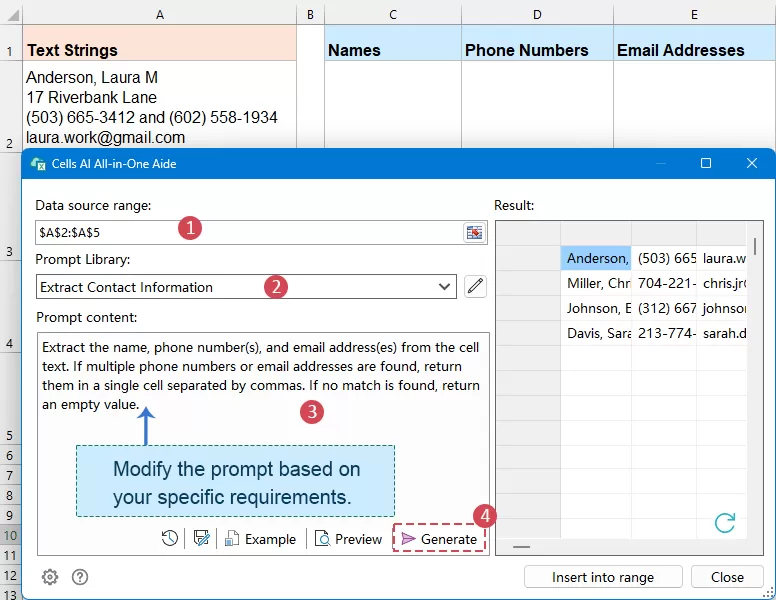
- In the Cells AI All-in-One Aide dialog box, specify the following options:
- In the Data source range box, select the cells that contain the text strings you want to process;
- Click the Prompt Library dropdown and select Extract Contact Information as the predefined prompt.
- In the Promptcontent box, review or modify the prompt based on your needs. Such as:
Extract the name, phone number(s), and email address(es) from the cell text. If multiple phone numbers or email addresses are found, return them in a single cell separated by commas. If no match is found, return an empty value. - Click the Generate button. Kutools AI will analyze the selected data and display the extracted dates in the Result panel on the right.
- After getting the result, click Insert into range button, and select a blank cell to place the extracted information. Finally, click OK.
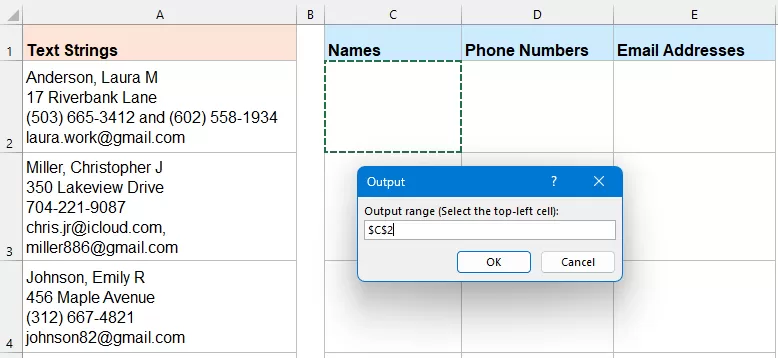
Result: All the specified contact details, such as names, phone numbers, and email addresses, are extracted into separate cells for easier viewing and use.
Advantages:
- No need to remember formulas or write VBA.
- Supports phone number formats from both the United States and other countries.
- Easy to use, even for beginners.
- Can handle more natural and unstructured text.
- Saves time when processing large batches of data.
Limitations:
- Requires installing Kutools
- May require AI configuration (API key, etc.)
- Results may vary slightly depending on the prompt and text complexity.
Extract Contact Information Faster with Kutools AI
Instantly extract names, phone numbers, email addresses, and other details from messy Excel cells with simple prompts. No formulas. No VBA. Just describe what you want, and Cells Aide does the rest.
- Extract names, phone numbers, email addresses, and more
- Handle both structured and unstructured text easily
- Support U.S. and international phone number formats
- Save time when processing large batches of data
Extended Applications
After extracting phone numbers and email addresses from text strings, you may still need to further organize the results for real-world use. In many cases, simply pulling the contact information out of one cell is not enough. You may want to place multiple contacts into separate cells for easier analysis, or standardize the extracted results into a consistent format for a cleaner and more professional worksheet.
Extracting multiple contacts into separate cells
Sometimes a single cell may contain multiple phone numbers or email addresses. In such cases, combining all results into one cell may not be the most practical approach, especially if you need to sort, filter, import, or analyze the data later.
The following formulas may do you a favor:
Extract Phone Numbers into separate cells:
=REGEXEXTRACT(A2,"\(?\d{3}\)?[-\s]?\d{3}[-\s]?\d{4}",1)
Extract Email Addresses into separate cells:
=REGEXEXTRACT(A2,"[A-Za-z0-9._%+-]+@[A-Za-z0-9.-]+\.[A-Za-z]{2,}",1)
Standardizing Phone Number Formatting
The formulas above extract phone numbers in their original formats. To make the results cleaner and more consistent, you can further format them into a standard style, such as (555) 123-4567, by using the formulas below.
=LET(
nums,REGEXEXTRACT(A2,"\(?\d{3}\)?[-\s]?\d{3}[-\s]?\d{4}",1),
TEXTJOIN(", ",TRUE,
MAP(nums,LAMBDA(x,
LET(
d,TEXTJOIN("",TRUE,IFERROR(MID(x,SEQUENCE(LEN(x)),1)*1,"")),
"("&LEFT(d,3)&") "&MID(d,4,3)&"-"&RIGHT(d,4)
)
))
)
)
Conclusion
In conclusion, extracting phone numbers and email addresses from text strings in Excel can greatly improve the clarity and usability of your data. Whether you choose formulas in Excel 365, a User Defined Function for broader compatibility, or Kutools AI’s Cells Aide for a faster and more flexible experience, each method offers an effective way to turn unstructured contact text into organized information.
Each method has its own strengths and limitations. The comparison table below can help you quickly choose the one that best fits your Excel version, skill level, and data extraction needs.
Best Office Productivity Tools
Supercharge Your Excel Skills with Kutools for Excel, and Experience Efficiency Like Never Before. Kutools for Excel Offers Over 300 Advanced Features to Boost Productivity and Save Time. Click Here to Get The Feature You Need The Most...
Office Tab Brings Tabbed interface to Office, and Make Your Work Much Easier
- Enable tabbed editing and reading in Word, Excel, PowerPoint, Publisher, Access, Visio and Project.
- Open and create multiple documents in new tabs of the same window, rather than in new windows.
- Increases your productivity by 50%, and reduces hundreds of mouse clicks for you every day!
All Kutools add-ins. One installer
Kutools for Office suite bundles add-ins for Excel, Word, Outlook & PowerPoint plus Office Tab Pro, which is ideal for teams working across Office apps.





- All-in-one suite — Excel, Word, Outlook & PowerPoint add-ins + Office Tab Pro
- One installer, one license — set up in minutes (MSI-ready)
- Works better together — streamlined productivity across Office apps
- 30-day full-featured trial — no registration, no credit card
- Best value — save vs buying individual add-in
Table of contents
- Extract Contact Information in Excel
- Method 1: By formulas (Excel 365)
- Method 2: By User Defined Function
- Method 3: By Kutools AI’s Cells Aide
- Extended Applications
- Extracting multiple contacts into separate cells
- Standardized Phone Number Formatting
- Conclusion
- The Best Office Productivity Tools
Kutools for Excel
Brings 300+ advanced features to Excel
- ⬇️ Free Download
- 🛒 Purchase Now
- 📘 Feature Tutorials
- 🎁 30-Day Free Trial