Count Cells with Two or Multiple Conditions in Excel (Step-by-Step Guide)
Want to count cells in Excel only when two conditions or multiple conditions are met? This is a common task in sales reports, employee lists, survey data, and inventory tables. Excel can do this with the COUNTIFS function, which counts only the cells that meet all criteria. If you want a faster, easier option, Kutools for Excel also provides a visual way to count cells that match two conditions (AND logic) without writing the formula yourself.

Count cells with conditions using formulas (COUNTIFS)
Faster way to count cells with two conditions in Excel (no formula)
Count cells with conditions using formulas (COUNTIFS)
In Excel, the most common way to count cells based on conditions is to use COUNTIFS. This function is designed for counting cells that meet multiple criteria, and it uses AND logic, which means every condition must be true at the same time.
The basic syntax is:
=COUNTIFS(criteria_range1, criteria1, criteria_range2, criteria2, ...)Each additional pair adds one more condition. This makes COUNTIFS flexible and powerful for structured worksheets.
Count cells with two conditions
Suppose you have a sales table where column A contains product names and column B contains regions. If you want to count how many rows have Product = Apple and Region = East, use this formula:
=COUNTIFS(A2:A13,"Apple",B2:B13,"East")Result: This formula counts only the rows where both conditions are true at the same time.
If you prefer to keep the criteria in cells, for example with Apple in F1 and East in F2, use this formula:
=COUNTIFS(A2:A13,F1,B2:B13,F2)This is one of the most common COUNTIFS uses in Excel, especially when you need to count records based on two fields, such as product and region, department and status, or name and score.
Note: Using cell references like F1 and F2 makes the formula easier to reuse. You can change the criteria directly in the worksheet without editing the formula each time.
Count cells with multiple conditions
You can also use COUNTIFS to count rows based on three or more conditions. For example, if column A contains products, column B contains regions, and column C contains quantities, the following formula counts rows where:
- Product = Apple
- Region = East
- Quantity > 200
=COUNTIFS(A2:A13,"Apple",B2:B13,"East",C2:C13,">200")Result: This formula counts only the rows that satisfy all three conditions.
If you prefer to keep the criteria in cells, for example with Apple in F1, East in F2, and >200 in F3, use this formula:
=COUNTIFS(A2:A13,F1,B2:B13,F2,C2:C13,F3)Using cell references makes the formula easier to update, especially when you need to test different criteria without rewriting the formula each time.
COUNTIFS is good when you want a built-in, formula-based solution. However, as the number of conditions increases, formulas become harder to read, edit, and troubleshoot, especially for beginners or when criteria need to change often.
- Built into Excel: No additional tools are required.
- Supports multiple criteria: You can count cells with two or more conditions.
- Accurate and flexible: Works well for structured data analysis.
- Formula knowledge is needed: Beginners may find COUNTIFS harder to remember.
- Becomes harder with more criteria: Longer formulas are more difficult to read and edit.
- Less convenient for frequent changes: Updating criteria manually can slow down repeated analysis.
Faster way to count cells with two conditions in Excel (no formula)
If you only need to count cells based on two conditions and do not want to remember COUNTIFS syntax, Kutools for Excel offers a much easier option. Its Count cells with two conditions (and) feature lets you set the ranges and criteria visually and return the result in just a few clicks.
- Select a blank cell where you want the result to appear.
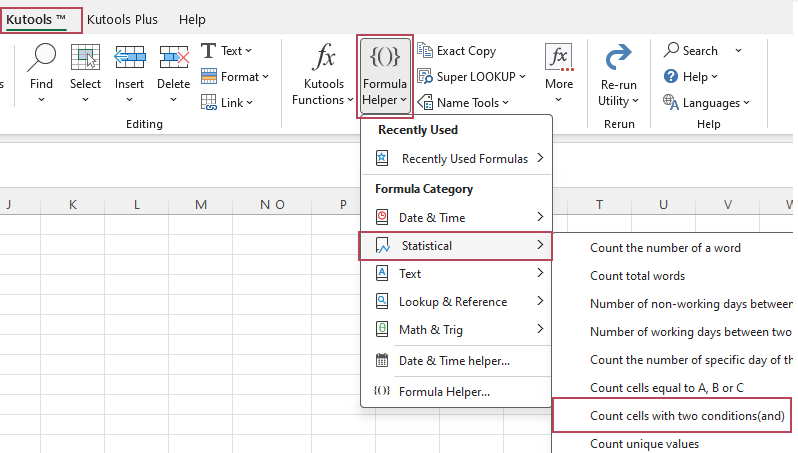
- Click Kutools > Formula Helper > Statistical > Count cells with two conditions (and).
- In the Formulas Helper dialog box, do the following:
- In Range 1, select the first range you want to evaluate.
- In Criteria 1, specify the first condition.
- In Range 2, select the second range you want to evaluate.
- In Criteria 2, specify the second condition.
- Click OK to return the result.
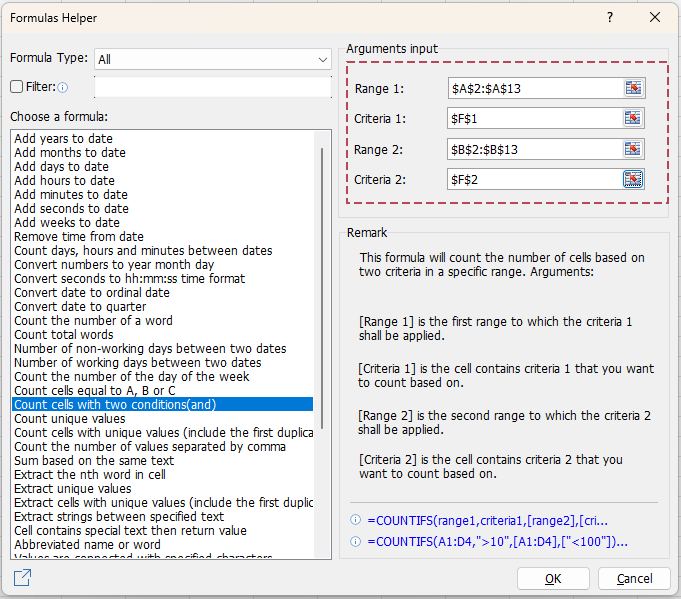
Result: You get the count instantly based on the two selected conditions, without writing a formula yourself.
- No formula needed
- Easy visual setup
- Faster than building a COUNTIFS formula manually
- Helps reduce formula errors
- Easy to reuse with different criteria
- Beginner-friendly
COUNTIFS vs. Kutools for Excel: which method is better?
Both methods work well, but they are designed for different users and scenarios.
- Built into Excel: no extra tool needed
- More flexible: supports two or many conditions
- Accurate: ideal for structured data analysis
- Downside: requires formula knowledge
- No formula needed: easier for beginners
- Visual setup: faster than building COUNTIFS manually
- Reusable: easy to test different criteria
- Downside: focused on two-condition counting
In short, use COUNTIFS when you need maximum flexibility, especially for multiple criteria. Use Kutools for Excel when you want a faster and easier way to count cells with two conditions.
FAQ
What is the difference between COUNTIF and COUNTIFS in Excel?
COUNTIF counts cells based on a single condition, while COUNTIFS counts cells based on two or more conditions. If you need to count rows only when multiple criteria are met, COUNTIFS is the correct function to use.
Does COUNTIFS use AND or OR logic?
COUNTIFS uses AND logic. That means every condition in the formula must be true for a row to be counted.
Can I count cells with more than two conditions in Excel?
Yes. COUNTIFS supports multiple criteria pairs, so you can count cells with three, four, or more conditions as needed.
Is there a way to count cells with two conditions without using a formula?
Yes. Kutools for Excel provides the Count cells with two conditions (and) feature, which lets you count matching cells through a dialog box instead of entering a COUNTIFS formula manually.
Best Office Productivity Tools
Supercharge Your Excel Skills with Kutools for Excel, and Experience Efficiency Like Never Before. Kutools for Excel Offers Over 300 Advanced Features to Boost Productivity and Save Time. Click Here to Get The Feature You Need The Most...
Office Tab Brings Tabbed interface to Office, and Make Your Work Much Easier
- Enable tabbed editing and reading in Word, Excel, PowerPoint, Publisher, Access, Visio and Project.
- Open and create multiple documents in new tabs of the same window, rather than in new windows.
- Increases your productivity by 50%, and reduces hundreds of mouse clicks for you every day!
All Kutools add-ins. One installer
Kutools for Office suite bundles add-ins for Excel, Word, Outlook & PowerPoint plus Office Tab Pro, which is ideal for teams working across Office apps.





- All-in-one suite — Excel, Word, Outlook & PowerPoint add-ins + Office Tab Pro
- One installer, one license — set up in minutes (MSI-ready)
- Works better together — streamlined productivity across Office apps
- 30-day full-featured trial — no registration, no credit card
- Best value — save vs buying individual add-in
Table of Contents
- Count cells with conditions using formulas (COUNTIFS)
- Count cells with two conditions
- Count cells with multiple conditions
- Faster way to count cells with two conditions in Excel (no formula)
- COUNTIFS vs. Kutools for Excel: which method is better?
- FAQ
- The Best Office Productivity Tools
Kutools for Excel
Brings 300+ advanced features to Excel
- 🧩 Overview
- 📥 Free Download
- 🎁 30-Day Free Trial available