How to apply a function directly to existing cell values in Excel
When working with data in Excel, you may sometimes need to process values that are already in place rather than calculate results in a new column. For example, you may want to convert negative numbers to absolute values, return the sign of each number, remove decimal portions, or apply other single-input functions to a selected range. While Excel offers many built-in functions for these tasks, it does not provide a direct command for applying them to existing cell values in place.
In this tutorial, we’ll walk through three practical ways to do it in Excel. We’ll start with a VBA method that processes the selected cells directly, then show how Kutools for Excel simplifies the process with its Operation Tools feature, and finally look at a helper-column workaround for users who prefer not to use macros.
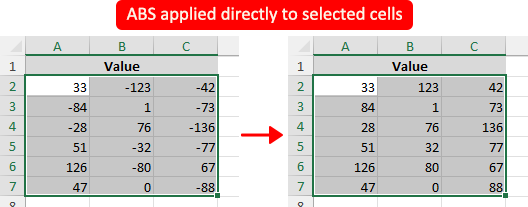
Apply a function to existing cell values using VBA
If you want to apply a function directly to cells that already contain values without using a helper column, VBA is the main native method in Excel. You can run a macro on the selected range and replace each cell with the calculated result.
- Select the range of cells that contains the values you want to process.
- Press Alt + F11 to open the VBA editor.
- In the VBA editor, click Insert > Module to insert a new module.
- Paste one of the following macros into the module, depending on the function you want to apply.
Example 1: Apply the ABS function to the selected cells
Sub ApplyABSFunction()
    Dim c As Range
    For Each c In Selection
        If IsNumeric(c.Value) And Not IsEmpty(c.Value) Then
            c.Value = Abs(c.Value)
        End If
    Next c
End Sub
Example 2: Apply the SIGN function to the selected cells
Sub ApplySIGNFunction() Dim c As Range For Each c In Selection If IsNumeric(c.Value) And Not IsEmpty(c.Value) Then c.Value = Sgn(c.Value) End If Next c End Sub - Press F5 to run the macro.
The selected cells will be updated with the calculated results immediately.
Notes:
- This method changes the original values directly, so it is a good idea to back up your data before running the macro.
- You can replace
AbsorSgnin the fifth line with other single-argument VBA functions as needed, such as Int, Exp, Sin, or Cos. Note that some functions have input restrictions. For example, Sqr only works with non-negative numbers.
Pros
- Built into Excel with no add-in required
- Can process existing cell values directly in place
- Flexible for different functions and custom logic
Cons
- Changes cannot be undone after the macro runs
- Requires VBA knowledge
- Macros may be disabled in some environments
- Less convenient for everyday users
Apply a function to existing cell values with Kutools for Excel
If you want a quicker and easier way to apply a function directly to cells that already contain values, Kutools for Excel provides a convenient solution with the Operation Tools feature. It lets you select a function and apply it to all selected cells at once, without writing formulas or VBA code.
- Select the cells that contain the values you want to process.
- Click Kutools > Operation.

- In the Operation Tools dialog box, click Function in the left pane.
- Choose the function you want to apply from the drop-down list, such as ABS. You can then preview the results in the Preview Pane.
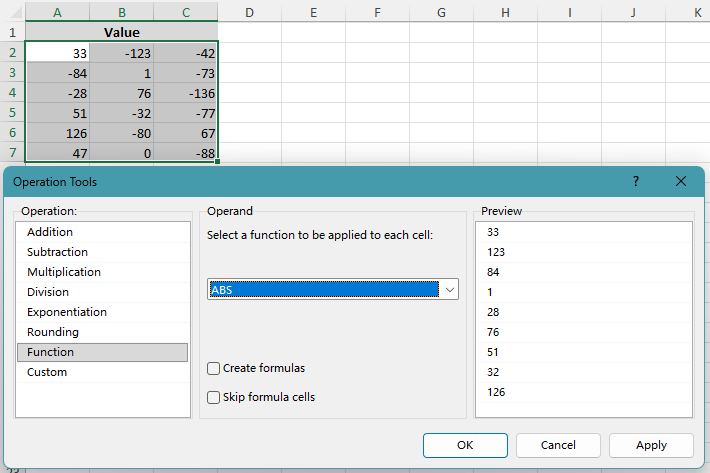 Tip: If you want to insert formulas instead of replacing the existing values directly, check the Create formulas option. Kutools will enter formulas into the selected cells, using each cell’s current value as the function argument, such as =ABS(33).
 - Click OK or Apply to process the selected cells.
The Function option in Operation Tools includes a selection of commonly used single-input functions, such as ABS, SIGN, INT, SQRT, SIN, COS, TAN, DAY, MONTH, and YEAR, allowing you to process existing cell values in bulk without entering formulas manually.
Pros
- Applies functions directly to selected cells
- Supports Undo
- No VBA or manual setup required
- Includes preview before applying the results
- Fast and beginner-friendly
Cons
- Requires installing Kutools for Excel
Kutools for Excel - Packed with over 300 essential tools for Excel. Make Excel tasks faster, easier, and more efficient. Download now!
Workaround: Apply a function using a helper column
If you prefer not to use VBA and do not have Kutools, a helper column is the most practical worksheet-based workaround. Instead of changing the original cells directly, this method calculates the results in a separate column first, allowing you to review them before replacing the original values.
- In an empty column next to your data, enter a formula based on the first cell in the range. For example:
- For ABS:
=ABS(A2) - For SIGN:
=SIGN(A2) - For INT:
=INT(A2)
- For ABS:
- Press Enter to return the result for the first row.
- Drag the fill handle down to apply the same formula to the rest of the cells in the helper column.
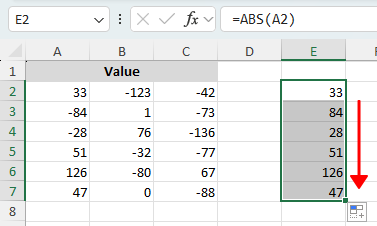
- (Optional: if your data spans multiple columns) Drag the fill handle to the right to apply the formula across the entire range.
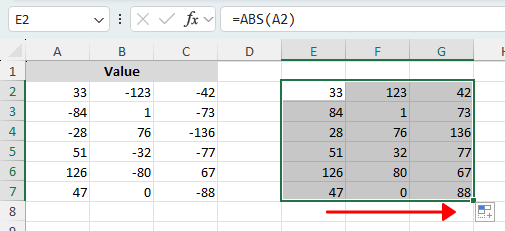
- To replace the original values, copy the helper-column results, then paste them back over the original cells using Paste Special > Values.
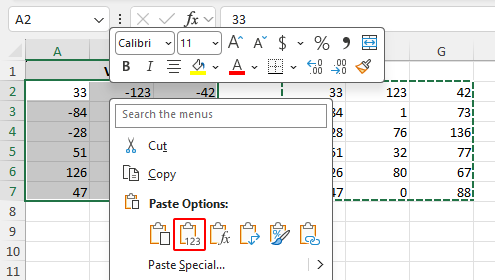
Note:
This method does not apply the function directly to the existing cells in one step. Instead, it uses a separate column to calculate the results first, which can be useful if you want to review the output before overwriting the original values.
Pros
- No add-in or macro required
- Easy for most Excel users to follow
- Lets you review results before replacing the original values
Cons
- Requires extra worksheet space
- Not a direct in-place method
- Needs additional copy and paste steps if you want to replace the original values
Which method works best for you?
| Method | Best for | Limitations |
|---|---|---|
| VBA | Users who want a native Excel way to process existing values directly in place | Requires macros and some VBA knowledge |
| Kutools for Excel | Users who want a fast and easy way to apply functions to selected cells | Requires Kutools for Excel Download |
| Helper column | Users who prefer a formula-based worksheet method without VBA | Not a direct in-place method and requires extra steps |
Conclusion
When cells already contain values, Excel does not offer a simple built-in command to apply a function directly to those values in one click. The native option is to use VBA, which works well but may feel too technical for many users.
If you want an easier solution, Kutools for Excel lets you apply functions such as ABS, SIGN, INT, and others directly to the selected cells without writing formulas or VBA. You can also choose to insert formulas instead of replacing the existing values immediately.
If you prefer to stay with standard worksheet tools, using a helper column is a practical workaround, although it involves extra steps and does not update the original cells directly at first.
I hope you found this tutorial helpful. If you’d like to explore more Excel tips and practical solutions, please click here to browse our full collection of Excel tutorials.
The Best Office Productivity Tools
Kutools for Excel - Helps You To Stand Out From Crowd
Kutools for Excel Boasts Over 300 Features, Ensuring That What You Need is Just A Click Away...
Office Tab - Enable Tabbed Reading and Editing in Microsoft Office (include Excel)
- One second to switch between dozens of open documents!
- Reduce hundreds of mouse clicks for you every day, say goodbye to mouse hand.
- Increases your productivity by 50% when viewing and editing multiple documents.
- Brings Efficient Tabs to Office (include Excel), Just Like Chrome, Edge and Firefox.
Table of Contents
- Apply a function to existing cell values
- Using VBA
- Using Kutools for Excel
- Workaround: Apply a function using a helper column
- Which method works best for you?
- Conclusion
- The Best Office Productivity Tools
Kutools for Excel
Brings 300+ advanced features to Excel
- 🧩 Overview
- 📥 Free Download
- 🎁 30-Day Free Trial available