How to Find and Break Broken Cell Links in Excel
Do you see an update links warning every time you open an Excel workbook? This often happens when some formulas still refer to another workbook that has been moved, renamed, deleted, or is no longer accessible. These invalid formula references are known as broken cell links.
In this tutorial, you will learn how to find and break broken cell links in Excel step by step. First, we will use Excel’s built-in tools to find external links in formulas and break workbook links. Then, we will show a faster way with Kutools for Excel, which lets you filter the link type to Cell, review the linked records, and break selected cell links more easily.

Why update link warnings appear and what to check first
Excel may show an update link warning when a formula in your current workbook refers to a cell or range in another workbook, but Excel can no longer update that source file. This kind of invalid external formula reference is often called a broken cell link.
For example, a formula may contain an external workbook reference like this:
This link may become broken when the source workbook is deleted, renamed, moved to another folder, stored on an unavailable network drive, or copied from another computer. When that happens, Excel may keep asking you to update links, return errors, or leave formulas connected to a file you no longer need.
Broken cell links are especially common in monthly reports, sales workbooks, financial models, copied templates, and files shared between different team members.
Before you break these links, check what you really want to do:
- If the source workbook still exists but was moved or renamed, use Change Source to reconnect the formulas.
- If the source workbook is no longer needed, use Break Links to remove the external connection.
- If you are not sure, save a backup copy before making any changes.
Method 1: Find and break broken cell links with Excel built-in tools
Excel’s built-in Workbook Links pane lets you manage and break links to other workbooks. This method is useful when you only need to remove a few external workbook links and do not need a detailed filtered list of individual cell links.
- Open the workbook that contains the broken cell links.
- Open the Workbook Links pane using one of the following ways:
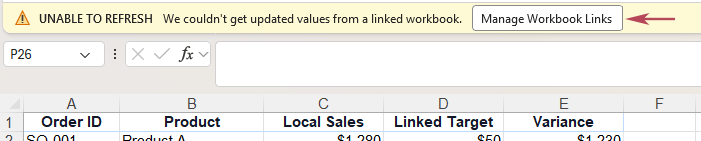
- If Excel shows an update link warning bar, click Manage Workbook Links.
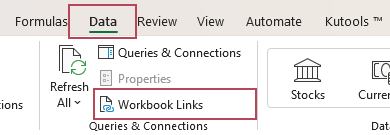
- Or go to the Data tab, then click Workbook Links.
- In some older Excel versions, click Data > Edit Links instead.
- If Excel shows an update link warning bar, click Manage Workbook Links.
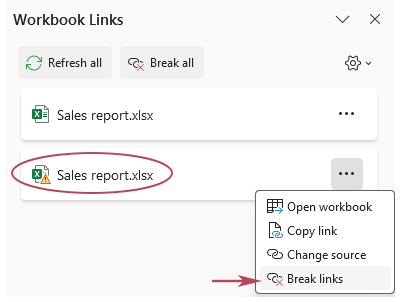
- Find the source workbook with a warning sign. Click the More Commands button, usually shown as three dots, next to that broken source workbook. Select Break links.
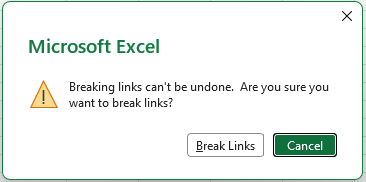
- Confirm the operation when Excel asks you to continue.
- Repeat the process if there are more source workbooks with a warning sign and save the workbook.
Result: The broken cell links of those workbooks are removed. Any formulas that referred to that source workbook are usually replaced with their current calculated values, so the workbook no longer depends on the missing or unavailable file.
- Excel breaks links by source workbook, not by individual cell.
- You may not know which cells contain the broken links.
- After breaking links, it is hard to see which formulas were changed to values.
- You cannot easily review and select specific broken cell links.
- There is no simple Cell type filter for link cleanup.
Method 2: Quickly find and batch break cell links with Kutools
When a workbook has many external references, finding the exact linked cells manually can be slow. Kutools for Excel makes it easier with the Find and Break Broken Links feature: list detected links, filter them by Cell type, review the results, locate linked cells, and break selected cell links in one place.
- Open the workbook that contains the broken cell links.
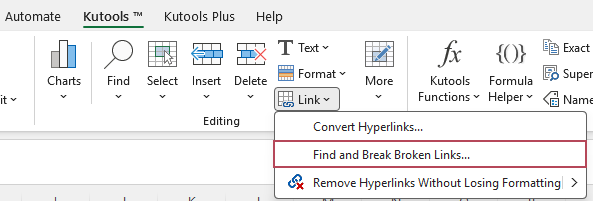
- Click Kutools > Link > Find and Break Broken Links.
- In the Find and Break Broken Links dialog box,
- Open the In worksheet drop-down list and select the worksheet or worksheets you want to check.
- Open the Type drop-down list and select Cell.
- All external links are listed and checked, and records filled with grey indicate invalid links. Open the Status drop-down list and select Invalid to select only the broken cell links.
- Click Break Links to remove the selected cell links.
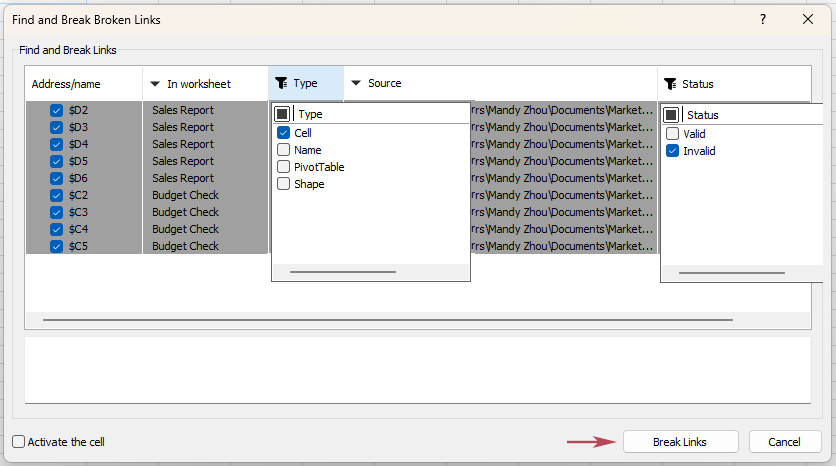
Result: Kutools breaks the selected cell links and shows which linked records were processed in the dialog box. Any formulas that referred to the broken source workbook are usually replaced with their current calculated values, so the workbook no longer depends on the missing or unavailable file.
- Lists detected external links in a clear dialog box
- Lets you filter links by Cell type for a focused cleanup
- Helps locate the exact linked cell with the Activate the cell option
- Makes it easier to review linked records before breaking them
- Allows you to uncheck links you want to keep
- Can batch break selected cell links in one place
- More efficient when a workbook contains many external references
Excel vs. Kutools: which method should you use?
Both methods can help you deal with broken cell links, but they are better for different situations. If you only have one or two source workbooks to remove, Excel’s built-in tools may be enough. If you want to quickly filter, review, locate, and break many cell links, Kutools is more convenient.
| Need | Excel built-in tools | Kutools for Excel |
|---|---|---|
| Find formulas that link to another workbook | ⚠️ Yes, use Find and Replace to search formulas | ✅ Yes, listed directly in one dialog box |
| Break workbook links | ✅ Yes, use Workbook Links or Edit Links | ✅ Yes, use Find and Break Broken Links |
| Filter only cell links | ❌ Not as direct | ✅ Yes, select Cell in the Type drop-down list |
| Review linked records before breaking | ✅ Basic review available | ✅ Clear list with worksheet, type, and source information |
| Locate linked cells one by one | ⚠️ Yes, but complex from Find results | ✅ Use Activate the cell |
| Best for many broken cell links | ⚠️ Can be slow to review manually | ✅ Faster and more organized |
Frequently asked questions
What is a broken cell link in Excel?
A broken cell link is a formula reference to another workbook that Excel can no longer update. This often happens when the source workbook is moved, renamed, deleted, or stored in a location that is no longer accessible.
How do I know if a formula contains an external link?
External workbook links usually include another workbook name in square brackets, such as [Sales.xlsx] or [Budget.xls]. In Excel, you can press Ctrl + F, search for .xl, set Within to Workbook, and set Look in to Formulas. With Kutools for Excel, you can use Find and Break Broken Links and select Cell in the Type drop-down list to list external links stored in cells more directly.
What happens when I break a cell link?
When you break a workbook link in Excel, formulas that use the source workbook are usually converted to their current calculated values. This removes the connection to the external file, but it may also remove the original linked formula.
Can I undo broken links?
In desktop Excel, breaking workbook links may not be undoable. That is why it is safer to save a backup copy before breaking any links.
Why does Excel still show external links after I break cell links?
The remaining links may be stored outside normal worksheet formulas. Check defined names, PivotTables, shapes, text boxes, charts, and other workbook objects. For hidden name links, you can use a separate method to find and break broken name links in Excel.
Can Kutools find only cell links?
Yes. In the Find and Break Broken Links dialog box, choose Cell from the Type drop-down list. Then Kutools displays only the external links stored in cells from the selected worksheets.
With Kutools for Excel, you can quickly list external links, filter them by Cell type, review the linked sources, locate linked cells, and break selected cell links in just a few clicks.
Best Office Productivity Tools
Supercharge Your Excel Skills with Kutools for Excel, and Experience Efficiency Like Never Before. Kutools for Excel Offers Over 300 Advanced Features to Boost Productivity and Save Time. Click Here to Get The Feature You Need The Most...
Office Tab Brings Tabbed interface to Office, and Make Your Work Much Easier
- Enable tabbed editing and reading in Word, Excel, PowerPoint, Publisher, Access, Visio and Project.
- Open and create multiple documents in new tabs of the same window, rather than in new windows.
- Increases your productivity by 50%, and reduces hundreds of mouse clicks for you every day!
All Kutools add-ins. One installer
Kutools for Office suite bundles add-ins for Excel, Word, Outlook & PowerPoint plus Office Tab Pro, which is ideal for teams working across Office apps.





- All-in-one suite — Excel, Word, Outlook & PowerPoint add-ins + Office Tab Pro
- One installer, one license — set up in minutes (MSI-ready)
- Works better together — streamlined productivity across Office apps
- 30-day full-featured trial — no registration, no credit card
- Best value — save vs buying individual add-in
Table of Contents
- Why update link warnings appear and what to check first
- Method 1: Find and break broken cell links with Excel built-in tools
- Method 2: Quickly find and batch break cell links with Kutools
- Excel vs. Kutools: which method should you use?
- Frequently asked questions
- The Best Office Productivity Tools
Kutools for Excel
Brings 300+ advanced features to Excel
- 🧩 Overview
- 📥 Free Download
- 🎁 30-Day Free Trial available