Mastering Reusable Text Blocks in Outlook: Quick Parts & a Faster Alternative
If you frequently type the same text—greetings, signatures, disclaimers, responses, symbols, instructions, or formatted paragraphs—creating reusable text blocks in Outlook can save a huge amount of time.
This guide will walk you through:
- Outlook’s built-in solutions: Quick Parts
What Are Quick Parts | How to Create a Quick Part | How to Insert a Quick Part | How to Edit and Delete - A Better Approach: Reusable Templates in Kutools for Outlook
Why Kutools Templates Are Better | How to Create and Use Templates
Both methods help automate repetitive writing, but Kutools offers additional convenience and power for users who work with large libraries of reusable content.
Outlook’s built-in solutions: Quick Parts
Outlook provides a native tool—Quick Parts —to help users save time when reusing frequently typed content. This feature is convenient for simple workflows
What Are Quick Parts?
Quick Parts are reusable building blocks in Outlook that allow you to store pieces of content— whether plain text or richly formatted elements—and insert them into your emails whenever needed. This makes them particularly useful for recurring communication.
You can save and reuse items such as:
- Full paragraphs
- Tables or structured data
- Legal or compliance disclaimers
- Frequently used responses
- Repetitive instructions
- Email signatures
- Boilerplate support messages
Once saved, a Quick Part becomes accessible from the Insert > Quick Parts menu, allowing you to reinsert it with a single click.
Quick Parts can preserve formatting—including fonts, colors, hyperlinks, and layout—making them ideal for users who rely on visually structured or branded email content. However, as your Quick Parts gallery expands, entries can blend together without clear categories or visual organization, making them harder to locate compared to a dedicated template manager.
How to Create a Quick Part (Detailed Guide)
Creating a Quick Part in Outlook is straightforward, and once added, it saves you valuable time whenever you need to reuse the same content. Follow the steps below for a smooth setup:
1. Open a message window, and type or paste the text you want to reuse
This can be any content you frequently send, such as:
- A greeting paragraph
- A support reply
- A formatted table
- A legal disclaimer
- A branded signature
- Instructions or directions
Make sure the text appears exactly the way you want it to be reused—including formatting, colors, links, or spacing—because Outlook will save it as is.
2. Select the text
Highlight the full content block you want to store. Outlook will save exactly what you select, so double-check that no extra blank lines or unwanted spaces are included.

3. Create a Quick Part
With the text selected:
- Navigate to the Insert tab in the ribbon.
- Click Quick Parts.
- Choose Save Selection to Quick Part Gallery from the dropdown menu.
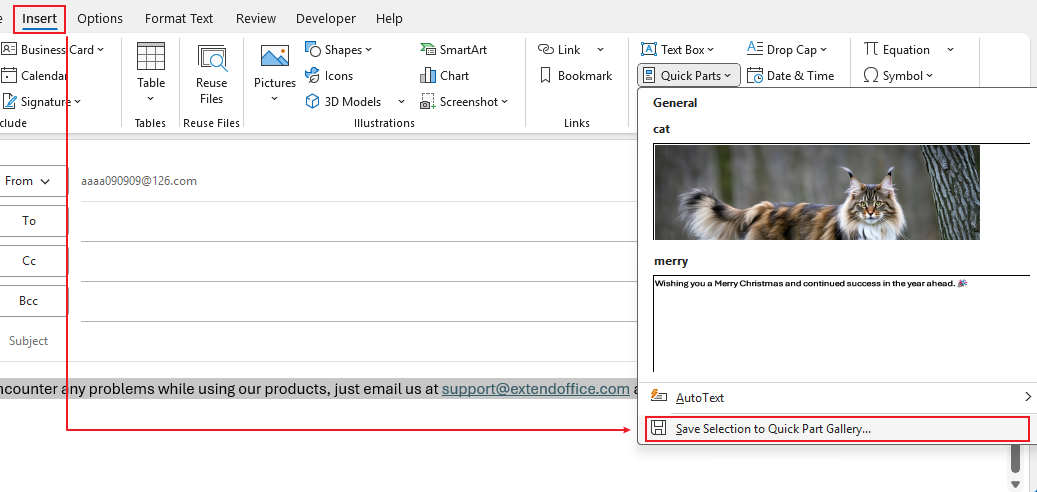
This opens the Create New Building Block dialog box.
4. Name your entry and configure optional settings
In the dialog box:
- Name: Choose a clear, descriptive name so you can easily recognize it later.
(Example: “Support template” or “Project Update Paragraph”) - Gallery: Should remain Quick Parts.
- Category: You can select an existing category or create a new one for better organization.
- Description (optional): Add a short explanation to help you remember what it’s for.
- Save In: Leave it as NormalEmail.dotm so the Quick Part is available across Outlook.
- Options:
- Insert content only: Inserts only the saved content.
- Insert content in its own paragraph: Ensures it becomes its own paragraph even if inserted mid-sentence.
- Insert content in its own page: Inserts the content on a separate page.
Finally, click OK to save your new Quick Part.

How to Insert a Quick Part
Once you have created Quick Parts, inserting them into your message is fast and effortless. Outlook offers several ways to insert a saved Quick Part, including menu selection, the Enter key, and keyboard shortcuts like F3.
Method 1: Insert from the Ribbon (Most Common)
- Open a new email or reply/forward window.
- Place the cursor where you want the text to appear.
- Go to Insert > Quick Parts.
Browse the gallery and click the entry you want to insert.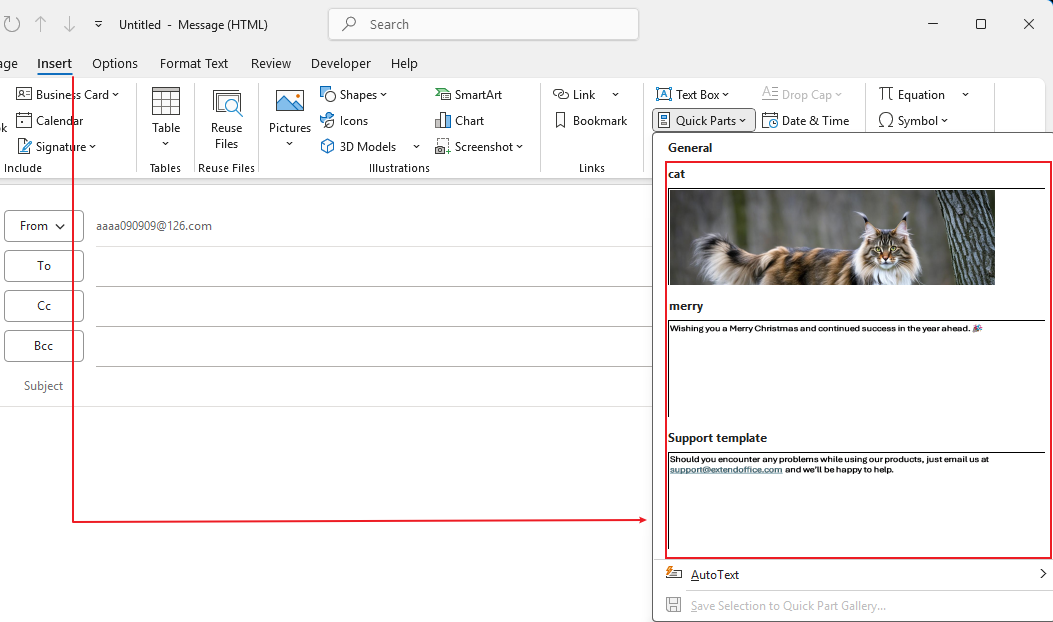
The selected Quick Part is instantly inserted into the message with all original formatting preserved.
Method 2: Type the Name and Press the Enter Key
If you remember the name of your Quick Part:
- Start typing the name of the Quick Part in the message body. A suggestion box pops up to show the related Quick Part.
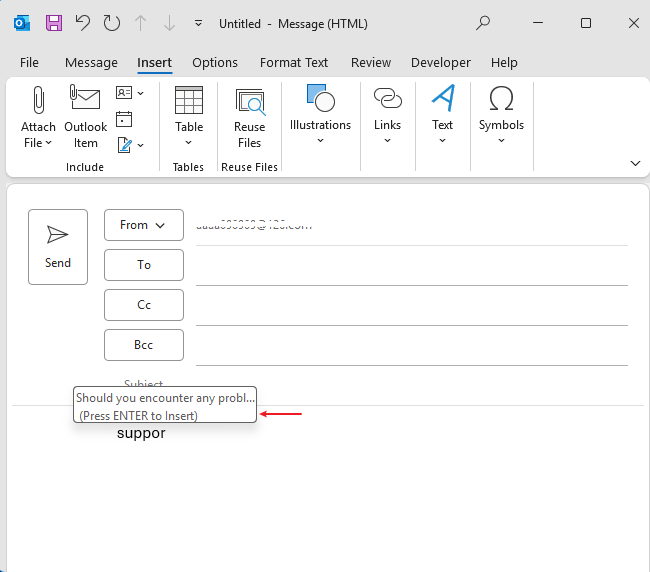
- Press Enter on the keyboard.
Outlook will immediately replace the typed text with the full Quick Part content—formatted or plain, exactly as it was saved.
Method 3: Type the Name and Press the F3 Key
If you remember the name of your Quick Part:
- Start typing the name of the Quick Part in the message body.
- Press F3 on the keyboard.
Outlook will immediately replace the typed text with the full Quick Part content—formatted or plain, exactly as it was saved.
Method 2 and Method 3 are ideal for experienced users or when you have many entries and want to avoid navigating the gallery.
How to Edit and Delete a Quick Part
Edit a Quick Part (Rename or Modify Properties)
If you need to update the information or change the name of an existing Quick Part, you can modify its properties directly from the gallery. Here's how:
- Go to the Insert tab, and in the Text group, click Quick Parts.
- In the gallery, right-click the Quick Part you want to modify, then choose Edit Properties…
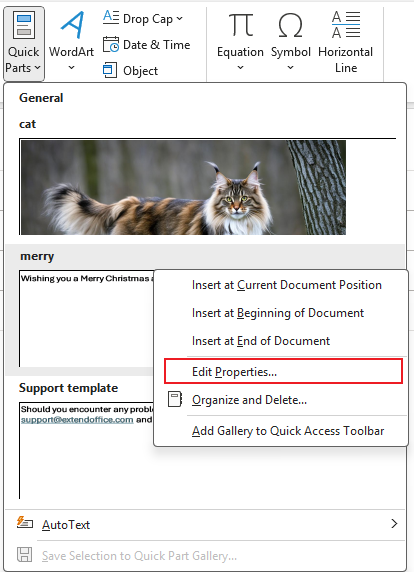
- In the Modify Building Block dialog box, you can:
- Enter a new name for the Quick Part
- Change its gallery, category, or template (optional)

After making your changes, click OK. Outlook will then ask whether you want to redefine the existing building block—click Yes to apply the updates.
How to Delete Quick Parts in Outlook
If you want to clean up outdated, duplicate, or unused Quick Parts, follow these steps:
- Go to the Insert tab and click Quick Parts in the Text group.
- Right-click any entry in the gallery, then choose Organize and Delete.
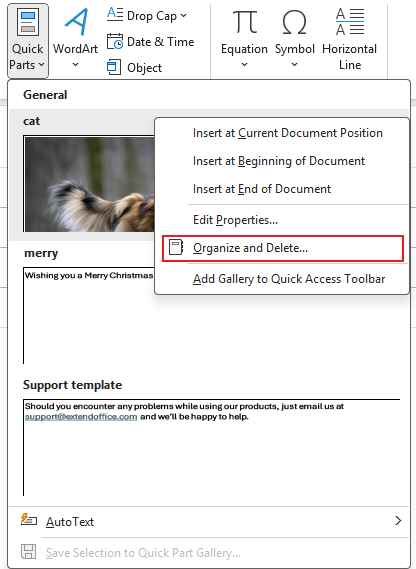
- In the organizer window, select the Quick Part you want to remove and click Delete.
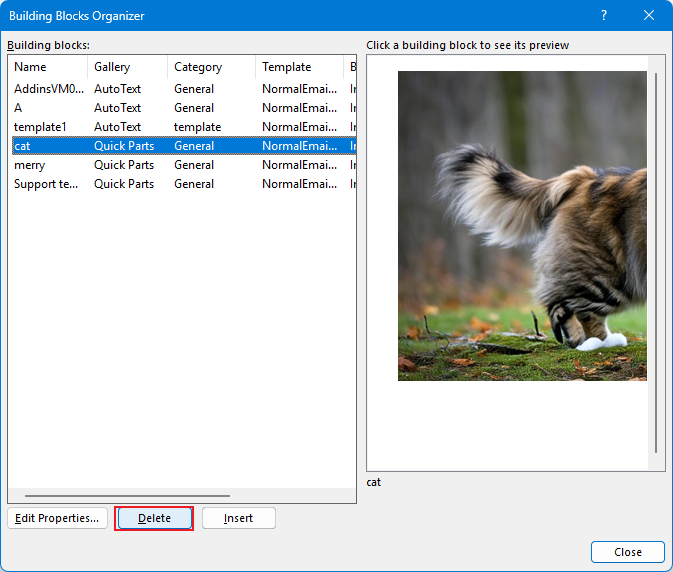
- When Outlook asks for confirmation, click Yes to permanently delete the building block.
Limitations of Outlook’s Built-in Methods
While helpful, Quick Parts and AutoText have a few drawbacks:
- The list becomes difficult to browse once you accumulate many entries.
- There is no visible grouping system—everything is mixed together.
- You cannot insert saved entries into To, CC, or BCC fields.
- Templates cannot be easily exported to another computer.
If your workflow involves many reusable text snippets, you may need a more powerful tool.
A Better Approach: Reusable Templates in Kutools for Outlook
Kutools for Outlook includes a Template feature that significantly improves the experience of creating and inserting reusable text blocks.
It is ideal for users who rely heavily on repetitive content and need fast access, clear organization, flexibility, and cross-device portability.
Why Kutools Templates Are Better
✓ Clear, Organized Template List
You can group templates into custom categories, such as:
- Symbols
- Email templates
- Signatures
- Standard responses
- Snippets used in technical support
- Personal tags or greetings
This makes browsing significantly easier compared to Outlook’s mixed Quick Parts list.

✓ Insert as Plain Text, Rich Text, or Image Format
Kutools supports multiple insertion formats:
- Plain text
- Formatted rich text
- Images / icons / tables
Perfect for signatures, formatted instructions, business templates, and symbol collections.

✓ Insert into To, CC, or BCC fields
Unlike Outlook’s built-in tools, Kutools templates can also be inserted into:
- To
- CC
- BCC
This is extremely useful for:
- Adding predefined address groups
- Inserting structured email lists
- Building formatted recipient patterns

✓ Import and Export Templates Across Devices
You can easily export your template library and import it into another computer running Kutools for Outlook.
Great for:
- Team use
- Moving between work and home PCs
- Setting up standardized corporate templates

✓ Faster, One-Click Insertion
Templates appear clearly in a sidebar panel, allowing quick selection and instant insertion—no nested menus, no searching, no guesswork.

How to Create and Use Templates in Kutools for Outlook
Enable the Resource Pane
- Open a new message and click Kutools > Template.
- Click the Template tab in the Resource Pane.
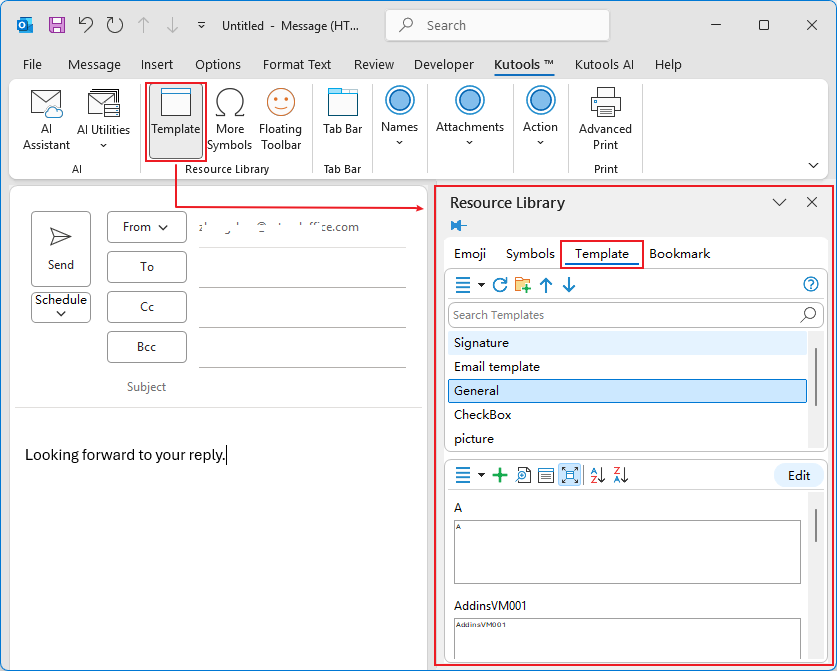
To create a template
- Select the text, picture, or any content you want to save.
- Click the Add button.
- Choose a category or create a new one.
- Name the template and save.
- Click Add.
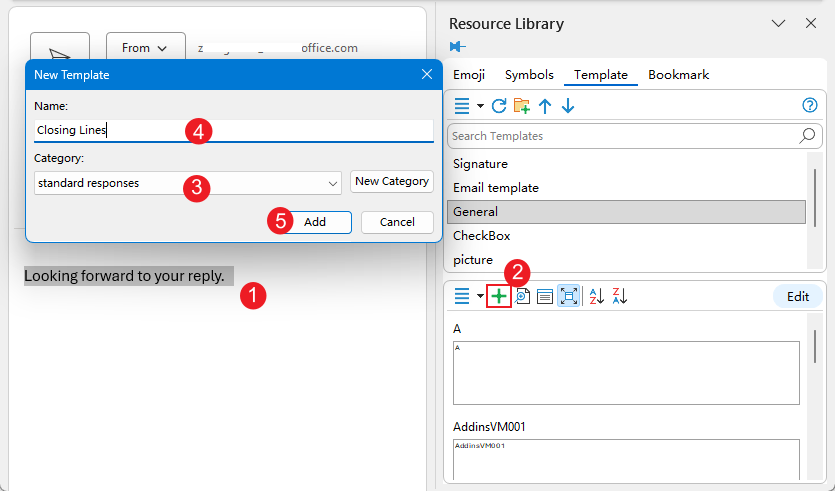
To insert a template
Simply click the template in the sidebar.
Templates can be inserted into the message body or address fields.
Which Method Should You Choose?
Choose Outlook Quick Parts / AutoText if you:
- Only need a few reusable blocks
- Don’t require grouping or exporting
- Only insert into the message body
- Do not use many symbols or formatting variations
Choose Kutools Templates if you:
- Maintain a large library of reusable text
- Need organization (groups/categories)
- Want to insert symbols, formatted templates, or images
- Need cross-device portability
- Need to insert into To/CC/BCC
- Want faster, clearer access to your content
Conclusion
Reusable text blocks can dramatically speed up your Outlook workflow.
While Outlook’s Quick Parts and AutoText are helpful for simple use cases, Kutools for Outlook Templates provide a more powerful, organized, and flexible solution for users who rely on repetitive content daily.
Best Office Productivity Tools
Experience the all-new Kutools for Outlook with 100+ incredible features! Click to download now!
📧 Email Automation: Auto Reply (Available for POP and IMAP) / Schedule Send Emails / Auto CC/BCC by Rules When Sending Email / Auto Forward (Advanced Rules) / Auto Add Greeting / Automatically Split Multi-Recipient Emails into Individual Messages ...
📨 Email Management: Recall Emails / Block Scam Emails by Subjects and Others / Delete Duplicate Emails / Advanced Search / Consolidate Folders ...
📁 Attachments Pro: Batch Save / Batch Detach / Batch Compress / Auto Save / Auto Detach / Auto Compress ...
🌟 Interface Magic: 😊More Pretty and Cool Emojis / Remind you when important emails come / Minimize Outlook Instead of Closing ...
👍 One-click Wonders: Reply All with Attachments / Anti-Phishing Emails / 🕘Show Sender's Time Zone ...
👩🏼🤝👩🏻 Contacts & Calendar: Batch Add Contacts From Selected Emails / Split a Contact Group to Individual Groups / Remove Birthday Reminders ...
Use Kutools in your preferred language – supports English, Spanish, German, French, Chinese, and 40+ others!


🚀 One-Click Download — Get All Office Add-ins
Strongly Recommended: Kutools for Office (5-in-1)
One click to download five installers at once — Kutools for Excel, Outlook, Word, PowerPoint and Office Tab Pro. Click to download now!
- ✅ One-click convenience: Download all five setup packages in a single action.
- 🚀 Ready for any Office task: Install the add-ins you need, when you need them.
- 🧰 Included: Kutools for Excel / Kutools for Outlook / Kutools for Word / Office Tab Pro / Kutools for PowerPoint
Table of contents
- Outlook’s built-in solutions: Quick Parts
- What Are Quick Parts
- How to Create a Quick Part
- How to Insert a Quick Part
- How to Edit and Delete a Quick Part
- A Better Approach: Reusable Templates in Kutools for Outlook
- Why Kutools Templates Are Better
- How to Create and Use Templates
- Related Articles
- Best Office Productivity Tools