How to combine date and time into one cell in Excel?
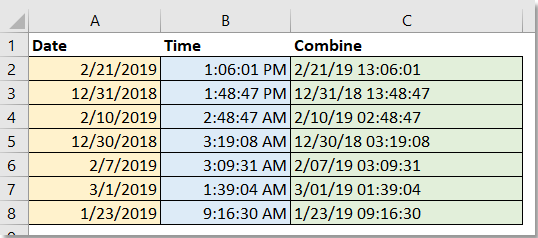
Combine date and time with formula in Excel
Combine date and time with Kutools for Excel


Combine date and time with VBA macro
Combine date and time with formula in Excel
Using basic Excel formulas is a versatile and straightforward method to join date and time from two columns into a single cell. It is especially effective when processing small to medium-sized datasets or when sharing files with users who do not have third-party add-ins installed.
Type any of the following formulas into a blank cell in your worksheet, then press Enter to apply the formula. After confirming the result, drag the fill handle down or across to apply the formula to additional rows or columns as needed. This process allows you to efficiently convert entire lists of separated dates and times into combined values in just a few steps. See screenshot:
=A2 + B2=TEXT(A2, "mm/dd/yyyy") & " " & TEXT(B2, "hh:mm:ss AM/PM")This formula converts both date and time values to text using your preferred format, separated by a space. It is useful when you need a human-readable timestamp but do not require further calculations. Remember that the result is stored as text, so subsequent date/time functions will not recognize it as a date.
Then, apply the formula to the desired cells by double-clicking the fill handle at the corner of the formula cell, which automatically fills the entire column. 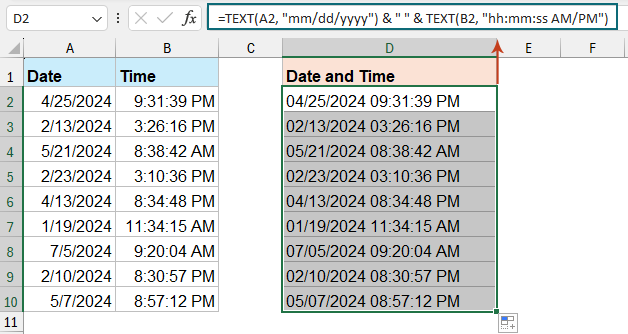
Combine date and time with Kutools for Excel
If you often need to merge date and time in Excel, using an add-in like Kutools for Excel significantly simplifies the process. The dedicated Combine Rows, Columns or Cells without Losing Data feature provides a user-friendly interface and offers flexible combining options, especially helpful for large data sets or complex merging scenarios.
After free installing Kutools for Excel, please follow these detailed steps:
1. Select the date and time cells you want to combine, and click Kutools > Merge & Split > Combine Rows, Columns or Cells without Losing Data. Reference screenshot:
2. In the popup dialog, configure the following options according to your data structure:
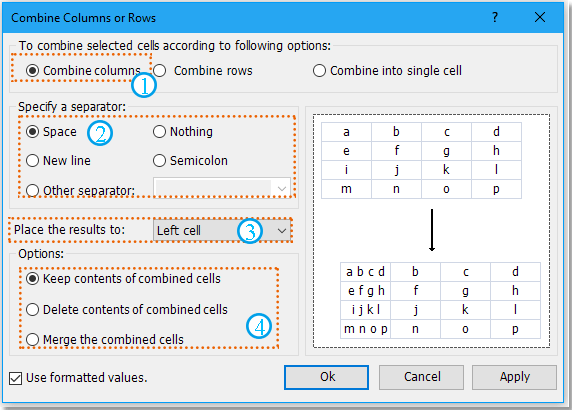
(2) Choose a separator for the combined data: select Space, Nothing, or enter a custom character if needed.
(3) Decide where to output the result: Left cell or Right cell.
(4) Choose how to handle the original data: Keep contents of combined cells, Delete contents of combined cells, or Merge the combined cells.
3. Click Ok to execute.
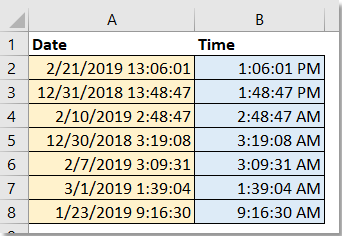
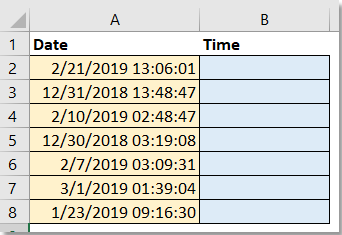
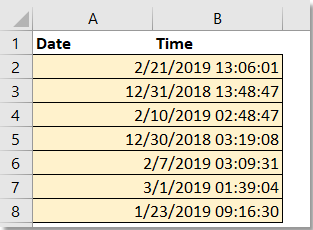
This method greatly reduces manual entry errors and accelerates repetitive combining tasks. It is ideally suited for data cleaning, transformation, and any scenario where you regularly deal with separate date and time columns. However, please note that Kutools features require installation and are available only on compatible Excel versions.
Combine date and time with VBA macro
For users comfortable with basic coding or those looking to automate repetitive tasks, a VBA macro can quickly combine date and time columns and enforce consistent formatting across all rows. This method is especially valuable when you have a large dataset, want to avoid manual intervention, or need to standardize the combined values each time your data updates. Additionally, a macro can help reduce formula clutter and ensure that formatting is uniformly applied.
1. Click Developer Tools > Visual Basic. When the Microsoft Visual Basic for Applications window opens, click Insert > Module. Then paste the following code into the Module window:
Sub CombineDateTime()
    Dim DateCol As Range, TimeCol As Range, OutputCol As Range
    Dim i As Long
    Dim xTitleId As String

    xTitleId = "KutoolsforExcel"

    On Error Resume Next
    Set DateCol = Application.InputBox("Select the DATE column:", xTitleId, "", Type:=8)
    If DateCol Is Nothing Then Exit Sub

    Set TimeCol = Application.InputBox("Select the TIME column (same rows as date):", xTitleId, "", Type:=8)
    If TimeCol Is Nothing Then Exit Sub

    Set OutputCol = Application.InputBox("Select output COLUMN (top cell aligns with first row):", xTitleId, "", Type:=8)
    On Error GoTo 0
    If OutputCol Is Nothing Then Exit Sub

    If DateCol.Columns.Count <> 1 Or TimeCol.Columns.Count <> 1 Or OutputCol.Columns.Count <> 1 Then
        MsgBox "Please select single columns only.", vbExclamation, xTitleId
        Exit Sub
    End If

    If DateCol.Rows.Count <> TimeCol.Rows.Count Then
        MsgBox "DATE and TIME ranges must have the same number of rows.", vbExclamation, xTitleId
        Exit Sub
    End If

    Application.ScreenUpdating = False

    For i = 1 To DateCol.Rows.Count
        OutputCol.Cells(i, 1).Value = DateCol.Cells(i, 1).Value + TimeCol.Cells(i, 1).Value
        OutputCol.Cells(i, 1).NumberFormat = "mm/dd/yyyy hh:mm:ss"
    Next i

    Application.ScreenUpdating = True
    MsgBox "Date and time have been combined successfully!", vbInformation, xTitleId
End Sub
2. Click the  Run button to execute the macro. You will be prompted to:
- Select the column with date values
- Select the column with time values (must match in number of rows with the date column)
- Select the target output column (the top cell should align with the first row of your data).
The macro will automatically loop through each row to add the date and time, then output the result with a standard mm/dd/yyyy hh:mm:ss format. This saves significant time when working with large blocks of data. If any of the cells selected are not valid date or time values, the macro will skip them, so double-check your data for consistency beforehand.
Whether you prefer using Excel’s built-in formulas for a quick solution or opt for the convenience and efficiency of Kutools for Excel, both methods provide effective ways to combine date and time into a single cell. Choose the approach that best fits your workflow and enjoy seamless data management in Excel. If you're interested in exploring more Excel tips and tricks, our website offers thousands of tutorials.
Combine Date and Time into One Cell
Best Office Productivity Tools
Supercharge Your Excel Skills with Kutools for Excel, and Experience Efficiency Like Never Before. Kutools for Excel Offers Over 300 Advanced Features to Boost Productivity and Save Time. Click Here to Get The Feature You Need The Most...
Office Tab Brings Tabbed interface to Office, and Make Your Work Much Easier
- Enable tabbed editing and reading in Word, Excel, PowerPoint, Publisher, Access, Visio and Project.
- Open and create multiple documents in new tabs of the same window, rather than in new windows.
- Increases your productivity by 50%, and reduces hundreds of mouse clicks for you every day!
All Kutools add-ins. One installer
Kutools for Office suite bundles add-ins for Excel, Word, Outlook & PowerPoint plus Office Tab Pro, which is ideal for teams working across Office apps.





- All-in-one suite — Excel, Word, Outlook & PowerPoint add-ins + Office Tab Pro
- One installer, one license — set up in minutes (MSI-ready)
- Works better together — streamlined productivity across Office apps
- 30-day full-featured trial — no registration, no credit card
- Best value — save vs buying individual add-in