Highlight Number Formats: Instantly Spot Inconsistencies in Excel
In Excel auditing, financial analysis, and data preparation, problems often hide in plain sight. Numbers may look identical, yet calculations fail, sorting behaves inconsistently, or reports don’t balance. The root cause is frequently mixed or inconsistent cell formats—a problem Excel does not clearly expose. Highlight Number Formats in Kutools for Excel solves this by turning invisible formatting differences into clear visual signals. With color-based visualization, you can instantly understand how formats are distributed across your worksheet and take action with confidence.

- Key Advantages of Highlight Number Formats
- How to Use Highlight Number Formats
- What This Feature Can Do
- Practical Usage Scenarios
✨Key Advantages of Highlight Number Formats
Smart Format Visualization
- Automatically detects and highlights different cell formats
- Uses distinct colors to differentiate number formats such as accounting, currency, percentage, and more
- Eliminates the need for manual inspection
Real-Time, Non-Destructive Overview
- Supports adjustable highlight transparency
- Changes are previewed visually without altering original formats
- You can explore and analyze safely, then apply changes only when ready
Powerful Batch Format Management
- Modify multiple formatting attributes in one operation
- Improve consistency across large datasets
- Reduce formatting errors in reports and calculations
Clear, Intuitive User Experience
- Color-coded visualization makes format distribution obvious
- Integrated tool window keeps everything in one place
- Fully WYSIWYG: what you see is exactly what you manage
⚙️How to Use Highlight Number Formats
- Download and install Kutools for Excel.
- Open the worksheet where you want to detect number formats.
- Go to the Kutools Plus tab and select Design View.
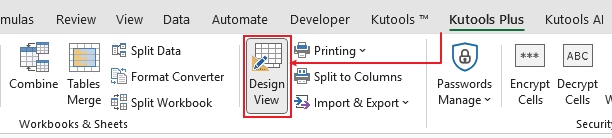
- Switch to the Kutools Design tab, then choose Highlight Number Formats.
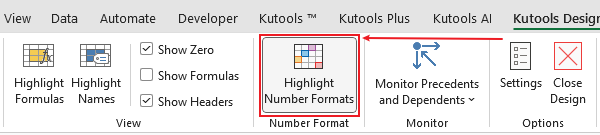
A dialog box will appear, listing all detected number formats and automatically color-highlighting cells based on their formats.
By default, all detected number formats are selected for highlighting—except the General format.
👉 What This Feature Can Do
1. Visualize Cell Formats Instantly
After activating the feature, Kutools automatically scans all visible cells in the worksheet and visualizes their formats in a dedicated preview panel.
- Different cell formats are categorized and displayed clearly
- The preview updates dynamically as you scroll the worksheet
- You gain a real-time overview of how formats are distributed across the sheet
This makes complex formatting easy to understand at a glance.

2. Intelligent Format Location and Selection
The Number Format panel displays each detected format type as a separate visual item.
- Click any format category to instantly select all matching cells
- Quickly locate all date cells, currency cells, percentage values, or other formats
- No searching, filtering, or helper formulas required

3. Batch Number-Format Adjustment
- Select a listed number format and click Settings to open the Format Cells dialog
- Edit the format once (for example, change from 2 decimal places to 3)
- Apply the change to all cells using that format in one step
Ideal for standardizing large worksheets while keeping the workflow fast and consistent.

4. Real-Time Transparency & Highlight Color Control
- Highlight colors are fully adjustable
- Use a slider to control color transparency
- See lighter or darker highlights instantly in real time
- Adapt visibility for different backgrounds or data densities
The original cell formatting remains untouched and can always be restored.

5. Manual Refresh for Accuracy
If formatting changes are not immediately reflected, simply click the Refresh button to ensure the visualization always matches the current state of your data.

Practical Usage Scenarios
Budget & Reporting: Mixed Currency and Accounting Formats
The problem:
A budget report contains values that look similar but use different formats:
- Percentage
- Accounting
- General number
Why it matters:
Inconsistent formatting reduces report quality and causes alignment issues when exporting or printing.
How this feature helps:
Each format type is color-coded, allowing you to quickly identify and standardize all currency-related cells in one action.

Inconsistent Decimal Places
The problem:
In a column where most numbers display two decimal places, a few cells show only one (or none). The values look similar, but the inconsistency affects report quality and precision.
How this feature helps:
Highlight Number Formats color-codes cells by decimal format, making inconsistent values immediately visible. You can then select and standardize them in one step.

Imported CSV Data: Dates That Don’t Behave Like Dates
The problem:
After importing data:
- Some dates are true Date values
- Others are text strings
Typical symptoms:
Sorting and filtering by date fails, and lookup formulas behave unpredictably.
How this feature helps:
Text-based dates stand out immediately, allowing quick correction and standardization.

Conclusion & Recommendation
Highlight Number Formats transforms Excel formatting from guesswork into clarity. By visualizing cell formats with color, it helps you detect inconsistencies, locate problem cells instantly, and manage formatting in bulk—all without risking unintended changes.
This feature is especially valuable for:
- Auditors and accountants
- Financial and data analysts
- Anyone working with shared or imported Excel data
And it’s just one of 300+ powerful features included in Kutools for Excel. From data cleaning and formatting to formulas and batch operations, Kutools dramatically improves Excel productivity.
Unlock 300+ powerful Excel tools with Kutools for Excel— from smart formatting and data cleanup to advanced formulas and batch operations.
Try all features free for 30 days and experience a faster, clearer way to work in Excel.
⬇ Download Kutools for ExcelOnce you can see Excel’s formatting clearly, you’ll never want to work blind again.
Best Office Productivity Tools
Supercharge Your Excel Skills with Kutools for Excel, and Experience Efficiency Like Never Before. Kutools for Excel Offers Over 300 Advanced Features to Boost Productivity and Save Time. Click Here to Get The Feature You Need The Most...
Office Tab Brings Tabbed interface to Office, and Make Your Work Much Easier
- Enable tabbed editing and reading in Word, Excel, PowerPoint, Publisher, Access, Visio and Project.
- Open and create multiple documents in new tabs of the same window, rather than in new windows.
- Increases your productivity by 50%, and reduces hundreds of mouse clicks for you every day!
All Kutools add-ins. One installer
Kutools for Office suite bundles add-ins for Excel, Word, Outlook & PowerPoint plus Office Tab Pro, which is ideal for teams working across Office apps.





- All-in-one suite — Excel, Word, Outlook & PowerPoint add-ins + Office Tab Pro
- One installer, one license — set up in minutes (MSI-ready)
- Works better together — streamlined productivity across Office apps
- 30-day full-featured trial — no registration, no credit card
- Best value — save vs buying individual add-in
Table of contents
- Key Advantages of Highlight Number Formats
- How to Use Highlight Number Formats
- What This Feature Can Do
- Practical Usage Scenarios
- Best Office Productivity Tools
Kutools for Excel
Boosts Excel With 300+
Powerful Features
Boost your Excel productivity with Kutools for Excel—300+ powerful tools, free to try for 30 days.