Excel VLOOKUP Made Easy: A Faster Way to Look Up Data
VLOOKUP is one of the most commonly used Excel functions for matching data between tables, such as phone numbers, prices, or IDs. However, traditional VLOOKUP formulas can be confusing, error-prone, and hard to maintain, especially for beginners or large datasets.
The Simple VLOOKUP feature in Kutools for Excel is designed to help you perform VLOOKUP operations without writing formulas. With a clear dialog-based workflow, you can match values, return corresponding results, and handle errors in just a few clicks—perfect for users who want speed, accuracy, and simplicity.

Advantages of Simple VLOOKUP feature
How to use this Simple VLOOKUP feature?
Advantages of the Simple VLOOKUP Feature
How to Use the Quickly Apply VLOOKUP Feature?
After downloading and installing Kutools for Excel, follow these simple steps to complete a lookup task:
- Select blank cells where you want to output the result.
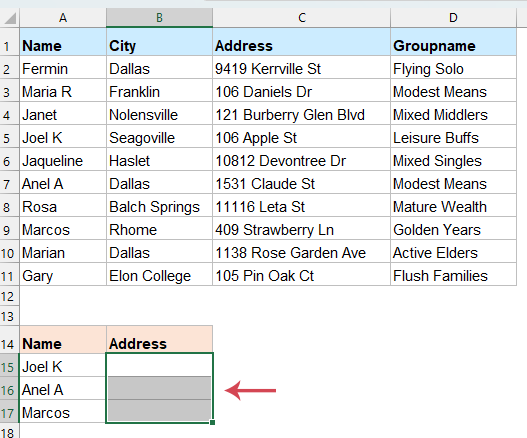
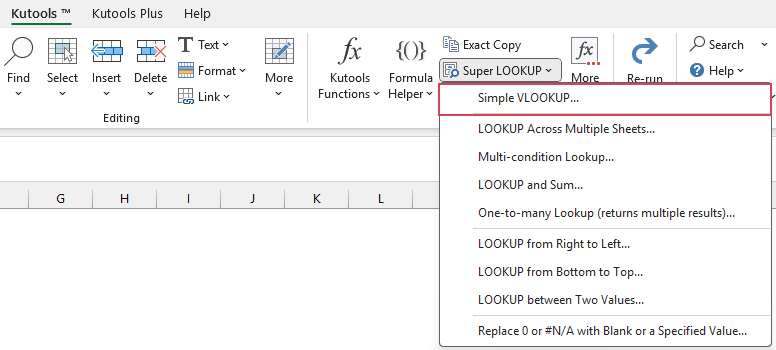
- Go to the Kutools tab, click Super Lookup > Simple VLOOKUP (see screenshot):
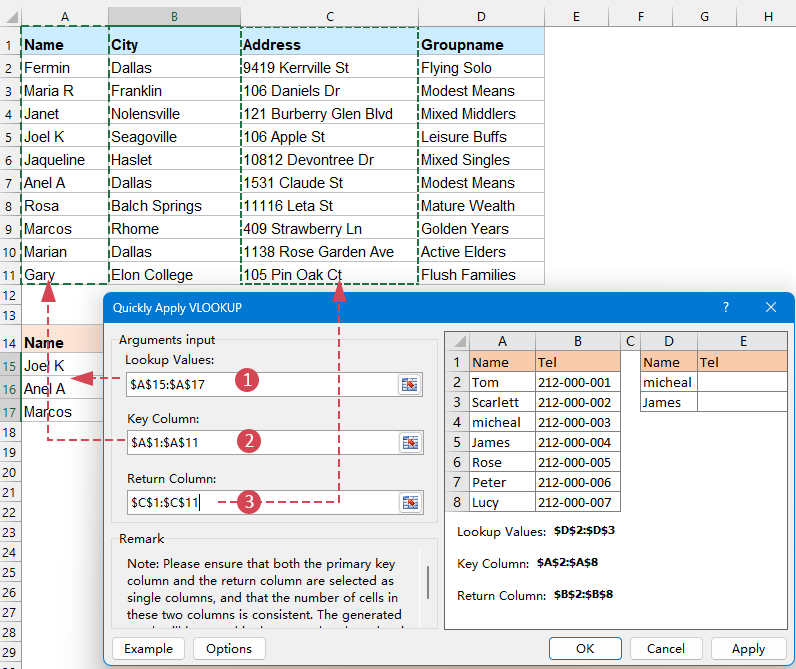
- In the Quickly Apply VLOOKUP dialog box, define the following operations:
- (1) Lookup Values: Select the range of values you want to find information for (e.g., the names in your target table).
- (2) Key Column: Select the column in your source data that contains the matching criteria (the column where the lookup values live).
- (3) Return Column: Select the column in your source data that contains the information you want to pull back (e.g., Address).
- (4) Click OK or Apply.
Result:
Kutools automatically generates the correct formulas and instantly fills the matching results into the specified target cells.
Pro Tips for this Simple VLOOKUP feature
1. Replace #N/A error value with a specified value
When some lookup values do not exist in the source table, #N/A errors may appear. To keep your reports clean and easy to read, you can replace these error values with custom text or blanks. Click the Options button in the dialog box, check Replace #N/A error value with a specified value option, and then type the text (e.g., "Not Found", "0", or leave it blank) you want to use instead of the error result.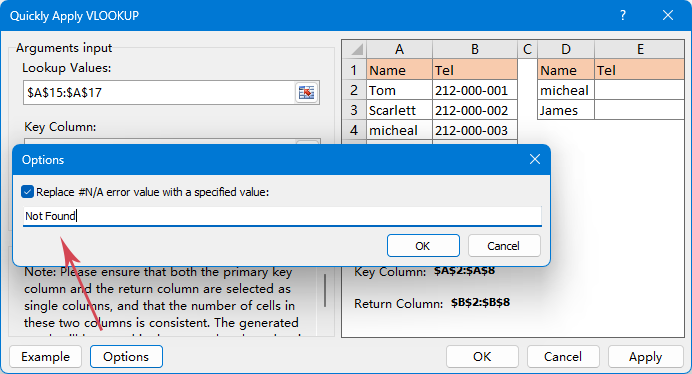
2. Column Consistency:
Ensure your "Key Column" and "Return Column" selections have the same number of rows. If you select A2:A40 for the Key but B2:B55 for the Return, the tool may produce inaccurate results.3. Use for Cross-Sheet Lookups:
You don't have to keep all data on one sheet. You can select the "Key Column" and "Return Column" from a completely different tab in your workbook.4. Dynamic Updating:
Because this tool creates a standard Excel formula in the background, your results will update automatically if you change the data in your source table later.5. Not Case Sensitivity:
By default, VLOOKUP is not case-sensitive. "micheal" and "Micheal" will be treated as the same value.
Conclusion
The Simple VLOOKUP feature turns a traditionally complex Excel task into a quick, visual, and beginner-friendly process. By removing formulas and guiding users step by step, it helps you complete lookup tasks faster, avoid errors, and keep your spreadsheets clean and easy to manage. Whether you’re new to Excel or simply want a faster way to match data, Simple VLOOKUP is a practical and efficient solution.
Best Office Productivity Tools
Supercharge Your Excel Skills with Kutools for Excel, and Experience Efficiency Like Never Before. Kutools for Excel Offers Over 300 Advanced Features to Boost Productivity and Save Time. Click Here to Get The Feature You Need The Most...
Office Tab Brings Tabbed interface to Office, and Make Your Work Much Easier
- Enable tabbed editing and reading in Word, Excel, PowerPoint, Publisher, Access, Visio and Project.
- Open and create multiple documents in new tabs of the same window, rather than in new windows.
- Increases your productivity by 50%, and reduces hundreds of mouse clicks for you every day!
All Kutools add-ins. One installer
Kutools for Office suite bundles add-ins for Excel, Word, Outlook & PowerPoint plus Office Tab Pro, which is ideal for teams working across Office apps.





- All-in-one suite — Excel, Word, Outlook & PowerPoint add-ins + Office Tab Pro
- One installer, one license — set up in minutes (MSI-ready)
- Works better together — streamlined productivity across Office apps
- 30-day full-featured trial — no registration, no credit card
- Best value — save vs buying individual add-in
Table of contents
- Advantages of Simple VLOOKUP feature
- How to use this Simple VLOOKUP feature?
- Pro Tips for this Simple VLOOKUP feature
- Conclusion
- The Best Office Productivity Tools
Kutools for Excel
Brings 300+ advanced features to Excel
- ⬇️ Free Download
- 🛒 Purchase Now
- 📘 Feature Tutorials
- 🎁 30-Day Free Trial