Column List: Instantly View, Move, Hide & Show Any Column
When your worksheet contains a large number of columns, scrolling left and right to locate the one you need is not only time-consuming but also prone to mistakes. The Column List feature in Kutools for Excel is designed to solve exactly this problem—making it easier to manage wide worksheets where columns are hard to find or operate on.
This panel-style tool lets you quickly view all column names, jump to any column instantly, rearrange column order with ease, and hide or unhide columns with a single click. It dramatically improves your efficiency when working with wide or complex datasets.
Key Advantages of the Column List Feature
Getting Started: Access and Panel Overview
Key Advantages of the Column List Feature
Getting Started: Access and Panel Overview
1. You should download and install Kutools for Excel first, then click Kutools > Navigation to enable the Navigation pane.
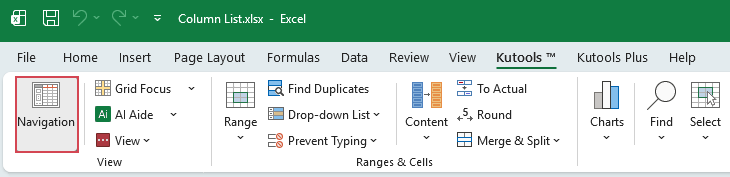
2. In the Navigation pane, click  button to open the Column List Pane.
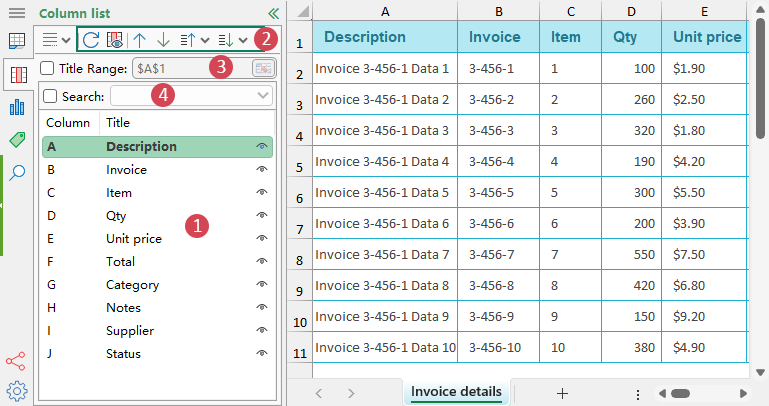
(1.) All column names of the current worksheet are listed in the pane. Clicking on the column name to jump to the column at once.
(2.) Column List Top Toolbar Overview:
The top toolbar of the Column List panel provides a set of essential actions that help you efficiently manage column structures.
- Refresh
 : After modifying column headers, adding new columns, or rearranging the structure, click this button to update the Column List with the latest layout.
 - Temporarily show hidden columns
 : Clicking this button temporarily reveals all hidden columns for easier review. When you exit, they revert to hidden.
 - Up or Down
 : Move the selected column(s) one step forward or backward.
 - Move up to one page / Move to top:
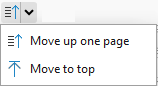
Move up one page: Move the selected column(s) to the top of the visible section in the pane (similar to flipping a page), making it easier to reposition columns in wide worksheets.
Move to top: Instantly move the selected column(s) to the very beginning of the worksheet. - Move down one page / Move to end:
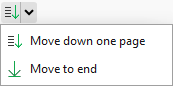
Move down one page: Move the selected column(s) to the bottom of the visible section in the pane (similar to flipping a page), making it easier to reposition columns in wide worksheets.
Move to end: Move the selected column directly to the last position.
 : After modifying column headers, adding new columns, or rearranging the structure, click this button to update the Column List with the latest layout.
 : Move the selected column(s) one step forward or backward.
(3.) Title Range:
This option lets you specify the exact row where your column headers are located. If your headers are not in the first row (for example, they start on row 3), simply select the correct header range here, and Column List will instantly refresh and identify all column titles based on the range you set.
(4.) Search:
Use the Search box to instantly filter the column list. Type part of a header name, and the list narrows down to matching results—making it effortless to locate the column you need.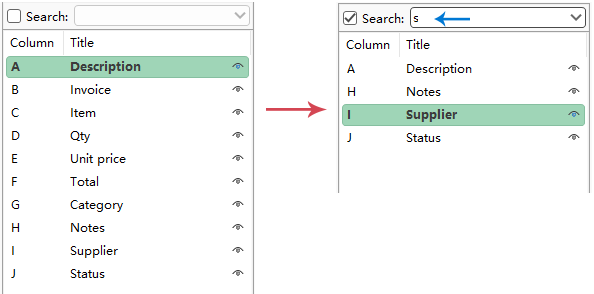
Detailed Operations of the Column List Feature
Managing large datasets often requires frequent navigation, reordering, and visibility adjustments of columns. The Column List feature in Kutools for Excel centralizes all these tasks into one intuitive pane, allowing you to operate on columns without scrolling or searching through the worksheet manually.
This guide provides a detailed, step-by-step explanation of how each feature works.
Feature 1: Quickly view all column headers and jump to any column
When handling wide spreadsheets containing dozens or hundreds of columns, scrolling left and right becomes inefficient. Column List solves this problem by displaying all column headers in a vertical pane.
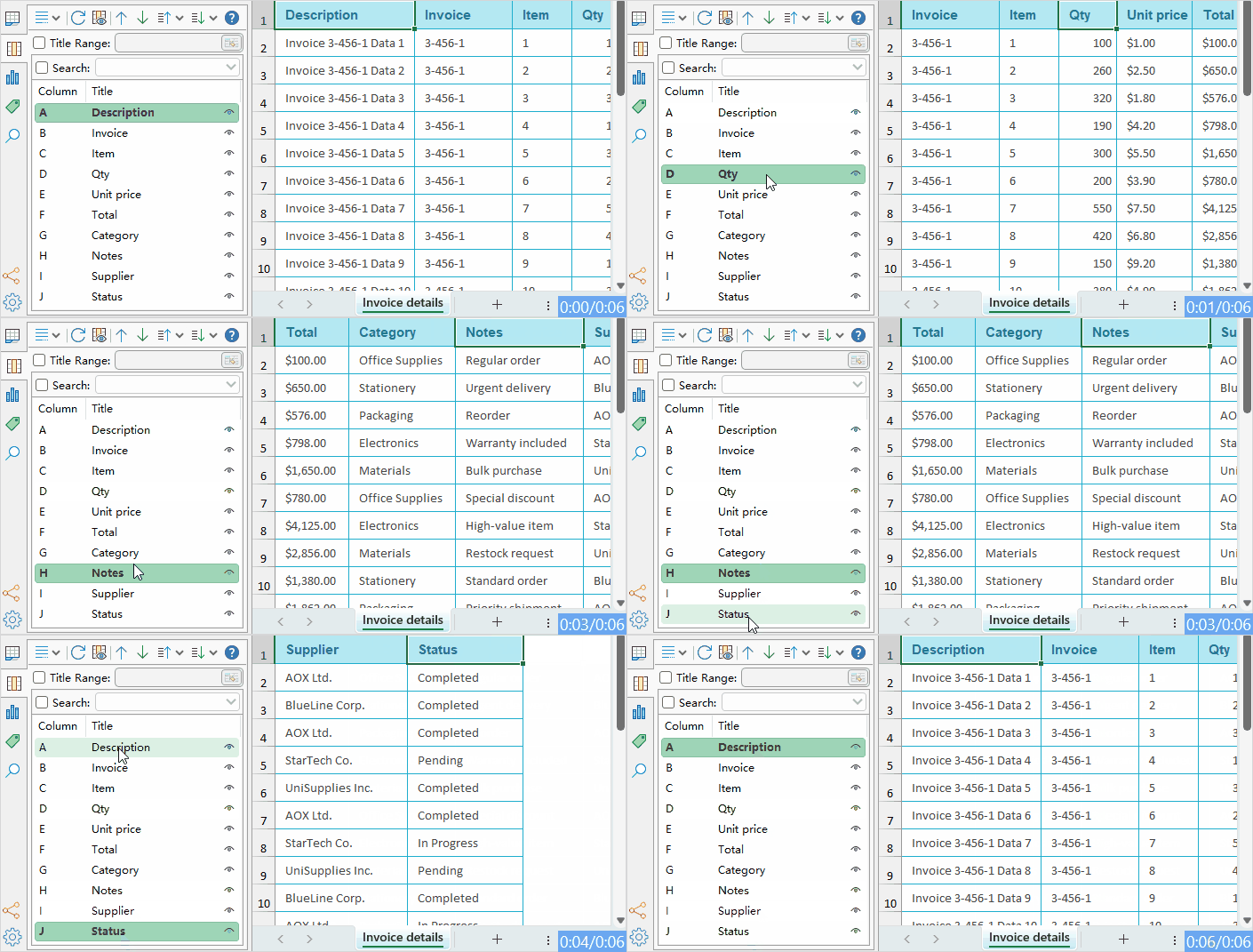
- Open your worksheet and go to Kutools > Navigation > Column List.
- A side pane appears showing all column headers in the same order as your worksheet, giving you a clear overview of the entire structure at a glance.
- Click any column name in the list to jump to the column immediately.
Feature 2: Easily reorder column positions
Rearranging columns in native Excel typically requires cutting, inserting, or dragging columns across the grid—actions that are slow and error-prone. Column List introduces a clean and controlled way to reorder columns.
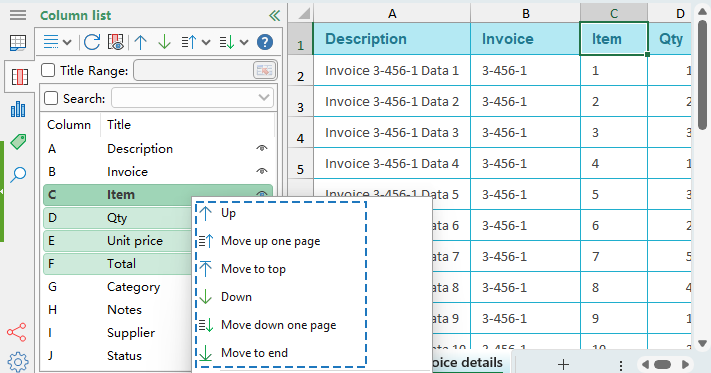
- In the Column List pane, select the column you want to move. (Tip: You can also select multiple columns at once by holding the Ctrl or Shift key.)
- Then, right click the selected columns, and choose the move actions to change its position in the list. The actual worksheet updates immediately, moving the selected column to the new location.
You can also drag the selected columns directly to the position you want, allowing you to quickly reorganize your worksheet without using any menu commands.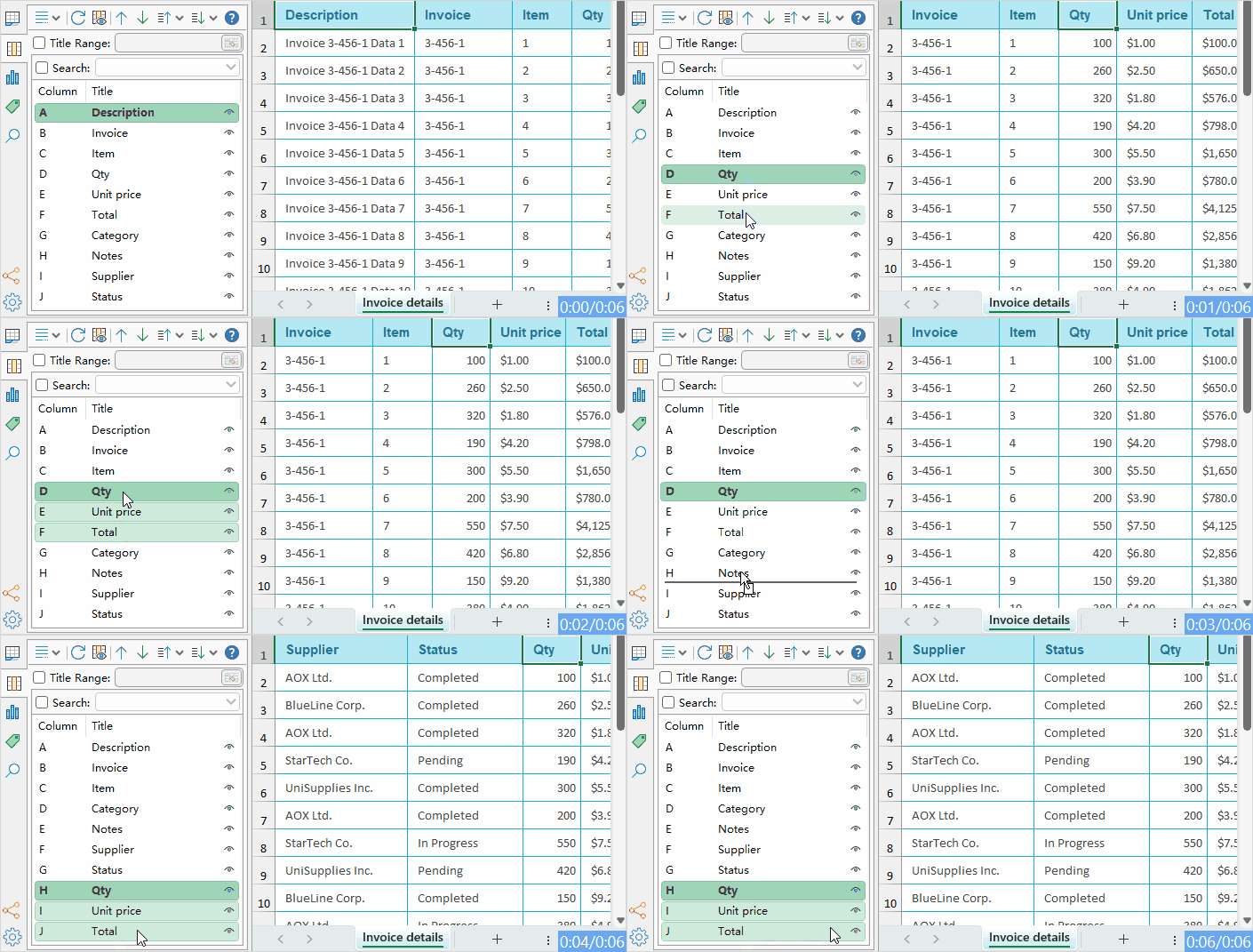
Feature 3: Hide or unhide columns with a single click
Column visibility management is much simpler in the Column List pane compared to Excel’s built-in methods.
Hide or unhide individual columns by clicking the Eye icon
- Each column in the list includes an eye icon.
- Click the Eye icon → the column becomes hidden in the worksheet.
- Check it again → the column reappears instantly.
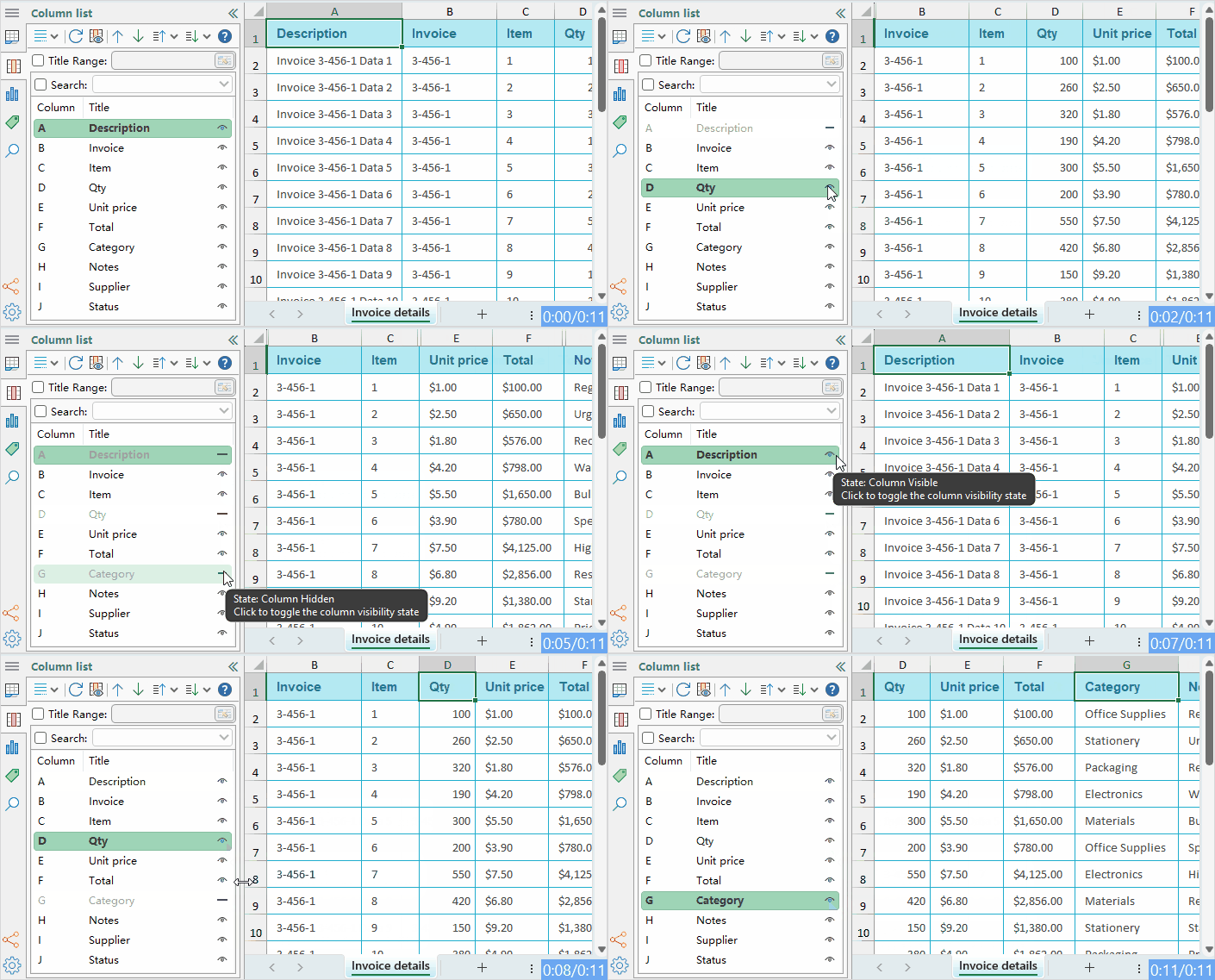
Quickly toggle the visibility of multiple columns at once
If your worksheet has hidden columns, click  button to reveal them. Click again to hide them again, making it easy to switch views.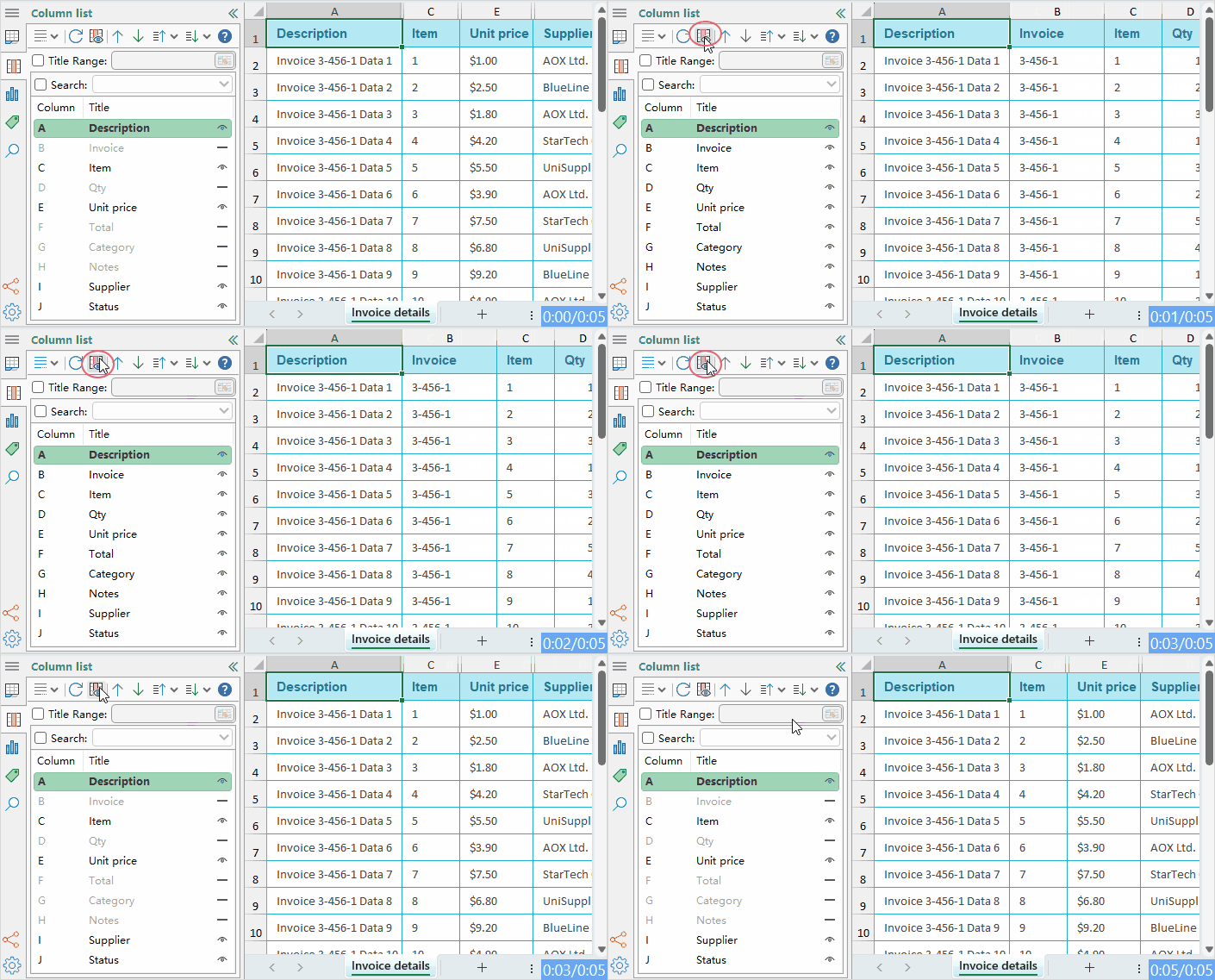
Frequently Asked Questions (FAQs)
Q1: Dragging doesn’t work?
• Check whether the worksheet is protected, remove the protection and try again.
Q2: Column titles in the list don’t match the worksheet?
• This is usually caused by an incorrect Title Range or forgetting to refresh. Set the correct title range and click Refresh.
Q3: How to handle multi-level headers?
• Set the Title Range to the header level that uniquely identifies each column. This avoids interference from higher-level headings.
Q4: Can’t find a column after hiding it?
• Open the Column List pane and check the Eye icon for that column. Click it again to make the column visible. You can also unhide columns in Excel, but the pane provides a more intuitive way.
Best Office Productivity Tools
Supercharge Your Excel Skills with Kutools for Excel, and Experience Efficiency Like Never Before. Kutools for Excel Offers Over 300 Advanced Features to Boost Productivity and Save Time. Click Here to Get The Feature You Need The Most...
Office Tab Brings Tabbed interface to Office, and Make Your Work Much Easier
- Enable tabbed editing and reading in Word, Excel, PowerPoint, Publisher, Access, Visio and Project.
- Open and create multiple documents in new tabs of the same window, rather than in new windows.
- Increases your productivity by 50%, and reduces hundreds of mouse clicks for you every day!
All Kutools add-ins. One installer
Kutools for Office suite bundles add-ins for Excel, Word, Outlook & PowerPoint plus Office Tab Pro, which is ideal for teams working across Office apps.





- All-in-one suite — Excel, Word, Outlook & PowerPoint add-ins + Office Tab Pro
- One installer, one license — set up in minutes (MSI-ready)
- Works better together — streamlined productivity across Office apps
- 30-day full-featured trial — no registration, no credit card
- Best value — save vs buying individual add-in
Table of contents
- Key Advantages of the Column List Feature
- Getting Started: Access and Panel Overview
- Detailed Operations of the Column List Feature
- Quickly view all column headers and jump to any column
- Easily reorder column positions
- Hide or unhide columns with a single click
- Frequently Asked Questions (FAQs)
- The Best Office Productivity Tools
Kutools for Excel
Brings 300+ advanced features to Excel
- ⬇️ Free Download
- 🛒 Purchase Now
- 📘 Feature Tutorials
- 🎁 30-Day Free Trial