Compress and Uncompress Selected Attachments in an Email
Attachments are essential in daily email communication—but they’re also one of the biggest reasons inboxes become bloated, and emails fail to send.
Kutools for Outlook offers two smart, targeted features that solve this problem instantly:
- Compress Selected Attachments
- Uncompress Selected Attachments
These tools are perfect when you need to:
- Reduce email size before sending large files
- Share multiple documents in a cleaner, more professional way
- Quickly access original files received as compressed attachments
- Avoid manual zip/unzip steps outside Outlook
Instead of handling attachments one by one or switching to third-party tools, you can manage everything directly inside Outlook, exactly where you work.
Key Advantages — What Outlook Can’t Do (But Kutools Can)
Microsoft Outlook’s built-in attachment handling is rigid and workflow-breaking—especially when it comes to compression. Kutools for Outlook removes these limitations completely.
For Received Emails
With Outlook’s native features:
- You must first save attachments to your local disk
- Then compress them using external tools
- And finally re-attach the compressed files if needed
This process is slow, repetitive, and interrupts your workflow.
With Kutools for Outlook:
- You simply open the email
- Select the attachments
- Click Compress Selected Attachments
For Emails You Are Sending
With Outlook’s native approach:
- You must compress files before opening the email
- Then manually attach the ZIP files
- If you forget, you have to start over
This makes last-minute changes inconvenient and error-prone.
With Kutools for Outlook:
- Attach files first while composing the email
- Then compress selected attachments at any time
- Even after all files are already attached
Summary of the Difference
| Scenario | Outlook | Kutools for Outlook |
|---|---|---|
| Compress received attachments | Save → compress → reattach | Compress directly in email |
| Compress outgoing attachments | Compress before attaching | Compress after attaching |
| Workflow | Disrupted | Seamless |
| Tools required | External | Built-in |
How to Use the Feature
Compress Selected Attachments
This feature lets you compress specific attachments in an email—whether you are composing or reading a message.
Steps:
- Open an email (new, reply, or received message)
- Select one or more attachments you want to compress
- Click Attachment Tools > Compress on the Kutools ribbon
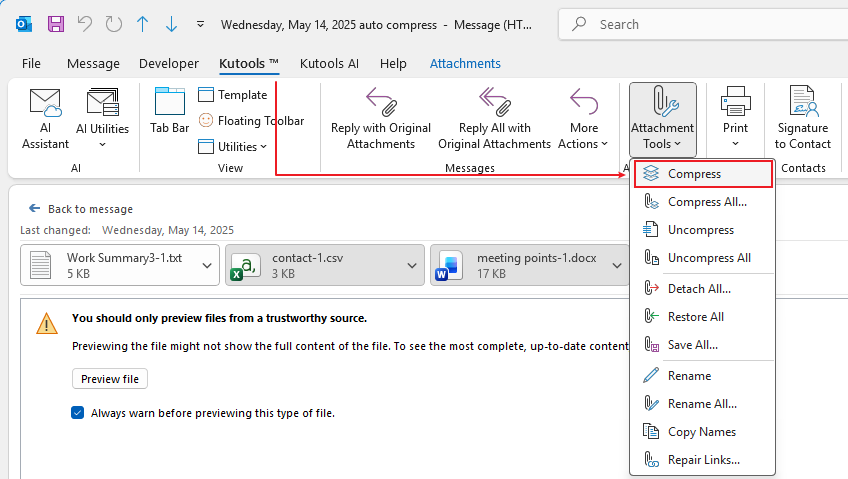
- The selected files are instantly compressed into ZIP format
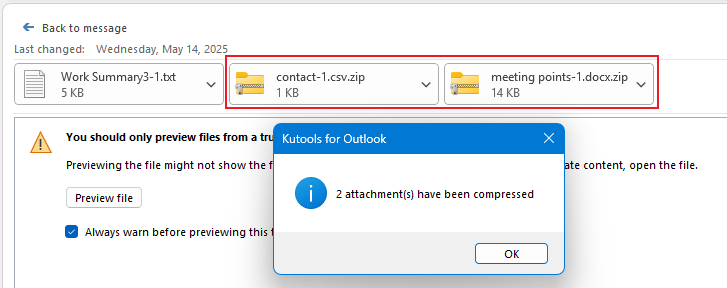
✔ Smaller email size, faster sending, and cleaner attachment presentation — without touching the rest of your files.
Uncompress Selected Attachments
Need to access files inside a ZIP attachment quickly? No problem.
Steps:
- Open the email containing compressed attachments
- Select the ZIP attachment(s)
- Click Attachment Tools > Uncompress on the Kutools ribbon
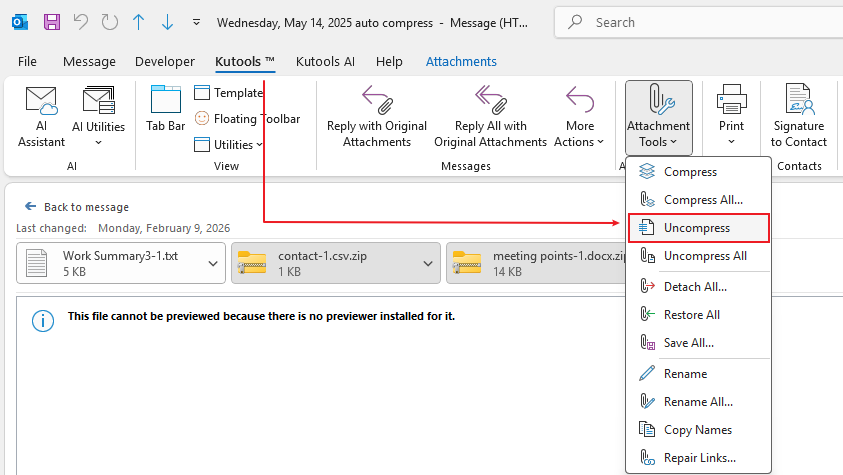
- The original files are extracted and attached directly to the email
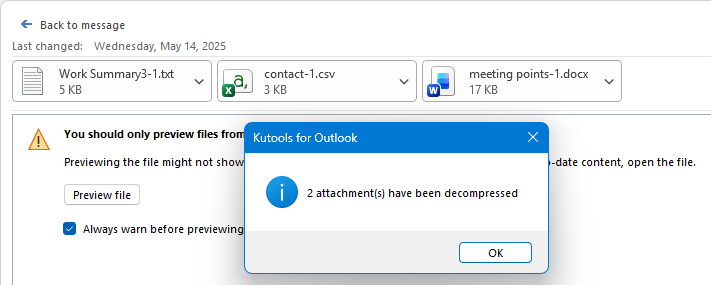
✔ You can view, forward, or edit the files immediately — no need to save and unzip them manually.
Final Thoughts
If you regularly work with attachments, Kutools for Outlook can dramatically simplify your workflow. With tools like Compress Selected Attachments and Uncompress Selected Attachments, you save time, reduce errors, and keep your inbox lean—without changing how you work in Outlook.
👉 Download Kutools for Outlook today and take attachment management to the next level.
Best Office Productivity Tools
Experience the all-new Kutools for Outlook with 100+ incredible features! Click to download now!
📧 Email Automation: Auto Reply (Available for POP and IMAP) / Schedule Send Emails / Auto CC/BCC by Rules When Sending Email / Auto Forward (Advanced Rules) / Auto Add Greeting / Automatically Split Multi-Recipient Emails into Individual Messages ...
📨 Email Management: Recall Emails / Block Scam Emails by Subjects and Others / Delete Duplicate Emails / Advanced Search / Consolidate Folders ...
📁 Attachments Pro: Batch Save / Batch Detach / Batch Compress / Auto Save / Auto Detach / Auto Compress ...
🌟 Interface Magic: 😊More Pretty and Cool Emojis / Remind you when important emails come / Minimize Outlook Instead of Closing ...
👍 One-click Wonders: Reply All with Attachments / Anti-Phishing Emails / 🕘Show Sender's Time Zone ...
👩🏼🤝👩🏻 Contacts & Calendar: Batch Add Contacts From Selected Emails / Split a Contact Group to Individual Groups / Remove Birthday Reminders ...
Use Kutools in your preferred language – supports English, Spanish, German, French, Chinese, and 40+ others!


🚀 One-Click Download — Get All Office Add-ins
Strongly Recommended: Kutools for Office (5-in-1)
One click to download five installers at once — Kutools for Excel, Outlook, Word, PowerPoint and Office Tab Pro. Click to download now!
- ✅ One-click convenience: Download all five setup packages in a single action.
- 🚀 Ready for any Office task: Install the add-ins you need, when you need them.
- 🧰 Included: Kutools for Excel / Kutools for Outlook / Kutools for Word / Office Tab Pro / Kutools for PowerPoint
Table of contents
- The Key Advantages
- How to Use the Feature
- More Than Just Two Tools
- Related Articles
- Best Office Productivity Tools