Notify Me If No Reply in Outlook
Never Forget to Follow Up on Important Emails Again
Waiting for an important email reply can be frustrating — especially when the message involves urgent work, customer communication, approvals, project updates, or business opportunities. Manually checking whether someone has replied wastes time and makes it easy to overlook important follow-ups.
The Notify me if no reply feature in Kutools for Outlook helps solve this problem by automatically monitoring your sent emails and reminding you if no reply is received within your specified time.
Instead of relying on memory or sticky notes, Kutools keeps track of important conversations for you and reminds you exactly when follow-up action is needed.
📌 In This Article

When Is This Feature Useful?
The Notify me if no reply feature is extremely helpful in many daily email situations, including:
- Following up with clients or customers
- Waiting for approval from managers or teams
- Tracking quotations, invoices, or contracts
- Monitoring job applications or interview emails
- Managing project communication deadlines
- Following up on unanswered support requests
- Keeping track of important business conversations
This feature is especially valuable for users who send many important emails every day and cannot afford to miss critical responses.
Advantages of the Notify Me If No Reply Feature
⏰ Automatic Follow-Up Reminders
Kutools automatically reminds you when a reply has not been received before your chosen deadline.
📥 No Need to Manually Check Emails
Stop repeatedly checking your inbox to see whether someone replied. Kutools handles the tracking automatically.
⚙ Flexible Reminder Time Settings
Choose reminder times from commonly used times, recently used times, or manually select another date and time.
📋 Easy Reminder Management
View unreplied emails, replied emails, cancel reminders anytime, and directly open original emails.
How to Use “Notify Me If No Reply”
Install Kutools for Outlook, then follow the steps below:
Step 1: Select an Email in the Sent Items Folder
Open your Sent Items folder in Outlook and select the email you want to monitor.
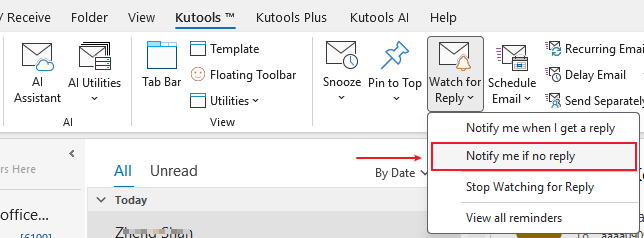
Step 2: Enable the Reminder
Go to:
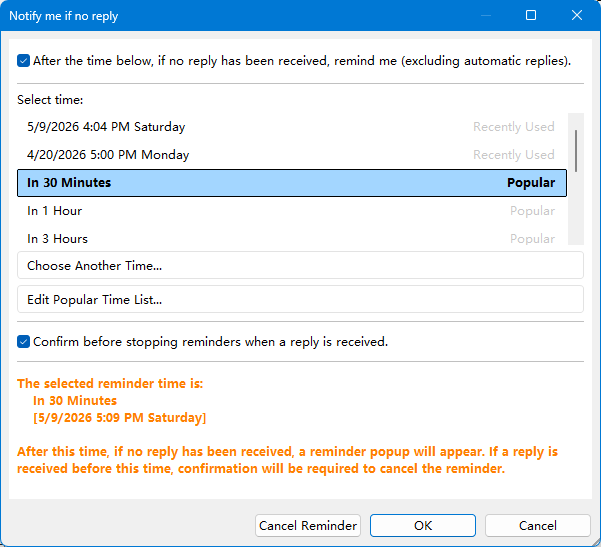
Step 3: Choose a Reminder Deadline
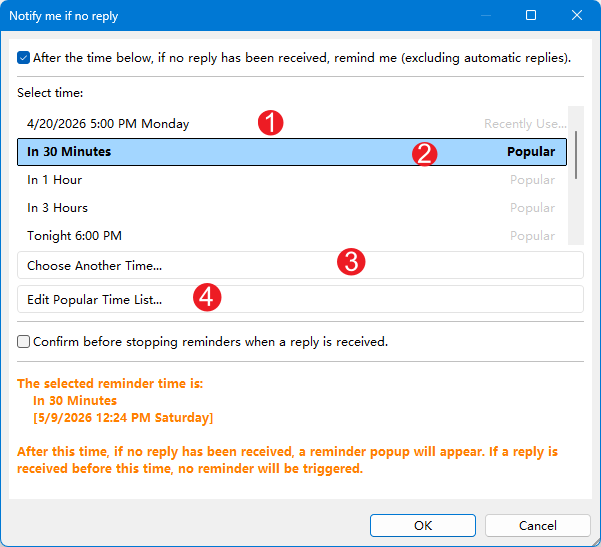
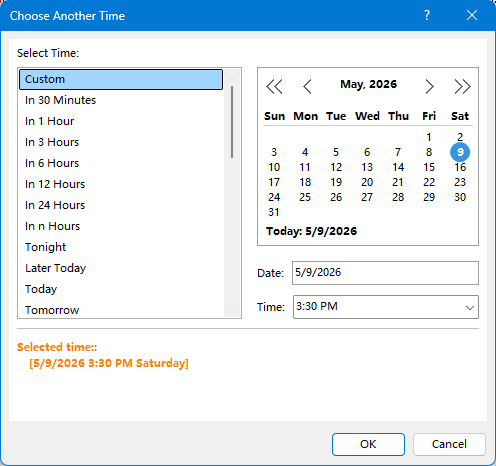
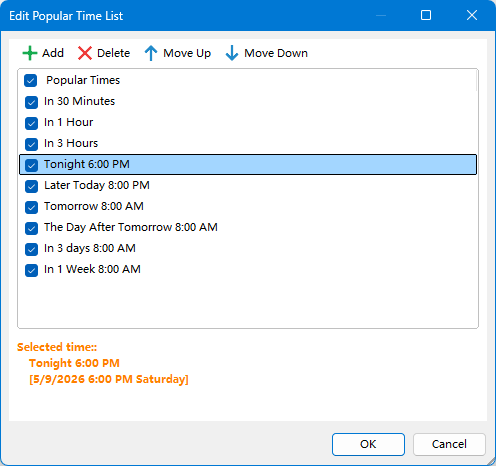
Kutools provides:
- Recently used reminder times
- Popular used reminder times
- Choose Another Time for custom reminders
- Editable preset reminder times
Step 4: Kutools Starts Monitoring the Email
After clicking OK, Kutools automatically watches the selected email conversation.
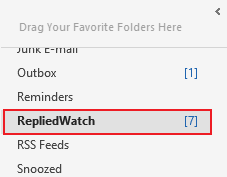
Meanwhile, Kutools automatically creates a folder named RepliedWatch to store copies of monitored emails.
What Happens If No Reply Is Received?
If no reply arrives before the selected deadline, Kutools displays a pop-up reminder in the lower-right corner of your screen.
This notification reminds you that the email still has not received a reply and helps ensure important follow-ups are never forgotten.
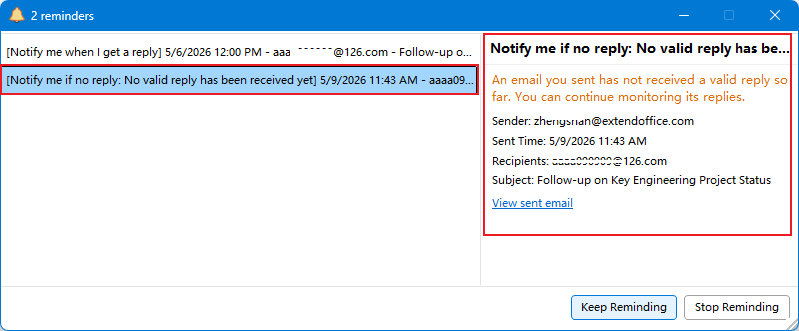
Inside the reminder notification, you can:
📨 View the Original Email Instantly
Inside the reminder notification window, click:
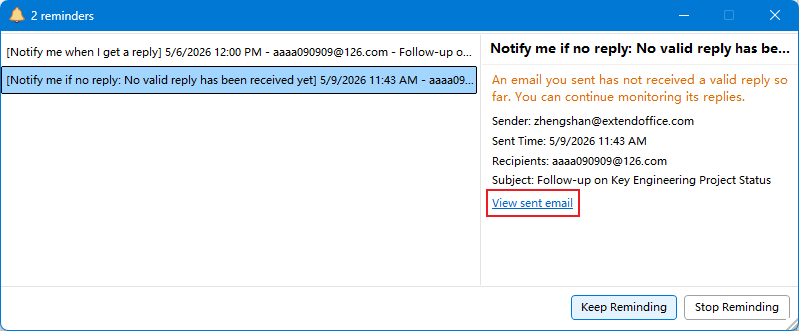
This instantly opens the original email so you can:
- Review the conversation
- Send a follow-up email
- Check recipients and details
- Continue communication immediately
🔄 Continue Monitoring the Reply
If you want to continue monitoring the email for replies, click:
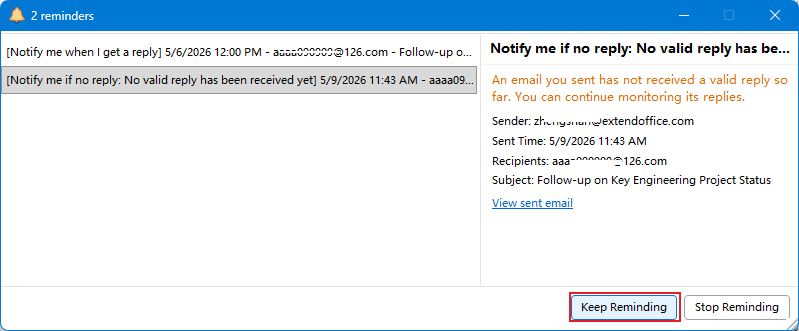
Then simply reselect a new reminder deadline.
⛔ Stop Monitoring the Email
If you no longer need to monitor the email, click:
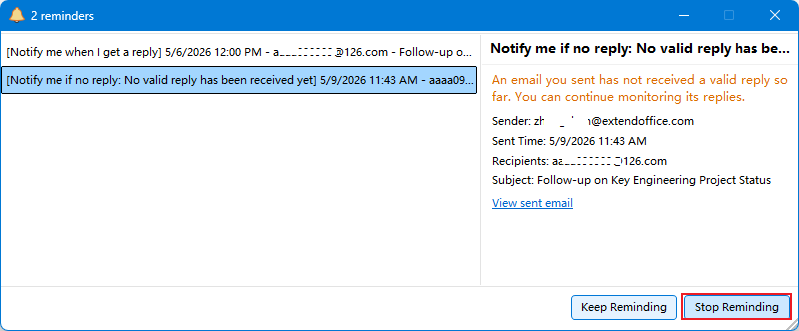
After stopping:
- The email is removed from the reminder list and the RepliedWatch folder
- The reminder permanently stops for that email
- The original Outlook email is NOT deleted
- Only the reminder record is removed
Confirm Before Stopping Reminders When a Reply Is Received
Kutools also provides an optional setting:
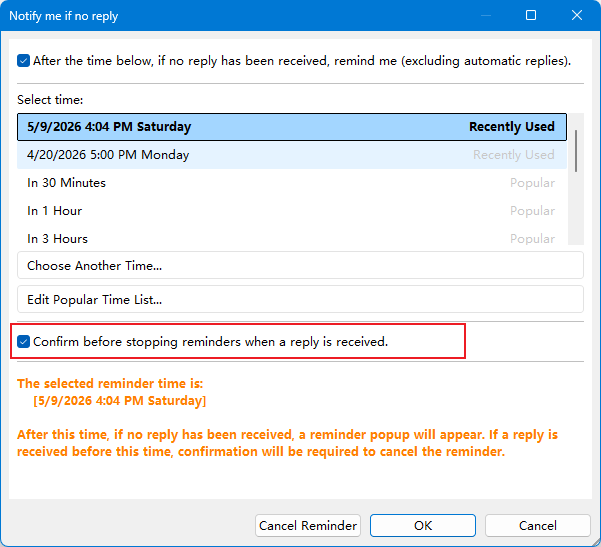
✅ When This Option Is Enabled
If a reply arrives before your selected reminder deadline, Kutools will display a confirmation message asking whether you want to stop the reminder notification.
This gives you more control over reminder management.
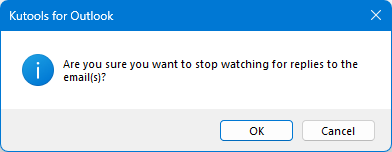
⚙ When This Option Is Disabled
If a reply arrives before the deadline, Kutools automatically cancels the reminder without showing any confirmation window.
Stop Watching for Reply
You can manually stop monitoring replies at any time.
How to stop monitoring:
- Open the Sent Items or RepliedWatch folder
- Select monitored email(s)
- Click: Kutools > Stop Watching for Reply
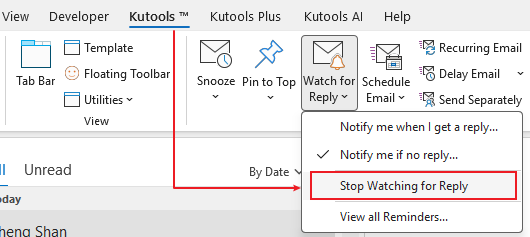
- Click OK
After stopping:
- The reminder is permanently removed
- The email disappears from the reminder list and RepliedWatch folder
- The original Outlook email remains safely stored
View All Reminders
To view all monitored emails, click:
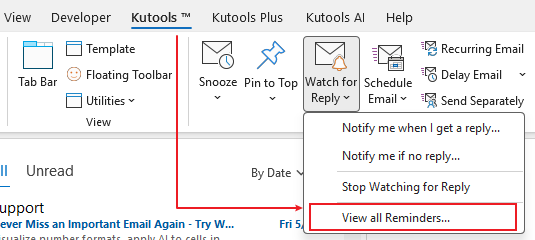
In this window, you can view all monitored emails, including:
- Reply reminder notifications
- No-reply reminder notifications
You can also manage reminders easily:
- Cancel no-reply reminders
- Cancel reply notifications
- Keep reminding for selected emails
After canceling a reminder, the email disappears from the reminder list and the RepliedWatch folder. The original Outlook email remains safely stored, and only the reminder record is deleted.
The original email itself will never be removed from Outlook.
RepliedWatch Folder
📂 Automatically Created
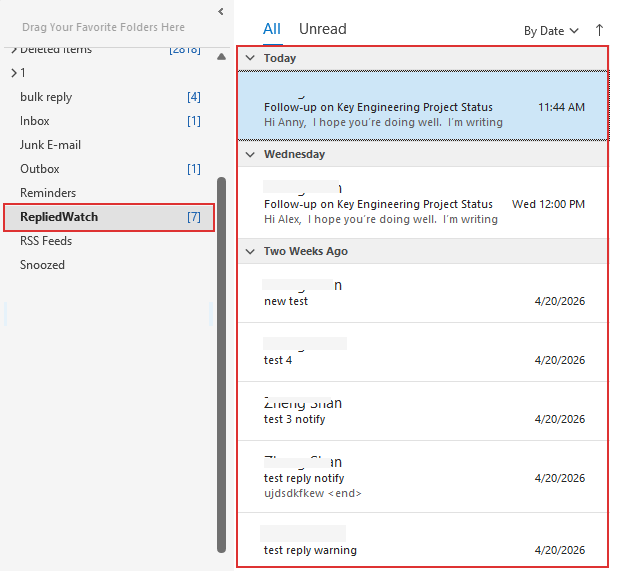
Kutools automatically creates a dedicated RepliedWatch folder after Watch for Replies is enabled.
📧 Automatically Copies Emails
All monitored emails are automatically copied into this folder for easier access and tracking.
🗂 Better Organization
Quickly review, organize, and manage all emails waiting for replies or follow-up reminders.
Stay on Top of Every Important Reply
With Kutools for Outlook, you can easily monitor important sent emails, receive automatic no-reply reminders, view all tracked messages in one place, and follow up at the right time without missing critical conversations.
Download Kutools for Outlook today and enjoy a 30-day free trial to experience smarter, faster, and more organized email management.
Download Kutools for Outlook30-Day Free Trial · Easy to Install · Boost Outlook Productivity
Best Office Productivity Tools
Experience the all-new Kutools for Outlook with 100+ incredible features! Click to download now!
📧 Email Automation: Auto Reply (Available for POP and IMAP) / Schedule Send Emails / Auto CC/BCC by Rules When Sending Email / Auto Forward (Advanced Rules) / Auto Add Greeting / Automatically Split Multi-Recipient Emails into Individual Messages ...
📨 Email Management: Recall Emails / Block Scam Emails by Subjects and Others / Delete Duplicate Emails / Advanced Search / Consolidate Folders ...
📁 Attachments Pro: Batch Save / Batch Detach / Batch Compress / Auto Save / Auto Detach / Auto Compress ...
🌟 Interface Magic: 😊More Pretty and Cool Emojis / Remind you when important emails come / Minimize Outlook Instead of Closing ...
👍 One-click Wonders: Reply All with Attachments / Anti-Phishing Emails / 🕘Show Sender's Time Zone ...
👩🏼🤝👩🏻 Contacts & Calendar: Batch Add Contacts From Selected Emails / Split a Contact Group to Individual Groups / Remove Birthday Reminders ...
Use Kutools in your preferred language – supports English, Spanish, German, French, Chinese, and 40+ others!


🚀 One-Click Download — Get All Office Add-ins
Strongly Recommended: Kutools for Office (5-in-1)
One click to download five installers at once — Kutools for Excel, Outlook, Word, PowerPoint and Office Tab Pro. Click to download now!
- ✅ One-click convenience: Download all five setup packages in a single action.
- 🚀 Ready for any Office task: Install the add-ins you need, when you need them.
- 🧰 Included: Kutools for Excel / Kutools for Outlook / Kutools for Word / Office Tab Pro / Kutools for PowerPoint
Table of contents
- When Is This Feature Useful?
- Advantages of the Notify Me If No Reply Feature
- How to Use "Notify Me If No Reply"
- Stop Watching for Reply
- View All Reminders
- RepliedWatch Folder
- Related Articles
- Best Office Productivity Tools