Instantly Locate an Email’s Folder with Open Folder in Outlook
When you search All Mailboxes in Outlook, the results list shows matching emails from across accounts and folders. But once you click a result, Outlook does not clearly reveal where that message actually lives. To find the original location, you often need to open properties, navigate manually, or run another search — a frustrating and time-consuming process.
Kutools for Outlook solves this problem with the Open Folder feature. After performing a search, you can instantly jump to the exact folder that contains the selected message — no manual navigation required.
- Why the Open Folder Feature Is So Useful
- How to Use Open Folder After Searching All Mailboxes
- When You’ll Find This Feature Most Helpful
Why the Open Folder Feature Is So Useful
Searching across multiple mailboxes is powerful, but without quick folder navigation it can disrupt your workflow. Open Folder provides:
- ✔ Immediate folder navigation Jump straight to the original folder containing the selected email.
- ✔ Faster email management File, categorize, move, or review surrounding messages without searching again.
- ✔ Better context awareness See the message in its original conversation or project folder.
- ✔ Essential for multi-account users Especially valuable when managing multiple mailboxes, shared inboxes, or complex folder structures.
How to Use Open Folder After Searching All Mailboxes
Follow these steps after performing a search across mailboxes:

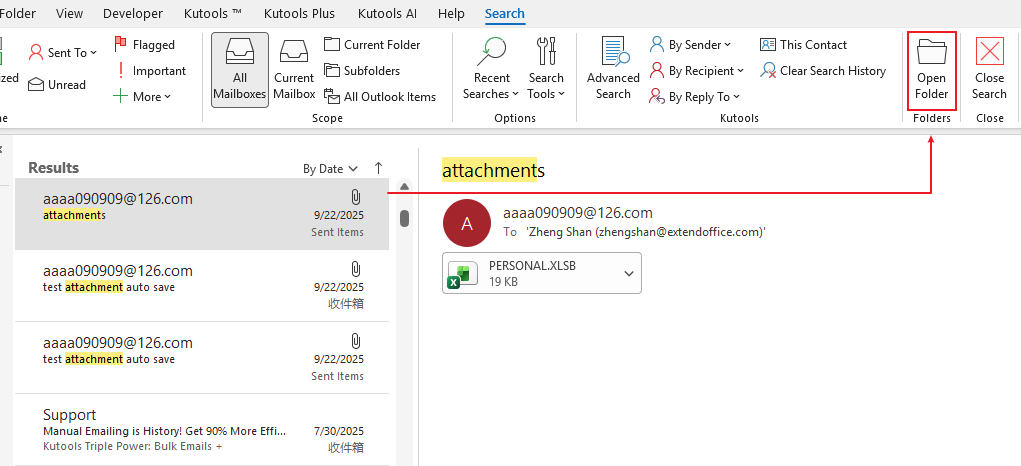
- Go to the Search tab
- Click Open Folder
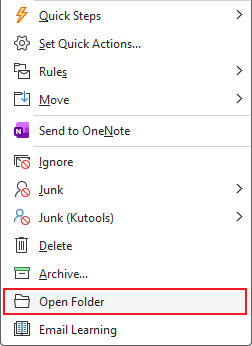
- Right-click the selected email
- Choose Open Folder
When You’ll Find This Feature Most Helpful
- Managing multiple accounts or shared mailboxes
- Organizing emails after searching
- Reviewing messages within their original project folders
- Cleaning up inboxes and filing messages efficiently
More Powerful Search & Cleanup Tools in Kutools for Outlook
Open Folder is just one of many tools designed to make Outlook search and organization faster and smarter. Kutools also lets you:
- 🔍 Search emails by the sender of a selected message
- 🔍 Search emails by the recipients of a selected message
- 🔍 Search emails by a selected contact
- 🧹 Remove duplicate emails with one click
- 👥 Merge and clean duplicate contacts
- 🤖 Use AI-powered tools to help draft and reply to emails
These features help you manage large mailboxes with speed and precision.
We recommend trying Kutools for Outlook with its 30-day free trial. Once you start using it, you’ll quickly discover how much easier and more efficient email management can be.
Download Kutools for Outlook
Best Office Productivity Tools
Experience the all-new Kutools for Outlook with 100+ incredible features! Click to download now!
📧 Email Automation: Auto Reply (Available for POP and IMAP) / Schedule Send Emails / Auto CC/BCC by Rules When Sending Email / Auto Forward (Advanced Rules) / Auto Add Greeting / Automatically Split Multi-Recipient Emails into Individual Messages ...
📨 Email Management: Recall Emails / Block Scam Emails by Subjects and Others / Delete Duplicate Emails / Advanced Search / Consolidate Folders ...
📁 Attachments Pro: Batch Save / Batch Detach / Batch Compress / Auto Save / Auto Detach / Auto Compress ...
🌟 Interface Magic: 😊More Pretty and Cool Emojis / Remind you when important emails come / Minimize Outlook Instead of Closing ...
👍 One-click Wonders: Reply All with Attachments / Anti-Phishing Emails / 🕘Show Sender's Time Zone ...
👩🏼🤝👩🏻 Contacts & Calendar: Batch Add Contacts From Selected Emails / Split a Contact Group to Individual Groups / Remove Birthday Reminders ...
Use Kutools in your preferred language – supports English, Spanish, German, French, Chinese, and 40+ others!


🚀 One-Click Download — Get All Office Add-ins
Strongly Recommended: Kutools for Office (5-in-1)
One click to download five installers at once — Kutools for Excel, Outlook, Word, PowerPoint and Office Tab Pro. Click to download now!
- ✅ One-click convenience: Download all five setup packages in a single action.
- 🚀 Ready for any Office task: Install the add-ins you need, when you need them.
- 🧰 Included: Kutools for Excel / Kutools for Outlook / Kutools for Word / Office Tab Pro / Kutools for PowerPoint
Table of contents
- Why the Open Folder Feature Is So Useful
- How to Use Open Folder After Searching All Mailboxes
- When You’ll Find This Feature Most Helpful
- Related Articles
- Best Office Productivity Tools