Convert Cell References to Column or Row Absolute in Excel
Sometimes in Excel, a formula needs to keep only part of a cell reference fixed when you copy it to another row or column. For example, $A1 keeps the column fixed while allowing the row to change, and A$1 keeps the row fixed while allowing the column to change. These mixed references are useful when you want formulas to fill correctly across a range without making the entire reference absolute.
In this tutorial, we will walk through several ways to change existing references to column absolute or row absolute references. You can use the F4 key for quick changes, add the dollar sign manually for more control, try Find and Replace in simple cases, use Kutools for Excel for batch conversion, or use VBA if you do not want to install an add-in.
Use the F4 key to toggle reference types
This is the fastest built-in method when you need to change one reference at a time in a formula. Excel lets you cycle through relative, absolute, and mixed references by pressing F4.
- Select the cell that contains the formula, then double-click it or press F2 to enter edit mode.
- Click the cell reference you want to change in the formula.
- Press F4 repeatedly until the reference becomes one of the following:
- $A$1 - absolute reference
- A$1 - row absolute reference ✅️
- $A1 - column absolute reference ✅️
- A1 - relative reference
- Press Enter to confirm the formula.

Note:
Once you have changed the reference to $F2, you can copy the formula to the right without changing the referenced column. The formula will always use column F while the row updates automatically.
Pros
- Built into Excel
- Lets you switch directly to $A1 or A$1
Cons
- Works one reference at a time
- You need to edit each formula manually
Add the dollar sign ($) manually
If you only need to adjust a few references, you can type the dollar sign directly into the formula.
- Select the formula cell and click in the formula bar, or press F2.
- Edit the reference manually:
- Change A1 to $A1 to lock the column only.
- Change A1 to A$1 to lock the row only.
- Press Enter to apply the change.
Pros
- Simple for very small edits
- Gives precise control over the formula
Cons
- Slow for many formulas
- Easy to make typing mistakes
Use Find and Replace to change references
You can also use Find and Replace to change references in formulas, but this method only works in limited cases. It is most suitable when the references you want to change follow the same pattern. For example, if all formulas refer to the same column or the same row, Find and Replace may help you update them quickly.
- Select the range that contains the formulas you want to update.
- Press Ctrl + H to open the Find and Replace dialog.
- In the Find what box, enter the reference pattern you want to change, like the column "F".
- In the Replace with box, enter the updated reference pattern with the dollar sign added, like "$F".
- For example, replace F with $F to make the column absolute.
- Or replace 2 with $2 to make the row absolute.
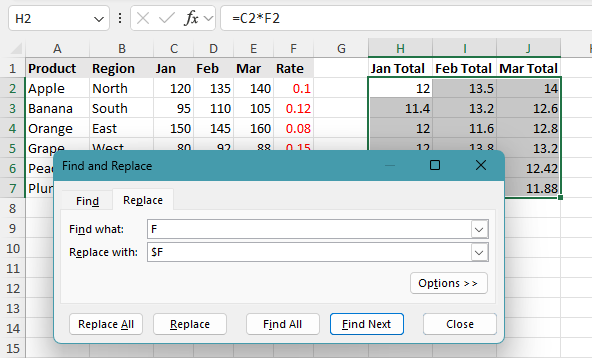
- Click Replace All.
As a result, all F references in the selected formulas are changed to $F, which locks column F.

Notes:
- This method only works well when the references follow the same pattern.
- If row numbers or column letters vary across formulas, Find and Replace is not reliable.
- If there are matching text strings inside formulas, they will be replaced as well.
Pros
- Built into Excel
- Can update multiple formulas at once
- Useful for simple, repeated reference patterns
Cons
- Cannot handle varying references reliably
- May also change matching text strings inside formulas
Batch convert references with Kutools for Excel
For a more reliable batch solution, Kutools for Excel offers the Convert Refers feature, which can quickly convert selected formulas to column absolute references like $A1 or row absolute references like A$1.
- Select the range that contains the formulas you want to convert.
- Click Kutools > More > Convert Refers.
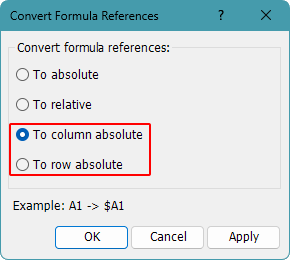
- In the Convert Formula References dialog, choose one of the following options:
- To absolute column to convert references to $A1.
- To absolute row to convert references to A$1.
- Click OK or Apply. All selected formulas will be converted at once.
Pros
- Converts many formulas at once
- Much faster than editing formulas one by one
- Supports both column absolute and row absolute conversion
Cons
- Requires Kutools for Excel
Kutools for Excel - Packed with over 300 essential tools for Excel. Make Excel tasks faster, easier, and more efficient. Download now!
Use VBA to change references
If you do not want to install an add-in, you can use VBA to change references in selected formulas. This method is more suitable for advanced users and can be useful when you need to update multiple formulas in one go.
Convert selected formulas to Column absolute references
- Select the cells that contain the formulas you want to convert.
- Press Alt + F11 to open the VBA editor.
- Click Insert > Module.
- Paste the following code into the module:
Sub ConvertToColumnAbsolute() Dim cell As Range For Each cell In Selection If cell.HasFormula Then cell.Formula = Application.ConvertFormula( _ Formula:=cell.Formula, _ FromReferenceStyle:=xlA1, _ ToReferenceStyle:=xlA1, _ ToAbsolute:=2) End If Next cell End Sub - Press F5 to run the macro to convert references to $A1 style.
Convert selected formulas to Row absolute references
- Select the cells that contain the formulas you want to convert.
- Press Alt + F11 to open the VBA editor.
- Click Insert > Module.
- Paste the following code into the module:
Sub ConvertToRowAbsolute() Dim cell As Range For Each cell In Selection If cell.HasFormula Then cell.Formula = Application.ConvertFormula( _ Formula:=cell.Formula, _ FromReferenceStyle:=xlA1, _ ToReferenceStyle:=xlA1, _ ToAbsolute:=3) End If Next cell End Sub - Select the formula cells you want to update.
- Press F5 to run the macro to convert references to A$1 style.
Notes:
- The macros work on the currently selected range only.
- Only cells containing formulas are processed.
Pros
- Good for repeated batch work
- Can process many selected formulas quickly
- No third-party add-in required
Cons
- Requires VBA knowledge
- Macros may be blocked by security settings
- Macros cannot be undone with Ctrl + Z
Which method works best for you?
| Method | Best for | Limitations |
|---|---|---|
| F4 key | Quickly changing one reference in a formula | Works one reference at a time only |
| Manual editing | Making small, precise changes by typing the dollar sign yourself | Works one reference at a time only |
| Find and Replace | Updating formulas in bulk when the references follow the same pattern | Not reliable for varying references and may also replace matching text inside formulas |
| Kutools for Excel | Batch converting references in multiple formulas more easily | Requires Kutools for Excel Download |
| VBA macro | Advanced users who want to automate the task without using an add-in | Requires VBA, and the changes cannot be undone |
Conclusion
If you only need to adjust a reference occasionally, the F4 key and manual editing are the most direct options. They are easy to use and give you full control, but they are better suited to small changes rather than larger batches of formulas.
Find and Replace can help in some simple bulk-editing situations, especially when the references follow the same pattern. However, because it works by matching text, it is not always reliable and may also affect matching text inside formulas.
When you need a more practical batch solution, Kutools for Excel makes the job much easier by converting selected references in just a few clicks. If you prefer not to use an add-in and are comfortable with macros, VBA is a flexible alternative for automating the task.
I hope you found this tutorial helpful. If you’d like to explore more Excel tips and practical solutions, please click here to browse our full collection of Excel tutorials.
The Best Office Productivity Tools
Kutools for Excel - Helps You To Stand Out From Crowd
Kutools for Excel Boasts Over 300 Features, Ensuring That What You Need is Just A Click Away...
Office Tab - Enable Tabbed Reading and Editing in Microsoft Office (include Excel)
- One second to switch between dozens of open documents!
- Reduce hundreds of mouse clicks for you every day, say goodbye to mouse hand.
- Increases your productivity by 50% when viewing and editing multiple documents.
- Brings Efficient Tabs to Office (include Excel), Just Like Chrome, Edge and Firefox.
Table of Contents
- Use the F4 key to toggle reference types
- Add the dollar sign ($) manually
- Use Find and Replace for simple reference patterns
- Batch convert references with Kutools
- Change references in selected formulas with VBA
- Which method works best for you?
- Conclusion
- The Best Office Productivity Tools
Kutools for Excel
Brings 300+ advanced features to Excel
- 🧩 Overview
- 📥 Free Download
- 🎁 30-Day Free Trial available