Find and Replace in Excel: Wildcards, Tricks, and Examples
Excel’s Find and Replace feature is often used for simple text searches, but it can do much more than that. With the right options and wildcard patterns, you can quickly locate and update text based on different conditions, such as whether it contains specific characters, starts or ends with certain text, or follows a fixed structure.
In this tutorial, we’ll walk through practical Find and Replace techniques you can use in real work scenarios. Wherever Excel can handle the task directly, we’ll rely on its built-in Find and Replace features. For cases that go beyond its native capabilities, we’ll introduce simple alternatives using Kutools for Excel to make the process easier and more efficient.
- Find or replace text that contains text
- Find or replace text that begins with or ends with text
- Find or replace text with a fixed length
- Find or replace text with multiple conditions
- Case-sensitive find and replace in Excel
- Find text by length criteria (greater than, less than, between)
- Find uppercase or lowercase text
- Find or replace asterisk (*) in Excel
- Clean data using Find and Replace: 1️⃣Remove line breaks | 2️⃣Delete underscores
- Find and change cell formatting
- Locate all merged cells
- Q&A: Excel Find and Replace Tips
Search cells that contain specific text
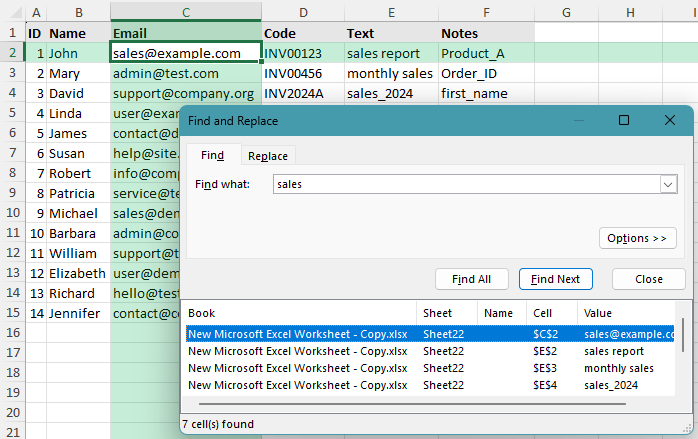
This is the most common use of Find and Replace. If you enter a word or character in the Find what box, Excel looks for cells that contain that text anywhere in the cell.
🔎 Example:
Searching for sales will find cells that contain only sales, as well as cells like sales report, monthly sales, and 2024 sales data.
- Select the range where you want to search. If you want to search the whole worksheet, click any cell.
- Press Ctrl + F to open the Find and Replace dialog.
- In the Find what box, enter the text you want to find.
- Click Find All to list all matching cells.
💡 Tip:
To replace the matched text, switch to the Replace tab, enter the replacement text in the Replace with box, and click Replace All.
Find text that starts with or ends with certain characters
When you need to find text based on its position, use the asterisk wildcard *. It represents any number of characters.
🔎 Example:
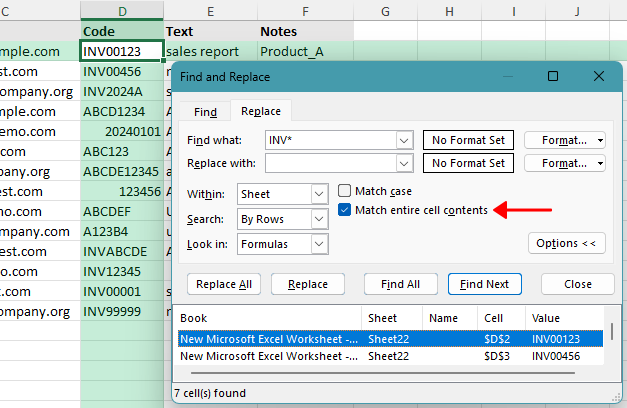
Searching for INV* will find values like INV, INV001, and INV-2024. Searching for *.com will find values like example.com and sales.company.com.
Find text that begins with specific characters
For example, to find all values that begin with INV, use:
INV*- Press Ctrl + H to open the Find and Replace dialog.
- In the Find what box, enter INV*.
- Click Options, and check Match entire cell contents.
- Enter the replacement text if needed.
- Click Find All, Replace, or Replace All.
Find text that ends with specific characters
For example, to find all values that end with .com, use:
*.com❗ Important:
When you use an asterisk (*) to find text that starts or ends with specific characters, make sure to enable Match entire cell contents. Otherwise, Excel will return any cell that merely contains a matching pattern within longer text.Locate text with a specific length
If you want to find text with an exact number of characters, use the question mark wildcard ?. Each question mark represents exactly one character.
🔎 Example:
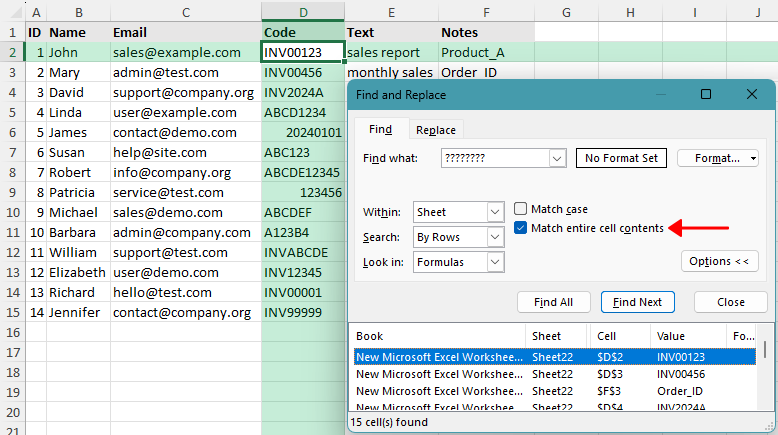
Searching for ???????? will find values like ABCD1234 and 20240101, because both contain exactly 8 characters. It will not find ABC123 or ABCDE12345.
For example, to find values that contain exactly 8 characters, use:
????????- Select the range you want to check. If you want to search the whole worksheet, click any cell.
- Press Ctrl + F.
- In the Find what box, enter the required number of question marks.
- Click Options, and check Match entire cell contents.
- Click Find All.
❗ Important:
When using question marks (?) to find a fixed text length, make sure to check Match entire cell contents. Otherwise, Excel will also find cells that simply contain any 8-character part inside longer text.
Apply Find and Replace with multiple conditions
You can combine wildcards to create simple multiple-condition searches. This is useful for patterns such as “starts with certain text and has a fixed length”.
🔎 Example:
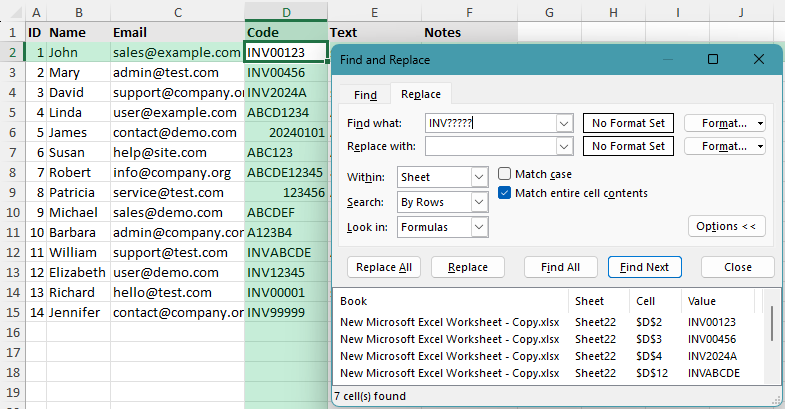
Searching for INV????? will find values like INV12345 and INVABCDE, because they start with INV and have 8 characters in total.
For example, to find text that starts with INV and has 8 characters in total, use:
INV?????Here, INV takes 3 characters, and the five question marks represent the remaining 5 characters.
- Press Ctrl + H.
- In the Find what box, enter the wildcard pattern.
- Click Options, and check Match entire cell contents.
- Enter the replacement text if needed.
- Click Find All or Replace All.
❗ Important:
If you do not enable Match entire cell contents, the pattern INV????? will not match exact-length values only. Excel will also return cells that simply contain this pattern as part of a longer text.
Perform case-sensitive search or replace
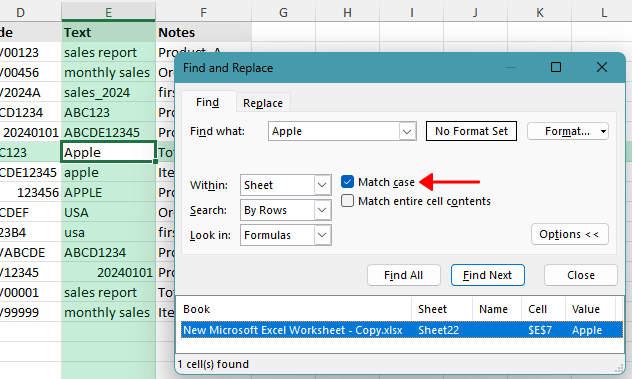
If you want Excel to treat uppercase and lowercase letters as different characters, use the Match case option.
🔎 Example:
Searching for Apple with Match case enabled will find Apple, but it will not find apple or APPLE.
- Press Ctrl + F to open Find and Replace.
- Click Options to expand more settings.
- Check Match case.
- Enter the text you want to find and replace.
- Click Find All.
💡 Tip:
To replace the matched text, switch to the Replace tab, enter the replacement text in the Replace with box, and click Replace All.
❗ Important:
Match case is used for exact case-sensitive matching. It cannot directly find cells that contain only uppercase or only lowercase text. For this type of search, you can use Kutools for Excel’s Super Find feature.

Find text based on length criteria (> / < / between)
Excel’s Find and Replace dialog cannot directly search for text length conditions such as less than, or between a certain number of characters. For this kind of search, Kutools for Excel’s Super Find is a more direct option.
🔎 Example:
To find cells with text less than 6 characters, choose Text length is less than, enter 6 in the Value box, and run the search.
- Click Kutools > Find > Super Find.
- In the Super Find pane, choose where you want to search, such as the selected range, active sheet, selected sheets, active workbook, or all workbooks.
- From the Type drop-down list, choose the length condition you need, such as Text length is greater than, Text length is less than, or Text length between.
- Enter the length value in the Value box.
- Click Find to list the matching cells.
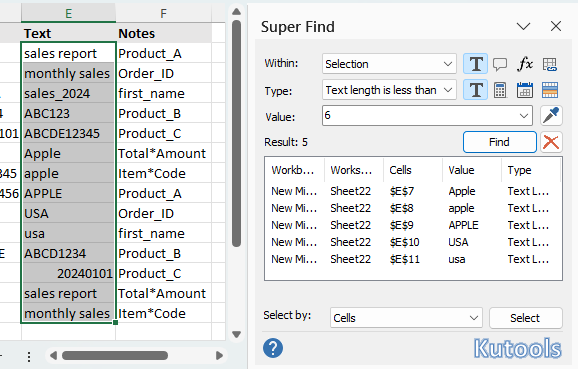
5 matching cells are listed in the results box. You can click Select to select all of them at once.
📝 Note:
Super Find is used to find matching cells. It does not replace the found values directly. After the cells are located, you can review them, select them, or edit them manually as needed.
Identify uppercase or lowercase text
Excel’s Find and Replace dialog cannot directly find cells that contain only uppercase or only lowercase text. For this type of search, you can use Kutools for Excel’s Super Find feature to locate the matching cells first.
🔎 Example:
Choosing Text is uppercase will find cells like USA and PRODUCT. Choosing Text is lowercase will find cells like apple and sales.
- Click Kutools > Find > Super Find.
- In the Super Find pane, choose the search scope, such as the selected range, active sheet, selected sheets, active workbook, or all workbooks.
- From the Type drop-down list, choose Text is uppercase or Text is lowercase.
- Click Find to list all matching cells.
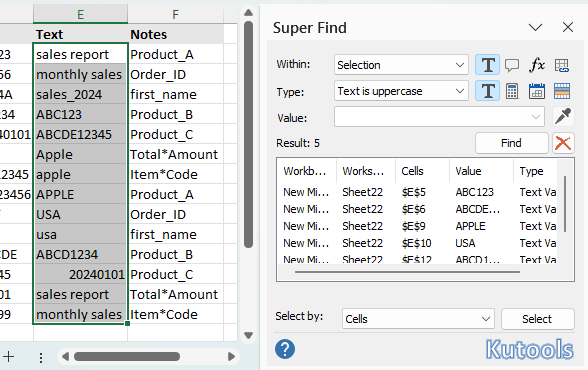
5 matching cells are listed in the results box. You can click Select to select all of them at once.
📝 Note:
Super Find is used to find matching cells. It does not replace the found values directly. After the cells are located, you can review them, select them, or edit them manually as needed.
Kutools for Excel - Packed with over 300 essential tools for Excel. Make Excel tasks faster, easier, and more efficient. Download now!
Replace the asterisk (*) character in Excel
Because the asterisk * is a wildcard in Excel Find and Replace, you cannot search for it by typing only *. To find the actual asterisk character, add a tilde ~ before it.
🔎 Example:
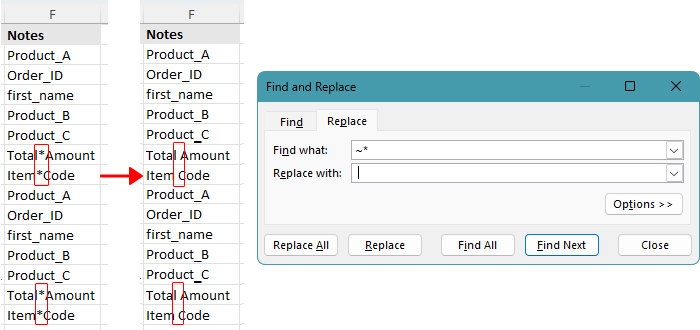
To replace Product* with Product, enter ~* in the Find what box and leave the Replace with box blank.
- Press Ctrl + H.
- In the Find what box, enter:
~* - In the Replace with box, enter the replacement text. To remove the asterisk, leave this box blank.
- Click Replace All.
💡 Tip:
The tilde is used to escape wildcard characters. To find a question mark, use ~?. To find a tilde, use ~~.
Clean data in Excel
Find and Replace is also useful for cleaning imported data, especially when cells contain hidden line breaks or unwanted separators.
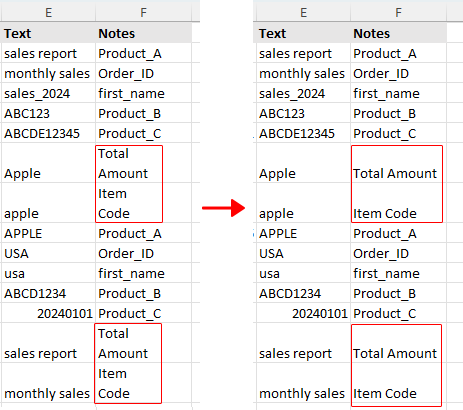
Remove line breaks from cells
Line breaks often appear when data is copied from other systems, websites, or forms. You can remove them with Find and Replace.
🔎 Example:
If a cell contains Product A and North Region on two separate lines, you can replace the line break with a space to make it Product A North Region.
- Select the range where you want to remove line breaks. If you want to apply it to the entire worksheet, select any cell.
- Press Ctrl + H.
- Click in the Find what box, then press Ctrl + J.
📝 Note:
After pressing Ctrl + J, the Find what box may look empty. This is normal because the line break is hidden.
- In the Replace with box, enter a space, or leave it blank if you do not want to keep any separator.
- Click Replace All.
Delete underscores from text in Excel
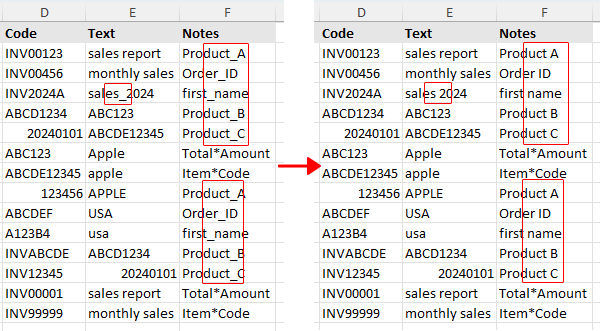
If your data contains underscores, such as first_name or order_id, you can remove or replace them quickly.
🔎 Example:
Replacing underscores with spaces can turn first_name into first name, and order_id into order id.
- Select the range you want to clean. If you want to apply it to the entire worksheet, select any cell.
- Press Ctrl + H.
- In the Find what box, enter an underscore:
_ - In the Replace with box, enter a space or leave it blank if you do not want to keep any separator.
- Click Replace All.
💡 Tip:
You can also use Find and Replace for other data cleaning tasks. For example, you can reduce extra spaces by replacing two spaces with one. Enter two spaces in the Find what box and one space in the Replace with box, then click Replace All. Repeat if needed until the text is clean.
Find and change cell formatting
In addition to text, Excel allows you to find and replace cells based on formatting, such as font color, fill color, bold text, etc. This is useful when you need to locate or update cells with specific visual styles.
Find cells with a specific format
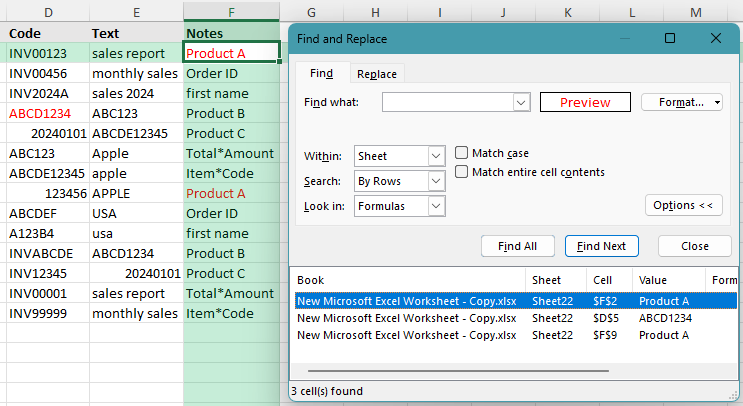
🔎 Example:
You can find all cells with a yellow fill color or bold formatting. You can also search for cells with multiple formats, such as a specific number format combined with a font color.
- Select the range where you want to search. To search the entire worksheet, select any cell.
- Press Ctrl + F to open the Find and Replace dialog.
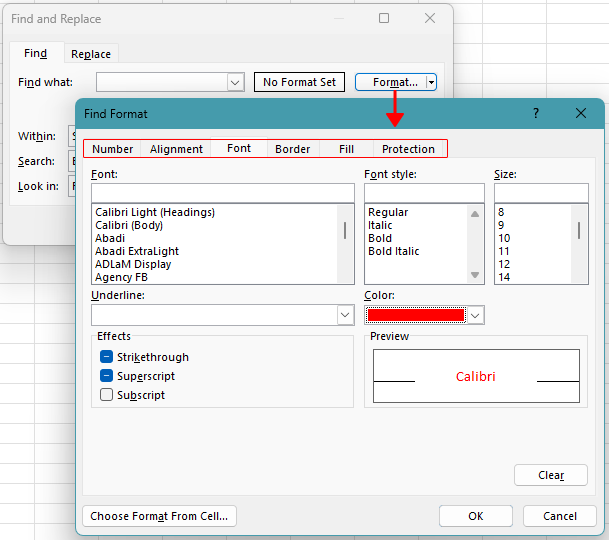
- Click Options, then click Format.
- In the Find Format dialog, first select the appropriate tab (such as Font, Fill, or Border), then specify the format you want to find, such as font color, fill color, or bold text.
- Click OK, then click Find All to list all matching cells.
Replace format in cells
You can also use Find and Replace to update formatting in bulk. Switch to the Replace tab, set the format in the Find what section, then define the new format in the Replace with section, and apply it to all matching cells.
💡 Tip:
If you want to clear a format condition, click Format and then choose Clear Find Format before running a new search.
Locate all merged cells
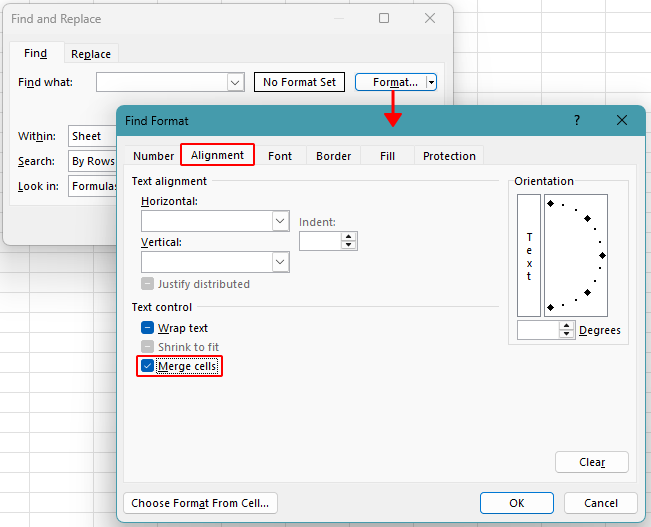
Merged cells can cause problems when sorting, filtering, copying, or using formulas. If you need to check where merged cells are used in a worksheet, Excel’s Find feature can locate them directly.
🔎 Example:
If a worksheet contains merged title cells, merged section headers, or merged labels, this method will list them in the Find results so you can jump to each location quickly.
- Select the range where you want to search for merged cells. To search the whole worksheet, select any cell.
- Press Ctrl + F to open the Find and Replace dialog.
- Click Options, then click Format.
- In the Find Format dialog, go to the Alignment tab.
- Check Merge cells, then click OK.
- Click Find All to list all merged cells.
💡 Tip:
If you want to remove the merged format after finding the cells, after clicking Find All, press Ctrl + A in the results list to select all merged cells, then go to Home > Merge & Center > Unmerge Cells to remove the merged format.
Q&A: Excel Find and Replace Tips
What wildcards can I use in Excel Find and Replace?
Excel supports these common wildcards:
- * – represents any number of characters (🔎 sales* finds sales, sales2024, and sales report)
- ? – represents exactly one character (🔎 INV???? finds INV1234 and INV2024)
- ~ – escapes wildcard characters when you want to find the actual symbol (🔎 ~* finds cells that contain the actual asterisk (*) character)
Wildcards are useful for pattern-based searches, such as finding text that starts with, ends with, or contains specific characters.
Can I use formulas in the Find and Replace dialog?
No. The Find and Replace dialog does not evaluate formulas entered in the Find what box. It only searches for text, numbers, cell contents, and wildcard patterns. For example, you cannot use conditions like =LEN(A2)>8 directly in Find and Replace.
How do I control the search scope in Find and Replace?
You can control the search scope in several ways, depending on what you need:
- Selected range: Select a range first, then open Find and Replace. Excel will only search within the selected cells.
- Entire worksheet: Select any single cell, and Excel will search the entire active sheet.
- Entire workbook: In the Find and Replace dialog, set Within to Workbook to search across all sheets.
You can also adjust Look in to search within values, formulas, or comments, depending on what you want to find.
How can I replace only “US” but not words that contain “us”?
To replace only exact matches like US and avoid partial matches (such as business or status):
- Enable Match entire cell contents if the cell contains only “US”
- Or enable Match case if you want to distinguish between “US” and “us”
This helps prevent unintended replacements inside longer words.
Can I use Find and Replace across multiple worksheets or workbooks?
You can search and replace across all worksheets in a workbook by setting Within to Workbook.
However, Excel does not support Find and Replace across multiple workbooks at the same time. To do this, you need to open each workbook and run the operation separately, or use tools like Kutools' Find & Replace in Multiple Workbooks, which allows you to search and replace across selected workbooks in one dialog.

Conclusion
Find and Replace in Excel is more powerful than it first appears. With the right use of wildcards and options, you can handle a wide range of text search and replacement tasks, from simple matches to more structured patterns.
For most everyday scenarios, Excel’s built-in Find and Replace is fast and efficient enough. As shown in this tutorial, it can handle tasks like matching specific text patterns, working with fixed-length values, and cleaning up common formatting issues.
For more advanced cases that go beyond its native capabilities, such as identifying text by length ranges or working across multiple workbooks, tools like Kutools for Excel can provide a more straightforward and flexible solution.
I hope this tutorial helps you handle Find and Replace tasks more efficiently in Excel. If you’d like to explore more Excel tips and practical solutions, please click here to browse our full collection of Excel tutorials.
The Best Office Productivity Tools
Kutools for Excel - Helps You To Stand Out From Crowd
Kutools for Excel Boasts Over 300 Features, Ensuring That What You Need is Just A Click Away...
Office Tab - Enable Tabbed Reading and Editing in Microsoft Office (include Excel)
- One second to switch between dozens of open documents!
- Reduce hundreds of mouse clicks for you every day, say goodbye to mouse hand.
- Increases your productivity by 50% when viewing and editing multiple documents.
- Brings Efficient Tabs to Office (include Excel), Just Like Chrome, Edge and Firefox.
Table of Contents
- Find or replace text that contains text
- Find or replace text that begins with or ends with text
- Find or replace text with a fixed length
- Find or replace text with multiple conditions
- Case-sensitive find and replace in Excel
- Find text by length criteria (greater than, less than, between)
- Find uppercase or lowercase text
- Find or replace asterisk (*) in Excel
- Clean data using Find and Replace
- Find and replace by format
- Locate all merged cells
- Q&A: Excel Find and Replace Tips
- The Best Office Productivity Tools
Kutools for Excel
300+ advanced Excel tools in one add-in.
🎁 30-Day Free Trial available