Redact sensitive text in a Word Document
In our daily work, sharing documents is a common practice, but it often comes with the need to protect sensitive information. Whether you’re handling confidential business data, personal details, or legal documents, ensuring sensitive text is properly redacted is crucial to prevent unauthorized access. In this guide, we’ll explore three practical ways to redact sensitive text, helping you safeguard your documents with ease and precision.

Redact sensitive text in Word Document
- By using the Text Highlighter tool
- By using a powerful feature – Kutools for Word
- By using Find and Replace feature
Redact sensitive text in Word automatically using Kutools AI
Redact sensitive text in a Word Document
Redacting sensitive text in a Word document is essential when sharing confidential information. Since no single method works for every situation, this section introduces three effective ways to redact sensitive text in Word, helping you choose the approach that best suits your needs.
Redact sensitive text in Word with Text Highlighter tool
One of the simplest and most effective ways to obscure sensitive text is by using the Text Highlighter Tool. This method is quick, user-friendly, and accessible to all Word users.
Before using this method, ensure the text color is set to black, otherwise, the content might still be visible. You can adjust the text color by using the Font Color drop-down menu and selecting black.
- Launch Microsoft Word and open the document containing the sensitive information you want to redact.
- Select the text (a line, word, or paragraph) that you want to redact.
- Go to the Home tab and click the Text Highlight Color icon in the toolbar, select the Black color in the drop-down menu. The text will be covered with a black strip, making it visually inaccessible. See screenshot:
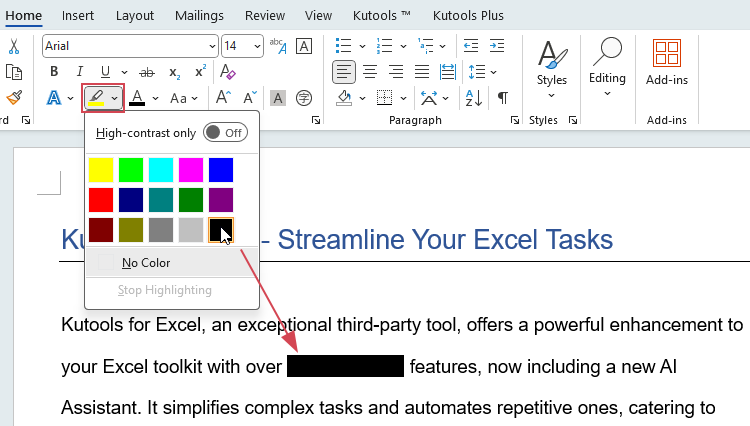
- Repeat the same steps to black out additional text content as needed.
This method is suitable for printed documents, it is not secure for digital sharing, as someone could simply change the font color or remove the highlighting to reveal the hidden text.
- Underlying text is still accessible:
While the highlight obscures text visually, it does not remove the underlying data. To enhance security, save the redacted document as image to lock the changes. Here, it is recommended to use Kutools for Word's Export Document to Images feature, which allows you to quickly convert the document to image.

- Not Suitable for Bulk Redaction:
If the document contains extensive sensitive content, the manual process can be time-consuming. For large-scale redaction, consider using methods such as Kutools for Word or Find and Replace feature.

Redact sensitive text in Word with Kutools for Word
Redacting sensitive text in Word document can be a challenging task, especially when dealing with large volumes of information. If you have Kutools for Word, with its Redaction Tool feature, you can streamline the process and save significant time.
After downloading and installing Kutools for Word, please do with the following steps:
- Click Kutools > Redaction Tool to open a toolbar of the feature.
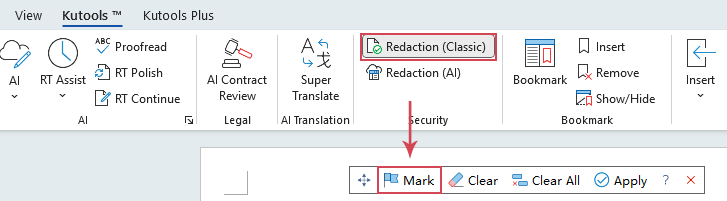
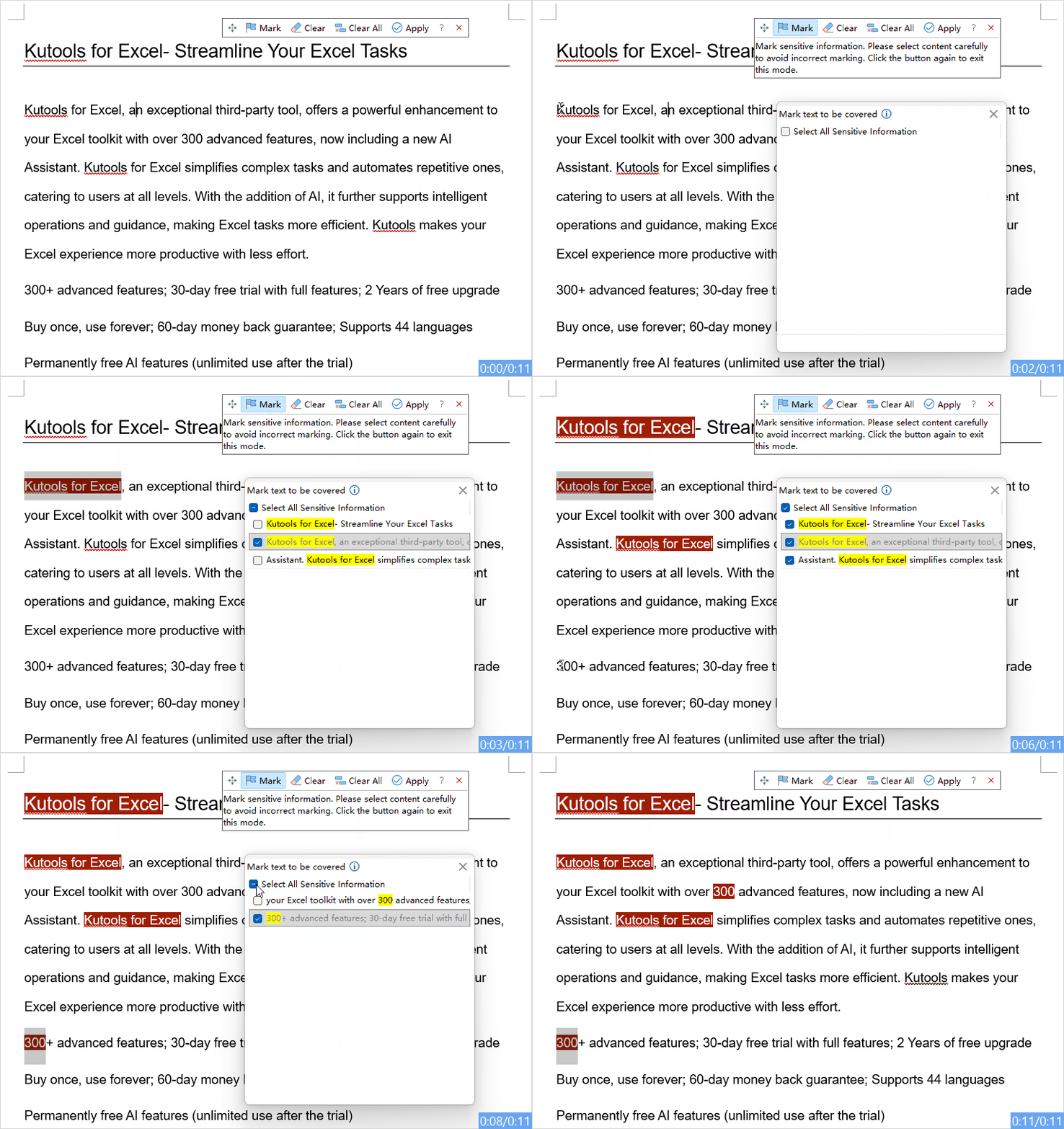
- Click Mark button to enable this feature. Then, select the text that you want to redact, all the same text will be listed into the list box at once, check the Select All Sensitive information to select all matching items. See the demo below:
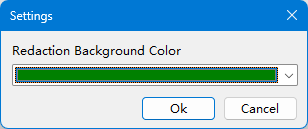
- After marking the sensitive text you need, click the Apply button. In the popped out dialog box, choose a redaction color and click OK.
Your current document will be saved, and a new version with all marked text redacted will be generated. Both documents will then be displayed side by side, see screenshot: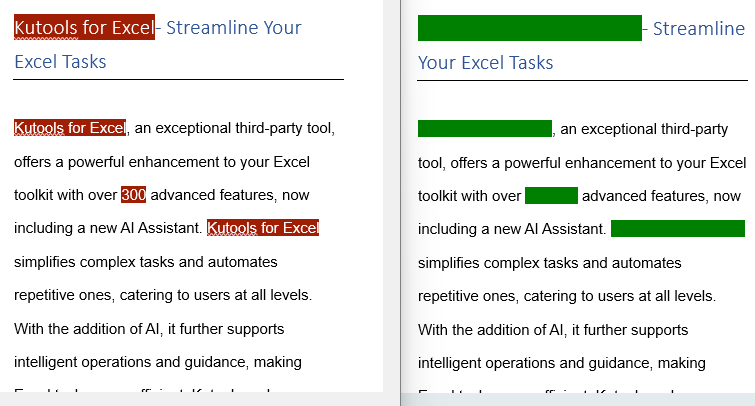
By using Kutools for Word, sensitive information is directly concealed without the need to save the document as an image. When shared with others, the redacted content remains hidden, ensuring complete confidentiality.
Redact sensitive text in Word with Find and Replace feature
The Find and Replace feature is a built-in Word tool that is highly effective for handling repetitive redaction tasks.
Before using this method, it’s highly recommended to create a backup of the document. Once the text is replaced, reverting to the original content can be difficult or even impossible without a saved copy. Having a backup ensures you can recover the original information if needed, providing an extra layer of security and flexibility.
- Launch Word and open the document containing the sensitive information you want to redact.
- Then, click Home > Replace to open the Find and Replace dialog box.
- In the dialog box, please set the operations:
- In the Find what field, input the text you want to redact, whether it's a single word, a phrase, or an entire line;
- In the Replace with field, enter the text or characters you want to display as a replacement (e.g., "**********");

- Click Replace All button. All the matched text will be replaced with the specific characters.

- Repeat the above steps to redact more other text as you need.
- Save this Word file.


Redact sensitive text in Word automatically using Kutools AI
Redacting sensitive text in Word is a critical task when working with contracts, HR records, legal documents, or any files that contain private or confidential information. Manually searching for and removing sensitive data can be time-consuming and error-prone, especially in long or complex documents. Kutools AI offers an automated solution that intelligently identifies and redacts sensitive text in Word for you—helping ensure accuracy, consistency, and data security while dramatically reducing the time and effort required.
Why choose Kutools AI for data redaction?
Traditional redaction methods can work in simple cases, but it often falls short when dealing with non-standard formats or complex contexts. The key advantages of Kutools AI include:
- Pattern recognitionAutomatically identifies a wide range of sensitive information, including personal names, addresses, emails, phone numbers, ID numbers, passport numbers, SSNs, bank details, invoice numbers, confidential pricing, internal strategies, and legal clauses.
- Context awarenessAI analyzes surrounding context to determine whether content is potentially sensitive, rather than relying solely on fixed keywords.
- Batch processingEliminates repetitive manual work by processing entire documents or multiple selected sections at once, making it ideal for long or complex files.
How to use the Kutools AI Redaction feature?
After you install Kutools for Word, follow the step-by-step instructions below:
- In Word, click Kutools > Redaction (AI),see screenshot:

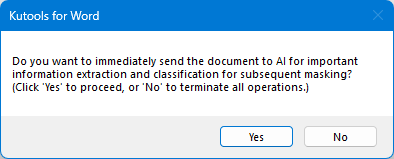
- When the confirmation message appears, click Yes to proceed.
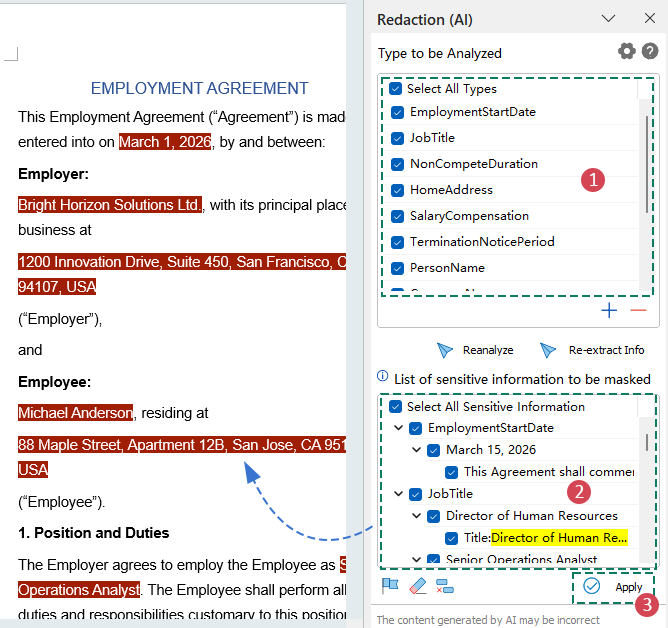
- The Redaction (AI) pane will appear on the right side of the Word window. Kutools AI will automatically analyze the document, and after the analysis is finished, all identified sensitive information will be displayed. 3.1. Select the sensitive information types to be analyzed. All types are selected by default, but you can manually choose the specific data types you want to redact.3.2. Choose the content you want to mask. The List of sensitive information to be masked area displays all items detected by AI. You may select specific entries individually or use Select All Sensitive Information to select all detected items in one step. After selecting the sensitive information items, all corresponding content is highlighted with a dark red background.3.3. After carefully reviewing and confirming the information to be redacted, click the Apply button.
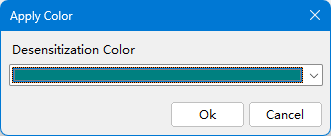
- Then, the Apply Color dialog box opens. Choose a redaction color and click OK.
Your current document will be saved, and a new version with all marked text redacted will be generated. Both documents will then be displayed side by side, as shown in the screenshot: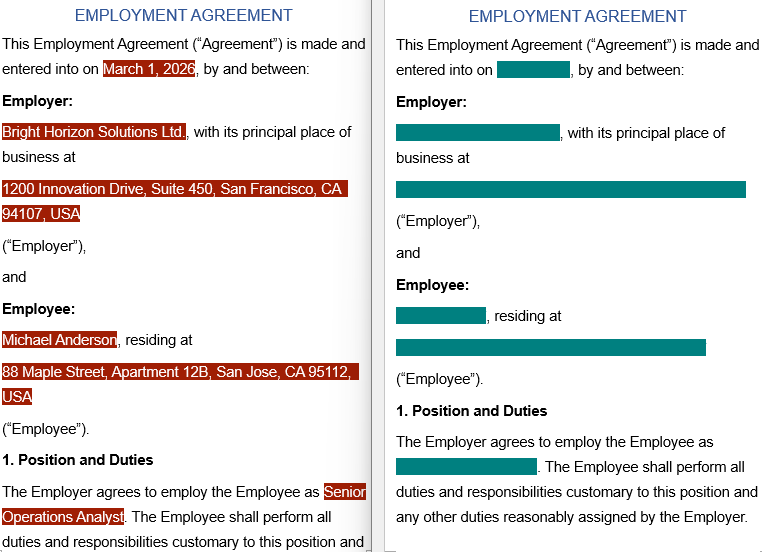
- Add or remove sensitive information types:
 : Click this button to create a new type.
 : Select an unwanted type and click this button to remove it.
 - Manually mark unrecognized content:
If some sensitive information is not automatically detected, click the Mark
 button to manually select the content you want to redact.
 - Clear all marks at once:
To restart or remove all current markings, simply click Clear All Marks
 to clear all redaction marks from the document.
 : Click this button to create a new type.
 : Select an unwanted type and click this button to remove it.
 button to manually select the content you want to redact.
 to clear all redaction marks from the document.
The guide emphasizes the importance of securely obscuring sensitive information, particularly when sharing documents digitally, and suggests converting redacted documents into more secure formats like images. Choose the method that best suits your needs for efficient and reliable redaction. If you're interested in exploring more Word tips and tricks, our website offers hundreds of tutorials.
Best Office Productivity Tools
Kutools for Word - Elevate Your Word Experience with Over 100 Remarkable Features!
🤖 Kutools AI Features: AI Assistant / Real-Time Assistant / Super Polish (Preserve Format) / Super Translate (Preserve Format) / AI Redaction / AI Proofread...
📘 Document Mastery: Split Pages / Merge Documents / Export Selection in Various Formats (PDF/TXT/DOC/HTML...) / Batch Convert to PDF...
✏ Contents Editing: Batch Find and Replace across Multiple Files / Resize All Pictures / Transpose Table Rows and Columns / Convert Table to Text...
🧹 Effortless Clean: Sweap away Extra Spaces / Section Breaks / Text Boxes / Hyperlinks / For more removing tools, head to the Remove group...
➕ Creative Inserts: Insert Thousand Separators / Check Boxes / Radio Buttons / QR Code / Barcode / Multiple Pictures / Discover more in the Insert group...
🔍 Precision Selections: Pinpoint Specific Pages / Tables / Shapes / Heading Paragraphs / Enhance navigation with more Select features...
⭐ Star Enhancements: Navigate to Any Location / Auto-Insert Repetitive Text / Toggle Between Document Windows / 11 Conversion Tools...
🌍 Supports 40+ Languages: Use Kutools in your preferred language – supports English, Spanish, German, French, Chinese, and 40+ others!

Office Tab - Brings Tabbed interface to Office, Make Your Work Much Easier
- Enable tabbed editing and reading in Word, Excel, PowerPoint, Publisher, Access, Visio and Project.
- Open and create multiple documents in new tabs of the same window, rather than in new windows.
- Increases your productivity by 50%, and reduces hundreds of mouse clicks for you every day!
✨ Kutools for Office – One Installation, Five Powerful Tools!
Includes Office Tab Pro · Kutools for Excel · Kutools for Outlook · Kutools for Word · Kutools for PowerPoint
📦 Get all 5 tools in one suite | 🔗 Seamless integration with Microsoft Office | ⚡ Save time and boost productivity instantly
Best Office Productivity Tools
Kutools for Word - 100+ Tools for Word
- 🤖 Kutools AI Features: AI Assistant / Real-Time Assistant / Super Polish / Super Translate / AI Redaction / AI Proofread
- 📘 Document Mastery: Split Pages / Merge Documents / Batch Convert to PDF
- ✏ Contents Editing: Batch Find and Replace / Resize All Pictures
- 🧹 Effortless Clean: Remove Extra Spaces / Remove Section Breaks
- ➕ Creative Inserts: Insert Thousand Separators / Insert Check Boxes / Create QR Codes
- 🌍 Supports 40+ Languages: Kutools speaks your language – 40+ languages supported!
Table of contents
- Redact sensitive text in Word Document
- By using the Text Highlighter tool
- By using a powerful feature
- By using Find and Replace feature
- Redact sensitive text in Word automatically
- Why choose Kutools AI for data redaction?
- How to use the Kutools AI Redaction feature?
- The Best Office Productivity Tools
Kutools for Word
Brings 100+ advanced features to Word
- ⬇️ Free Download
- 🛒 Purchase Now
- 📘 Feature Tutorials
- 🎁 60-Day Free Trial