Optimized Methods to Convert PDF to Word: A Comprehensive Guide
Converting PDF files to editable Word documents is a common necessity in both professional and academic settings. Whether you need to repurpose content, extract data, or make edits to a locked document, having an efficient conversion method is crucial. While the PDF format is excellent for preserving layout, it can be challenging to edit. This article will show you how to convert one or multiple PDF files into editable Word documents using several practical methods.
Convert One PDF File to a Word Document
For individual conversions, you have two primary, reliable options: using Microsoft Word's built-in feature or leveraging a powerful feature of Kutools.
🔹Using the Open Feature to convert one PDF to a Word
- Open Microsoft Word on your computer.
- Click File > Open. Browse and select the PDF file you want to convert. Then click Open.
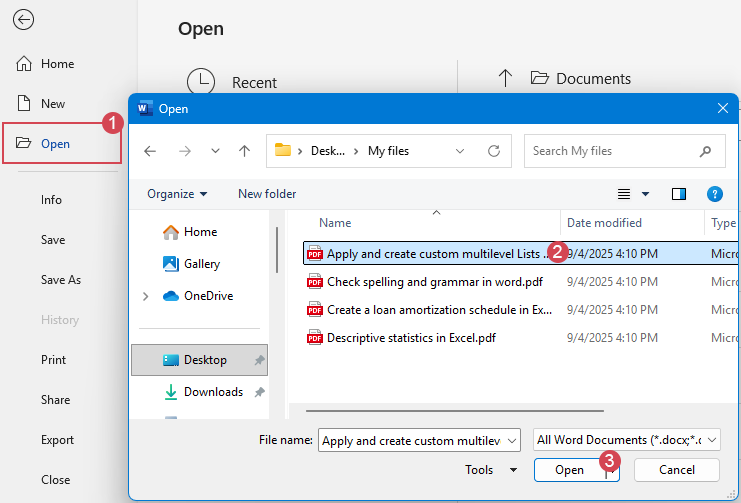
- Word will display a message explaining that it will convert your PDF into an editable Word document and that the layout might not be a perfect match. Click OK to proceed.

- Word will open the converted document in a new window. Carefully review the document. Check for formatting issues like text alignment, image placement, or font changes. Once satisfied, go to File > Save As, choose a location, and save it as a Word Document (.docx).
🔹 Using Kutools for Word to convert one PDF to a Word
For users who need more accurate conversion, flexible control, and support for batch processing, Kutools for Word offers a reliable and efficient PDF-to-Word solution. It helps you save time, reduce manual editing, and ensure professional-grade results every time.
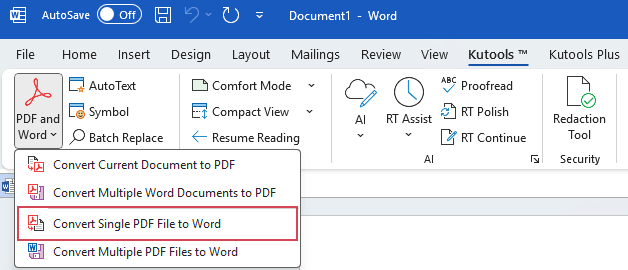
- Click Kutools > PDF and Word > Convert Single PDF File to Word.
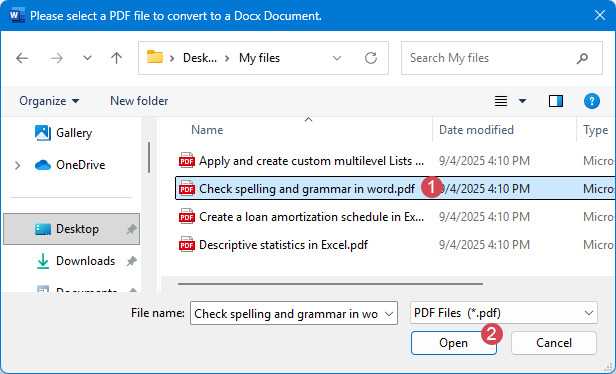
- In the pop-up window, select the PDF file and click Open.
- The new editable Word document will open automatically. Then, you should go to File > Save As, choose a location, and save it as a Word Document (.docx).
Convert Multiple PDF Files to Word Documents
Manually converting dozens or even hundreds of PDF files is time-consuming and inefficient. For bulk operations, automation is the key — you can either use a simple VBA script to process all files in one go, or take advantage of Kutools for Word’s Batch PDF to Word feature for a faster, more user-friendly experience.
🔹 Using VBA Code to convert multiple PDF files to Word documents
For users who prefer automation, a short VBA macro can batch convert multiple PDF files from a folder into Word documents.
- Place all the PDF files you want to convert into a single folder. Open Microsoft Word and press Alt + F11 to open the VBA editor.
- Go to Insert > Module to create a new code module, then copy and paste the below code.
Sub BatchConvertPDFtoWord()
'Updateby Extendoffice
    Dim xFd As FileDialog
    Dim xSelectedFiles As FileDialogSelectedItems
    Dim xFile As Variant
    Dim xDoc As Document
    Dim xOutputPath As String
    Set xFd = Application.FileDialog(msoFileDialogFilePicker)
    With xFd
        .Title = "Select PDF files to convert"
        .Filters.Clear
        .Filters.Add "PDF Files", "*.pdf"
        .AllowMultiSelect = True
        If .Show <> -1 Then Exit Sub
        Set xSelectedFiles = .SelectedItems
    End With
    For Each xFile In xSelectedFiles
        Set xDoc = Documents.Open(FileName:=xFile, ConfirmConversions:=False, ReadOnly:=True)
        xOutputPath = Replace(xFile, ".pdf", ".docx")
        xDoc.SaveAs2 FileName:=xOutputPath, FileFormat:=wdFormatXMLDocument
        xDoc.Close SaveChanges:=False
        Set xDoc = Nothing
    Next xFile
    Set xSelectedFiles = Nothing
    Set xFd = Nothing
End Sub- Press F5 key to run this code, the macro will prompt you to select the folder with your PDFs. Then, click OK button.
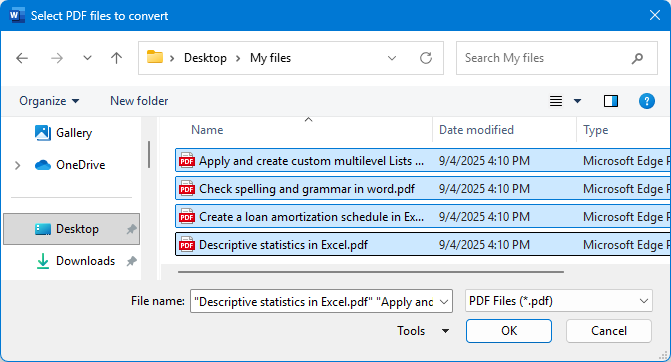
All the PDF files you selected will be converted into Word documents and saved in the same folder as the original PDF files. You can go the folder to view the conversion result: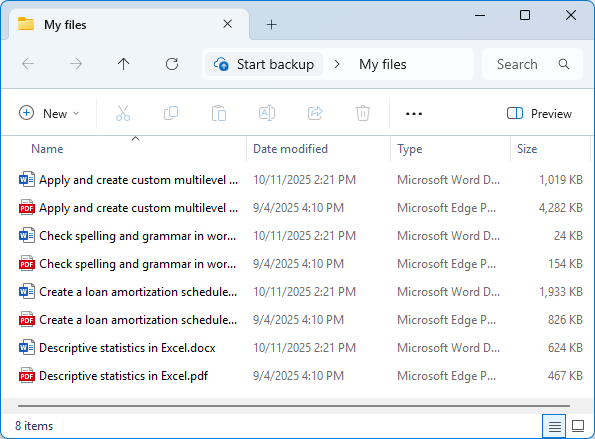
🔹 Using Kutools for Word to convert multiple PDF files to Word documents
For bulk PDF conversions without coding, Kutools for Word offers a straightforward and reliable solution. Its batch conversion feature delivers accurate, high-quality results in just a few clicks.
- Click Kutools > PDF and Word > Convert Multiple PDF Files to Word.
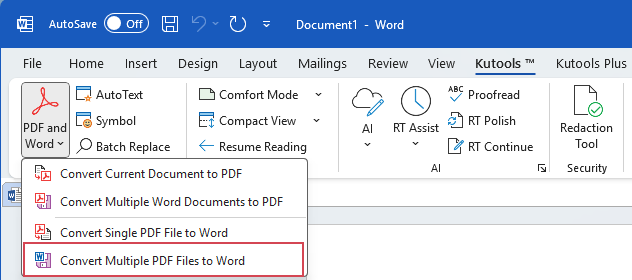
- In the PDF to Docx window:
- 1.1 Click Add Files button to import multiple PDF files. The PDF files will be listed in the Converter List box.
- 1.2 Specify the destination folder for output Word files.
- 1.3 Click the Start Conversion button.
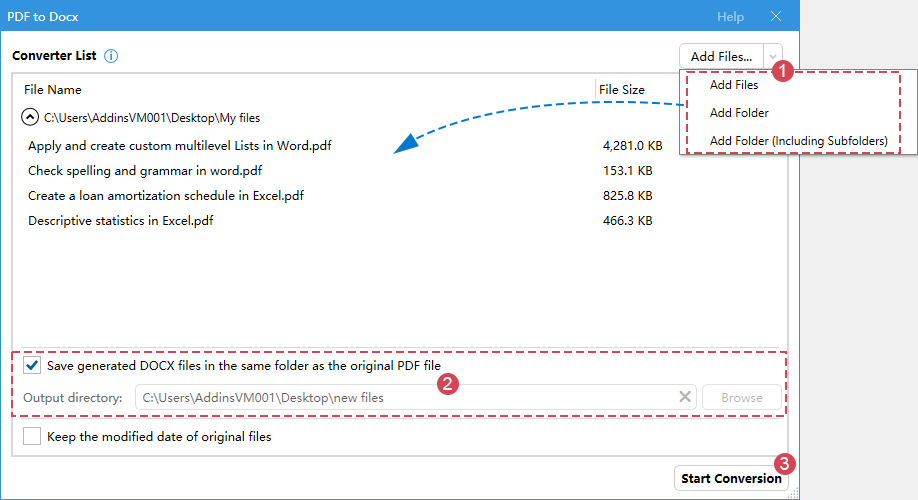
Kutools will process all the files in sequence, converting each one and saving it to the designated folder.
💡 Try It Now
Experience faster, smarter PDF to Word conversion with Kutools for Word.
👉 Download Kutools for Word✅ 60-day free trial | 💳 No credit card required | 🧩 Works with Word 2021–2013
✅ Conclusion
Choosing the right method for converting PDFs to Word depends entirely on your volume and quality requirements.
- Single, simple PDF: Use Word’s Open feature.
- Multiple PDFs + automation: Use VBA macro.
- Multiple PDFs + best accuracy: Use Kutools batch converter.
| Method | Suitable For | Key Features |
|---|---|---|
| Open Feature (Word) | Occasional single PDF conversions | Built-in, simple, free |
| VBA Code | Tech-savvy users | Automates batch conversion |
| Kutools for Word | Everyday and professional users | One-click single or batch conversion, perfect formatting |
Best Office Productivity Tools
Kutools for Word - Elevate Your Word Experience with Over 100 Remarkable Features!
🤖 Kutools AI Features: AI Assistant / Real-Time Assistant / Super Polish (Preserve Format) / Super Translate (Preserve Format) / AI Redaction / AI Proofread...
📘 Document Mastery: Split Pages / Merge Documents / Export Selection in Various Formats (PDF/TXT/DOC/HTML...) / Batch Convert to PDF...
✏ Contents Editing: Batch Find and Replace across Multiple Files / Resize All Pictures / Transpose Table Rows and Columns / Convert Table to Text...
🧹 Effortless Clean: Sweap away Extra Spaces / Section Breaks / Text Boxes / Hyperlinks / For more removing tools, head to the Remove group...
➕ Creative Inserts: Insert Thousand Separators / Check Boxes / Radio Buttons / QR Code / Barcode / Multiple Pictures / Discover more in the Insert group...
🔍 Precision Selections: Pinpoint Specific Pages / Tables / Shapes / Heading Paragraphs / Enhance navigation with more Select features...
⭐ Star Enhancements: Navigate to Any Location / Auto-Insert Repetitive Text / Toggle Between Document Windows / 11 Conversion Tools...
🌍 Supports 40+ Languages: Use Kutools in your preferred language – supports English, Spanish, German, French, Chinese, and 40+ others!

Office Tab - Brings Tabbed interface to Office, Make Your Work Much Easier
- Enable tabbed editing and reading in Word, Excel, PowerPoint, Publisher, Access, Visio and Project.
- Open and create multiple documents in new tabs of the same window, rather than in new windows.
- Increases your productivity by 50%, and reduces hundreds of mouse clicks for you every day!
✨ Kutools for Office – One Installation, Five Powerful Tools!
Includes Office Tab Pro · Kutools for Excel · Kutools for Outlook · Kutools for Word · Kutools for PowerPoint
📦 Get all 5 tools in one suite | 🔗 Seamless integration with Microsoft Office | ⚡ Save time and boost productivity instantly
Best Office Productivity Tools
Kutools for Word - 100+ Tools for Word
- 🤖 Kutools AI Features: AI Assistant / Real-Time Assistant / Super Polish / Super Translate / AI Redaction / AI Proofread
- 📘 Document Mastery: Split Pages / Merge Documents / Batch Convert to PDF
- ✏ Contents Editing: Batch Find and Replace / Resize All Pictures
- 🧹 Effortless Clean: Remove Extra Spaces / Remove Section Breaks
- ➕ Creative Inserts: Insert Thousand Separators / Insert Check Boxes / Create QR Codes
- 🌍 Supports 40+ Languages: Kutools speaks your language – 40+ languages supported!