Pick up where you left off in Word: Resume reading easily
When working with long Word documents—contracts, research papers, reports, or books—it’s easy to lose your place. Scrolling through dozens of pages to find where you last stopped wastes valuable time and breaks your workflow. Thankfully, Microsoft Word offers a feature called "Resume Reading" to help you continue right where you left off.
But what if the built-in feature doesn’t work reliably, or doesn’t appear at all? That’s where Kutools for Word comes in, offering an enhanced Resume Reading tool that works automatically every time you open a document—no clicking, no shortcuts required.
In this tutorial, we’ll explore:
- Use the built-in “Resume Reading” icon
- Use shortcut key: Shift + F5
- Limitations of Word’s default behavior
Why “Pick Up Where You Left Off” Matters

Office Tab
Tabbed navigation for Word, Excel, PowerPoint, and more—just like a web browser, with smooth switching in one window.
Whether you're editing a multi-page legal document or reading a lengthy manuscript, knowing exactly where you stopped last time helps you resume your work more efficiently. Without this feature, users often rely on memory or add temporary bookmarks, which can be error-prone and inconvenient.
“Pick up where you left off” ensures that when you re-open a Word document, you're instantly brought back to the previous spot—saving time and effort, especially for long, non-linear editing tasks.
Manually Resume Reading in Word
Microsoft Word provides two manual methods to return to your previous position in a document: the Resume Reading icon and the Shift + F5 keyboard shortcut. While helpful, these methods require some user interaction and are not always visible or consistent.
Use the Built-in “Resume Reading” Icon
When you reopen a document in Word (Microsoft 365, Word 2016 or later), you may see a small prompt at the right side of the document that says:
Welcome back! Pick up where you left off.

This clickable prompt appears briefly and brings you to your last editing or reading location.
Steps:
- Open a document you were previously working on.
- A prompt will show on the right side of the screen saying “Pick up where you left off”.
- Click that prompt.
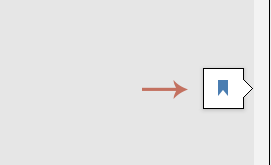
Then Word will instantly scroll to your last editing or reading position.
Use Shortcut Key: Shift + F5
If the resume prompt doesn’t appear, Word also allows you to jump back to your most recent editing or reading location using a shortcut.
Shortcut:
- Press Shift + F5 after opening a document.
- Word will take you to the last place where you edit or read last time.
This works even if the “Pick up where you left off” prompt doesn’t show up.
Limitations of Word’s Default Behavior
While helpful, Word’s native resume reading tools have several limitations:
- ❌ No True Auto-JumpYou always have to click the prompt or press a shortcut—there’s no fully automatic resume experience.
- ❌ Prompt Is UnreliableThe “Welcome back” message doesn’t always appear. It may be suppressed:
- If you saved the file with a new name.
- If you opened the file on a different device.
- If Word crashed or autosave failed.
- ❌ Doesn’t Work Across CopiesIf you email the file to yourself or move it to another folder, the saved reading position is lost.
Automatically Resume Reading with Kutools for Word
Kutools for Word improves the reading experience by automatically triggering Word’s built-in “Pick Up Where You Left Off” function. Once enabled, Kutools takes you directly to your last reading position each time you reopen a document—no manual clicks or shortcuts required.
How to Use Kutools' Resume Reading Feature
After downloading and installing Kutools for Word.
- Open any Word document.
- Go to the Kutools tab in the ribbon and click Resume Reading to enable it.

From now on, Kutools will automatically track your reading position.
The next time you open the same document, it instantly scrolls to where you left off—no need to click or press anything.
Try Kutools for Word today and bring true continuity to your Word workflow.
Conclusion
The “Pick Up Where You Left Off” feature in Word is a powerful time-saver—but only when it works. Word’s built-in tools are helpful but inconsistent and manual.
If you need a more reliable, automatic, and reading-focused solution, Kutools for Word’s Resume Reading feature is the ideal upgrade. With zero clicks or shortcuts needed, it ensures you always land exactly where you left off—no matter how long your document is.
Best Office Productivity Tools
Kutools for Word - Elevate Your Word Experience with Over 100 Remarkable Features!
🤖 Kutools AI Features: AI Assistant / Real-Time Assistant / Super Polish (Preserve Format) / Super Translate (Preserve Format) / AI Redaction / AI Proofread...
📘 Document Mastery: Split Pages / Merge Documents / Export Selection in Various Formats (PDF/TXT/DOC/HTML...) / Batch Convert to PDF...
✏ Contents Editing: Batch Find and Replace across Multiple Files / Resize All Pictures / Transpose Table Rows and Columns / Convert Table to Text...
🧹 Effortless Clean: Sweap away Extra Spaces / Section Breaks / Text Boxes / Hyperlinks / For more removing tools, head to the Remove group...
➕ Creative Inserts: Insert Thousand Separators / Check Boxes / Radio Buttons / QR Code / Barcode / Multiple Pictures / Discover more in the Insert group...
🔍 Precision Selections: Pinpoint Specific Pages / Tables / Shapes / Heading Paragraphs / Enhance navigation with more Select features...
⭐ Star Enhancements: Navigate to Any Location / Auto-Insert Repetitive Text / Toggle Between Document Windows / 11 Conversion Tools...
🌍 Supports 40+ Languages: Use Kutools in your preferred language – supports English, Spanish, German, French, Chinese, and 40+ others!

Office Tab - Brings Tabbed interface to Office, Make Your Work Much Easier
- Enable tabbed editing and reading in Word, Excel, PowerPoint, Publisher, Access, Visio and Project.
- Open and create multiple documents in new tabs of the same window, rather than in new windows.
- Increases your productivity by 50%, and reduces hundreds of mouse clicks for you every day!
✨ Kutools for Office – One Installation, Five Powerful Tools!
Includes Office Tab Pro · Kutools for Excel · Kutools for Outlook · Kutools for Word · Kutools for PowerPoint
📦 Get all 5 tools in one suite | 🔗 Seamless integration with Microsoft Office | ⚡ Save time and boost productivity instantly
Best Office Productivity Tools
Kutools for Word - 100+ Tools for Word
- 🤖 Kutools AI Features: AI Assistant / Real-Time Assistant / Super Polish / Super Translate / AI Redaction / AI Proofread
- 📘 Document Mastery: Split Pages / Merge Documents / Batch Convert to PDF
- ✏ Contents Editing: Batch Find and Replace / Resize All Pictures
- 🧹 Effortless Clean: Remove Extra Spaces / Remove Section Breaks
- ➕ Creative Inserts: Insert Thousand Separators / Insert Check Boxes / Create QR Codes
- 🌍 Supports 40+ Languages: Kutools speaks your language – 40+ languages supported!