Best ways to back up your Word document for easy recovery
Editing a Word document often involves trial and error—tweaking content, layout, or formatting until it feels just right. To avoid losing progress or making irreversible changes, it’s helpful to create temporary backups as you go. In this guide, we’ll walk you through a few effective ways to back up and restore your Word document during editing, including built-in Word methods like Save As and Undo, as well as a more streamlined alternative using Kutools for Word.
Create multiple backup copies using Word's Save As feature
This built-in method works across all versions of Microsoft Word and allows you to manually create different backup versions of your document for easy restoration later. While effective, it does require manual effort and can disrupt your editing flow.
- In the Word document you want to create a backup for, click File > Save As.
- Save a copy of the document with a different name, such as:
- Example_v1.docx
- Example_before_revision.docx
- Specify the save location above the file name box. It is recommended to store all backups of the same document in one folder for easier management.
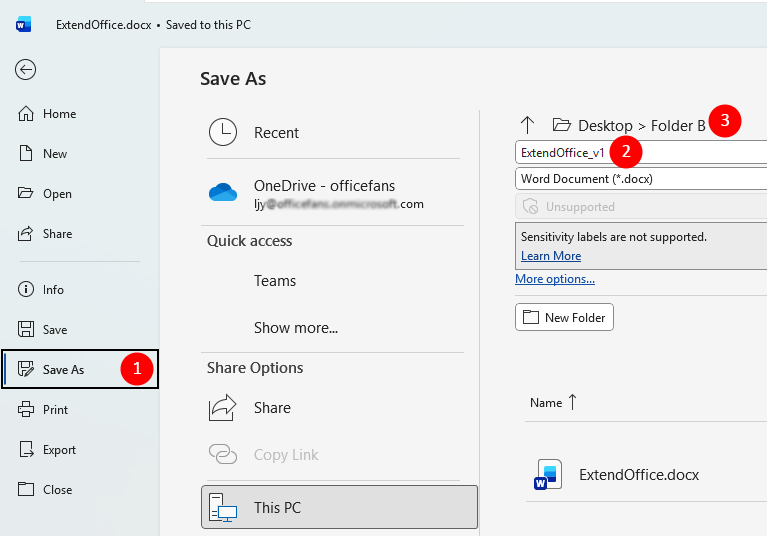
Once the backup is saved, you can continue editing the original document and create additional backups later if needed.
Pros and cons
Pros
- Works in all versions of Word
- Creates a clear restore point
Cons
- Interrupts your workflow
- Creates multiple files to manage
- Easy to forget to save at the right moment
Temporarily back up with one click using Kutools Snapshot
If you want a more efficient and seamless way to back up your document without saving multiple files, Kutools for Word offers a powerful Snapshot feature. It lets you capture the current state of a document with one click and restore it at any time during your session. This eliminates the need to manage multiple copies and provides quick, precise restore points directly within Word.
Kutools for Word
Kutools for Word helps you handle everyday document tasks faster with practical tools built right into Microsoft Word—no coding, no complex setup.
- AI writing, polishing, translation, and summarization
- Batch find and replace across documents
- Merge and split Word documents easily
- Batch Word ↔ PDF conversion
- In the Word document you want to create a backup for, click Kutools Plus > Snapshot > Take Document Snapshot.

- When prompted with a warning dialog, confirm by clicking OK to proceed with taking the snapshot.
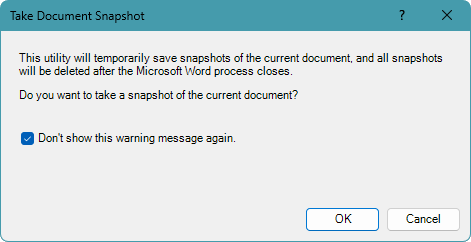
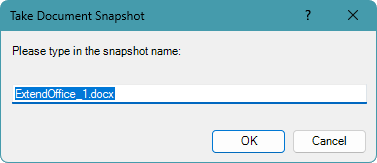
- Next, enter a name for the snapshot in the input box and click OK to save it.
- The snapshot will appear under the Snapshot dropdown with its name and timestamp, allowing you to restore it at any time during the session.
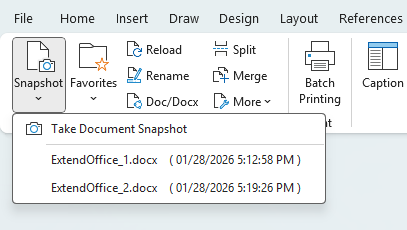
You can continue saving new snapshots throughout your editing session to capture different restore points. To restore a previous version, simply click on the desired snapshot from the dropdown list, and your document will revert to that exact state instantly.
Pros and cons
Pros
- No extra files are created
- Snapshots are taken instantly with one click
- Multiple snapshots can be taken during a session
- Restore takes just one click — no need to search for files or versions
Cons
- Snapshots are session-based and disappear when Word is closed
- Requires Kutools for Word
Other common (but limited) workarounds
Before choosing a method, it’s helpful to understand the strengths and limitations of Word’s built-in features. These quick tools are helpful in certain situations, but not reliable for full document backups or recovery.
Undo Ctrl + Z
The Undo feature is great for reversing recent actions such as deleting text, applying formatting, or making small changes. However, it has a limited history and resets when you close the document. You also can’t selectively undo a specific change without reverting all steps after it.
Copy and paste content elsewhere
This method involves manually copying parts of your document into another file, email, or notes app before making changes. While simple and quick, it lacks structure and can be error-prone. It doesn't track formatting, styles, or structure, and your backups can easily get lost or overwritten.
Track Changes
Track Changes highlights all edits, making it useful for collaboration and review. However, it doesn’t function as a true backup tool. You can't roll back to a specific point in time—only accept or reject each change. It’s helpful for reviewing, but not for restoring.
Which backup method works best for you?
| Method | Best for | Limitations |
|---|---|---|
| Save As (multiple copies) | Long-term backups | File clutter, workflow interruption |
| Kutools Snapshot | Quick restore points | Requires Kutools for Word |
| Undo | Minor, recent edits | Limited and temporary |
| Copy & paste | Quick manual backup | Easy to lose, not structured |
Conclusion
When working on Word documents, the right backup approach depends on how often and how extensively you edit. For occasional changes, manually saving multiple copies using Save As can be sufficient, even though it may interrupt your workflow and create extra files.
If you frequently experiment with content, formatting, or structure, using a snapshot-based approach can be more efficient. The Snapshot feature in Kutools for Word allows you to capture and restore the exact state of a document with a single click, without managing separate backup files.
By choosing the method that best fits your editing habits—whether manual backups or in-session snapshots—you can work more confidently, knowing your changes are easy to restore if needed.
I hope you found this tutorial helpful. If you'd like to explore more Word tips and practical solutions, please click here to browse our full collection of Word tutorials.
Best Office Productivity Tools
Kutools for Word - Elevate Your Word Experience
🤖 Kutools AI Features: AI Assistant / Real-Time Assistant / Super Polish (Preserve Format) / Super Translate (Preserve Format) / AI Redaction / AI Proofread...
📘 Document Mastery: Split Pages / Merge Documents / Export Selection in Various Formats (PDF/TXT/DOC/HTML...) / Batch Convert to PDF...
✏ Contents Editing: Batch Find and Replace across Multiple Files / Resize All Pictures / Transpose Table Rows and Columns / Convert Table to Text...
🧹 Effortless Clean: Sweap away Extra Spaces / Section Breaks / Text Boxes / Hyperlinks / For more removing tools, head to the Remove group...
➕ Creative Inserts: Insert Thousand Separators / Check Boxes / Radio Buttons / QR Code / Barcode / Multiple Pictures / Discover more in the Insert group...
🔍 Precision Selections: Pinpoint Specific Pages / Tables / Shapes / Heading Paragraphs / Enhance navigation with more Select features...
⭐ Star Enhancements: Navigate to Any Location / Auto-Insert Repetitive Text / Toggle Between Document Windows / 11 Conversion Tools...
🌍 Supports 40+ Languages: Use Kutools in your preferred language – supports English, Spanish, German, French, Chinese, and 40+ others!

Office Tab - Tabs for Office, Power for You
- Enable tabbed editing and reading in Word, Excel, PowerPoint, Publisher, Access, Visio and Project.
- Open and create multiple documents in new tabs of the same window, rather than in new windows.
- Increases your productivity by 50%, and reduces hundreds of mouse clicks for you every day!

✨ Kutools for Office – One Installation, Five Powerful Tools!
Includes Office Tab Pro · Kutools for Excel · Kutools for Outlook · Kutools for Word · Kutools for PowerPoint
📦 Get all 5 tools in one suite | 🔗 Seamless integration with Microsoft Office | ⚡ Save time and boost productivity instantly
Best Office Productivity Tools
Kutools for Word - 100+ Tools for Word
- 🤖 Kutools AI Features: AI Assistant / Real-Time Assistant / Super Polish / Super Translate / AI Redaction / AI Proofread
- 📘 Document Mastery: Split Pages / Merge Documents / Batch Convert to PDF
- ✏ Contents Editing: Batch Find and Replace / Resize All Pictures
- 🧹 Effortless Clean: Remove Extra Spaces / Remove Section Breaks
- ➕ Creative Inserts: Insert Thousand Separators / Insert Check Boxes / Create QR Codes
- 🌍 Supports 40+ Languages: Kutools speaks your language – 40+ languages supported!
Table of Contents
- Back up your Word documents
- Using the Save As feature
- Using Kutools for Word
- Using other workarounds
- Which backup method works best for you?
- The Best Office Productivity Tools
Kutools for Word
Brings 100+ advanced features to Word
- 🧩 Overview
- 📥 Free Download
- 🛒 Purchase Now
- 🎁 60-Day Free Trial available