How to manage multiple related documents in Word
If you work on projects, clients, or reports in Microsoft Word, you likely keep a set of related documents that you revisit again and again. While Word makes it easy to open files, it doesn’t provide a true built-in “document group manager” where you can create named groups and maintain them over time.
In this tutorial, you’ll learn practical ways to manage multiple related Word documents. We’ll show how Kutools for Word lets you organize documents into reusable groups directly inside Word, and then cover a simple native workaround using File Explorer for basic document management.
Manage document groups inside Word with Kutools
If you want true “document group management” inside Word—where groups behave like folders in Word and can be reused anytime—Kutools for Word provides a dedicated feature for this: Organize Document Group.
With Kutools, you can create named groups, add or remove documents from a group, and keep your project sets available directly from the Word ribbon.
Kutools for Word
Kutools for Word helps you handle everyday document tasks faster with practical tools built right into Microsoft Word—no coding, no complex setup.
- AI writing, polishing, translation, and summarization
- Batch find and replace across documents
- Merge and split Word documents easily
- Batch Word ↔ PDF conversion
Step 1: Create a document group
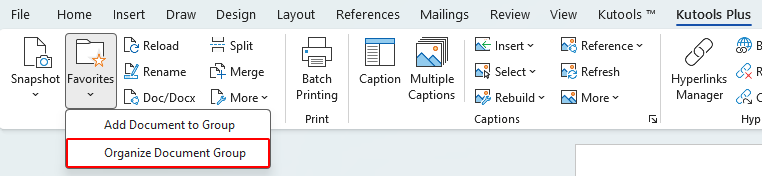
- Open Word, then click Kutools Plus > Favorites > Organize Document Group.
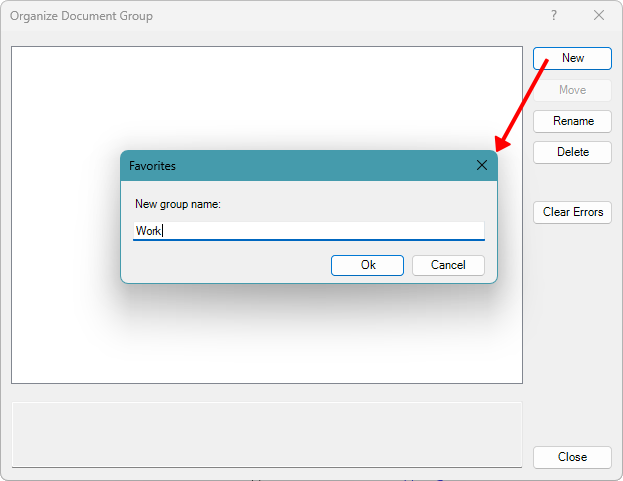
- In the Organize Document Group dialog, click New.
- In the Favorites dialog that appears, enter a name for the new group, then click OK.
Step 2: Add documents to the group
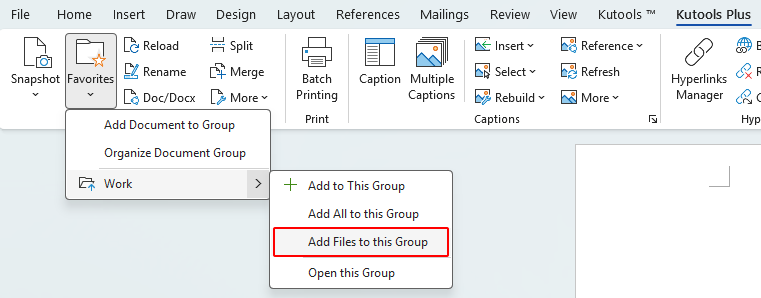
- Click Kutools Plus > Favorites, then expand your group from the menu.
- Click Add Files to this Group to browse your computer and select documents to add to the group.
Note:
You can also add the current document by selecting Add to this Group, or add all currently opened documents by choosing Add All to this Group.
Step 3: Manage and maintain document groups
After creating document groups and adding files, you can keep them up to date by moving documents between groups, renaming groups or documents, and removing items you no longer need. All of these actions are performed in the Organize Document Group dialog.
Move documents between different groups
- Click Kutools Plus > Favorites > Organize Document Group.
- In the Organize Document Group dialog, select the document you want to move, right-click it, and choose Cut.
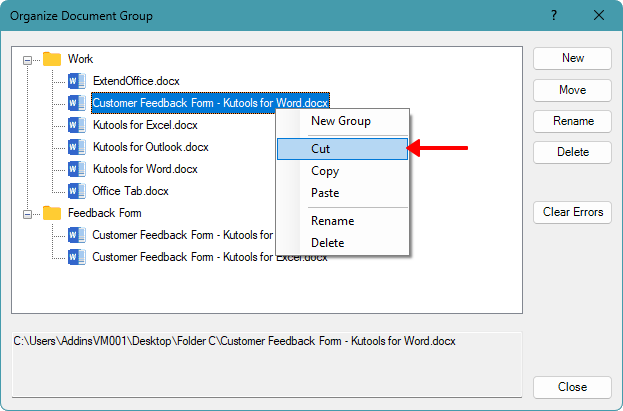
- Select the destination group, right-click it, and choose Paste.
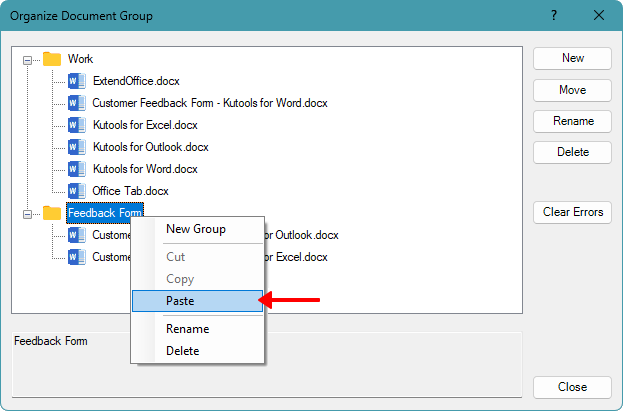
Note:
You can also copy a document to another group if you want the same document to appear in multiple groups.
Rename document groups and documents
- Click Kutools Plus > Favorites > Organize Document Group.
- In the Organize Document Group dialog, select the group or document you want to rename.
- Click Rename.
- Enter a new name and press Enter.
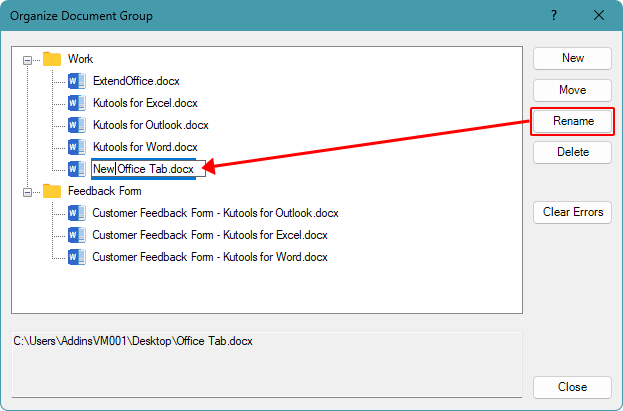
Notes:
- This action only changes the name shown in the group list; it does not rename the actual file on your computer.
- You can also right-click a document or group and choose Rename from the context menu.
Delete document groups and documents
You can remove documents or entire groups from the list at any time without deleting the original files on your computer.
- Click Kutools Plus > Favorites > Organize Document Group.
- In the Organize Document Group dialog, select the document or group you want to remove.
- Click the Delete button in the right panel.
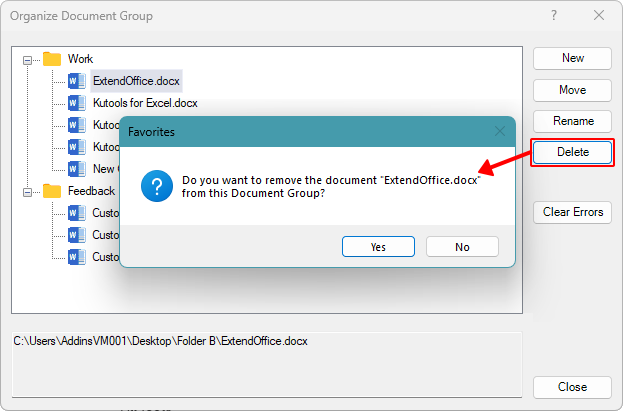
Note:
Deleting a document or group here only removes it from the group list. The original document file remains unchanged on your computer.
Pros
- Create reusable document groups inside Word
- Quickly add/remove documents as the project changes
- Groups can include documents from different folders/locations
- Open all documents in a group with one click, ideal for users who regularly edit the same document set
Cons
- Requires installing Kutools for Word
- If files are moved or renamed, saved paths may need updating
Workaround: Manage related documents using File Explorer
If you prefer not to use add-ins, the most practical native workaround is to manage related documents as a folder-based set in File Explorer. In this case, the folder itself acts as the “group.”
- Create a dedicated folder for each project or task.
- Move all related Word documents into that folder.
- Use subfolders or clear naming conventions to keep documents organized.
Pros
- Fully native solution with no add-ins required
- Easy to share or move an entire project as a single folder
Cons
- No document group management inside Word
- No named groups or one-click group actions
- Less flexible if related files are stored in different locations
- If a document is copied to another folder, changes made to one copy do not affect the other
Conclusion
Managing multiple related documents is a common task for Word users, but Word itself does not offer a native way to create and manage document groups directly inside the application. Using File Explorer as a workaround can help organize files at the folder level, but it lacks flexibility and in-Word group actions.
If you regularly work with the same set of documents and want a more efficient, Word-centered solution, Kutools for Word provides a clear advantage. With its Organize Document Group feature, you can create reusable groups, manage documents easily, and open all files in a group with one click—making it especially suitable for users who frequently edit the same document sets.
By choosing the approach that best fits your workflow—whether a simple folder-based workaround or a dedicated document grouping tool—you can significantly improve how you manage and work with related Word documents.
I hope you found this tutorial helpful. If you’d like to explore more Word tips and practical solutions, please click here to browse our full collection of Word tutorials.
Best Office Productivity Tools
Kutools for Word - Elevate Your Word Experience
🤖 Kutools AI Features: AI Assistant / Real-Time Assistant / Super Polish (Preserve Format) / Super Translate (Preserve Format) / AI Redaction / AI Proofread...
📘 Document Mastery: Split Pages / Merge Documents / Export Selection in Various Formats (PDF/TXT/DOC/HTML...) / Batch Convert to PDF...
✏ Contents Editing: Batch Find and Replace across Multiple Files / Resize All Pictures / Transpose Table Rows and Columns / Convert Table to Text...
🧹 Effortless Clean: Sweap away Extra Spaces / Section Breaks / Text Boxes / Hyperlinks / For more removing tools, head to the Remove group...
➕ Creative Inserts: Insert Thousand Separators / Check Boxes / Radio Buttons / QR Code / Barcode / Multiple Pictures / Discover more in the Insert group...
🔍 Precision Selections: Pinpoint Specific Pages / Tables / Shapes / Heading Paragraphs / Enhance navigation with more Select features...
⭐ Star Enhancements: Navigate to Any Location / Auto-Insert Repetitive Text / Toggle Between Document Windows / 11 Conversion Tools...
🌍 Supports 40+ Languages: Use Kutools in your preferred language – supports English, Spanish, German, French, Chinese, and 40+ others!

Office Tab - Tabs for Office, Power for You
- Enable tabbed editing and reading in Word, Excel, PowerPoint, Publisher, Access, Visio and Project.
- Open and create multiple documents in new tabs of the same window, rather than in new windows.
- Increases your productivity by 50%, and reduces hundreds of mouse clicks for you every day!

✨ Kutools for Office – One Installation, Five Powerful Tools!
Includes Office Tab Pro · Kutools for Excel · Kutools for Outlook · Kutools for Word · Kutools for PowerPoint
📦 Get all 5 tools in one suite | 🔗 Seamless integration with Microsoft Office | ⚡ Save time and boost productivity instantly
Best Office Productivity Tools
Kutools for Word - 100+ Tools for Word
- 🤖 Kutools AI Features: AI Assistant / Real-Time Assistant / Super Polish / Super Translate / AI Redaction / AI Proofread
- 📘 Document Mastery: Split Pages / Merge Documents / Batch Convert to PDF
- ✏ Contents Editing: Batch Find and Replace / Resize All Pictures
- 🧹 Effortless Clean: Remove Extra Spaces / Remove Section Breaks
- ➕ Creative Inserts: Insert Thousand Separators / Insert Check Boxes / Create QR Codes
- 🌍 Supports 40+ Languages: Kutools speaks your language – 40+ languages supported!
Table of Contents
- Manage document groups inside Word with Kutools
- Workaround: Manage related documents using File Explorer
- The Best Office Productivity Tools
Kutools for Word
Brings 100+ advanced features to Word
- 🧩 Overview
- 📥 Free Download
- 🛒 Purchase Now
- 🎁 60-Day Free Trial available