Word Tutorial: Remove the Thousands Separator (Comma) from Numbers in Bulk
If your Word document contains numbers like 1,234 or 1,234,567, the commas are thousands separators. In many English (US/UK) formats, the thousands separator is a comma, and it’s common to remove it when preparing clean data, importing text into another system, or standardizing reports.
Below are two reliable ways to remove thousands separators (commas) from numbers in bulk: (1) Word’s built-in Find & Replace using Use wildcards, and (2) Kutools for Word’s one-click command: Remove All Thousand Separators in Selected Range.

💡 Quick Navigation:
What is a thousands separator in Word?
A thousands separator is the symbol used to group digits in large numbers for readability: 1,234, 12,345, 1,234,567. In US/UK number formats it’s usually a comma, but in some locales it can be a period or a space. This tutorial focuses on the comma thousands separator commonly seen in English documents.
⚠️ Before you start (to avoid mistakes)
- Decide scope: Do you want to fix only a selected section/table, or the entire document?
- Preview first: Use “Find Next” a couple of times before “Replace All” to confirm you’re only matching numeric commas.
- Watch out for non-numeric commas: dates (January 1, 2026), addresses, and normal punctuation in sentences.
- Decimals and negatives: numbers like 1,234.56 and -1,234 should still work with the patterns below.
Method 1 (Built-in): Word Find & Replace with Wildcards
This method uses Word’s built-in Find & Replace with the Use wildcards option to remove commas only when they act as thousands separators (for example, 1,234 → 1234).
- Select the range you want to process (a section, paragraph, or table). Tip: To process the entire document, press Ctrl + A first.
- Press Ctrl + H to open the Find and Replace dialog.
- Click More >>, then check Use wildcards.
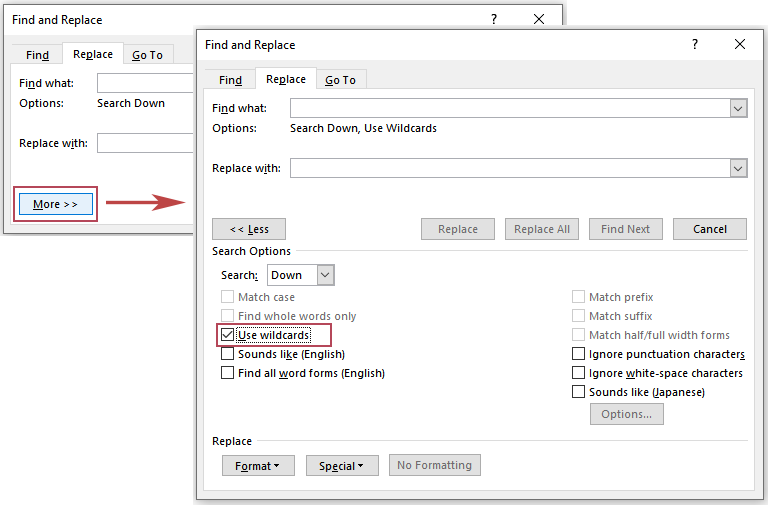 Tip: If Use wildcards is not enabled, the patterns below won’t work as intended.
 - In the Find and Replace dialog, use the following pattern (you can copy and paste):
- Find what:
([0-9]{1,3}),([0-9]{3}) - Replace with:
\1\2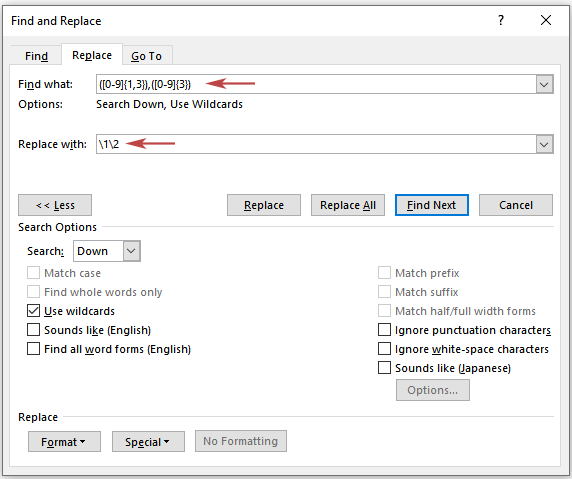
- Find what:
- Click Replace All. Then Word prompts to ask whether to search the rest of the document. Click No to keep changes in the current selection, or Yes to continue through the full document.
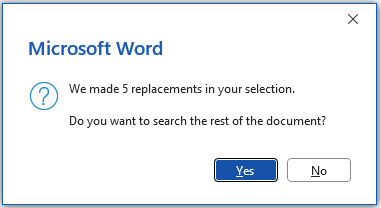 Tips:
Tips:- If your document includes numbers like 1,234,567, run Replace All again (and repeat as needed) until Word reports 0 replacements.
Why: The pattern removes one thousands comma per pass (e.g., 1,234,567 becomes 1234,567 after the first pass, then 1234567 after the second pass). - If necessary, before you click Replace All, you can click Find Next a few times to preview what Word will match.
- If your document includes numbers like 1,234,567, run Replace All again (and repeat as needed) until Word reports 0 replacements.
Result: Word removes the comma thousands separators from numbers in the selected range (for example, 1,234 → 1234 and 1,234,567 → 1234567).
- No add-ins required: Works in standard Microsoft Word.
- Selection control: You can limit changes to a specific section or table.
- Flexible: The wildcard pattern can be adapted (for example, if your separator is a period).
- Not beginner-friendly: You must enable Use wildcards and enter the pattern correctly.
- May require multiple passes: Numbers like 1,234,567 often need repeated Replace All.
- Easy to misapply in mixed text: You should preview with Find Next to avoid unexpected matches.
- How the wildcard works:
([0-9]{1,3}),([0-9]{3})matches a comma only when it sits between digit groups (like 1,234).\1\2keeps the digits and removes the comma. - Quick verification: Keep Use wildcards enabled and search
[0-9],[0-9]to spot remaining digit-comma-digit cases. If anything looks wrong, press Ctrl + Z and retry on a smaller selection. - Different locale: If your thousands separator is a period (e.g., 1.234), use Find what =
([0-9]{1,3})\.([0-9]{3})· Replace with =\1\2
Method 2 (Fastest): Kutools for Word — One Click to Remove All Thousand Separators
If you work with large documents or want a one-click approach, Kutools for Word includes a dedicated command: Remove All Thousand Separators in Selected Range.
Remove thousand separators from a selected range
After downloading and installing Kutools for Word from the official website, do the following:
- Select the text or table range that contains the numbers you want to fix.
- Go to Kutools > Remove > Remove All Thousand Separators in Selected Range.
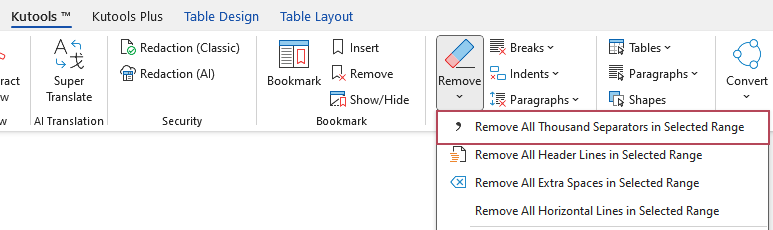
Result: Kutools instantly remove all thousand separators from the selected range.
Remove thousand separators from the entire document
After downloading and installing Kutools for Word from the official website, do the following:
- Click anywhere in the document (do not select anything).
- Run the same command: Kutools > Remove > Remove All Thousand Separators in Selected Range.
- Confirm the prompt to apply it to the whole document.
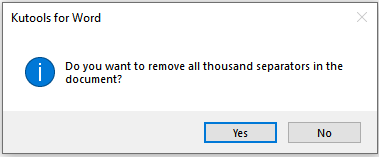
Result: With one click, Kutools removes all thousands separators across the entire document.
- One-click: removes thousands separators instantly
- Works on a selection or the whole document
- No wildcards or patterns to remember
- Fast and consistent for long documents
Troubleshooting
- “Use wildcards” isn’t visible: click More >> in the Find and Replace dialog.
- Only one comma was removed in 1,234,567: run Replace All again until no matches remain.
- It removed commas you wanted to keep: undo (Ctrl+Z), then select only the numeric section/table and try again.
- Your thousands separator isn’t a comma: In some number formats, the thousands separator is a period (for example, 1.234). Use Find what =
([0-9]{1,3}).([0-9]{3})· Replace with =\1\2.
FAQ
Will this remove commas in normal sentences?
If you use the recommended wildcard pattern in Word, it targets commas only when they appear between digit groups (for example, 1,234), not punctuation commas in normal sentences. Still, it’s best to click Find Next a few times before Replace All—especially in mixed text.
If you want the fastest and simplest option, Kutools for Word does it in one click: select the range (or run it on the whole document) and it removes thousands separators instantly—no patterns to remember.
Does it work for decimals like 1,234.56?
Yes. The pattern removes the comma thousands separator and leaves the decimal portion intact.
Is “thousands separator” always a comma?
Not always. In US/UK formats it’s typically a comma, but some locales use a period or space. This article focuses on the comma thousands separator commonly seen in English Word documents.
Best Office Productivity Tools
Kutools for Word - Elevate Your Word Experience with Over 100 Remarkable Features!
🤖 Kutools AI Features: AI Assistant / Real-Time Assistant / Super Polish (Preserve Format) / Super Translate (Preserve Format) / AI Redaction / AI Proofread...
📘 Document Mastery: Split Pages / Merge Documents / Export Selection in Various Formats (PDF/TXT/DOC/HTML...) / Batch Convert to PDF...
✏ Contents Editing: Batch Find and Replace across Multiple Files / Resize All Pictures / Transpose Table Rows and Columns / Convert Table to Text...
🧹 Effortless Clean: Sweap away Extra Spaces / Section Breaks / Text Boxes / Hyperlinks / For more removing tools, head to the Remove group...
➕ Creative Inserts: Insert Thousand Separators / Check Boxes / Radio Buttons / QR Code / Barcode / Multiple Pictures / Discover more in the Insert group...
🔍 Precision Selections: Pinpoint Specific Pages / Tables / Shapes / Heading Paragraphs / Enhance navigation with more Select features...
⭐ Star Enhancements: Navigate to Any Location / Auto-Insert Repetitive Text / Toggle Between Document Windows / 11 Conversion Tools...
🌍 Supports 40+ Languages: Use Kutools in your preferred language – supports English, Spanish, German, French, Chinese, and 40+ others!

Office Tab - Brings Tabbed interface to Office, Make Your Work Much Easier
- Enable tabbed editing and reading in Word, Excel, PowerPoint, Publisher, Access, Visio and Project.
- Open and create multiple documents in new tabs of the same window, rather than in new windows.
- Increases your productivity by 50%, and reduces hundreds of mouse clicks for you every day!
✨ Kutools for Office – One Installation, Five Powerful Tools!
Includes Office Tab Pro · Kutools for Excel · Kutools for Outlook · Kutools for Word · Kutools for PowerPoint
📦 Get all 5 tools in one suite | 🔗 Seamless integration with Microsoft Office | ⚡ Save time and boost productivity instantly
Best Office Productivity Tools
Kutools for Word - 100+ Tools for Word
- 🤖 Kutools AI Features: AI Assistant / Real-Time Assistant / Super Polish / Super Translate / AI Redaction / AI Proofread
- 📘 Document Mastery: Split Pages / Merge Documents / Batch Convert to PDF
- ✏ Contents Editing: Batch Find and Replace / Resize All Pictures
- 🧹 Effortless Clean: Remove Extra Spaces / Remove Section Breaks
- ➕ Creative Inserts: Insert Thousand Separators / Insert Check Boxes / Create QR Codes
- 🌍 Supports 40+ Languages: Kutools speaks your language – 40+ languages supported!
Table of contents
- What is a thousands separator in Word?
- Method 1 (Built-in): Word Find & Replace with Wildcards
- Method 2 (Fastest): Kutools for Word
- Remove thousand separators from a selected range
- Remove thousand separators from the entire document
- Troubleshooting
- FAQ
- The Best Office Productivity Tools
Kutools for Word
Brings 100+ advanced features to Word
- ⬇️ Free Download
- 🛒 Purchase Now
- 📘 Feature Tutorials
- 🎁 60-Day Free Trial