Convert a Word Document or Selected Content to HTML Format – Full Guide
Converting Microsoft Word content to HTML is a common requirement for publishing articles on websites, blogs, knowledge bases, or help centers. HTML files preserve structure and allow your content to be displayed consistently across browsers and platforms. This guide covers multiple approaches for converting entire documents or selected portions to clean HTML.

Convert a Word Document to HTML format file
Convert a Word Document to HTML format file
Microsoft Word includes a built-in feature that allows you to convert an entire document into an HTML file without installing any additional tools. This method is ideal when you need to publish Word content on a website, blog, or online documentation platform quickly.
By saving a document as a web page, Word automatically converts text, headings, lists, tables, and images into HTML-compatible elements, ensuring your content displays correctly in web browsers.
- Open the Word document you want to convert. Click File > Save As.
- Choose a destination folder.
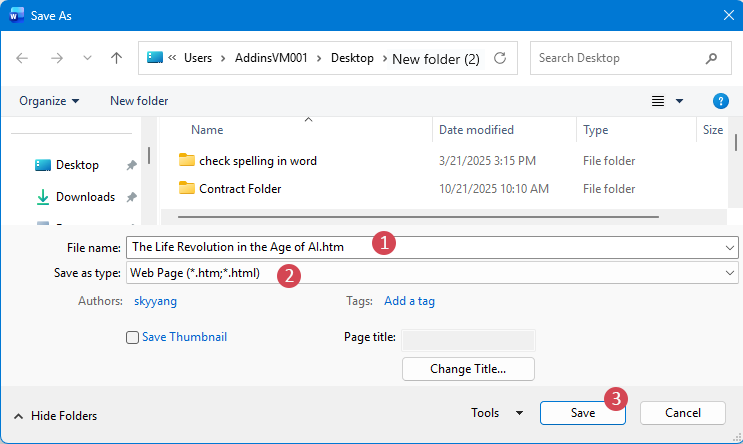
- In the Save as window,
- Enter a file name into the File Name textbox;
- In the Save as type dropdown list, select Web Page (.htm; .html);
- Click Save button.

- Built into Microsoft Word, no extra tools required
- Very easy to use and beginner-friendly
- Quickly converts the entire document
- Preserves basic formatting such as headings, lists, tables, and images
- Exports the entire document only (no partial selection)
- Generates relatively verbose and less clean HTML code
Convert selected content to HTML format file
If you only need part of a Word document—such as a section, table, or article—you can convert just the selected content to HTML, keeping the output clean and focused without exporting the entire file. This section introduces practical methods to help you do that efficiently.
Convert selected content to HTML format with VBA code
VBA allows you to export only the selected content to an HTML file, which is especially useful for automation or batch workflows.
- Select the content you want to convert in your Word document.
- Hold down Alt + F11 to open the Microsoft Visual Basic for Applications window.
- Click Insert > Module, and paste the following VBA code into the Module window
Sub ExportSelectedToHTML() Dim objDoc As Document Dim objSelectedRange As Range Dim strFilePath As String Dim fso As Object If Selection.Type = wdSelectionIP Then MsgBox "Please select a range of text or content to proceed.!", vbExclamation, "Kutools for word" Exit Sub End If strFilePath = CreateObject("WScript.Shell").SpecialFolders("Desktop") & "\WordExport.html" Set objSelectedRange = Selection.Range objSelectedRange.Copy Set objDoc = Documents.Add(Visible:=False) objDoc.Range.Paste On Error Resume Next objDoc.SaveAs2 FileName:=strFilePath, FileFormat:=wdFormatFilteredHTML objDoc.Close SaveChanges:=False On Error GoTo 0 MsgBox "Exported successfully! File saved to desktop:" & vbCrLf & strFilePath, vbInformation, "????" End Sub - Press F5 to run the macro. After converting, a message box will appear to confirm that the export was successful and display the location where the HTML file has been saved.
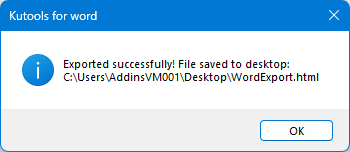
- Click OK to finish.
- Allows precise export of only the selected content
- Suitable for automation and repeated tasks
- Keeps the original document unchanged
- Requires VBA knowledge
- Macros must be enabled, which may be restricted in some environments
- Not beginner-friendly
Convert selected content to HTML format with Kutools for Word
If you’re looking for a fast and user-friendly way to export selected content from a Word document to HTML, Kutools for Word offers an efficient no-code solution. With just a few clicks, you can convert a specific section, table, or article into an HTML file while keeping the original document intact and well formatted.
Once Kutools for Word is installed, follow these steps to export your content:
- Select the part of content or whole document you want to convert.
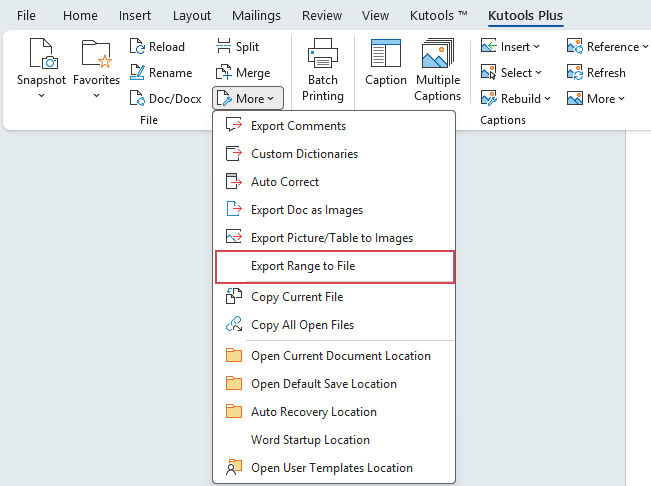
- Then, click Kutools Plus > More > Export Range to File, see screenshot:
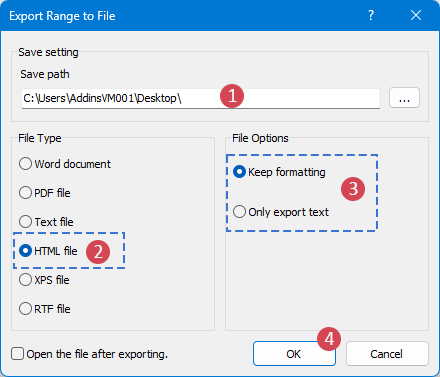
- In the Export Range to File dialog box, please do the following options:
- Click the Browse button to choose a save location.
- Under File Type, select HTML file.
- Under File Options, choose Keep formatting to preserve the original layout and styles, or select Only export text if you want to export plain text without any formatting.
- Click OK to start the export.
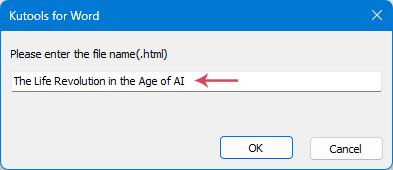
- In the popped-out dialog box, enter a name for the new file.
- No coding or technical knowledge required
- Supports exporting selected content or entire documents
- Clean and well-structured HTML output
- Preserves formatting accurately
- Fast and efficient, ideal for frequent use
Learn More
Conclusion
- Built-in Save As is perfect for quick, full-document conversions.
- VBA code offers precision and automation for selected content.
- Kutools for Word delivers the fastest and most user-friendly experience, especially when exporting specific sections without touching code.
Best Office Productivity Tools
Kutools for Word - Elevate Your Word Experience with Over 100 Remarkable Features!
🤖 Kutools AI Features: AI Assistant / Real-Time Assistant / Super Polish (Preserve Format) / Super Translate (Preserve Format) / AI Redaction / AI Proofread...
📘 Document Mastery: Split Pages / Merge Documents / Export Selection in Various Formats (PDF/TXT/DOC/HTML...) / Batch Convert to PDF...
✏ Contents Editing: Batch Find and Replace across Multiple Files / Resize All Pictures / Transpose Table Rows and Columns / Convert Table to Text...
🧹 Effortless Clean: Sweap away Extra Spaces / Section Breaks / Text Boxes / Hyperlinks / For more removing tools, head to the Remove group...
➕ Creative Inserts: Insert Thousand Separators / Check Boxes / Radio Buttons / QR Code / Barcode / Multiple Pictures / Discover more in the Insert group...
🔍 Precision Selections: Pinpoint Specific Pages / Tables / Shapes / Heading Paragraphs / Enhance navigation with more Select features...
⭐ Star Enhancements: Navigate to Any Location / Auto-Insert Repetitive Text / Toggle Between Document Windows / 11 Conversion Tools...
🌍 Supports 40+ Languages: Use Kutools in your preferred language – supports English, Spanish, German, French, Chinese, and 40+ others!

Office Tab - Brings Tabbed interface to Office, Make Your Work Much Easier
- Enable tabbed editing and reading in Word, Excel, PowerPoint, Publisher, Access, Visio and Project.
- Open and create multiple documents in new tabs of the same window, rather than in new windows.
- Increases your productivity by 50%, and reduces hundreds of mouse clicks for you every day!
✨ Kutools for Office – One Installation, Five Powerful Tools!
Includes Office Tab Pro · Kutools for Excel · Kutools for Outlook · Kutools for Word · Kutools for PowerPoint
📦 Get all 5 tools in one suite | 🔗 Seamless integration with Microsoft Office | ⚡ Save time and boost productivity instantly
Best Office Productivity Tools
Kutools for Word - 100+ Tools for Word
- 🤖 Kutools AI Features: AI Assistant / Real-Time Assistant / Super Polish / Super Translate / AI Redaction / AI Proofread
- 📘 Document Mastery: Split Pages / Merge Documents / Batch Convert to PDF
- ✏ Contents Editing: Batch Find and Replace / Resize All Pictures
- 🧹 Effortless Clean: Remove Extra Spaces / Remove Section Breaks
- ➕ Creative Inserts: Insert Thousand Separators / Insert Check Boxes / Create QR Codes
- 🌍 Supports 40+ Languages: Kutools speaks your language – 40+ languages supported!
Table of contents
- Convert a Word Document to HTML
- Convert selected content to HTML
- By using VBA code
- By using Kutools for Word
- Conclusion
- The Best Office Productivity Tools
Kutools for Word
Brings 100+ advanced features to Word
- ⬇️ Free Download
- 🛒 Purchase Now
- 📘 Feature Tutorials
- 🎁 60-Day Free Trial