How to batch print document information in Word
Sometimes you don’t need to print the document content itself, but the document information instead, such as file name, author, number of pages, last saved date, or total words. Word lets you view and print this information for a single file, but it doesn’t offer a simple way to print it for many documents at once. If you’re working with lots of files, that quickly becomes tedious.
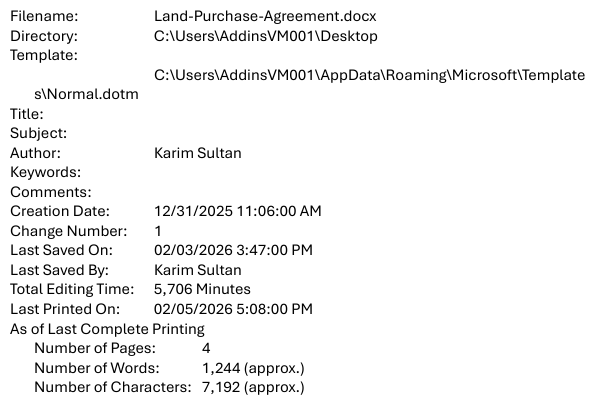
In this tutorial, you’ll learn how to batch print document information from multiple Word documents with two approaches.
Batch print document information using Kutools for Word
Kutools for Word provides a Batch Printing feature that allows you to batch print document information for multiple files at once through a visual interface.
Kutools for Word
Kutools for Word helps you handle everyday document tasks faster with practical tools built right into Microsoft Word—no coding, no complex setup.
- AI writing, polishing, translation, and summarization
- Batch find and replace across documents
- Merge and split Word documents easily
- Batch Word ↔ PDF conversion
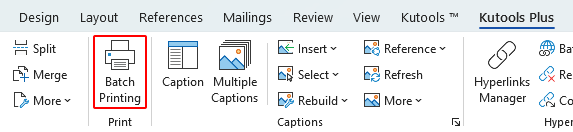
- Open Word and go to the Kutools Plus tab, then click Batch Printing.
- In the Print Specific Pages window, do the following:
- Add the documents you want to print:
- Click Add Files to choose specific Word documents.
- Or click Add Folder to include all documents in a folder and its subfolders.
- Switch to the Document Info tab, and select Document Info under the Print Info section.
- Click Print.
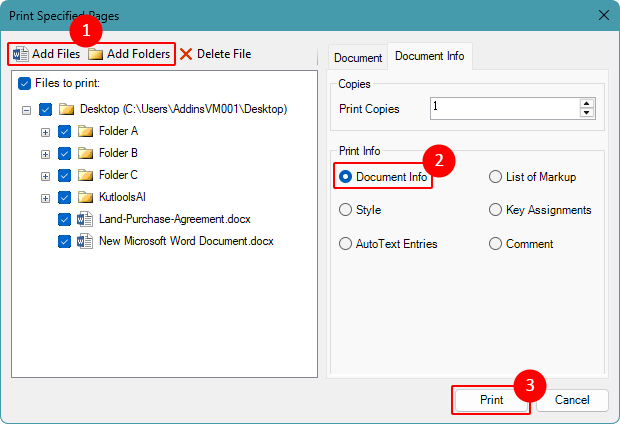 Tip: Other options in the Print Info let you print the list of markup, style, key assignments, AutoText entries, or comments across all documents.
- Add the documents you want to print:
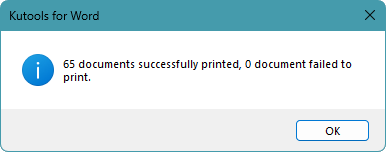
After the batch finishes, Kutools for Word displays a summary window showing how many documents were printed successfully.
Note:
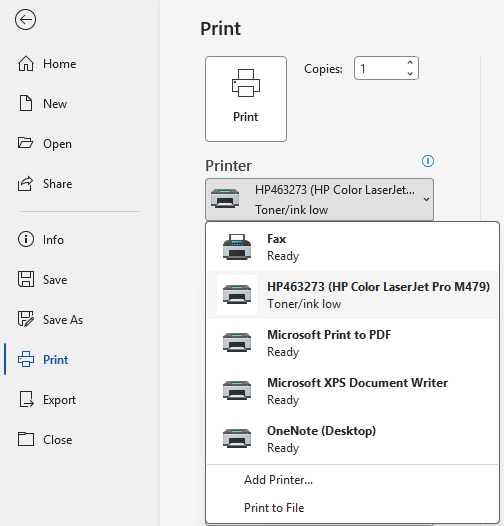
- Batch Printing uses the printer currently selected in Word. If you need to use a different printer, choose it first in File > Print, then run the batch.
Pros
- Easy-to-use interface with clear print options
- Designed specifically for batch printing
- No fixed limit on number of files
- Add files or entire folders quickly
- Good for frequent batch tasks
Cons
- Requires Kutools for Word
Batch print document information using VBA
This approach relies on a simple VBA macro that runs through each document, prints its document information, and moves on to the next one.
- In a new or separate Word document that you do not plan to print, press Alt + F11 to open the VBA editor.
- Click Insert > Module.
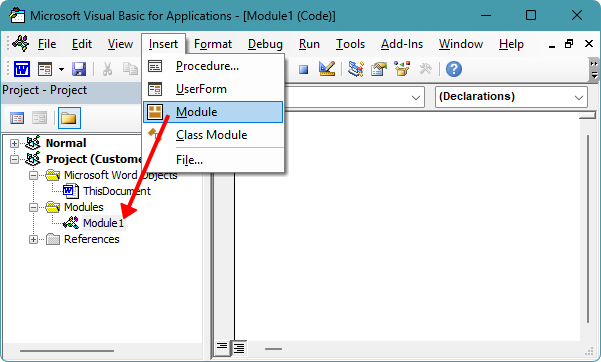
- Paste the macro below into the Module window, then replace
C:\YourFolder\with the path to your own folder.Sub BatchPrintDocumentInformation() Dim folderPath As String Dim fileName As String Dim doc As Document ' Set your folder path here (must end with a backslash) folderPath = "C:\YourFolder\" If Right(folderPath, 1) <> "\" Then folderPath = folderPath & "\" fileName = Dir(folderPath & "*.doc*") Application.ScreenUpdating = False Do While fileName <> "" Set doc = Documents.Open( _ FileName:=folderPath & fileName, _ ReadOnly:=True, _ AddToRecentFiles:=False _ ) doc.PrintOut _ Item:=wdPrintProperties, _ Background:=False doc.Close SaveChanges:=wdDoNotSaveChanges fileName = Dir() Loop Application.ScreenUpdating = True End Sub - Press F5 to run the macro.
The macro prints document information (properties) of each Word document in the specified folder. Documents stored in subfolders are not included.
Notes:
- The macro must run from a separate, non-printed Word document, or the batch will fail.
- Macros must be enabled. If your company blocks macros, this method won’t work.
- This method uses the printer currently selected in Word. If you need to use a different printer, choose it first in File > Print before running the macro.
Pros
- One run prints the whole folder
- No fixed limit on number of files
- Can be customized later (filters, rules, logging)
Cons
- Macros may be disabled by policy
- Requires basic VBA editing
- Large batches may cause Word to slow down temporarily
Conclusion
If you want a quick, visual way to batch print document information, Kutools for Word is the easiest place to start. It handles multiple files through a single interface and avoids manual repetition. For users who prefer a built-in option and don’t mind some setup, a VBA macro provides a more technical but flexible alternative.
I hope you found this tutorial helpful. If you’d like to explore more Word tips and practical solutions, please click here to browse our full collection of Word tutorials.
Best Office Productivity Tools
Kutools for Word - Elevate Your Word Experience
🤖 Kutools AI Features: AI Assistant / Real-Time Assistant / Super Polish (Preserve Format) / Super Translate (Preserve Format) / AI Redaction / AI Proofread...
📘 Document Mastery: Split Pages / Merge Documents / Export Selection in Various Formats (PDF/TXT/DOC/HTML...) / Batch Convert to PDF...
✏ Contents Editing: Batch Find and Replace across Multiple Files / Resize All Pictures / Transpose Table Rows and Columns / Convert Table to Text...
🧹 Effortless Clean: Sweap away Extra Spaces / Section Breaks / Text Boxes / Hyperlinks / For more removing tools, head to the Remove group...
➕ Creative Inserts: Insert Thousand Separators / Check Boxes / Radio Buttons / QR Code / Barcode / Multiple Pictures / Discover more in the Insert group...
🔍 Precision Selections: Pinpoint Specific Pages / Tables / Shapes / Heading Paragraphs / Enhance navigation with more Select features...
⭐ Star Enhancements: Navigate to Any Location / Auto-Insert Repetitive Text / Toggle Between Document Windows / 11 Conversion Tools...
🌍 Supports 40+ Languages: Use Kutools in your preferred language – supports English, Spanish, German, French, Chinese, and 40+ others!

Office Tab - Tabs for Office, Power for You
- Enable tabbed editing and reading in Word, Excel, PowerPoint, Publisher, Access, Visio and Project.
- Open and create multiple documents in new tabs of the same window, rather than in new windows.
- Increases your productivity by 50%, and reduces hundreds of mouse clicks for you every day!

✨ Kutools for Office – One Installation, Five Powerful Tools!
Includes Office Tab Pro · Kutools for Excel · Kutools for Outlook · Kutools for Word · Kutools for PowerPoint
📦 Get all 5 tools in one suite | 🔗 Seamless integration with Microsoft Office | ⚡ Save time and boost productivity instantly
Best Office Productivity Tools
Kutools for Word - 100+ Tools for Word
- 🤖 Kutools AI Features: AI Assistant / Real-Time Assistant / Super Polish / Super Translate / AI Redaction / AI Proofread
- 📘 Document Mastery: Split Pages / Merge Documents / Batch Convert to PDF
- ✏ Contents Editing: Batch Find and Replace / Resize All Pictures
- 🧹 Effortless Clean: Remove Extra Spaces / Remove Section Breaks
- ➕ Creative Inserts: Insert Thousand Separators / Insert Check Boxes / Create QR Codes
- 🌍 Supports 40+ Languages: Kutools speaks your language – 40+ languages supported!
Table of Contents
- Batch print document information with Kutools for Word
- Batch print document information using a VBA macro
- Conclusion
- The Best Office Productivity Tools
Kutools for Word
Brings 100+ advanced features to Word
- 🧩 Overview
- 📥 Free Download
- 🛒 Purchase Now
- 🎁 60-Day Free Trial available