Convert Numbers to Currency Words in Word (Bulk) — English & Chinese
Need to convert number to currency words in Word—so amounts show up as spelled-out text for invoices, contracts, or checks? You’re not alone: Word doesn’t provide a simple built-in way to spell out money values in bulk, especially when a document contains many amounts.
Below are two reliable ways to get it done: (1) an Excel “auto” workflow (VBA to generate currency words, then copy-paste into Word—more setup, and slower), and (2) a faster, few-click Word method using Kutools for Word (best when you want to stay inside Word and convert multiple amounts at once).

💡 Quick Navigation:
What “Currency Words” Means (with Examples)
“Currency words” means converting numeric amounts into a spelled-out format, such as: 1234.56 → “One Thousand Two Hundred Thirty-Four Dollars and Fifty-Six Cents”. This is common in contracts, invoices, checks, purchase orders, and reimbursement documents.
- 1000 → One Thousand Dollars
- 105.2 → One Hundred Five Dollars and Twenty Cents
- 1234.56 → One Thousand Two Hundred Thirty-Four Dollars and Fifty-Six Cents
Method 1 — In Excel: Convert to Currency Words with VBA + Copy-paste into Word
This workflow is useful when your amounts already live in a spreadsheet and you simply want the currency words generated in Excel, then copied into Word in seconds.
Step 1 — Prepare your Excel table
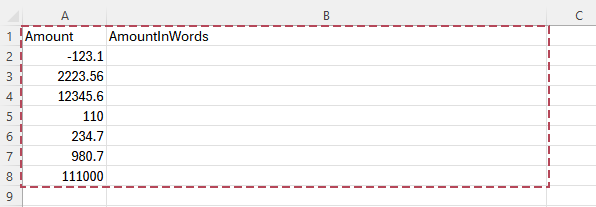
- In Excel, create a table like this: Amount (numbers) and AmountInWords (to be generated).
- Make sure amounts are clean numbers (not text). If needed, convert text to numbers first.
Step 2 — Add a VBA function (UDF) to convert numbers to currency words
- In Excel, press Alt + F11 to open the VBA editor.
- Click Insert > Module.
- Paste the VBA code below into the module.
- Save the file as .xlsm (macro-enabled workbook).
Option Explicit
'Updated by Extendoffice 2026/2/10
Public Function CurrencyWordsUSD(ByVal Amount As Double) As String
    Dim Dollars As Long
    Dim Cents As Long
    Dim sDollars As String
    Dim sCents As String

    If Amount < 0 Then
        CurrencyWordsUSD = "Minus " & CurrencyWordsUSD(Abs(Amount))
        Exit Function
    End If

    Dollars = Fix(Amount)
    Cents = Round((Amount - Dollars) * 100, 0)

    sDollars = NumberToWords(Dollars) & IIf(Dollars = 1, " Dollar", " Dollars")
    sCents = NumberToWords(Cents) & IIf(Cents = 1, " Cent", " Cents")

    If Cents = 0 Then
        CurrencyWordsUSD = sDollars
    Else
        CurrencyWordsUSD = sDollars & " and " & sCents
    End If
End Function

Private Function NumberToWords(ByVal n As Long) As String
    If n = 0 Then
        NumberToWords = "Zero"
        Exit Function
    End If

    NumberToWords = Trim_(ToWords(n))
End Function

Private Function ToWords(ByVal n As Long) As String
    Dim Units As Variant, Tens As Variant
    Units = Array("", "One", "Two", "Three", "Four", "Five", "Six", "Seven", "Eight", "Nine", _
                  "Ten", "Eleven", "Twelve", "Thirteen", "Fourteen", "Fifteen", "Sixteen", "Seventeen", "Eighteen", "Nineteen")
    Tens = Array("", "", "Twenty", "Thirty", "Forty", "Fifty", "Sixty", "Seventy", "Eighty", "Ninety")

    Select Case n
        Case 0 To 19
            ToWords = Units(n)
        Case 20 To 99
            ToWords = Tens(Int(n / 10)) & IIf(n Mod 10 > 0, "-" & Units(n Mod 10), "")
        Case 100 To 999
            ToWords = Units(Int(n / 100)) & " Hundred" & IIf(n Mod 100 > 0, " " & ToWords(n Mod 100), "")
        Case 1000 To 999999
            ToWords = ToWords(Int(n / 1000)) & " Thousand" & IIf(n Mod 1000 > 0, " " & ToWords(n Mod 1000), "")
        Case 1000000 To 999999999
            ToWords = ToWords(Int(n / 1000000)) & " Million" & IIf(n Mod 1000000 > 0, " " & ToWords(n Mod 1000000), "")
        Case Else
            ToWords = ToWords(Int(n / 1000000000)) & " Billion" & IIf(n Mod 1000000000 > 0, " " & ToWords(n Mod 1000000000), "")
    End Select
End Function

Private Function Trim_(ByVal s As String) As String
    Trim_ = Application.WorksheetFunction.Trim(s)
End Function
Step 3 — Fill down to convert multiple numbers (bulk)
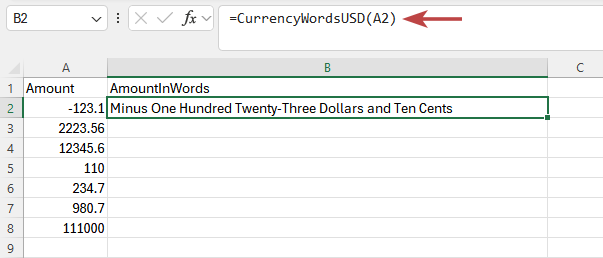
- In your AmountInWords column, enter: =CurrencyWordsUSD(A2) (adjust the cell reference to your sheet).
- Fill down to convert all rows.
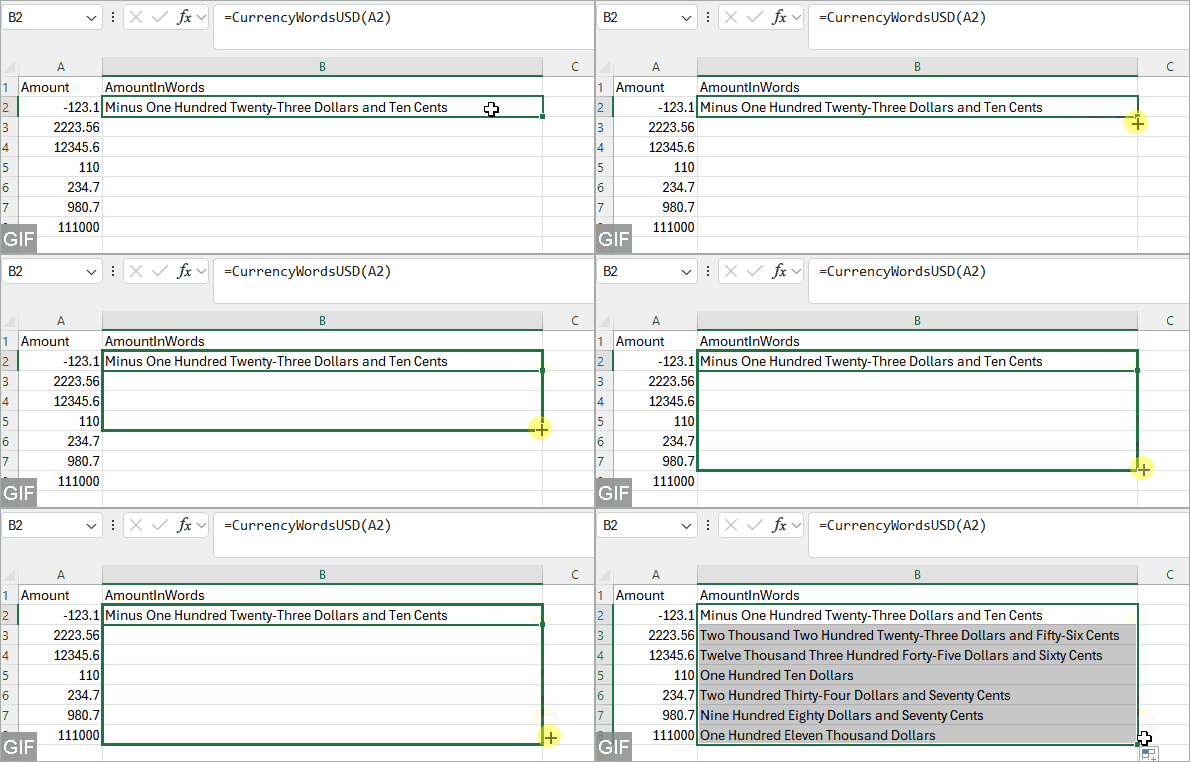
- Optional (recommended): copy the AmountInWords column and paste Values to lock results.

Step 4 — Bring the results into Word (quick copy-paste)
- In Excel, select the Amount and AmountInWords cells you need, then press Ctrl + C.
- In Word, click where you want the results, then press Ctrl + V.
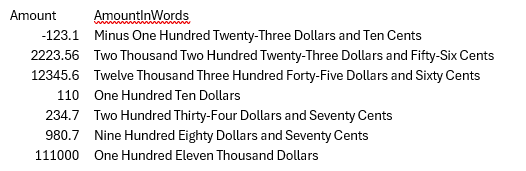
Tip: If the formatting looks messy, choose Keep Text Only (or use Paste Special > Unformatted Text).
- Bulk-friendly in Excel: Convert many amounts to currency words in one fill-down.
- Repeatable template: Reuse the same workbook whenever you need the same wording format.
- Requires macros: You must use a macro-enabled file (.xlsm) and allow VBA to run.
- More steps than Word tools: Build the sheet, run the formula, then move results into Word.
- Not truly “in Word”: Copy-paste can be tedious if you edit amounts often.
- Edge cases need tweaks: Negatives, very large values, or different currency wording may require VBA customization.
Method 2 — In Word: One Click to Convert to Currency Words with Kutools for Word
For the easiest Word-first workflow, Kutools for Word offers two dedicated commands: Numbers to English Currency Words and Numbers to Chinese Currency Words. With a single click, you can convert numbers to currency words directly inside your document.
- Bulk conversion: convert multiple numbers at once (selected content or the whole document).
- Two language outputs: English currency words and Chinese currency words.
- Fast edits: ideal for contracts, invoices, and templates that change often.
Convert numbers to English currency words (bulk)
After downloading and installing Kutools for Word from the official website, do the following:
- In Word, select the text that contains the numbers you want to convert.
Tip: If you don’t select anything, you can apply the tool to the entire document.
- Click Kutools > Insert > Numbers to English Currency Words.
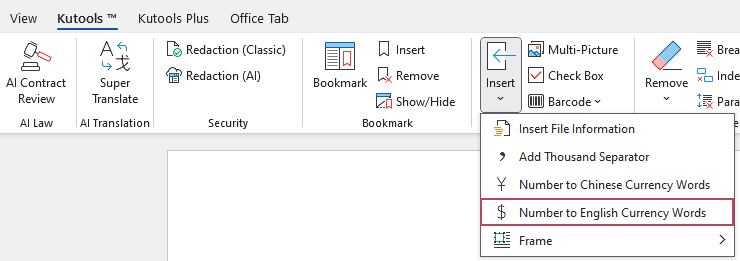
Result: Kutools instantly replaces the numbers with English currency words in the selected content (or across the whole document).
Convert numbers to Chinese currency words (bulk)
After downloading and installing Kutools for Word from the official website, do the following:
- In Word, select the text that contains the numbers you want to convert to Chinese currency words.
Tip: If you don’t select anything, the tool will convert numbers in the entire document.
- Click Kutools > Insert > Numbers to Chinese Currency Words.
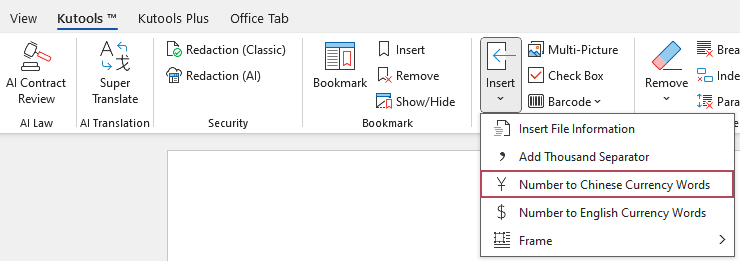
Result: Kutools instantly replaces the numbers with Chinese currency words in the selected content (or across the whole document).
- One-click: converts numbers to currency words instantly
- Supports a selection or the whole document
- No formulas, VBA, or manual typing
- Great for invoices, contracts, and financial documents
- Consistent formatting across long documents
Excel vs Kutools Comparison
| Factor | Method 1: Excel (VBA + Copy-paste) | Method 2: Kutools for Word |
|---|---|---|
| Best for | Amounts already in Excel; you want to generate words in bulk, then paste results into Word. | Word-first editing; converting multiple amounts directly inside a Word document. |
| Setup | Requires a macro-enabled workbook (.xlsm) and enabling VBA. | No VBA setup—use the built-in Kutools commands in Word. |
| How it works | Excel converts numbers to currency words; you copy-paste the results into Word. | Word converts numbers to currency words in place (selected content or whole document). |
| Speed in Word | Slower if your Word amounts change often (you must regenerate in Excel and paste again). | Fastest for edits—run the command again whenever amounts change. |
| Bulk conversion | Yes (fill down for many rows in Excel). | Yes (convert multiple amounts at once in Word). |
| Output options | Depends on your VBA (currency labels, rounding rules, “and” style, negatives). | Two dedicated tools: English currency words and Chinese currency words. |
Summary: For the fastest Word-first workflow, use Kutools for Word to convert multiple amounts to currency words in a few clicks (selection or whole document). Choose Excel VBA only if you’re already working in Excel and don’t mind extra setup.
Troubleshooting
- Decimals look wrong: Make sure the amount is a real number (not text). If needed, round in Excel (or in your VBA) so cents follow your rule (for example, always 2 digits).
- Mixed content (IDs, dates, phone numbers): In Word, convert only the section that contains currency amounts. If you’re using Kutools, select the relevant text/table cells first.
- Blank or missing words after pasting into Word: In Excel, copy the AmountInWords column and use Paste Special > Values to lock results before you paste.
FAQ
Can Word convert numbers to currency words without add-ins?
Word doesn’t provide a simple built-in command to convert numbers to currency words in bulk. A no-add-in workaround is to generate the currency words in Excel (using VBA), then copy-paste the results into Word.
How do I convert multiple numbers at once in Word?
Use a tool that supports bulk conversion inside Word. With Kutools for Word, you can convert the selected content (or the whole document) using Numbers to English Currency Words or Numbers to Chinese Currency Words.
Does this work for English and Chinese currency words?
Yes. Kutools for Word includes two dedicated commands: one converts numbers to English currency words, and another converts numbers to Chinese currency words. This is especially helpful for bilingual invoices, contracts, and templates.
What’s the best method for invoices and contracts?
For most invoices and contracts, Kutools for Word is the easiest choice because you stay in Word and finish in a few clicks: select the content (or run it on the whole document), then use Numbers to English Currency Words or Numbers to Chinese Currency Words to convert multiple amounts at once.
If your amounts start in Excel and you want a spreadsheet-driven workflow, the Excel VBA method can work—but it requires macros and a copy-paste step.
How do I avoid converting dates, IDs, or phone numbers by mistake?
To stay safe, convert only a selection (the specific paragraphs, table cells, or sections that contain currency amounts). If your document mixes many types of numbers, limiting the selection reduces accidental conversions.
Best Office Productivity Tools
Kutools for Word - Elevate Your Word Experience with Over 100 Remarkable Features!
🤖 Kutools AI Features: AI Assistant / Real-Time Assistant / Super Polish (Preserve Format) / Super Translate (Preserve Format) / AI Redaction / AI Proofread...
📘 Document Mastery: Split Pages / Merge Documents / Export Selection in Various Formats (PDF/TXT/DOC/HTML...) / Batch Convert to PDF...
✏ Contents Editing: Batch Find and Replace across Multiple Files / Resize All Pictures / Transpose Table Rows and Columns / Convert Table to Text...
🧹 Effortless Clean: Sweap away Extra Spaces / Section Breaks / Text Boxes / Hyperlinks / For more removing tools, head to the Remove group...
➕ Creative Inserts: Insert Thousand Separators / Check Boxes / Radio Buttons / QR Code / Barcode / Multiple Pictures / Discover more in the Insert group...
🔍 Precision Selections: Pinpoint Specific Pages / Tables / Shapes / Heading Paragraphs / Enhance navigation with more Select features...
⭐ Star Enhancements: Navigate to Any Location / Auto-Insert Repetitive Text / Toggle Between Document Windows / 11 Conversion Tools...
🌍 Supports 40+ Languages: Use Kutools in your preferred language – supports English, Spanish, German, French, Chinese, and 40+ others!

Office Tab - Brings Tabbed interface to Office, Make Your Work Much Easier
- Enable tabbed editing and reading in Word, Excel, PowerPoint, Publisher, Access, Visio and Project.
- Open and create multiple documents in new tabs of the same window, rather than in new windows.
- Increases your productivity by 50%, and reduces hundreds of mouse clicks for you every day!
✨ Kutools for Office – One Installation, Five Powerful Tools!
Includes Office Tab Pro · Kutools for Excel · Kutools for Outlook · Kutools for Word · Kutools for PowerPoint
📦 Get all 5 tools in one suite | 🔗 Seamless integration with Microsoft Office | ⚡ Save time and boost productivity instantly
Best Office Productivity Tools
Kutools for Word - 100+ Tools for Word
- 🤖 Kutools AI Features: AI Assistant / Real-Time Assistant / Super Polish / Super Translate / AI Redaction / AI Proofread
- 📘 Document Mastery: Split Pages / Merge Documents / Batch Convert to PDF
- ✏ Contents Editing: Batch Find and Replace / Resize All Pictures
- 🧹 Effortless Clean: Remove Extra Spaces / Remove Section Breaks
- ➕ Creative Inserts: Insert Thousand Separators / Insert Check Boxes / Create QR Codes
- 🌍 Supports 40+ Languages: Kutools speaks your language – 40+ languages supported!
Table of contents
- What “Currency Words” Means (with Examples)
- Method 1 — In Excel: VBA + Copy-paste
- Method 2 — In Word: Kutools for Word
- Convert numbers to English currency words (bulk)
- Convert numbers to Chinese currency words (bulk)
- Excel vs Kutools Comparison
- Troubleshooting
- FAQ
- The Best Office Productivity Tools
Kutools for Word
Brings 100+ advanced features to Word
- ⬇️ Free Download
- 🛒 Purchase Now
- 📘 Feature Tutorials
- 🎁 60-Day Free Trial