How to Split a Word Document by Word Count (3 Easy Ways)
When working with a long Word document, you may need to divide it into smaller files based on a specific word count. For example, you may want to split a report every 2,000 words for easier editing, reviewer distribution, publishing requirements, or translation work.
Microsoft Word does not include a built-in command for splitting documents by word count. However, there are still several effective ways to do it. In this tutorial, we’ll show you how to manually split a document using Word Count, how to automate the process with VBA, and how to directly split documents by word count using Kutools for Word.
- Manually split a Word document using Word Count
- Automatically split a Word document by word count using VBA
- Directly split a Word document by word count with Kutools
- Which method should you use?
- Conclusion
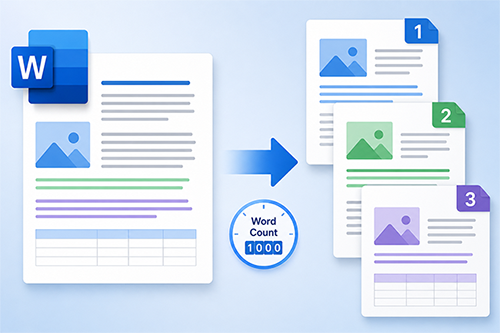
Manually split a Word document using Word Count
If you only need to split a document once or twice, or you want complete control over where each split occurs, manually dividing the document can be the simplest option. This method works best for short or medium-length documents where formatting and content placement are more important than automation.

Office Tab
Tabbed navigation for Word, Excel, PowerPoint, and more—just like a web browser, with smooth switching in one window.
💡 When is manual splitting better?
This method is usually better when the document is not very large and you need precise control over the split locations. For example, you may want to avoid splitting tables, keep images with related paragraphs, start a new document at a specific sentence or heading, or review the content carefully while splitting. In these situations, manual splitting is often safer and more accurate than automatic splitting.
- Open the Word document you want to split.
- Look at the status bar at the bottom of the Word window to see the current word count.
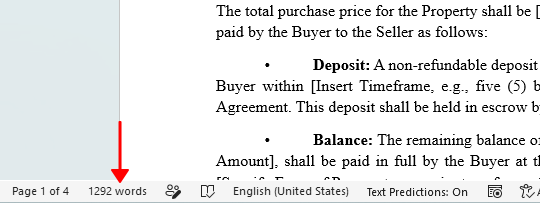
💡 Tip:
If the word count does not appear on the status bar, right-click the status bar and enable Word Count.
- Decide how many words you want each split document to contain.
- Select the first portion of the document manually. While selecting text, Word will display the selected word count on the status bar.
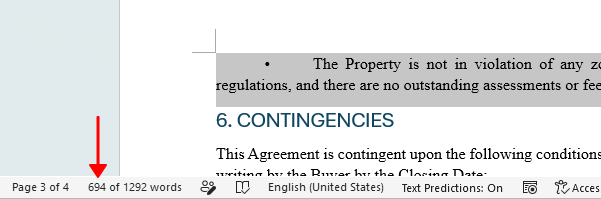
💡 Tip:
Place the cursor where the split should begin, then hold Shift and click where you want it to end. Word automatically updates the selected word count on the status bar. If the count is not satisfied, hold Shift again and click slightly before or after the current position to adjust the selection.
- Press Ctrl + X to cut the selected content, or Ctrl + C to copy it.
- Create a new Word document, then press Ctrl + V to paste the content.
- Save the new document.
- Repeat the same process for the remaining sections of the original document.
📝 Note:
This method is suitable when you only need to make a few splits, such as dividing a document into 2 or 3 parts. If you need to split a large document into many files regularly, using VBA or Kutools for Word will be much faster.
Pros
- Full control over formatting and split locations
- No add-ins or macros required
Cons
- Time-consuming when splitting a document into many files
- Not practical for repeated workflows
- Requires manual checking of word counts
Automatically split a Word document by word count using VBA
If you regularly work with large documents or need to create multiple files based on a fixed word count automatically, VBA provides a practical automated solution. The macro below creates a new document whenever the specified word limit is reached.
- Open the Word document you want to split.
- Press Alt + F11 to open the VBA editor.
- In the VBA editor, click Insert > Module.
- Copy and paste the following VBA code into the module:
Sub SplitDocumentByWordCount()

    Dim SourceDoc As Document
    Dim NewDoc As Document
    Dim Para As Paragraph
    Dim CurrentRange As Range
    Dim OutputFolder As String
    Dim WordLimit As Long
    Dim CurrentWords As Long
    Dim PartNumber As Long

    Set SourceDoc = ActiveDocument

    WordLimit = 2000
    OutputFolder = SourceDoc.Path & "\Split_Documents\"

    If Dir(OutputFolder, vbDirectory) = "" Then
        MkDir OutputFolder
    End If

    Set NewDoc = Documents.Add
    CurrentWords = 0
    PartNumber = 1

    For Each Para In SourceDoc.Paragraphs

        Set CurrentRange = Para.Range

        NewDoc.Range.InsertAfter CurrentRange.Text

        CurrentWords = CurrentWords + _
        CurrentRange.ComputeStatistics(wdStatisticWords)

        If CurrentWords >= WordLimit Then

            NewDoc.SaveAs2 _
            FileName:=OutputFolder & "Part_" & PartNumber & ".docx", _
            FileFormat:=wdFormatXMLDocument

            NewDoc.Close

            PartNumber = PartNumber + 1
            CurrentWords = 0

            Set NewDoc = Documents.Add

        End If

    Next Para

    If NewDoc.Range.ComputeStatistics(wdStatisticWords) > 0 Then

        NewDoc.SaveAs2 _
        FileName:=OutputFolder & "Part_" & PartNumber & ".docx", _
        FileFormat:=wdFormatXMLDocument

        NewDoc.Close

    End If

    MsgBox "The document has been split successfully."

End Sub
💡 Tip: Change WordLimit = 2000 to your preferred word count limit.
- Press F5 in the module to run the macro.
- The split documents will be saved automatically in a folder named Split_Documents in the same location as the original file.
📝 Notes:
- Save your original document before running the macro.
- The macro splits content by paragraphs, so the actual word count may slightly exceed the limit if a paragraph crosses the split point.
- This VBA method may not preserve formatting such as headings, bold text, images, tables, headers, or footers. If formatting matters, use the manual method or Kutools for Word instead.
Pros
- Automatically splits documents by word count
- Better for splitting large documents into many parts
- Useful for repeated workflows
Cons
- Requires macros to be enabled
- Does not preserve formatting such as headings, bold text, tables, images, headers, or footers
- Less beginner-friendly than GUI tools
Directly split a Word document by word count with Kutools for Word
Kutools for Word provides a much easier way to split a document directly by word count without using VBA. Its Split feature allows you to automatically create a new document every specified number of words while optionally preserving paragraphs.
This method is ideal when you need to split a formatted Word document into multiple parts and want the output files to look as close to the original document as possible.
Kutools for Word
Kutools for Word helps you handle everyday document tasks faster with practical tools built right into Microsoft Word—no coding, no complex setup.
- AI writing, polishing, translation, and summarization
- Batch find and replace across documents
- Merge and split Word documents easily
- Batch Word ↔ PDF conversion
- Open the Word document you want to split.
- Click Kutools Plus > Split.
- In the Split Document dialog, choose By Word Count from the Split by drop-down list.
- Enter the desired word interval.
- Optionally check Avoid splitting paragraphs if you do not want paragraphs to be divided between documents.
- Specify a filename prefix if needed.
- Choose the folder where you want to save the split documents.
- Click Split.
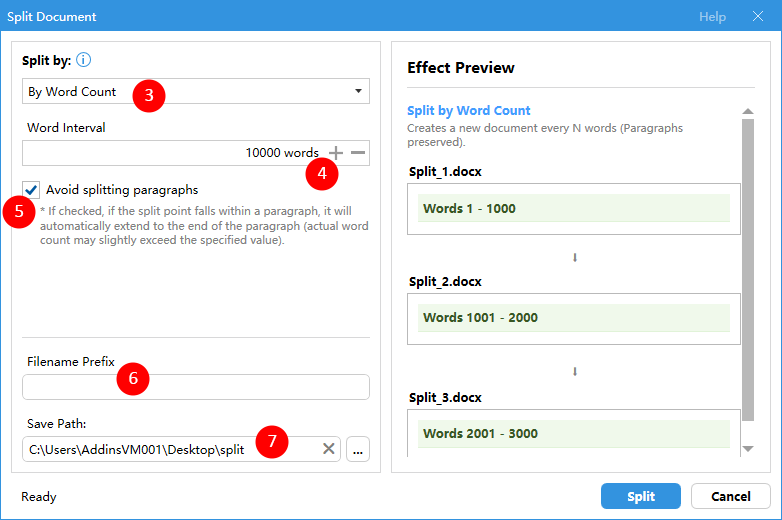
Separate Word documents will be created automatically based on the specified word count.
Pros
- Directly splits documents by word count
- Preserves document layout and formatting
- Very fast and beginner-friendly
Cons
- Requires installing Kutools for Word
Which method should you use?
| Method | Best for | Limitations |
|---|---|---|
| Manual splitting using Word Count | Splitting a document into a few parts while keeping formatting and controlling split locations | Slow for many splits |
| VBA automation | Automatically splitting large documents into many files | Does not preserve formatting |
| Kutools for Word | Splitting documents by word count while preserving formatting, with optional paragraph protection | Requires installing Kutools for Word Download |
Conclusion
If you only need to split a document into a few parts and want full control over formatting and split locations, the manual method is usually enough. For splitting large documents into many files automatically, VBA can save time, but it does not preserve formatting reliably. If you want an easier solution that splits documents by word count while preserving formatting, Kutools for Word offers a direct word-count splitting feature with a simple graphical interface, making it the most convenient solution for most users.
I hope you found this tutorial helpful. If you’d like to explore more Word tips and practical solutions, please click here to browse our full collection of Word tutorials.
Best Office Productivity Tools
Kutools for Word - Elevate Your Word Experience
🤖 Kutools AI Features: AI Assistant / Real-Time Assistant / Super Polish (Preserve Format) / Super Translate (Preserve Format) / AI Redaction / AI Proofread...
📘 Document Mastery: Split Pages / Merge Documents / Export Selection in Various Formats (PDF/TXT/DOC/HTML...) / Batch Convert to PDF...
✏ Contents Editing: Batch Find and Replace across Multiple Files / Resize All Pictures / Transpose Table Rows and Columns / Convert Table to Text...
🧹 Effortless Clean: Sweap away Extra Spaces / Section Breaks / Text Boxes / Hyperlinks / For more removing tools, head to the Remove group...
➕ Creative Inserts: Insert Thousand Separators / Check Boxes / Radio Buttons / QR Code / Barcode / Multiple Pictures / Discover more in the Insert group...
🔍 Precision Selections: Pinpoint Specific Pages / Tables / Shapes / Heading Paragraphs / Enhance navigation with more Select features...
⭐ Star Enhancements: Navigate to Any Location / Auto-Insert Repetitive Text / Toggle Between Document Windows / 11 Conversion Tools...
🌍 Supports 40+ Languages: Use Kutools in your preferred language – supports English, Spanish, German, French, Chinese, and 40+ others!

Office Tab - Tabs for Office, Power for You
- Enable tabbed editing and reading in Word, Excel, PowerPoint, Publisher, Access, Visio and Project.
- Open and create multiple documents in new tabs of the same window, rather than in new windows.
- Increases your productivity by 50%, and reduces hundreds of mouse clicks for you every day!

✨ Kutools for Office – One Installation, Five Powerful Tools!
Includes Office Tab Pro · Kutools for Excel · Kutools for Outlook · Kutools for Word · Kutools for PowerPoint
📦 Get all 5 tools in one suite | 🔗 Seamless integration with Microsoft Office | ⚡ Save time and boost productivity instantly
Best Office Productivity Tools
Kutools for Word - 100+ Tools for Word
- 🤖 Kutools AI Features: AI Assistant / Real-Time Assistant / Super Polish / Super Translate / AI Redaction / AI Proofread
- 📘 Document Mastery: Split Pages / Merge Documents / Batch Convert to PDF
- ✏ Contents Editing: Batch Find and Replace / Resize All Pictures
- 🧹 Effortless Clean: Remove Extra Spaces / Remove Section Breaks
- ➕ Creative Inserts: Insert Thousand Separators / Insert Check Boxes / Create QR Codes
- 🌍 Supports 40+ Languages: Kutools speaks your language – 40+ languages supported!
Table of Contents
- Manually split a Word document using Word Count
- Automatically split a Word document by word count using VBA
- Directly split a Word document by word count with Kutools
- Which method should you use?
- Conclusion
- The Best Office Productivity Tools
Kutools for Word
Brings 100+ advanced features to Word
- 🧩 Overview
- 📥 Free Download
- 🛒 Purchase Now
- 🎁 60-Day Free Trial available